Connection management
After you create a 5G Cloud Connect (CC5G) instance, you can add Internet of Things (IoT) cards to the instance. An IoT device that uses one of these cards can then privately access Alibaba Cloud.
Purchase IoT cards
Log on to the 5G Cloud Connect console.
On the Instance List page, find the target CC5G instance. In the Operation column, click Purchase IoT Card.
If your account has not completed enterprise identity verification, you are redirected to the enterprise verification page. Enter your enterprise name, contact name, phone number, address, industry, certificate type, and certificate number. Upload your enterprise certificate, letter of authorization, and the handler's ID certificate. Before you upload the letter of authorization, download the template. Fill out the template, affix the official company seal, and then upload it. The handler's ID certificate must also be stamped with the official company seal before you upload it.
On the Purchase IoT Card page, select a Specification Type, enter the Quantity, and click Purchase.
On the Confirm Order tab, enter the Shipping Address, agree to the Terms of Service, and click Pay.
Order management
After you purchase IoT cards, you can use Order Management to query the logistics details of your order.
Log on to the 5G Cloud Connect console.
On the Instance List page, find the target CC5G instance and click the instance ID.
Click the Connection Management tab and then click the Order Management tab. Find the target order. You can view the order number, order creation time, payment/activation time, logistics status, and logistics tracking number.
CC5G supports IoT cards of various materials and specifications, such as consumer-grade IoT card (standard), consumer-grade IoT card (2-in-1), consumer-grade IoT card (3-in-1), consumer-grade IoT card (embedded), industrial-grade IoT card (standard), industrial-grade IoT card (Micro), industrial-grade IoT card (Nano), and industrial-grade IoT card (embedded).
Material | Specification | Description | Performance |
Consumer-grade | Consumer-grade IoT card--Standard | Supported on standard card-sized devices. | Supports 100,000 read/write cycles. Operating temperature: -25 degrees Celsius to +85 degrees Celsius. |
Consumer-grade IoT--2-in-1 | For use in devices that support standard and micro-sized cards. | ||
Consumer-grade IoT--3-in-1 | For use in devices that support standard, micro, and nano-sized cards. | ||
Consumer-grade IoT--Embedded card | Available in 5 mm × 6 mm size. | ||
Industrial-grade | Industrial-grade IoT card--Standard | Compatible with devices that accept standard-sized cards. | Made of industrial-grade materials. Supports 500,000 read/write cycles. Operating temperature: -40 degrees Celsius to +105 degrees Celsius. |
Industrial-grade IoT card--Micro | Can be used on micro card-sized devices. | ||
Industrial-grade IoT card--Nano | Supported on devices that use nano SIM cards. | ||
Industrial-grade IoT card--Embedded card | Available in 5 mm × 6 mm size. |
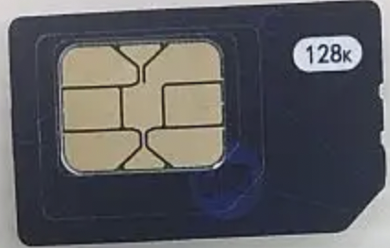
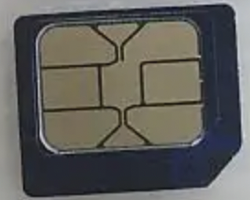
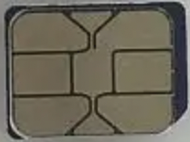
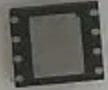
The dimensions and photos of different card specifications are as follows:
Specification | Dimensions (mm) | Photo |
Standard card | 25 × 15 |
|
Micro card | 15 × 12 |
|
Nano card | 12.3 × 8.8 |
|
5 mm × 6 mm embedded card | 5 × 6 |
|
Manage cards in use
After you purchase IoT cards, you can query the status of the cards that are in use for an instance.
Log on to the 5G Cloud Connect console.
On the Instance List page, find the target CC5G instance and click the instance ID.
Click the Connection Management tab and then click the In Use tab. You can view the ICCID, IP address, carrier, used traffic, network type, status, activation time, International Mobile Equipment Identity (IMEI), and International Mobile Subscriber Identity (IMSI) of the IoT cards in the instance. You can also add descriptions to the IoT cards.
Unregister IoT cards
Log on to the 5G Cloud Connect console.
On the Instance List page, find the target instance and click Connection Management.
Select the checkboxes next to the IoT cards that you want to unregister, and then click Unregister.