Enterprise Management best practices
Enterprise Management provides a centralized, one-stop cloud solution for managing multiple Alibaba Cloud accounts. After you enable or upgrade to Enterprise Management, you can use this solution to centrally manage accounts, allocate resources, and consolidate finance operations, which improves the operational efficiency and security of your enterprise.
Product overview
Enterprise Multi-account Management Service, also known as Enterprise Account Center or Enterprise Management, provides a centralized, one-stop multi-account management solution for enterprises.
As an enterprise administrator, you can create organizations and accounts, manage and authorize accounts, and configure finance-related permissions and sharing policies.
You can also invite other enterprises, establish relationships between enterprises, and manage accounts across enterprises.
Terms
For definitions of the terms used in this topic, see Enterprise Multi-account Management.
Scenarios
Enterprise Management supports common business operations between different accounts within the same enterprise and across enterprises:
Centralized management within an enterprise: Establish organizational relationships between different accounts in the same enterprise, and configure finance-related permissions and sharing policies for those accounts.
Centralized management across enterprises: Establish organizational relationships across enterprises and configure account management. This feature is under development.
Account management supports the following scenarios within an enterprise:
Multi-level management: Create a tree-structured hierarchy of organizational groups based on your management requirements, and add existing accounts to these groups or quickly create new accounts.
Multi-role management: Create custom roles based on your management requirements to achieve fine-grained and batch permission management.
Multi-account management: Manage member accounts by moving accounts, freezing or unfreezing logons, granting permissions, or removing management relationships. This enables fine-grained control at different levels, such as departments and project teams.
Enterprise addresses and contacts: Add multiple addresses, such as home and company addresses, and contacts for all member accounts to view and use. Member accounts can use these addresses to receive physical materials such as Alibaba Cloud contracts and bills, which enables fine-grained and flexible address management.
Business operations support the following scenarios within an enterprise:
Shared credit control: If the management account of an enterprise has a postpaid credit limit granted to a large customer, you can allocate the credit limit to one or more member accounts managed under the same enterprise entity. When a management relationship is removed, the remaining unused credit limit does not have to be reclaimed. This enables credit control sharing within the enterprise.
Payer-based settlement: Set a payer account for an account. Payments for orders or bills are then deducted from the configured payer account.
Resource sharing: Consolidate the business usage generated by individual accounts into a specified account to share minimum-spend discounts, reserved instance vouchers, Savings Plans, resource plans, and Storage Capacity Units.
Centralized fund management: Use one account to centrally manage top-ups, cash, and vouchers for all other accounts. You can generate custom vouchers, allow one or more specified accounts to share a voucher, and reclaim the remaining voucher balance.
Unified payments: Use one account to make consolidated payments across multiple accounts.
Unified billing: Use one account to obtain the bills of all other accounts, or consolidate multiple bills from multiple accounts into one bill.
Unified invoicing: Use one account to obtain the invoices of all other accounts, or merge multiple invoices from multiple accounts into one invoice.
Cost tracking: Use one account to plan cloud costs and configure cost alerts across multiple accounts.
Cost visibility: Use one account to analyze costs across multiple accounts.
Cost optimization: Use one account to obtain cloud cost recommendations for all other accounts.
Prerequisites
Before you perform the operations described in this topic, complete the following preparations:
Register an Alibaba Cloud account and complete enterprise identity verification. You can view the identity verification information of your account.
Enable Enterprise Multi-account Management Service. For the procedure, see Enable Enterprise Management in this topic.
Only accounts that have completed enterprise identity verification can enable Enterprise Management. For more information, see Complete enterprise identity verification or Change individual identity verification to enterprise identity verification.
If you used the previous Enterprise Financial Cloud, you must upgrade to Enterprise Management. For more information, see Announcement on the upgrade of enterprise finance features.
Solutions
The following figure shows the Enterprise Management solution.
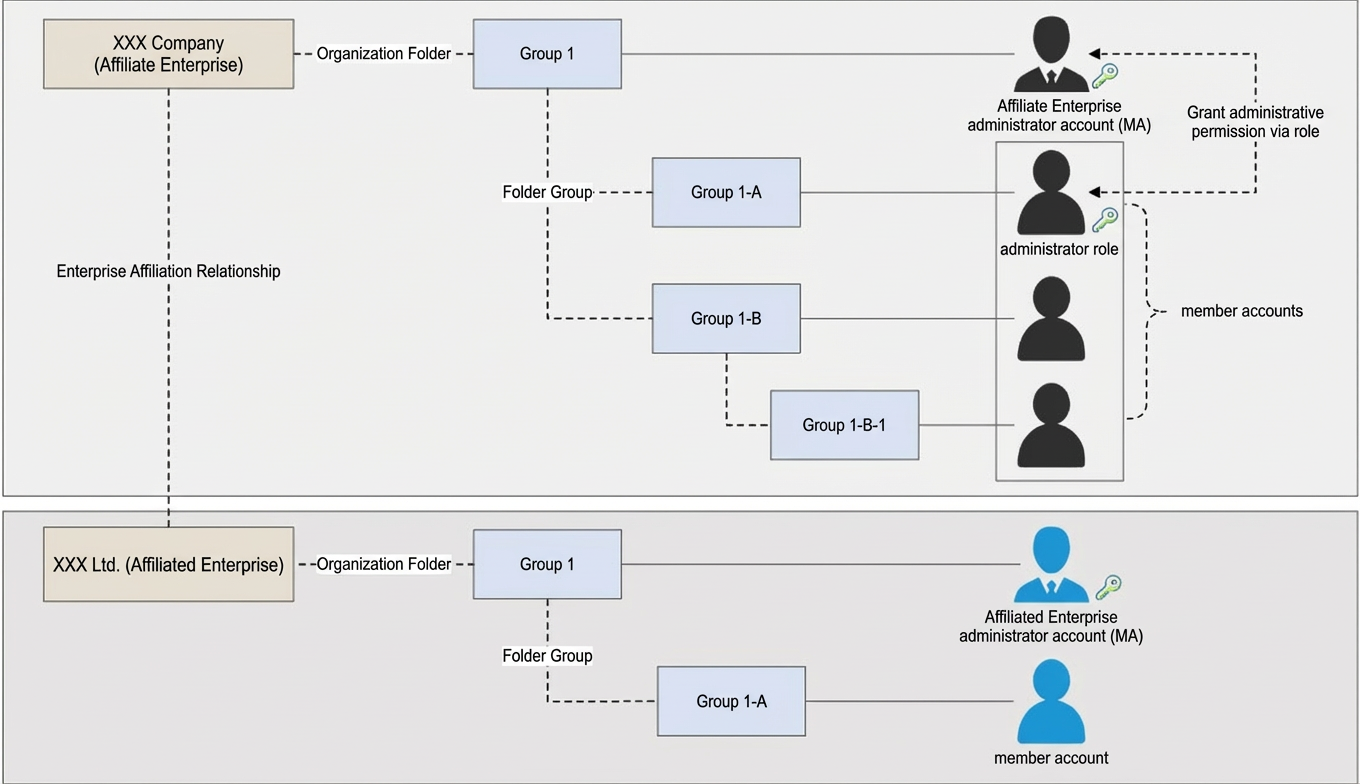
The enterprise relationship feature is under development.
Core operations
Enable Enterprise Management
Before you manage enterprise accounts, enable a management account:
In Account Center, go to the enterprise real-name information page and select the Enable Enterprise Management tab.
Enter the administrator account information, upload the Letter of Authorization for Enabling an Enterprise Administrator Account, and complete SMS and facial recognition verification.
After Alibaba Cloud approves your application, Enterprise Management is enabled.
For more information, see Enable Enterprise Multi-account Management Service.
The management account has all view and management permissions for the enterprise. These permissions cannot be revoked.
If you own the management account, you can use it to perform various management tasks, such as managing member accounts, configuring payer accounts, managing enterprise relationships, and managing role permissions.
We strongly recommend that you do not use the management account to purchase resources directly. This prevents the risks caused by mixed permissions.
Account management
The administrator account can perform operations on a member account, such as modifying account information, granting role permissions, and configuring a payer account, only after a management relationship is established. Without a management relationship, the administrator account cannot perform any management operations on the member account.
As an administrator, you log on to Enterprise Account Center to manage accounts:
Create an account: Create a new account. The new account uses the identity verification information of its enterprise and is automatically added to its organizational group, where it is managed by the group administrator. For more information, see Create an account.
Invite an account: The administrator account invites an existing enterprise member account to be managed. After the member account accepts the invitation, a management relationship is established between the two accounts. For more information, see Invite an account.
Modify an account: Modify the secure phone, email address, password, and display name of an account. For more information, see Modify account information.
Authorize an account: Authorize an account as an administrator, or grant the account the permissions of a specified role. For more information, see Authorize an account.
Configure a payer account: Configure a dedicated account to handle all payments and settlements for the current account. A payer account allows an enterprise to centrally manage expenses for multiple member accounts or projects, which improves financial management efficiency. For more information, see Configure a payer account.
Multi-level management
Use Account Groups to implement multi-level management. You can create tree-structured organizational nodes based on your management requirements, add existing accounts, or quickly create new accounts:
Create an organizational node: Add a node to the organizational hierarchy. For more information, see Create a group.
Modify an organizational node: Rename an organizational node or move it within the organizational hierarchy. For more information, see Manage a group.
Delete an organizational node: Remove a node from the organizational hierarchy. The accounts in the deleted node are moved to the default organizational node. For more information, see Delete a group.
Account Groups currently support up to five levels.
Multi-role management
Use Roles and Permissions to implement multi-role management. You can create custom roles based on your management requirements to manage fine-grained permissions in batches:
Role configuration: Create custom roles, or modify and delete existing custom roles. For more information, see Manage custom roles.
Default roles: These roles exist by default after you enable Enterprise Management or upgrade to Enterprise Management from the previous Financial Cloud. For more information, see Default roles.
Permission list: View the fine-grained permissions supported by User Center. For more information, see Permission list.
The Finance Master Account role in the previous enterprise finance system corresponds to the Basic Financial Administrator default role.
The Financial Management Sub-account role in the previous enterprise finance system corresponds to the Basic Financial Member default role.
Business operations
Resource sharing
Compared with the business usage generated under individual accounts, resource sharing reduces costs for projects, departments, or companies.
To use resource sharing, your enterprise must enable Enterprise Management. Go to the Resource Sharing page and configure the accounts and resource information that you want to share. Business usage across accounts is then automatically consolidated for billing. For more information, see Share resources.
Centralized fund management
Use Unified Asset Management for centralized fund management. You can use one account to manage the top-ups, cash, vouchers, and other funds of all other accounts. For more information, see Financial Asset Management.
Voucher Quota Pool
Use the Voucher Quota Pool to manage vouchers on a self-service basis. From one account, you can manage the vouchers of all other accounts, including generating vouchers, sharing one voucher with multiple accounts, and reclaiming voucher balances. For more information, see Voucher Quota Pool.
Unified payments
Use Unified Settlement to make payments easily. From one account, you can make consolidated payments across multiple accounts. For more information, see Unified settlement and invoicing.
Unified billing
Use Billing Management for unified billing. From one account, you can obtain the bills of all other accounts, or consolidate multiple bills from multiple accounts into one bill:
Obtain stamped PDF bills across accounts. For more information, see Monthly bill overview.
Obtain consumption data across accounts by order number, bill number, instance, billing item, and other dimensions. For more information, see Billing details.
Unified invoicing
Use Request Invoice for unified invoicing. From one account, you can obtain the invoices of all other accounts. Alternatively, go to the Unified Settlement page and use Combined Invoicing to merge multiple invoices from multiple accounts into one invoice. For more information, see Unified settlement and invoicing.
Cost tracking
Use Budget Management for cost tracking. From one account, you can plan cloud costs and configure cost alerts across multiple accounts. For more information, see Budget Management.
Cost visibility
Use Cost Analysis for cost visibility. From one account, you can analyze costs across multiple accounts. For more information, see Cost Analysis.
On the Cost Analysis page, select Amortized Cost - Payable from the Cost Type list to view amortized costs allocated to calendar months based on the specified allocation rules. This feature is available only to whitelisted users. For more information, see Amortized cost.
Cost optimization
Use Cost Optimization for cost optimization. From one account, you can obtain cloud cost recommendations for all other accounts. For more information, see Cost Optimization.