Create a simple data processing task using built-in operators
This topic describes how to build a simple cloud-based data pre-processing flow for autonomous driving using the built-in operators in autonomous driving data management.
Video tutorial for this topic
This video shows how to create a simple data processing task.
Create a task data source (Resource Management)
In the upper-right corner, click Resource Management.
In the Create Cloud Resource form, enter the required information and click Confirm. The key parameters are described as follows:
Specify a custom identifier and name for the cloud resource.
Select an authorized product and set the storage class to OSS. Obtain the Endpoint, Bucket, and other parameters from your OSS account and enter them in the form.
For more information about OSS Endpoints, Buckets, and how to obtain an AccessKey, see the OSS documentation.
Figure 1. Example of configuring an OSS data source
Create a data processing task
After you create the cloud resource, you can create a data processing task that uses the resource as its data source. The steps are as follows:
In the task flow list, click Add Task to create a data processing task.
From System Nodes, drag a compute node to the canvas. In the configuration pane that appears on the right, specify the required parameters. For more information about the properties of each node, see Task configuration.
Repeat the previous step to add all required compute nodes to the canvas. Then, connect the nodes.
At the top of the canvas, click Deploy. The task runs according to the schedule that you configured.
To run a task immediately or outside of its regular schedule, click Run at the top of the canvas.
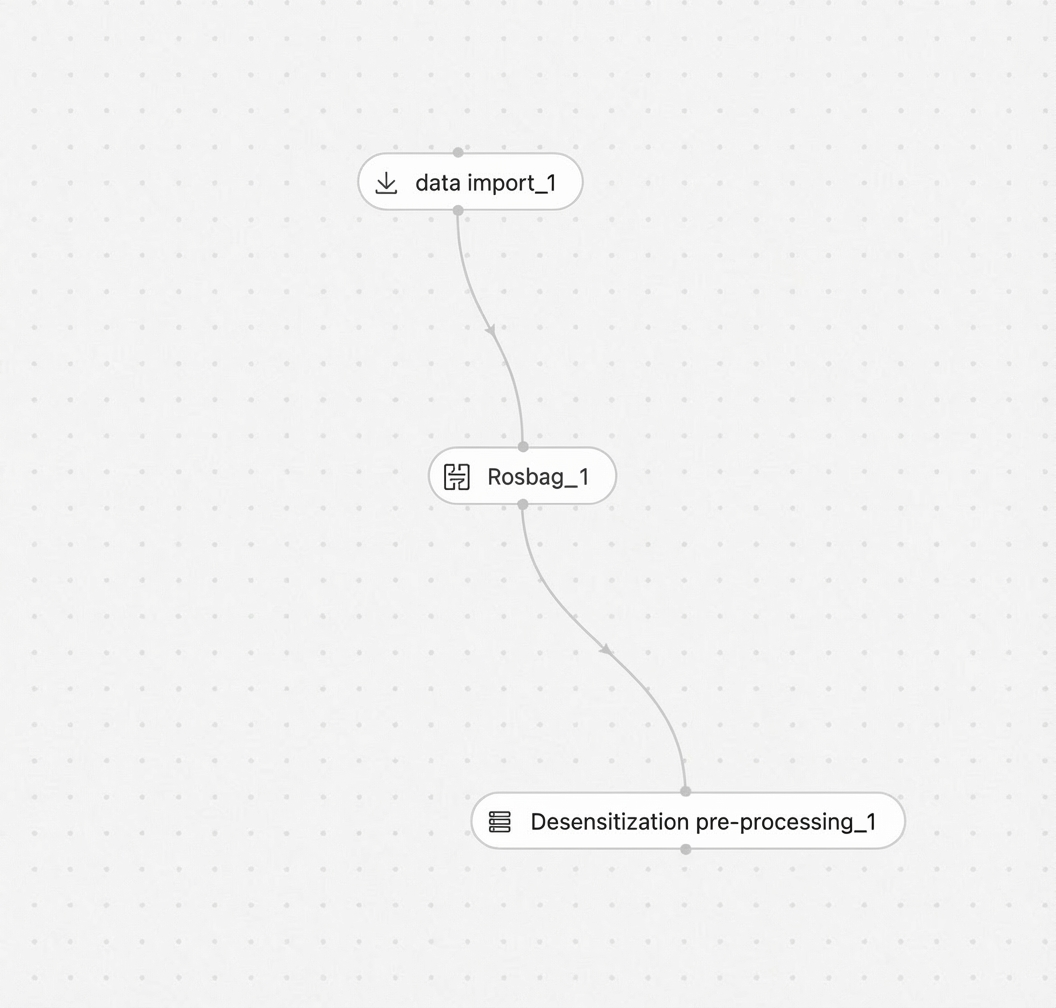
Figure 2. Example of connecting nodes on the canvas
View task logs
After the task is created, you can view its operational logs in the Task O&M module.
In the list, find your task by its name.
Click the Task Logs button.
On the Task Logs page that appears, view the Operational Log.
Retrieve data
After the task is created, you can find the datasets that it generated in Data Retrieval.
In the dataset folder pane on the left, find the task that you just created.
Click the task name. A list of results from different task runs appears, organized by running time.
Under each running time, the subfolders contain the datasets generated by each node in the task. Click a folder to view all data files for that dataset in the main panel on the right.
Note: For more information about how to retrieve data, see Data retrieval.