Customize kube-scheduler parameters
Customize binpack, load-aware scheduling, preemption, and other kube-scheduler behaviors to control pod placement in your cluster.
Prerequisites
An ACK Pro cluster, ACK Edge Pro cluster, ACK Lingjun cluster, or ACK Serverless Pro cluster running Kubernetes 1.20 or later is created. To update the Kubernetes version, manually upgrade the cluster.
Limitations
Supported kube-scheduler versions for custom parameters in ACK Pro clusters and ACK Edge Pro clusters, by Kubernetes version:
ACK Serverless Pro clusters and ACK Lingjun clusters with kube-scheduler installed support custom parameters.
Kubernetes version | kube-scheduler version |
≥ 1.28 | All versions |
1.26 | ≥ v1.26.3-aliyun-6.8.7.5a563072 |
1.24 | ≥ 1.24.6-ack-3.1 |
1.22 | ≥ 1.22.15-ack-2.0 |
1.20 | ≥ v1.20.11-9.0-bcaa6001-aliyun |
Procedure
-
Log on to the ACK console. In the left navigation pane, click Clusters.
On the Clusters page, find the one you want to manage and click its name. In the left navigation pane, click Add-ons.
On the Core Components tab, find Kube Scheduler and click Configuration. Configure the parameters in the Kube Scheduler Parameters dialog box.
Available parameters vary by kube-scheduler version. For version-specific features, see Container Service for Kubernetes:kube-scheduler.
Parameter
Description
Type
Valid value
Default value
Enable Virtual Node-based Pod Scheduling
Specifies whether to schedule pods on virtual nodes based on node affinity and pod spread constraints.
bool
true
false
true
podMaxBackoffSeconds
Maximum backoff interval (in seconds) between scheduling attempts for a failed pod. The interval between two scheduling attempts must exceed this value.
int
[1,100000]
10
Preferably Use Bin Packing During Pod Scheduling
Specifies whether to enable the binpack algorithm.
For sample configurations, see Custom binpack parameters.
bool
false
true
false
binpackPluginWeight
Weight of the binpack plug-in node score. Requires Preferably Use Bin Packing During Pod Scheduling.
int
[1,100000]
100
binpackResourceWeight
Weight of each resource in the binpack plug-in node score calculation. Requires Preferably Use Bin Packing During Pod Scheduling.
resourceName: string
resourceWeight: int
resourceName: letters, digits, periods (.), forward slashes (/), and hyphens (-) only.
resourceWeight: integer from 1 to 10000.
cpu:1
memory:1
scorePluginWeights
Weight of each scoring plug-in for node score calculation.
NoteThe NodeResourceFit plug-in weight conflicts with the binpack plug-in weight. If you select Preferably Use Bin Packing During Pod Scheduling (Pods Are Evenly Distributed among Nodes When Unselected), do not set a NodeResourceFit weight for this parameter.
plugin: string
weight: int
Only plug-ins in the plugin drop-down list are available.
weight: integer from 1 to 10000.
plugin: NodeAffinity
weight: 100
percentageOfNodesToScore
The percentage of nodes suitable for pod scheduling.
Default value: 0. When set to 0, 5%–50% of nodes are scored based on cluster size.
int
[0,100]
0
Node scoring for GPU sharing
When using shared GPU scheduling (requires the AI suite), schedules GPU-accelerated pods to GPUs with higher memory and compute requests.
bool
false
true
true
Load-aware scoring during pod scheduling (loadAwareResourceWeight)
Specifies whether to enable load-aware scheduling. Requires the ack-koordinator component.
bool
false
true
false
loadAwareThreshold
This parameter specifies the threshold for node filtering.
The value consists of the resourceName and resourceWeight fields.
resourceName: Valid values are cpu and memory.
threshold: Valid values range from 0 to 100.
By default, this parameter is left empty, which disables node filtering.
resourceName: cpu
threshold: 80
loadAwareResourceWeight
This parameter specifies the resource weight used to calculate the node score for node sorting. This parameter is available after you select Specifies whether to enable load-aware node scoring during pod scheduling.
The value consists of the resourceName and resourceWeight fields.
resourceName: The schema of the resourceName parameter is verified. Values can only be
cpuormemory.resourceWeight: Valid values are integers ranging from 1 to 100.
cpu=1
memory=1
loadAwareAggregatedUsageAggregationType
This parameter specifies the type of data aggregation for the statistics. Valid values:
avg: calculates the average value.
p50: calculates 50% of the statistics.
p90, p95, and p99: calculates 90% of the statistics, calculates 95% of the statistics, and calculates 99% of the statistics.
enum
avg
p50
p90
p95
p99
avg
preemptionAlgorithm
ACK Scheduler determines whether to evict lower-priority pods through resource simulation, prioritizing rapid startup of high-priority workloads. Supported strategies:
Default: Kubernetes community-standard preemption
ElasticQuota: Resource preemption based on ElasticQuotaTree
Auto: Adaptive preemption policy based on cluster specifications
None: Disables preemption
See Enable preemption.
enum
Default
ElasticQuota
Auto
None
Auto
enableReservation
Specifies whether to enable resource reservation.
boolean
true
false
false
featureGates
Feature gates enabled by the scheduler. For version-specific support, see the kube-scheduler documentation.
string
N/A
ACK uses the same feature gates as open source Kubernetes.
The following example shows a sample binpack configuration.
Custom binpack parameters
Binpack vs. spread algorithm
Dimension | binpack | spread |
Scheduling policy |
|
|
Feature | Reduces resource fragmentation on nodes. |
|
Scenarios | Best for improving node resource utilization. | Best for high-availability workloads. |
Configure custom binpack parameters
Select Preferably Use Bin Packing During Pod Scheduling and set the binpack plug-in weight. A larger weight increases the chance of co-locating pods on the same node. Configure resource names and their weights for node score calculation. A larger resource weight gives that resource greater influence on pod scheduling.
On the Core Components tab of the Add-ons page, find Kube Scheduler and click Configuration to configure the binpack parameters.
Parameter | Description |
Preferably Use Bin Packing During Pod Scheduling | Enables the binpack algorithm. |
binpackPluginWeight | Weight of the binpack plug-in node score. Use the default in most cases. If pod scheduling is not as expected, increase the weight (e.g., 200). See binpack weight. |
Resource names and weights for binpack node score calculation. | See Enabling bin packing using MostAllocated strategy.
|
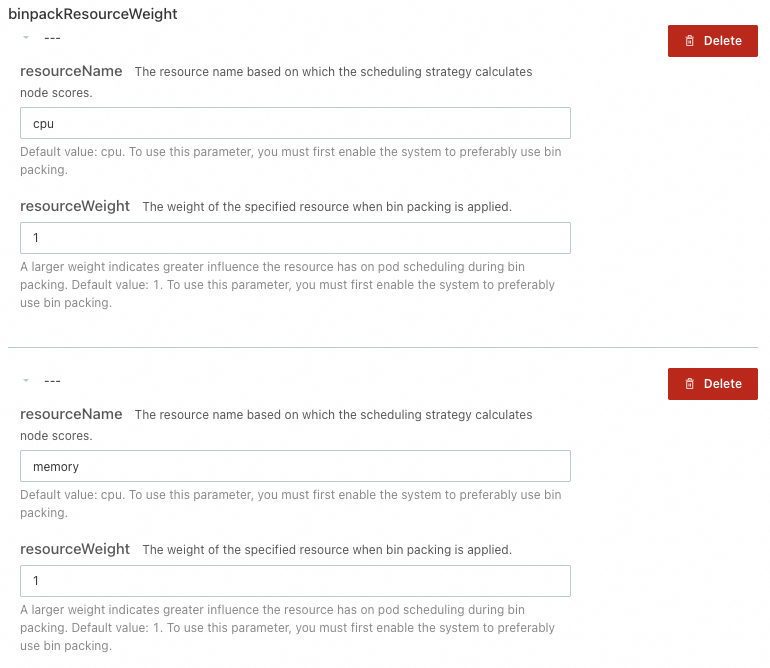
If you select Preferably Use Bin Packing During Pod Scheduling without configuring resourceName and resourceWeight, the default CPU and memory settings shown below are used for node score calculation. The defaults are resourceName cpu with resourceWeight 1, and resourceName memory with resourceWeight 1..
References
To schedule pods based on actual resource usage rather than requested amounts, enable load-aware scheduling.