Upgrade the NGINX Ingress controller
After a cluster upgrade, upgrade NGINX Ingress to stay compatible with deprecated cluster APIs. Older versions carry security and stability risks and lack current features, so upgrade to the latest version promptly. Upgrades run in phases; monitor add-on and service health throughout to avoid traffic disruption.
The open-source Ingress-NGINX project will no longer be maintained after March 2026. Consequently, Container Service for Kubernetes will also discontinue maintenance for the NGINX Ingress controller add-on. Be aware of associated risks. See [Product Announcement] Discontinuation of Maintenance for the NGINX Ingress Controller Component.
Upgrade process
The NGINX Ingress controller is a critical data plane component that must stay stable.
Heavy custom changes and large version gaps can introduce configuration incompatibilities that may not surface right after an upgrade, making a one-step upgrade to the latest version risky.
The upgrade runs in phases so you can verify services at each stage and roll back if issues occur.

Part 1: Precheck
A precheck runs automatically before the upgrade to verify the component meets requirements. The precheck fails if settings are incompatible or the component is unhealthy. Resolve these issues before proceeding.
Part 2: Verification phase
In the verification phase, a new Pod runs the target version to validate operation and Ingress rules. Traffic is then partially routed to it. Monitor traffic through container logs, Simple Log Service, or Managed Service for Prometheus.
After the verification Pod scales out successfully, the upgrade pauses. Confirm the component and services are healthy, then proceed manually. To roll back, delete the new Pod to terminate the upgrade.
This phase modifies spec.minReadySeconds and spec.strategy in the Deployment.
Part 3: Release phase
The release phase performs a full rolling update to replace all old instances. The upgrade pauses after all Pods update so you can confirm final status. Roll back all Pods to the previous version if issues arise.
Part 4: Rollback (optional)
During a pause in the verification or release phase, roll back to restore the component to its pre-upgrade state if you discover issues.
Before you begin
-
Maintenance for NGINX Ingress controller v1.2 and earlier has ended. See [Product Announcement] Discontinuation of Maintenance for NGINX Ingress Controller v1.2 and Earlier. Outdated versions miss new features, bug fixes, and timely support, and remain exposed to unpatched vulnerabilities. Upgrade the component promptly.
-
Set up monitoring to detect traffic issues with Simple Log Service or Managed Service for Prometheus. See Collect and analyze NGINX Ingress access logs and Connect to and configure Managed Service for Prometheus.
-
Verify the component is healthy, all Pods are Ready, and no error logs appear.
-
If you use auto-scaling rules such as HPA, delete them before the upgrade and restore them after it completes.
-
Verify that the
LoadBalancertype Service for the NGINX Ingress controller (namednginx-ingress-lbby default) is normal and has no abnormal events. -
Do not modify the component or Ingress rules during the upgrade.
-
If your NGINX Ingress controller version is earlier than v0.44, review changes in path matching logic before upgrading.
-
The upgrade uses canary release: a new-version Pod is created first, then a rolling update starts after you verify traffic. Ensure the cluster has enough schedulable nodes for NGINX Ingress Pods.
Procedure
-
Log on to the ACK console. In the left navigation pane, click Clusters.
-
On the Clusters page, click the name of your cluster. In the left navigation pane, click Components and Add-ons .
-
On the Add-ons page, find the NGINX Ingress controller and click Upgrade in the lower-right corner.
-
In the upgrade dialog, click Start and confirm to begin the upgrade.
NoteYou can leave this page during the upgrade. To return, click Progress on the Add-ons page.
-
The upgrade starts with a precheck, then automatically proceeds to the next phase.
If the precheck fails, click View Details under Precheck to open the Check Report page, troubleshoot failed items, and see Precheck details. After resolving issues, click Retry to restart the upgrade.
-
After the verification phase, the upgrade pauses. Verify component and service status using verification phase details.
-
If scaling fails, see What do I do if a Pod fails to be created during the verification or release phase? and check why the Pod failed to start. After resolving the issue, click Retry to retry this phase.
-
If services fail during verification, click Rollback to roll back the upgrade. After rollback completes, the upgrade terminates. Restart it from the Add-ons page by clicking Upgrade.
-
-
After verification looks normal, click Continue to start the release phase. The upgrade pauses again after the rolling update completes. Perform a final check; click Rollback if issues arise. After rollback completes, restart from the Add-ons page.
-
After you confirm the component and services are healthy, click Continue to complete the upgrade.
NoteComplete the entire upgrade within one week.
Precheck
Precheck items
|
Check item |
Description |
Troubleshooting |
|
Deployment exists |
The component Deployment (kube-system/nginx-ingress-controller) exists. |
- |
|
Deployment health |
All Deployment Pods are Ready and stable (not rolling). |
- |
|
Pod error logs |
Checks the last 200 Pod log entries for Error or Fatal logs. |
These logs may indicate recent errors from misconfigurations. Resolve them before restarting the upgrade. See Troubleshoot NGINX Ingress issues. |
|
LoadBalancer Service health |
Checks whether the NGINX Ingress LoadBalancer Service (kube-system/nginx-ingress-lb) exists, then verifies it has no error events. A missing Service is also treated as a Warning event. |
If the Service is missing, follow the "Manually delete the If the Service exists but has abnormal events, resolve them using the event details in Service events and troubleshooting. This check is skipped for non-LoadBalancer Services. |
|
HPA |
The Deployment is not managed by HPA. An active HPA may disrupt the upgrade. |
Delete the HPA during the upgrade and re-enable it after completion. |
|
Deployment template |
The Deployment template contains only compatible modifications. |
Custom NGINX Ingress Deployment changes may not survive the upgrade.
These template changes do not fail the check. Unauthorized template changes or outdated versions that do not meet upgrade requirements will fail the check and reduce upgrade success. Common failure causes include:
If the Deployment template check fails, manually restore the template. See What do I do if the Deployment template check fails?. |
|
Ingress configuration |
Ingress resources use only compatible features. |
Incompatible Ingress features can break traffic forwarding after upgrade and cause service outages. See Upgrade compatibility below to identify and fix issues. |
|
Component configuration |
Verifies the component ConfigMap (kube-system/nginx-configuration) has no incompatible configurations. |
Incompatible ConfigMap settings can break traffic forwarding after upgrade and cause service outages. See Upgrade compatibility below to identify and fix issues. |
Upgrade compatibility
New NGINX Ingress versions may add features, improve existing ones, or fix security issues, but internal architecture or dependency changes can break compatibility with earlier versions. For change history, see NGINX Ingress Controller.
Default security configuration changes
Affected versions: Versions earlier than v1.12.6-release.1.
Starting in v1.12.6-release.1, ingress-nginx tightened default security settings, including:
-
The default level of
annotations-risk-levelis lowered fromCriticaltoHigh. This change makes existingIngressresources withCriticallevel annotations, such assnippet-related annotations, unavailable. -
allow-cross-namespace-resourcesis changed fromtruetofalse. This configuration disables cross-namespace referencing of resources likeConfigMapandSecretsby default. -
strict-validate-path-typeis changed fromfalsetotrue. This configuration enables strict path validation by default. This means that for paths of typeExactandPrefix, only paths that start with/and contain only letters, numbers,-,_,., and additional/are allowed.
If you use features blocked by these security settings, manually enable them in ConfigMap kube-system/nginx-configuration after assessing security risks.
Native NGINX validation is disabled by default
Affected versions: Versions earlier than v1.11.5-aliyun.1.
To fix CVE-2025-1974, NGINX Ingress controller disables native NGINX validation (the nginx -t logic) by default starting in v1.11.5-aliyun.1. The validation webhook remains enabled but does not validate snippet-based rules; only non-snippet annotations are validated by default. For snippet rules, check NGINX runtime error logs. See the Vulnerability CVE-2023-1097, CVE-2023-1098, CVE-2023-1974, CVE-2023-24513, CVE-2023-24514 Announcement.
If you use snippet annotations, check NGINX Ingress Pod logs for Error-related entries each time you change the corresponding Ingress rules:
kubectl logs -f <Nginx-ingress-pod-name> -n kube-system |grep ErrorTo re-enable native NGINX validation, add enable-nginx-native-validation: "true" to ConfigMap kube-system/nginx-configuration after fully assessing the risks.
Snippet annotations are disabled by default
Affected versions: Versions earlier than v1.9.3-aliyun.1.
For security reasons, NGINX Ingress controller disables all snippet annotations by default starting in v1.9.3-aliyun.1, including:
-
nginx.ingress.kubernetes.io/configuration-snippet
-
nginx.ingress.kubernetes.io/server-snippet
-
nginx.ingress.kubernetes.io/stream-snippet
-
nginx.ingress.kubernetes.io/auth-snippet
-
nginx.ingress.kubernetes.io/modsecurity-snippet
Because of security and stability risks, prefer alternative annotations or configuration options.
To use snippet annotations, add allow-snippet-annotations: "true" to ConfigMap kube-system/nginx-configuration after fully assessing the risks.
Legacy TLS versions are not supported
Affected versions: Versions earlier than v1.7.0-aliyun.1.
Because of security issues in TLS 1.1 and earlier, new NGINX Ingress versions no longer support TLS v1.1 and TLS v1.0 by default. Before upgrading, verify your services do not rely on TLS v1.1 or earlier and remove them from your configuration. ConfigMap changes take effect immediately.
For example, if the ConfigMap (kube-system/nginx-configuration) for the NGINX Ingress controller is configured as follows:
ssl-protocols: SSLv3 SSLv2 TLSv1 TLSv1.1 TLSv1.2 TLSv1.3After you confirm your services are unaffected, remove this line to use defaults, or remove SSLv3, SSLv2, TLSv1, and TLSv1.1 and change the line to:
ssl-protocols: TLSv1.2 TLSv1.3To enforce older TLS encryption methods, see Which SSL/TLS versions are supported by Ingresses?.
Incompatible usage of nginx.ingress.kubernetes.io/rewrite-target
Affected versions: Versions earlier than 0.22.0.
-
Version 0.22.0 changed the usage of the
nginx.ingress.kubernetes.io/rewrite-targetannotation. In versions 0.22.0 and later, you must explicitly specify capture groups when you userewrite-target. -
rewrite-target behavior before 0.22.0 is incompatible with current versions. Before upgrading, use the
configuration-snippetannotation instead ofrewrite-target.
For example, in versions earlier than 0.22.0, the rule is:
Modify it as follows:
After you update the configuration to this format, proceed with the upgrade. After upgrade completes, update the Ingress to the new syntax.
Native NGINX root and alias directives no longer supported
Affected versions: Versions earlier than v1.2.1-aliyun.1.
Because of security issues with the root and alias directives, new NGINX Ingress versions (NGINX Ingress Controller) no longer support root and alias directives. Before upgrading, verify your Ingress does not use native NGINX root or alias directives configured through snippets.
Changes in path matching logic
Path matching logic can differ across NGINX Ingress versions and cause service access issues.
-
In older versions (before v0.44), prefix matching was more lenient. For example,
/aaa/bbbcould match/aaa/bbbbb. -
After upgrade, prefix matching is stricter and matches only the exact request path. Previously matched paths such as
/aaa/bbbbbmay return 404.
Affected versions
NGINX Ingress controller versions earlier than v0.44. For change history, see NGINX Ingress Controller. For related PR information, see kubernetes/ingress-nginx #6443.
Gzip is disabled by default
The features that are enabled by default vary across different versions. For example, in versions of the NGINX Ingress controller earlier than v0.40, gzip is enabled by default, while in later versions, it is disabled by default. After you update the component, gzip is disabled, which may increase traffic for the associated Classic Load Balancer (CLB). If the CLB instance uses a pay-as-you-go billing method, this may lead to increased costs.
Solution
Edit the nginx-configuration ConfigMap in the kube-system namespace to enable gzip compression.
data:
  use-gzip: true
Verification phase
Verify component and service status
Besides your own monitoring tools, ACK provides Simple Log Service logs, Managed Service for Prometheus dashboards, and native container logs to monitor NGINX Ingress. To enable them, see Collect and analyze NGINX Ingress access logs and Connect to and configure Managed Service for Prometheus.
Simple log service
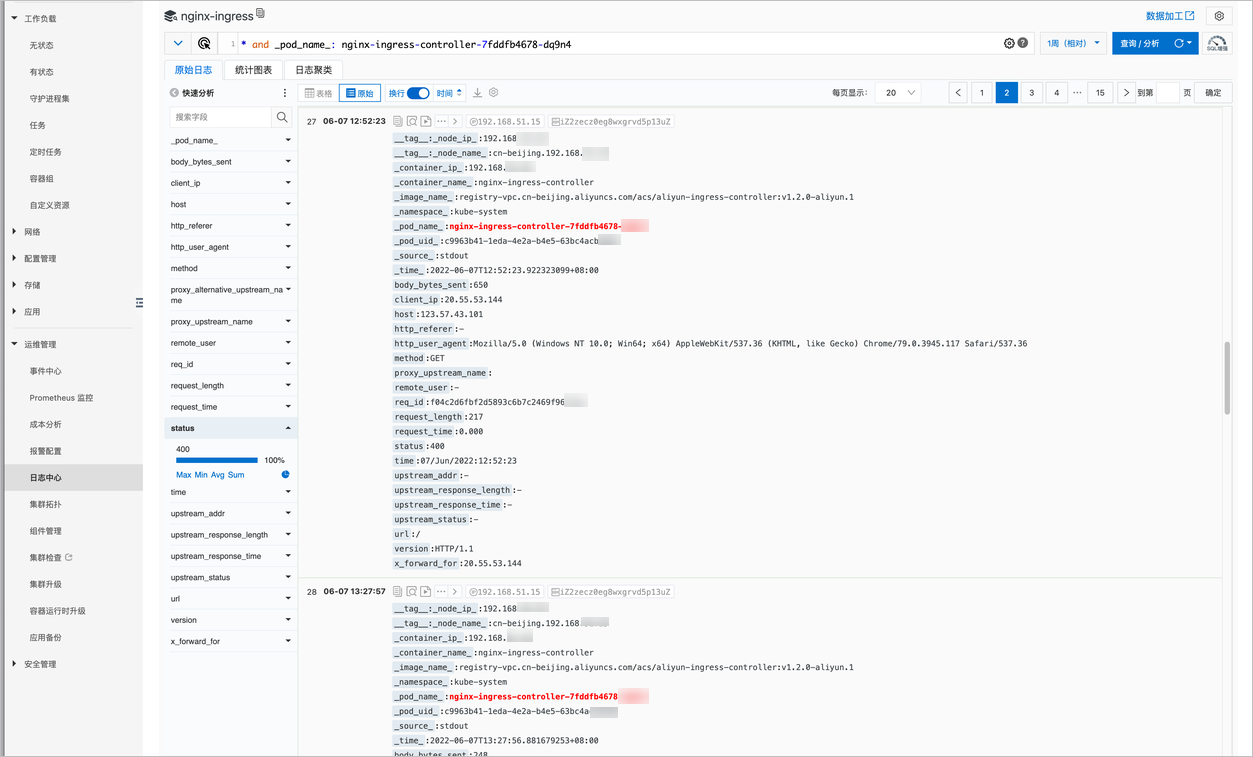
View logs collected by Simple Log Service in the ACK console.
-
Log on to the ACK console. In the left navigation pane, click Clusters.
-
On the Clusters page, click the name of your cluster. In the left navigation pane, click .
-
Click the Application Logs tab, select nginx-ingress from the Logstore drop-down list, and then click Select Logstore.
NoteIf nginx-ingress is missing from your Logstore, verify log collection is configured for the component. See Collect and analyze NGINX Ingress access logs.
The logs show application access data. Filter by Pod (such as the new-version Pod) to compare request success rate and request count with old Pods. Roll back if the data diverges significantly.
By default, access logs are not recorded for requests that return 404 because no Ingress rule matches.
Prometheus dashboard
Use dashboards from Managed Service for Prometheus to observe overall request status.
-
Log on to the ACK console. In the left navigation pane, click Clusters.
-
On the Clusters page, click the name of your cluster. In the left navigation pane, click .
-
Click the Network Monitoring tab, and then click Ingresses.
NoteIf Ingresses is unavailable, verify Prometheus metrics collection is configured for the component. See Connect to and configure Managed Service for Prometheus.
The dashboard shows Ingress operational metrics. Select a specific Pod to compare request success rate and request count with old Pods. Roll back if the data diverges significantly.
Metrics are not recorded by default for Ingress rules without a Host (which defaults to "*").
Pod logs
Use kubectl to access Pod logs from the command line and check for errors.
-
View NGINX error logs in the Pod, including warn, error, and crit levels:
kubectl logs -n kube-system <PodName> | grep -e warn -e error -e crit -
View controller error logs in the Pod:
kubectl logs -n kube-system <PodName> | grep "^[EF]"
FAQ
Can I upgrade the NGINX Ingress controller to a specific version? Can I roll back to a previous version after a successful upgrade?
NGINX Ingress controller does not support upgrading to a specific version. Upgrades proceed in phases to the latest version. You cannot roll back after a successful upgrade.
What do I do if a Pod fails to be created during the verification or release phase?
|
Cause |
Solution |
|
The new-version Pod fails during startup, such as from a configuration loading failure, and enters a crash loop. |
Use the Pod logs methods to view error logs, then see Troubleshoot NGINX Ingress issues to resolve the issue. |
|
This is common when NGINX Ingress runs on dedicated nodes. A new Pod may fail to schedule because of resource limits and node selectors. |
Temporarily add nodes, or scale down NGINX Ingress during off-peak hours before the upgrade so Pods can schedule during the upgrade. |
What do I do if the Deployment template check fails?
If the Deployment template fails precheck, click the link next to Cause of Error to open the component differences page and view failed fields.
-
On the NGINX Ingress Controller Upgrade page, under Precheck, click View Details.
-
On the Check Report page, in the Cluster Component Check Results section, click to view the check results. Then, on the Check Result page, click Deployment Template, and finally click the link next to Cause of Error.
-
Go to the Component Differences page to view the fields that failed the check.
The component differences page compares the standard template for this version (left) with the current cluster template (right), highlighting compatible and incompatible differences. It also shows whether the cluster component passed the difference check and lists incompatible field paths.
-
Modify the differing field.
Choose , find the NGINX Ingress controller component, and choose . On the Edit YAML page, change
--v=3to--v=2in the args field. -
After you modify the field, refresh the component differences page. When the page shows The component can pass the difference check, the Deployment template check will pass.
NoteModifying the cluster Deployment restarts NGINX Ingress Pods. Perform this during off-peak hours.
References
-
For NGINX Ingress change history, see NGINX Ingress Controller.
-
For network connectivity or other NGINX Ingress issues, see Configure cluster security groups and NGINX Ingress FAQ.