Knowledge base integration guide
The knowledge base feature in AgentRun lets you associate an AI agent with external professional documents or private data. When performing a task, the agent can retrieve relevant context from the integrated knowledge base, which significantly improves the accuracy and timeliness of its responses.
AgentRun currently supports the following types of knowledge bases. Alibaba Cloud Model Studio and RAGFlow knowledge bases are attached through Connect an existing knowledge base, so you must create the knowledge base in that platform first. Tablestore knowledge base and AnalyticDB for PostgreSQL knowledge base are self-managed knowledge bases that you create directly in AgentRun through Create Knowledge Base.
Alibaba Cloud Model Studio: Connect one or more knowledge bases that you already created in Alibaba Cloud Model Studio.
RAGFlow: Connect a RAGFlow service that you deployed yourself. You must provide the BaseURL, the API-KEY, and the dataset ID.
Tablestore knowledge base: Let AgentRun create and configure a Tablestore instance for you, or select an existing Tablestore instance in the current region to hold the vector and full-text indexes. You do not need to prepare a vector database yourself.
AnalyticDB for PostgreSQL knowledge base: Create the document collection in a namespace of an AnalyticDB for PostgreSQL instance that you already own. Select this type when you want the knowledge base data to stay in your own instance.
Attach a knowledge base
Log in to the AgentRun console. In the left-side navigation pane, choose Models and Tools > Knowledge Base.
On the knowledge base list page, click Create Knowledge Base, and then select how you want to obtain the knowledge base:
Connect an existing knowledge base: Attach a knowledge base that you already created in Alibaba Cloud Model Studio or RAGFlow. For the configuration steps, see "Attach an Alibaba Cloud Model Studio knowledge base" and "Attach a RAGFlow knowledge base" in this topic.
Create Knowledge Base: Create a self-managed knowledge base in AgentRun. You must also set Configuration Method. Automatic configuration always uses Tablestore, and AgentRun creates and configures the instance for you. Custom configuration requires you to set Knowledge Base Type to Tablestore knowledge base or AnalyticDB for PostgreSQL knowledge base. For the configuration steps, see "Create a Tablestore knowledge base" and "Create an AnalyticDB for PostgreSQL knowledge base" in this topic.
You can create a self-managed knowledge base only in the regions that the AgentRun console offers, and creation is not available in every region: cn-chengdu, cn-zhangjiakou, and several other regions do not support knowledge base creation.
Attach an Alibaba Cloud Model Studio knowledge base
If you use Alibaba Cloud Model Studio as your retrieval-augmented generation (RAG) service, configure the following parameters:
Knowledge Base Name: Enter a display name for the knowledge base.
Description: A brief description of the purpose or data scope of the knowledge base.
For Knowledge Base Type, select Model Studio.
Workspace: For first-time use, click the authorization button for the Default Workspace to grant authorization and confirm it.
Knowledge Base: From the drop-down list, select one or more knowledge bases that you created in Alibaba Cloud Model Studio. Modify the Retrieval Configuration as needed.
Click Create Knowledge Base to attach a knowledge base from Alibaba Cloud Model Studio to the AgentRun platform.
Attach a RAGFlow knowledge base
RAGFlow integration has entered maintenance mode. New users can integrate independently through MCP or an SDK. The platform no longer provides productized support for this integration.
RAGFlow is an open source engine for deep document understanding. To attach a RAGFlow knowledge base, provide the following information:
Knowledge Base Name: Enter a custom display name.
Description: A brief description of the purpose or data scope of the knowledge base.
For Knowledge Base Type, select RAGFlow.
RAGFlow configuration (For instructions, see Quickly deploy RAGFlow using SAE):
BaseURL: Enter the API endpoint of the RAGFlow service.
DataSet IDs: Enter the IDs of the datasets to associate. You can enter multiple IDs.
Credential Configuration: Select the saved API-KEY credential for RAGFlow.
NoteFor more information about how to obtain the RAGFlow configuration parameters, see How to obtain RAGFlow configuration information.
Retrieval Configuration: You can adjust the Similarity Threshold and Vector Similarity Weight as needed.
Click Create Knowledge Base to attach your self-hosted RAGFlow knowledge base to the AgentRun platform.
Create a Tablestore knowledge base
If you do not have a vector database of your own, select Tablestore knowledge base and let AgentRun create the instance and configure the indexes. On the knowledge base list page, click Create Knowledge Base. In the drawer, select Create Knowledge Base as the mode, and then set Configuration Method to one of the following two values:
Automatic configuration: Tablestore is always used, so you do not select Knowledge Base Type or an instance. Before the knowledge base is created, AgentRun checks whether Tablestore is activated and whether the AliyunOTSAccessingOSSRole role exists. If the role does not exist, creation stops and you are guided through the authorization. After the authorization is complete, AgentRun creates a Tablestore instance whose name follows the
knowledge-xxxxpattern with SSD as the cluster type, and adds thesource=agentrunandscene=knowledgebasetags to it.Custom configuration: Set Knowledge Base Type to Tablestore knowledge base and select an existing instance from the Tablestore Instance drop-down list of the current region.
Configure the following parameters:
Parameter | Required | Default | Description |
Knowledge Base Name | Yes | None | Enter a display name for the knowledge base. AgentRun checks whether the name is already in use when you submit the form. |
Description | No | None | A brief description of the purpose or the data scope of the knowledge base. |
Workspace | No | Current workspace | The default workspace is used if you do not specify one. |
Tablestore Instance | Yes in Custom configuration | None | Lists the Tablestore instances that exist in the current region. The parameter is not displayed in Automatic configuration mode, where AgentRun creates the instance for you. |
Tags | No | None | Used to classify and manage the knowledge base resource. Empty tags are ignored when you submit the form. |
Embedding Model | Yes | text-embedding-v4 | Valid values: text-embedding-v3 and text-embedding-v4. Your selection determines the values available for Vector Dimension. |
Vector Dimension | Yes | 1024 | text-embedding-v3 supports 1024, 768, 512, 256, 128, and 64. text-embedding-v4 supports 2048, 1536, 1024, 768, 512, 256, 128, and 64. |
Metadata Configuration | No | None | Defines the metadata fields of a document as field name and field type pairs. Valid field types: string, long, double, boolean, date, and the matching list types string_list, long_list, double_list, boolean_list, and date_list. |
Metadata Filter Conditions | No | Match all conditions | Displayed only after you define at least one valid field in Metadata Configuration. Select whether all conditions (andAll) or any condition (orAll) must match, and build each condition with the operators equals, notEquals, greaterThan, greaterThanOrEquals, lessThan, lessThanOrEquals, in, notIn, startsWith, stringContains, and listContains. |
In Retrieval Configuration, set the default retrieval behavior of the knowledge base. You can adjust these values on the knowledge base details page after the knowledge base is created:
Parameter | Default | Description |
Retrieval Type | Vector Search and Full-text Search are both selected | Select at least one retrieval type. |
TopK | 20 | The number of results returned for a single query. Valid values: 1 to 100. |
Recall Algorithm | RRF | Determines how the vector search results and the full-text search results are merged. Valid values: RRF, WEIGHT, and MODEL. |
RRF parameter k | 60 | Displayed when Recall Algorithm is RRF. Valid values: 2 to 100. |
Service provider |
| Displayed when Recall Algorithm is MODEL. Currently, |
Rerank model | gte-rerank-v2 | Displayed when Recall Algorithm is MODEL. Currently, gte-rerank-v2 is the only value. |
Vector Weight | 0.7 | Displayed when Recall Algorithm is WEIGHT. Valid values: 0 to 1. The full-text search weight is 1 minus the vector weight. |
After you submit the form, AgentRun first creates the knowledge base in Tablestore and then creates the corresponding knowledge base record in AgentRun. After the knowledge base is created, you can import documents and verify the recall results on the knowledge base details page. For more information, see "Manage documents and run retrieval tests for self-managed knowledge bases" in this topic.
For more information about how to add and configure an embedding model, see AgentRun Embedding Model Configuration (text-embedding-v3/OpenAI-Compatible).
Create an AnalyticDB for PostgreSQL knowledge base
AnalyticDB PostgreSQL integration has entered maintenance mode. New users can integrate independently through MCP or an SDK. The platform no longer provides productized support for this integration.
If you already have an AnalyticDB for PostgreSQL instance and want the knowledge base data to stay in your own instance, select AnalyticDB for PostgreSQL knowledge base. Before you start, confirm that you have an available AnalyticDB for PostgreSQL instance, the account and the password used to access the instance, and a namespace created in the instance together with its password. System namespaces are not listed as candidates.
In the Create Knowledge Base drawer, select Create Knowledge Base as the mode, set Configuration Method to Custom configuration, set Knowledge Base Type to AnalyticDB for PostgreSQL knowledge base, and then configure the following parameters:
Parameter | Required | Default | Description |
Knowledge Base Name | Yes | None | Enter a display name for the knowledge base. AgentRun checks whether the name is already in use when you submit the form. |
Description | No | None | A brief description of the purpose or the data scope of the knowledge base. |
Workspace | No | Current workspace | The default workspace is used if you do not specify one. |
AnalyticDB for PostgreSQL Instance | Yes | None | Lists the instances that exist in the current region. You can search the list by instance ID or by instance description. If no instance is available in the current region, you can go to the AnalyticDB for PostgreSQL buy page from the drop-down list to create one. |
Username | Yes | None | Displayed after you select an instance. Used to access the instance and read its namespace list. |
Password | Yes | None | Displayed after you select an instance, and verified together with Username. If the account or the password is incorrect, an error is reported for both Username and Password. |
Namespace | Yes | None | The list of available namespaces is displayed after you enter Username and Password. System namespaces such as public, htap, and pgsearch are not included. |
Namespace Password | Yes | None | Used to access the selected namespace. The password is verified automatically after you change Namespace or Namespace Password, and a message reports that the namespace password is incorrect if the verification fails. |
Metadata Configuration | No | None | Defines the metadata fields of a document as field name and field type pairs. Valid field types: text, bool, integer, and double precision. |
Embedding Model | No | text-embedding-v3 | Valid values: text-embedding-v1, text-embedding-v2, text-embedding-v3, text-embedding-v4, and multimodal-embedding-v1. |
Index Algorithm | No | cosine | The distance algorithm of the vector index. Valid values: l2, ip, and cosine. |
Username, Password, Metadata Configuration, Embedding Model, and Index Algorithm are displayed only after you select an instance.
In Retrieval Configuration, set the default retrieval behavior of the knowledge base. You can adjust these values on the knowledge base details page after the knowledge base is created:
Parameter | Default | Description |
Full-text Search | Turned off | When it is turned on, you can configure the recall window and the Two-way Recall Algorithm to merge the full-text search results with the vector search results. |
TopK | 20 | The number of results returned for a single query. Valid values: 1 to 100. |
Enable the rerank factor | Turned off | When it is turned off, the rerank factor parameters are not submitted. |
Rerank factor | 2.0 | Displayed after you enable the rerank factor. Valid values: 1.01 to 5. |
Enable the rerank model | Turned off | Displayed only after you enable the rerank factor. |
Rerank model | qwen3-rerank | Displayed after you enable the rerank model. Valid values: qwen3-rerank and gte-rerank-v2. |
Left and right boundaries of the recall window | -5 and 5 | Displayed after you turn on Full-text Search and enable the recall window, which also returns the chunks that neighbor each hit. The left boundary accepts -10 to 0, and the right boundary accepts 0 to 10. |
Two-way Recall Algorithm | RRF | Displayed after you turn on Full-text Search. Valid values: RRF, Weight, and Cascaded. |
RRF parameter k | 60 | Displayed when Two-way Recall Algorithm is RRF. The minimum value is 2. |
Weight parameter alpha | 0.5 | Displayed when Two-way Recall Algorithm is Weight. Valid values: 0 to 1. |
Filter condition | None | An additional filter expression applied at retrieval time. Leave it empty to apply no filter. |
After you submit the form, AgentRun first creates the document collection in the specified namespace of the AnalyticDB for PostgreSQL instance and then creates the corresponding knowledge base record in AgentRun. After the knowledge base is created, you can import documents and verify the recall results on the knowledge base details page. For more information, see "Manage documents and run retrieval tests for self-managed knowledge bases" in this topic.
How to obtain RAGFlow configuration information
For the RAGFlow deployed using SAE, you can log on to the RAGFlow platform from . To connect to RAGFlow, you need to fetch the following three core pieces of information from the RAGFlow platform:
Obtain the BaseURL
Click your profile picture in the upper-right corner to open the personal settings or account management page.
In the API section, the value for API Server is the BaseURL.
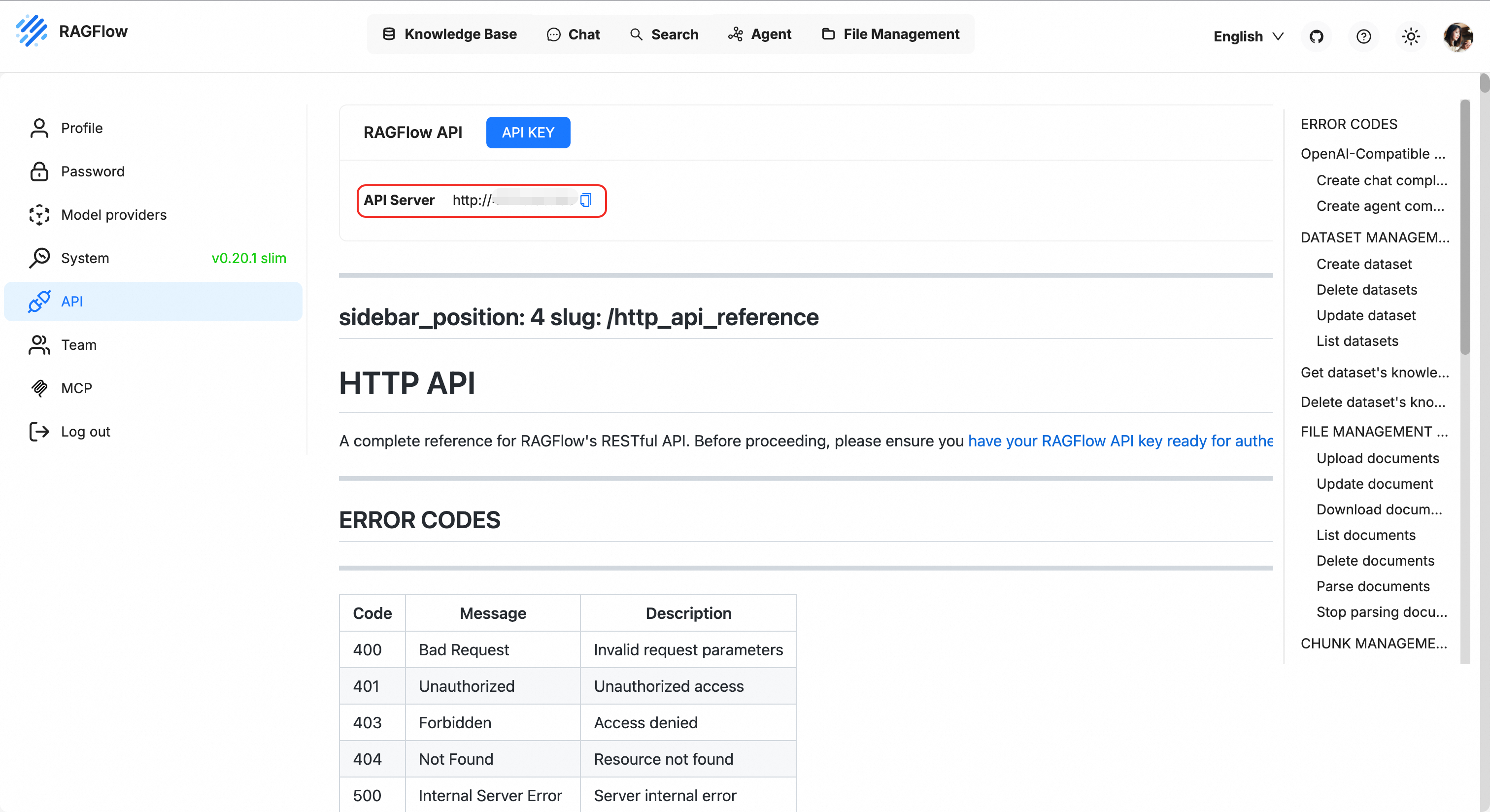
Obtain the API-KEY
On the personal API settings page, find the .
Copy an existing API key. If you do not have one, click Create new key.
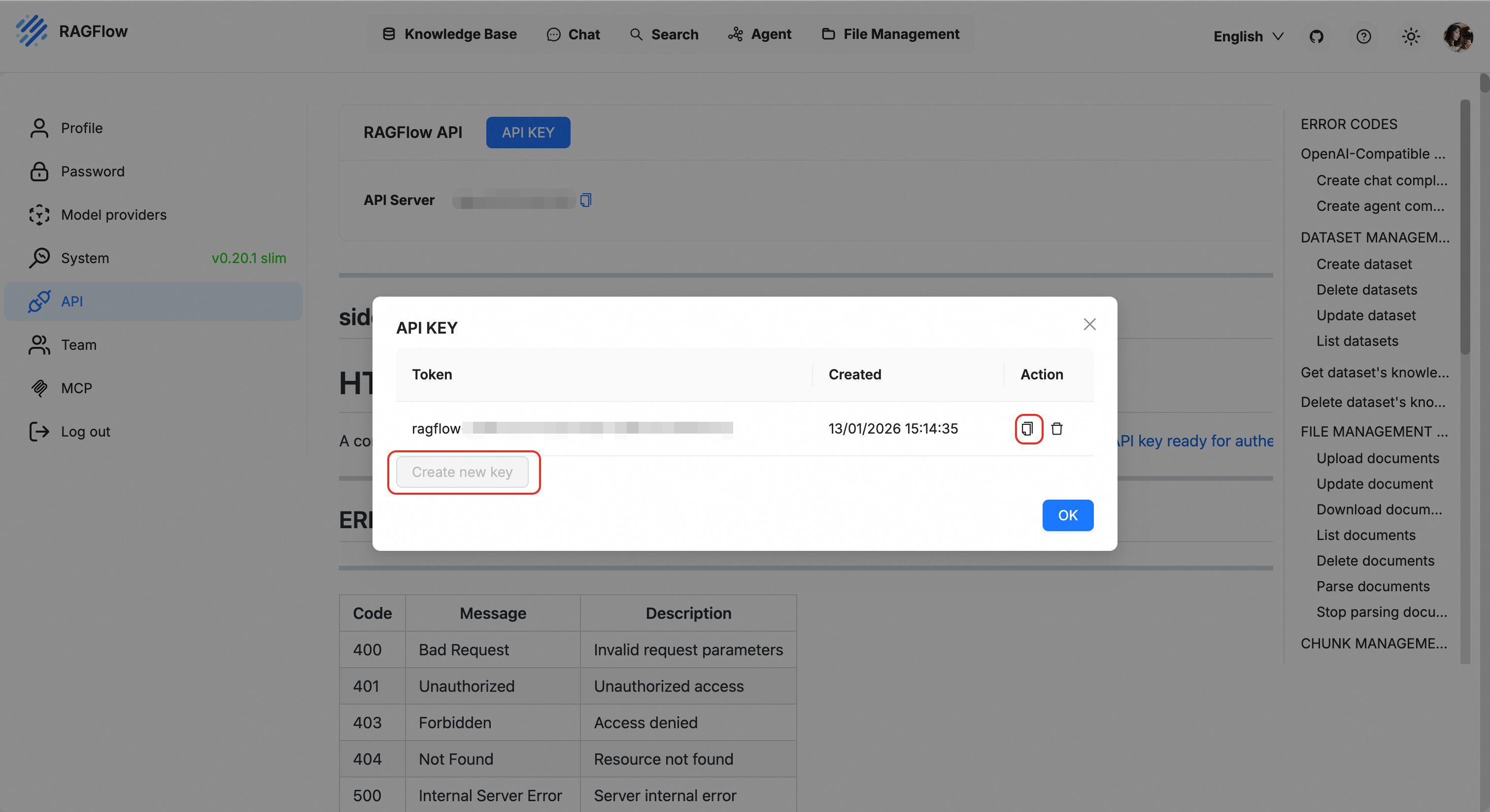
Refer to Credential Management and attach the API key as a credential to access third-party services on the AgentRun platform. When you create the credential, set Service Type to Other Services.
Obtain the Dataset ID
In the top menu bar, click Knowledge Base.
In the list, find and click the dataset you want to associate.
Check the URL in your browser's address bar or find the dataset's UUID in the configuration section on the page. This UUID is the
Dataset ID.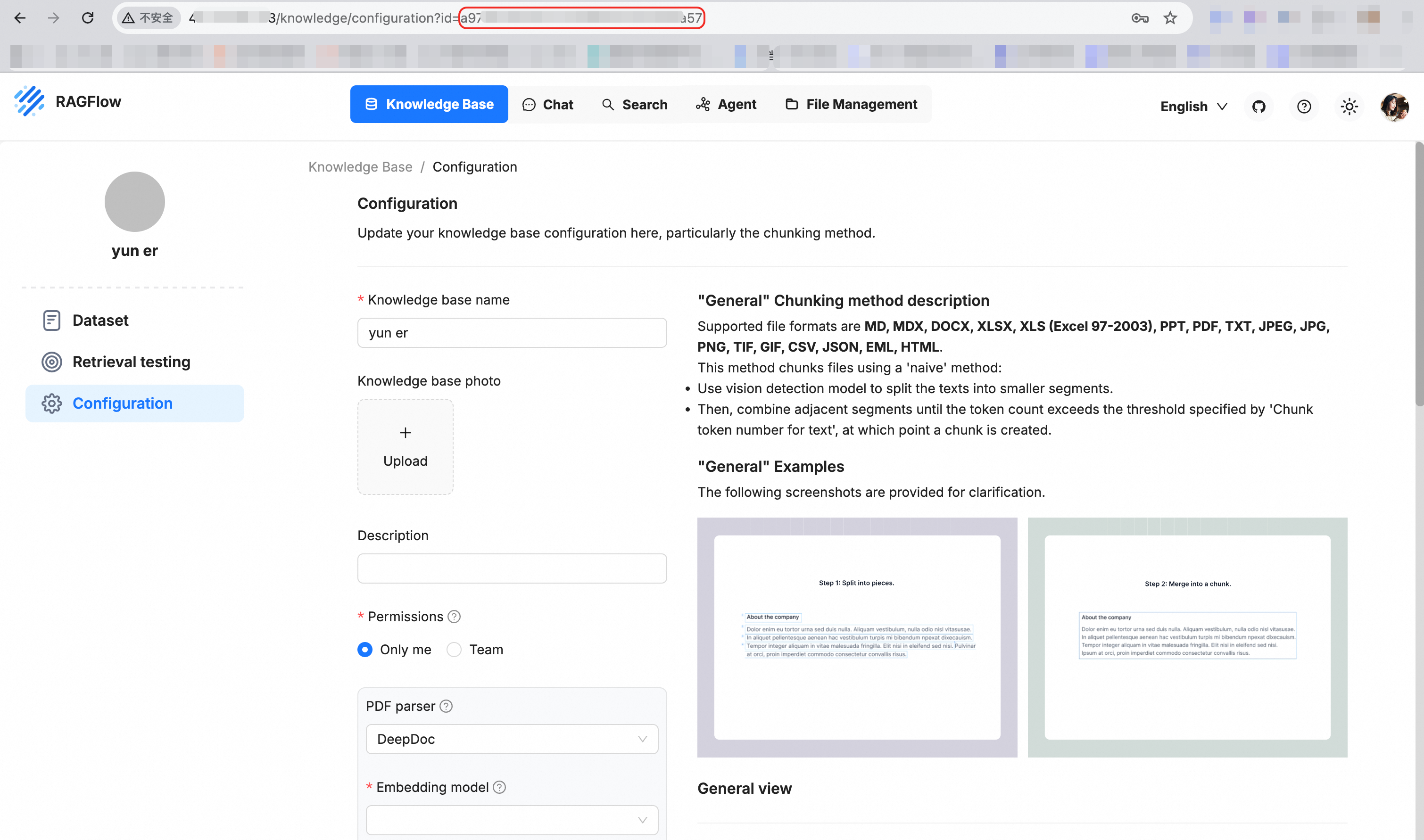
Developer guide: Integrate a knowledge base into an agent
After you attach a knowledge base, you can call it at the code level using the AgentRun SDK.
Code example: Query a knowledge base
Use the agentrun.knowledgebase module to directly retrieve content from a knowledge base.
from agentrun.knowledgebase import KnowledgeBase

## Get a single knowledge base and perform a query.
knowledgebase = KnowledgeBase.get_by_name("ragflow-test")
single_kb_retrieve_result = knowledgebase.retrieve("<your-query>")
print(single_kb_retrieve_result)

## Get multiple knowledge bases and perform a query. Cross-vendor knowledge base types are supported.
multi_kb_retrieve_result = KnowledgeBase.multi_retrieve(
    query="<your-query>",
    knowledge_base_names=["ragflow-test", "<your-knowledge-base-name-2>"],
)
print(multi_kb_retrieve_result)
Integrate a knowledge base into an agent framework
Inject the knowledge base as a tool into LangChain or other agent frameworks. This enables the AI to automatically consult documents.
"""AgentRun knowledge base agent integration code example

Before you start, see https://docs.agent.run/docs/tutorial/quick-start to configure the required authentication information and environment variables.

curl http://127.0.0.1:9000/openai/v1/chat/completions -X POST \
    -H "Content-Type: application/json" \
    -d '{"messages": [{"role": "user", "content": "What is Serverless?"}], "stream": true}'
"""

import json
import os
from typing import Any

from langchain.agents import create_agent
import pydash

from agentrun import Config
from agentrun.integration.langchain import model
from agentrun.integration.langchain import knowledgebase_toolset
from agentrun.integration.langgraph.agent_converter import AgentRunConverter
from agentrun.knowledgebase import KnowledgeBase
from agentrun.server import AgentRequest, AgentRunServer
from agentrun.server.model import ServerConfig
from agentrun.utils.log import logger

# Replace with the name of the model that you created.
AGENTRUN_MODEL_SERVICE = os.getenv("AGENTRUN_MODEL_SERVICE", "<your-model-service>")
AGENTRUN_MODEL_NAME = os.getenv("AGENTRUN_MODEL_NAME", "<your-model-name>")
KNOWLEDGE_BASES = os.getenv("AGENTRUN_KNOWLEDGE_BASES", "ragflow-test").split(",")

if AGENTRUN_MODEL_NAME.startswith("<") or not AGENTRUN_MODEL_NAME:
    raise ValueError("Replace MODEL_NAME with the name of the model that you created.")

## Load the knowledge base tools. The knowledge base can be called by the agent as a tool.
knowledgebase_tools = []
if KNOWLEDGE_BASES and not KNOWLEDGE_BASES[0].startswith("<"):
    knowledgebase_tools = knowledgebase_toolset(
        knowledge_base_names=KNOWLEDGE_BASES,
    )
else:
    logger.warning("KNOWLEDGE_BASES is not set or has not been replaced. Skip loading knowledge base tools.")

agent = create_agent(
    model=model(AGENTRUN_MODEL_SERVICE, model=AGENTRUN_MODEL_NAME, config=Config(timeout=180)),
    tools=[
        *knowledgebase_tools,   ## Integrate knowledge base query capabilities using tools.
    ],
    system_prompt="You are an AgentRun AI expert who can answer user questions by querying knowledge base documents.",
)


async def invoke_agent(request: AgentRequest):
    messages = [
        {"role": msg.role, "content": msg.content}
        for msg in request.messages
    ]

    # If a knowledge base is configured, query the knowledge base and add the result to the context.
    if KNOWLEDGE_BASES and not KNOWLEDGE_BASES[0].startswith("<"):
        # Obtain the content of the user's latest message as the query.
        user_query = None
        for msg in reversed(request.messages):
            if msg.role == "user":
                user_query = msg.content
                break

        if user_query:
            try:
                retrieve_result = await KnowledgeBase.multi_retrieve_async(
                    query=user_query,
                    knowledge_base_names=KNOWLEDGE_BASES,
                )
                # Directly add the retrieval result to the context.
                if retrieve_result:
                    messages.append({
                        "role": "assistant",
                        "content": json.dumps(retrieve_result, ensure_ascii=False),
                    })
            except Exception as e:
                logger.warning(f"Failed to retrieve the knowledge base: {e}")

    input: Any = {"messages": messages}

    converter = AgentRunConverter()
    if request.stream:

        async def async_generator():
            async for event in agent.astream(input, stream_mode="updates"):
                for item in converter.convert(event):
                    yield item

        return async_generator()
    else:
        result = await agent.ainvoke(input)
        return pydash.get(result, "messages[-1].content", "")


AgentRunServer(
    invoke_agent=invoke_agent,
    config=ServerConfig(
        cors_origins=[
            "*"
        ]
    ),
).start()
Manage documents and run retrieval tests for self-managed knowledge bases
After you create a Tablestore knowledge base or an AnalyticDB for PostgreSQL knowledge base, you can import documents on the knowledge base details page and verify the retrieval results before you decide whether to adjust the retrieval configuration. On the knowledge base list page, click the name of the knowledge base to open its details page, which provides the following tabs:
Overview and Configuration: View the basic information of the knowledge base and modify its retrieval configuration.
Document Management: Manage the documents in the knowledge base. The tab is displayed only for self-managed knowledge bases, that is, a Tablestore knowledge base or an AnalyticDB for PostgreSQL knowledge base.
Retrieval Test: Verify the recall results with a real query. The tab is displayed only for self-managed knowledge bases.
Integration and Examples: View how to integrate the knowledge base into an agent, together with examples.
Use Retrieval Test to verify that the retrieval configuration meets your business requirements:
On the knowledge base details page, click the Retrieval Test tab.
Enter the query text and click Start Test. Start Test is unavailable while the query text is empty.
Review the returned results and the recall quality to judge whether the current retrieval configuration hits the documents that you expect.
To adjust the configuration, modify the retrieval parameters such as TopK, the recall algorithm, and the vector weight on the same tab, and then run the test again. After the results meet your expectations, save the retrieval parameters to apply them to the knowledge base.
The documents and the recall strategy of an attached Alibaba Cloud Model Studio or RAGFlow knowledge base are managed in the corresponding platform, so AgentRun does not provide the Document Management and Retrieval Test tabs for them.
Notes
Network connectivity: If you deploy a private RAGFlow instance, ensure that the server environment where the AgentRun service runs can access the RAGFlow
BaseURL.API key validity: Regularly check that your API-KEY is valid. If you reset the key in RAGFlow, you must also update it in the AgentRun console.
Semantic consistency: For optimal retrieval results, the embedding model used by the knowledge base should match the semantic understanding capabilities of the large language model (LLM) that the agent uses.