Cross-account authorization
Company A creates a RAM role using its Alibaba Cloud account and grants permissions to the role. Company A then allows Company B to assume this role. This allows an Alibaba Cloud account or a RAM user from Company B to access the Alibaba Cloud resources of Company A.
Background information
If Enterprise A has purchased a variety of cloud resources to carry out business and needs to authorize Enterprise B to carry out some business on its behalf, you can use the RAM role to achieve this purpose. A RAM role does not have a specific logon password or AccessKey pair. A RAM role can be used only after the RAM role is assumed by a trusted entity. To meet the needs of Enterprise A, you can follow the following procedure:
- Enterprise A creates a RAM role
- Enterprise A adds permissions to the RAM role
- Enterprise B creates a RAM user
- Enterprise B adds AliyunSTSAssumeRoleAccess permissions to a RAM user
- The RAM user of Enterprise B accesses the resources of Enterprise A through the console or API
The following AHAS access policies can be attached to a RAM role:
AliyunAHASFullAccess: Grants full permissions for AHAS.
AliyunAHASReadOnlyAccess: Grants read-only permissions for AHAS.
Step 1: Company A creates a RAM role
First, use the Alibaba Cloud account of Company A to create a RAM role in the RAM console.
Log on to the RAM console as a RAM administrator.
In the navigation pane, choose .
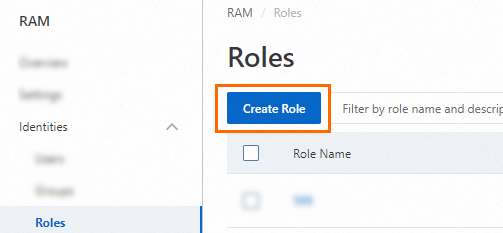
On the Roles page, click Create Role.
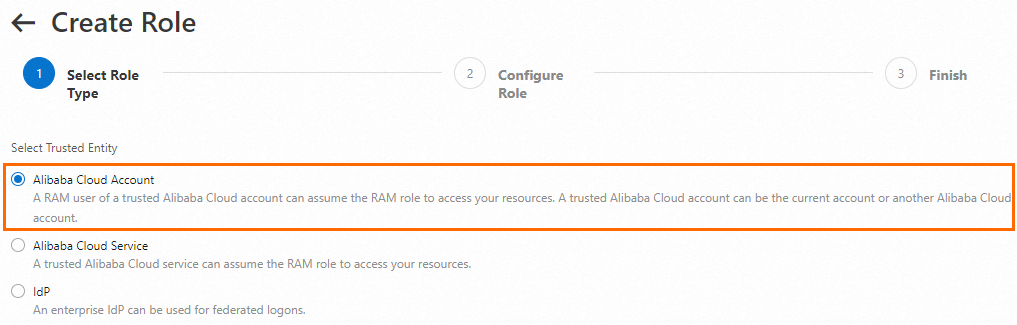
On the Create Role page, select Alibaba Cloud Account as the trusted entity type, and then click Next.
Configure the role information.
Enter a Role Name.
Enter a Description.
Select a cloud account. For the cloud account, select Other Alibaba Cloud Account and enter the Alibaba Cloud account ID of Company B in the text box.
Click Finish.
Click Close.
Step 2: Company A grants permissions to the RAM role
The new role has no permissions. Company A must grant the required permissions to the role.
Log on to the RAM console as a RAM administrator.
In the navigation pane, choose .
On the Roles page, find the target RAM role and click Add Permissions in the Actions column.
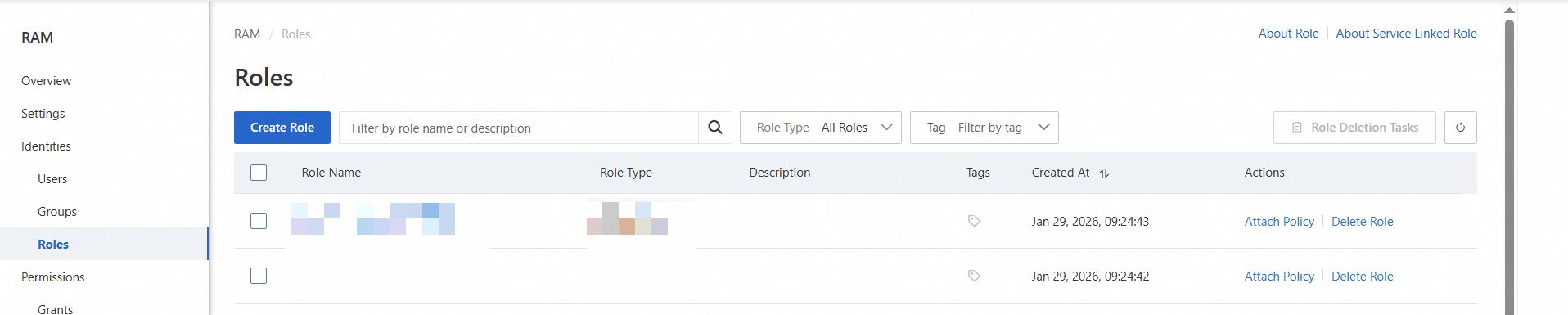
You can also select multiple RAM roles and click Add Permissions below the list to grant permissions to the roles in a batch.
In the Add Permissions panel, grant permissions to the RAM role.
Select a resource scope.
Account: The permissions take effect within the current Alibaba Cloud account.
Resource Group: The permissions take effect within the specified resource group.
NoteFor the permissions to take effect on a resource group, the Alibaba Cloud service and resource type must support resource groups. For more information, see Alibaba Cloud services that support resource groups.
Select a principal.
The principal is the RAM role to which you want to grant permissions. The system automatically selects the current RAM role.
Select an access policy. In this example, select the AliyunAHASFullAccess permission, which grants full permissions for AHAS.
Click the Confirm Add Authorization button.
Step 3: Company B creates a RAM user
Next, use the Alibaba Cloud account of Company B to create a RAM user in the RAM console.
Procedure
Log on to the RAM console by using an Alibaba Cloud account or a RAM user who has administrative rights.
In the left-side navigation pane, choose .
On the Users page, click Create User.

In the User Account Information section of the Create User page, configure the following parameters:
Logon Name: The logon name can be up to 64 characters in length, and can contain letters, digits, periods (.), hyphens (-), and underscores (_).
Display Name: The display name can be up to 128 characters in length.
Tag: Click the
 icon and enter a tag key and a tag value. You can add one or more tags to the RAM user. This way, you can manage the RAM user based on the tags.
NoteYou can click Add User to create multiple RAM users at a time.
In the Access Mode section, select an access mode and configure the required parameters.
To ensure the security of your Alibaba Cloud account, we recommend that you select only one access mode for the RAM user. This way, the RAM user for an individual is separated from the RAM user for a program.
Console Access
If the RAM user represents an individual, we recommend that you select Console Access for the RAM user. This way, the RAM user can use a username and password to access Alibaba Cloud. If you select Console Access, you must configure the following parameters:
Set Console Password: You can select Automatically Regenerate Default Password or Reset Custom Password. If you select Reset Custom Password, you must specify a password. The password must meet the complexity requirements. For more information, see Configure a password policy.
Password Reset: specifies whether the RAM user is required to reset the password upon the next logon.
Enable MFA: Specify whether to enable multi-factor authentication (MFA) for the RAM user. After you enable MFA, you must bind an MFA device. For more information, see Bind an MFA device.
OpenAPI Access
If the RAM user represents an application, you can use a permanent AccessKey pair to access Alibaba Cloud. Selecting this option automatically creates an AccessKey pair (an AccessKey ID and an AccessKey secret) for the RAM user. For more information, see Create an AccessKey pair.
ImportantAn AccessKey secret for a RAM user is displayed only when you create an AccessKey pair. You cannot query the AccessKey secret in subsequent operations. Therefore, you must back up your AccessKey secret.
An AccessKey pair is a long-term credential for programmatic access. A leaked AccessKey pair compromises all resources in your account. To reduce this risk, we strongly recommend using temporary credentials, such as an STS token, instead. For more information, see Best practices for using access credentials to call Alibaba Cloud OpenAPI.
Click OK.
Complete the security verification as prompted.
Step 4: Company B grants permissions to the RAM user
Company B must grant the AliyunSTSAssumeRoleAccess permission to the RAM user under its Alibaba Cloud account. This permission allows the RAM user to assume the RAM role that was created by Company A.
Log on to the RAM console as a RAM administrator.
In the navigation pane, choose .
On the Users page, find the RAM user that you want to manage and click Add Permissions in the Actions column.

In the Add Permissions panel, grant permissions to the RAM user.
Select a resource scope.
Account: The permissions take effect within the current Alibaba Cloud account.
Resource Group: The permissions take effect within the specified resource group.
ImportantFor the permissions to take effect on a resource group, the Alibaba Cloud service and resource type must support resource groups. For more information, see Alibaba Cloud services that support resource groups. For an example of how to grant permissions on a resource group, see Use resource groups to grant a RAM user the permissions to manage specific ECS instances.
Select a principal.
The principal is the RAM user to which you want to grant permissions. The system automatically selects the current RAM user.
In the search box, enter AliyunSTSAssumeRoleAccess, click the icon to search, and then select the AliyunSTSAssumeRoleAccess permission.
Click Confirm Add Authorization.

Step 5: Log on to the console as the RAM user
After you complete the preceding steps, the RAM user from Company B can log on to the console to access the cloud resources of Company A. The procedure is as follows:
Go to the Alibaba Cloud Management Console.
usern***@company-alias.onaliyun.com
(Optional) If you enabled MFA, you must also perform security authentication.
Enter the logon password for the RAM user, and then click Log on.
On the RAM User Center page, move the mouse pointer over the profile picture in the upper-right corner and click Switch Identity.
NoteIf you are using a RAM user, contact the owner of the Alibaba Cloud account to grant you the required permissions.
On the Alibaba Cloud - Switch Role page, enter the Enterprise Alias or Default Domain Name of Company A and the Role Name, and then click Switch.
Perform operations on the Alibaba Cloud resources of Company A.
For more information, see MFA and Attach an MFA device to a RAM user.