Failover drill
A failover drill simulates a failover operation to test the multi-active disaster recovery capabilities of your service. This topic describes how to create, run, and view a failover drill task.
Prerequisites
You have configured a namespace. For more information, see Create an instance.
You have configured multi-active attributes in the data layer and synchronized link data. For more information, see Configure the data layer.
Create a failover drill task
Log on to the MSHA console.
In the left navigation pane, choose , and then select the namespace for your multi-active architecture from the top of the page.
In the left navigation pane, choose .
On the Failover Drill page, click Create Drill.
On the Create Drill page, select a Drill Type and then click Next.
The following drill types are supported:
Pre-image drill: Verifies that anti-overwrite protection is effective during the interval between a rule's issuance and when it takes effect.
Absolute write prohibition drill: Verifies that write prohibition is enforced to prevent dirty data generation during the interval between a rule's issuance and when it takes effect.
Delayed policy drill: Verifies that delayed write prohibition mechanisms are active after a data-level write prohibition takes effect to ensure all data clusters remain write-prohibited.
Enter the basic information and then click Next.
Parameter
Description
Drill name
Enter a name for the drill.
Drill remarks
Add a description for the drill. Include information such as the reason for the drill, the scenario being tested, and any potential impacts.
Automatic recovery time
Specifies the duration after which the drill automatically stops and services are restored. This setting is a safeguard because drills can affect online services.
Enter the advanced information and then click Start Drill.
The advanced information varies based on the selected drill type.
Parameter
Description
Synchronization link type
Options include RDS and DRDS.
Synchronization unit direction
Set the source and destination units.
Synchronization link
Select a synchronization link. You can search by source instance or destination instance.
Write-prohibited route ID
Set the write-prohibited route ID. Only one ID is allowed. Click OK.
Write-prohibited unit
The write-prohibited unit is automatically derived from the Write-prohibited route ID.
IP address in ACM
Select an ACM namespace and add IP addresses. To add multiple IP addresses, separate them with commas (,). You can add up to 64 IP addresses.
Instance
Select an instance. You can search by the instance name.
Run a failover drill
After you create a failover drill task, the Drill Details page appears and the drill begins.
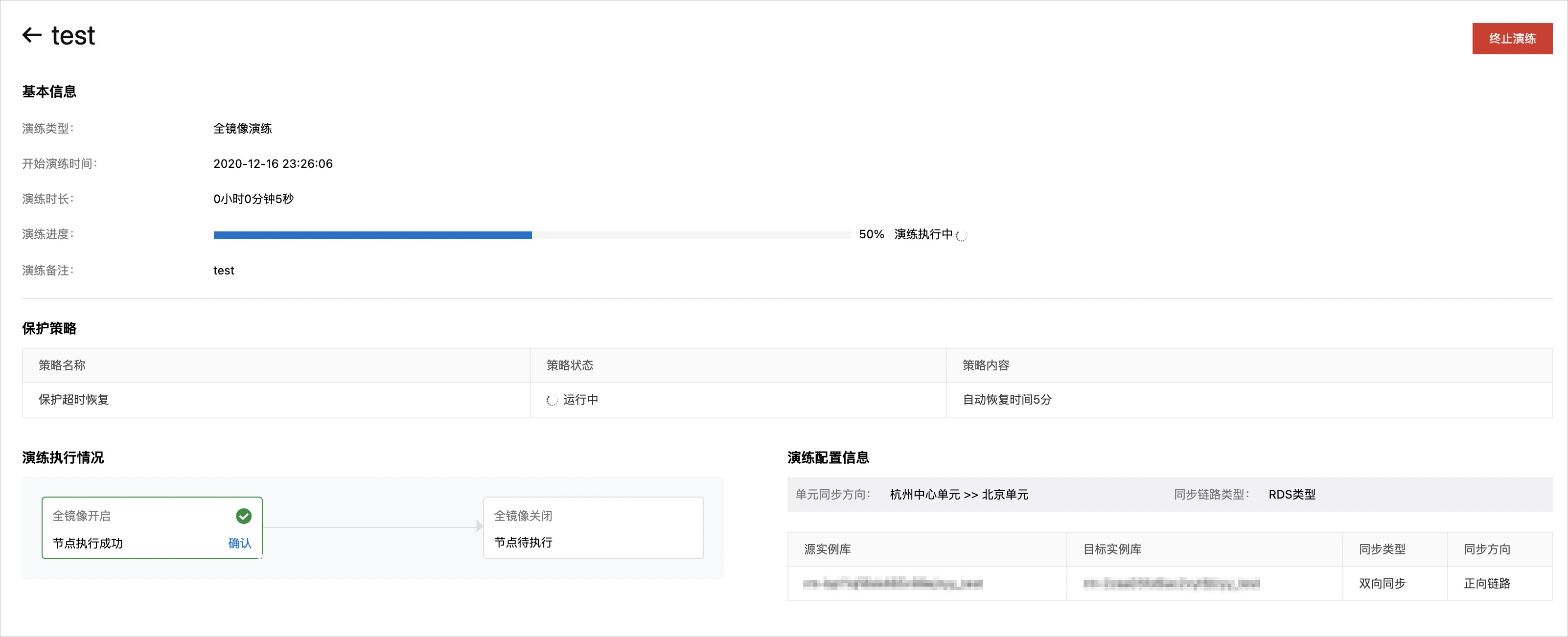
This page displays the drill's progress, duration, and results, and is divided into the following areas.
Area | Description |
Basic information | Displays information such as the drill progress and start time. |
Protection policy | A failover drill's protection policy currently supports only timeout-based recovery.
|
Drill execution status | Displays the running status of the drill:
|
Drill configuration information | Displays the drill's configuration details, such as the unit synchronization direction, synchronization link type, and specific instances. |
On the Drill Details page, you can also perform the following actions:
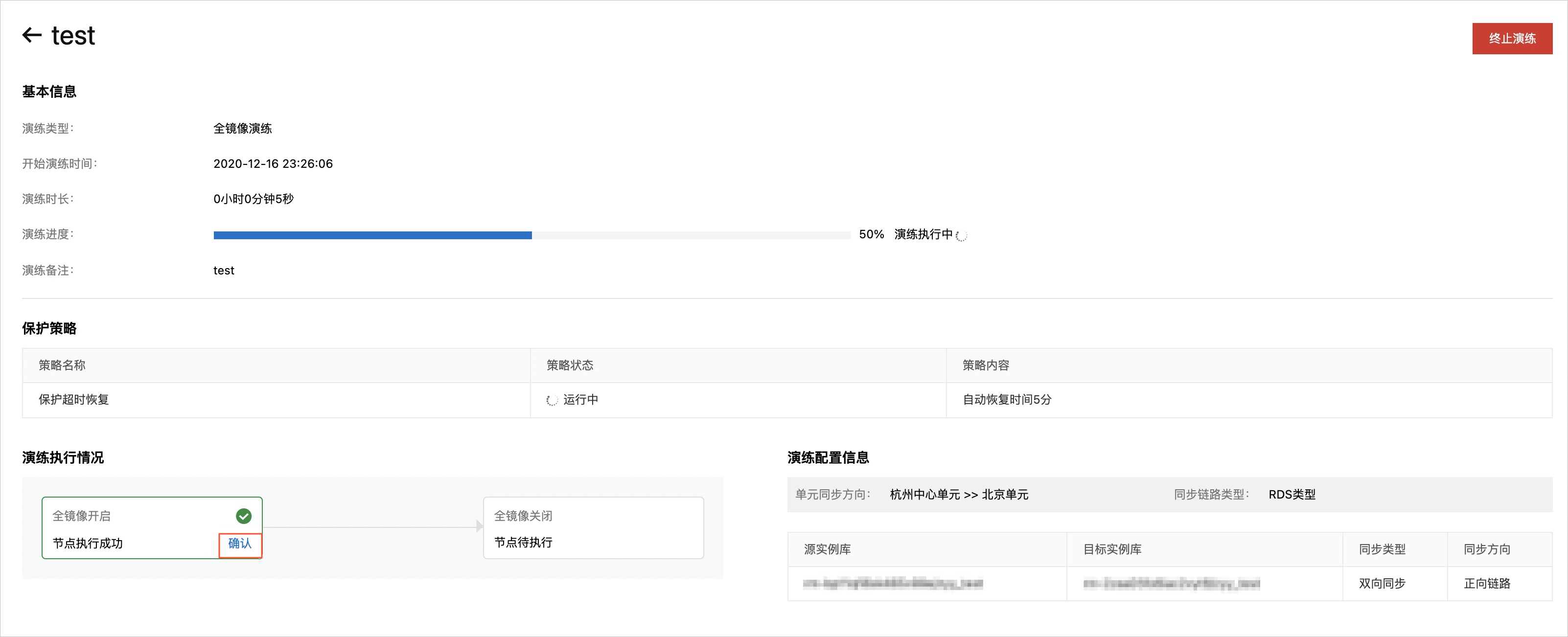
After the first drill node executes successfully, click OK to proceed to the next node.
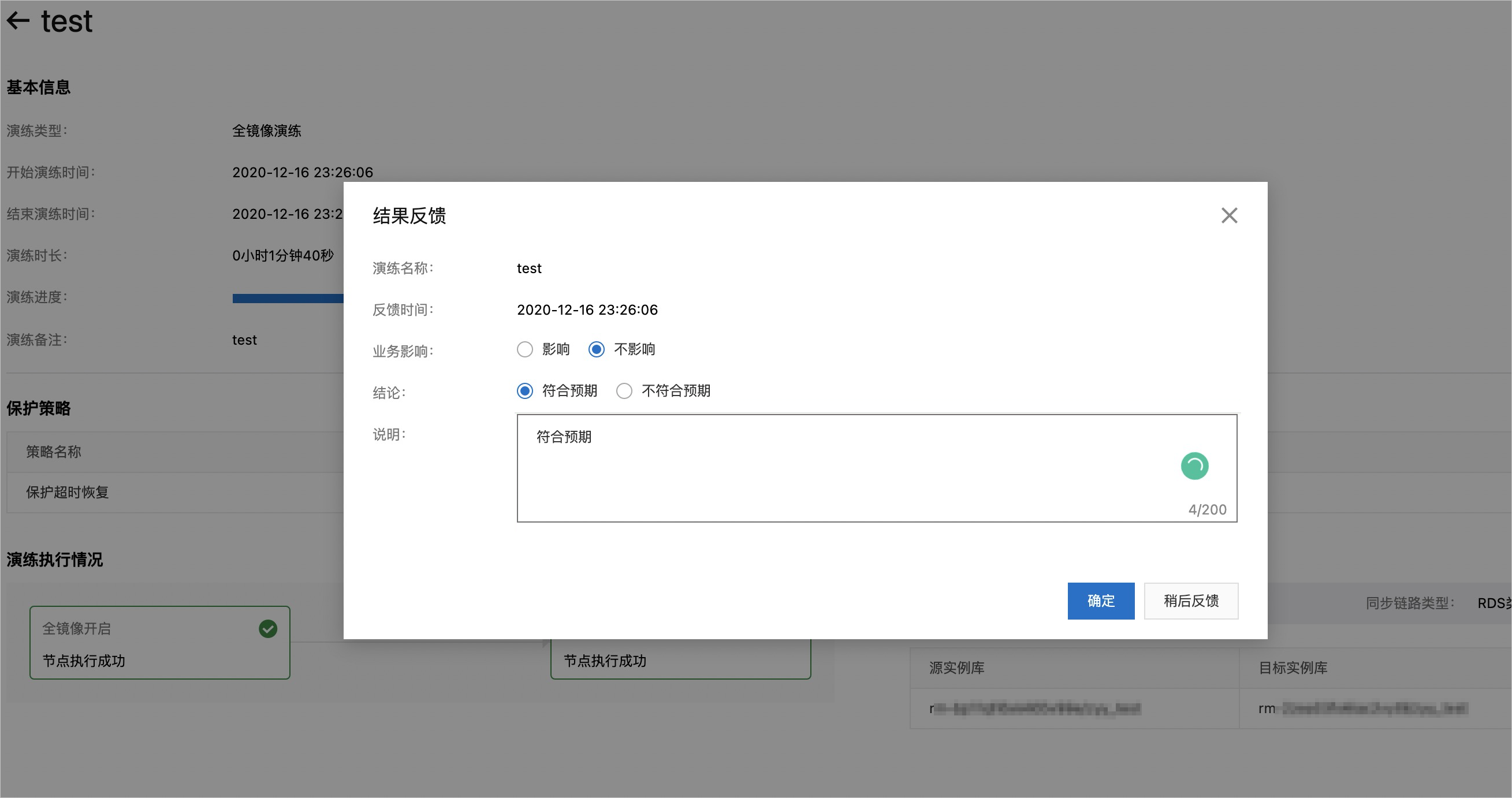
After the drill completes, enter your feedback in the Result feedback dialog box.
View a failover drill task
Log on to the MSHA console.
In the left navigation pane, choose , and select a namespace at the top of the page.
The Failover Drill page displays a list of your failover drill tasks.
On the Failover Drill page, find the target drill task and click View in the Actions column.
The Drill Details page appears, displaying detailed information about the failover drill.