Large Language Model Gateway Configuration
This topic describes the basic process for Large Language Model (LLM) gateway configuration. Configure LLM gateway information to connect the communication engine with the LLM.
Preparations: Configure the Large Language Model
Before using the communication intelligent engine, configure your Large Language Model (LLM). We recommend using Qwen series models through Alibaba Cloud Model Studio, or using open source models and commercially mature models available in the marketplace.
-
If you use your own LLM or integrate a third-party LLM, it must comply with the communication engine gateway standard protocol.
-
If you choose to use Alibaba Cloud Model Studio, integrate through models or applications.
-
Integrate through models: See the Model List to select the Large Language Model (LLM) you want to use. You will need this when creating the LLM gateway later.
-
Integrate through applications: Large Language Models (LLMs) cannot directly answer questions in private knowledge domains. Using Alibaba Cloud Model Studio's agent application building capabilities and private knowledge documents, build an LLM Q&A application that can answer questions in private domains. LLM applications used for calls must use streaming output. Otherwise, slow content generation by the robot leads to poor interaction. We currently recommend using agent applications or conversational workflow applications.
Agent Application
-
Log on to Alibaba Cloud Model Studio, access the Application Management page. Click Add Application.

-
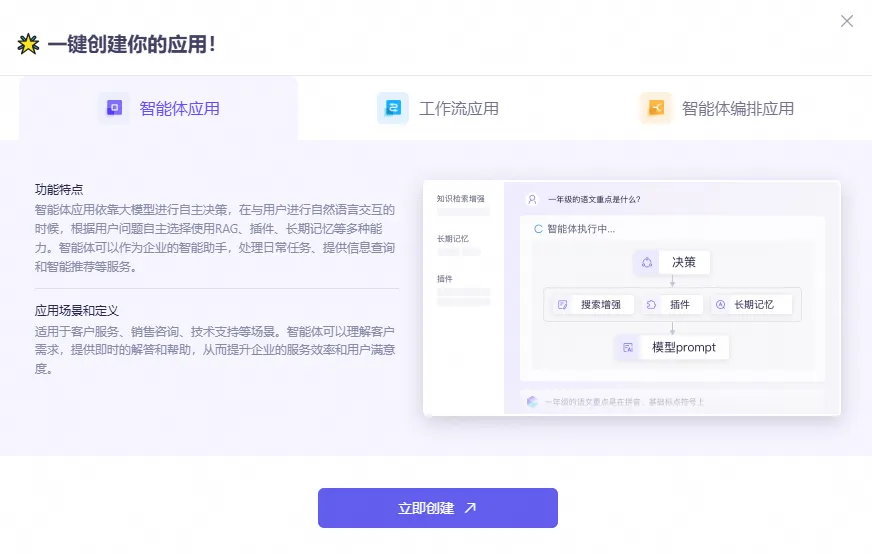
Select Agent Application and click Create Now.
-
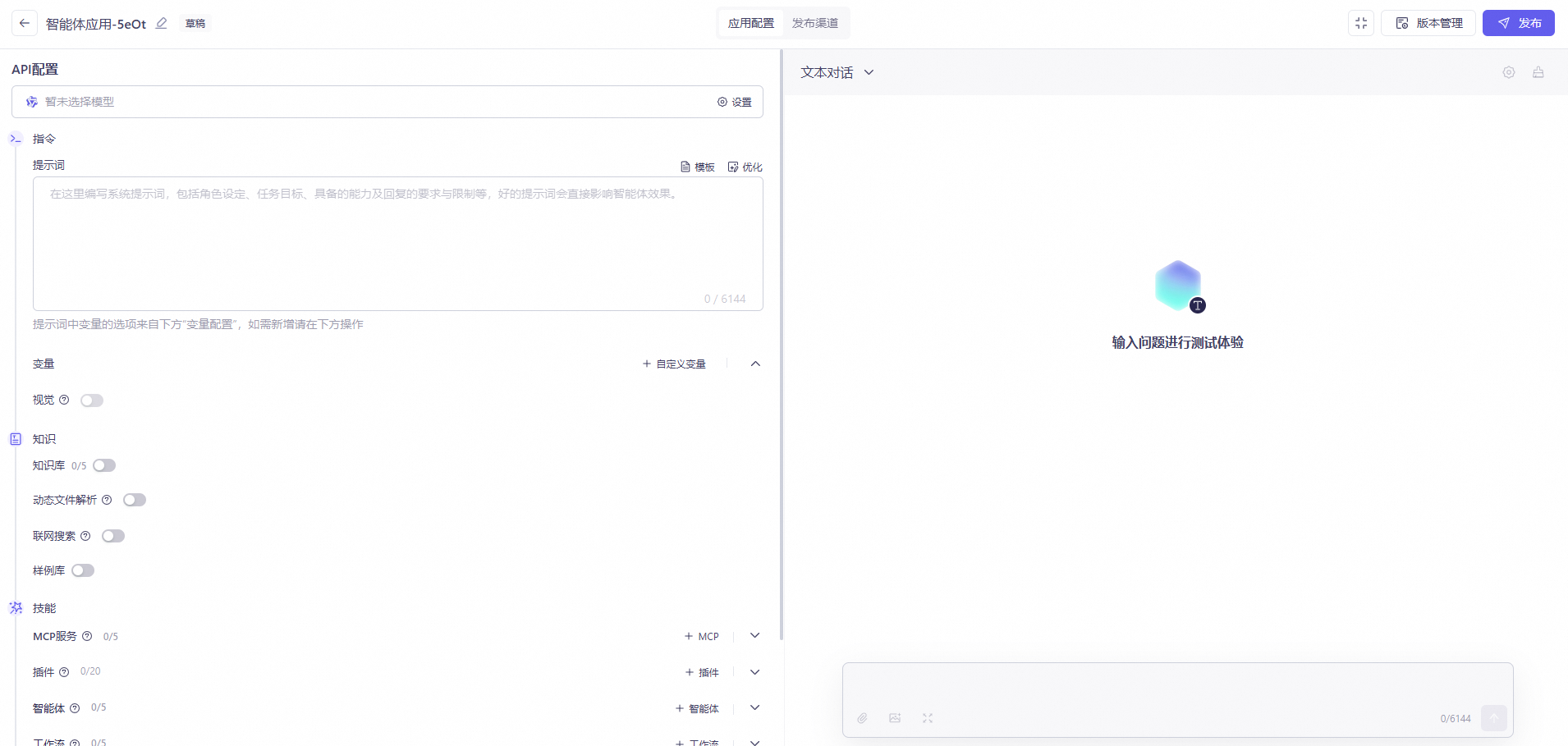
Select the Model Studio model to use. Enter instructions, knowledge base, as needed. For more information, see Build a Q&A Application Without Code. After completion, click Publish.
-
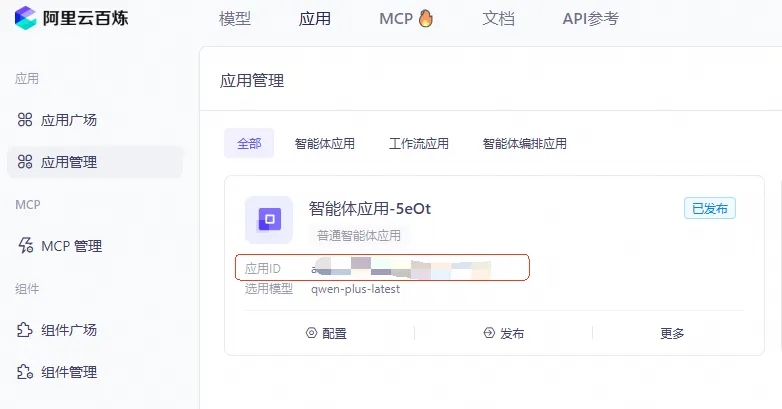
Return to the Application Management page and obtain the application ID.
-
Replace
YOUR_APP_IDinhttps://dashscope.aliyuncs.com/api/v1/apps/YOUR_APP_ID/completionwith the application ID obtained above to obtain the model address.
Conversational Workflow Application
-
Log on to Alibaba Cloud Model Studio and access the Application Management page. Click Add Application.
-
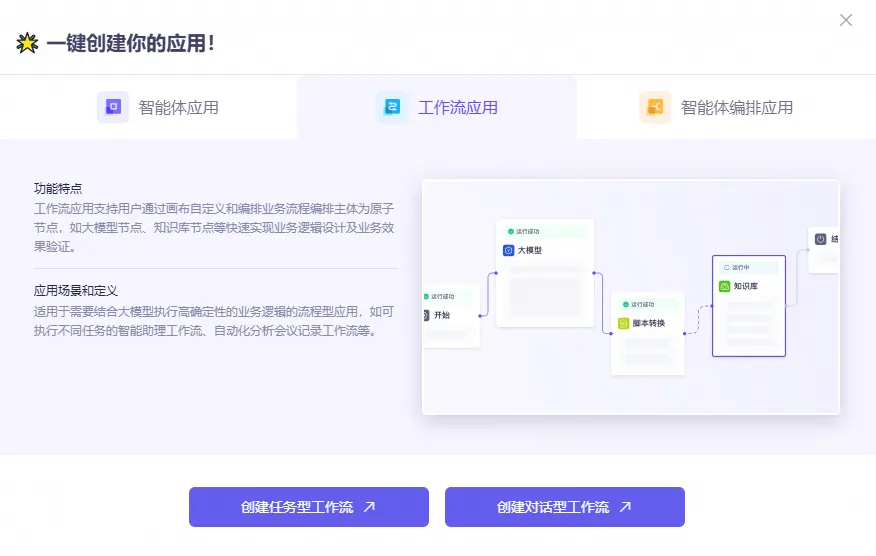
Select workflow application, and click Create Conversational Workflow.

-
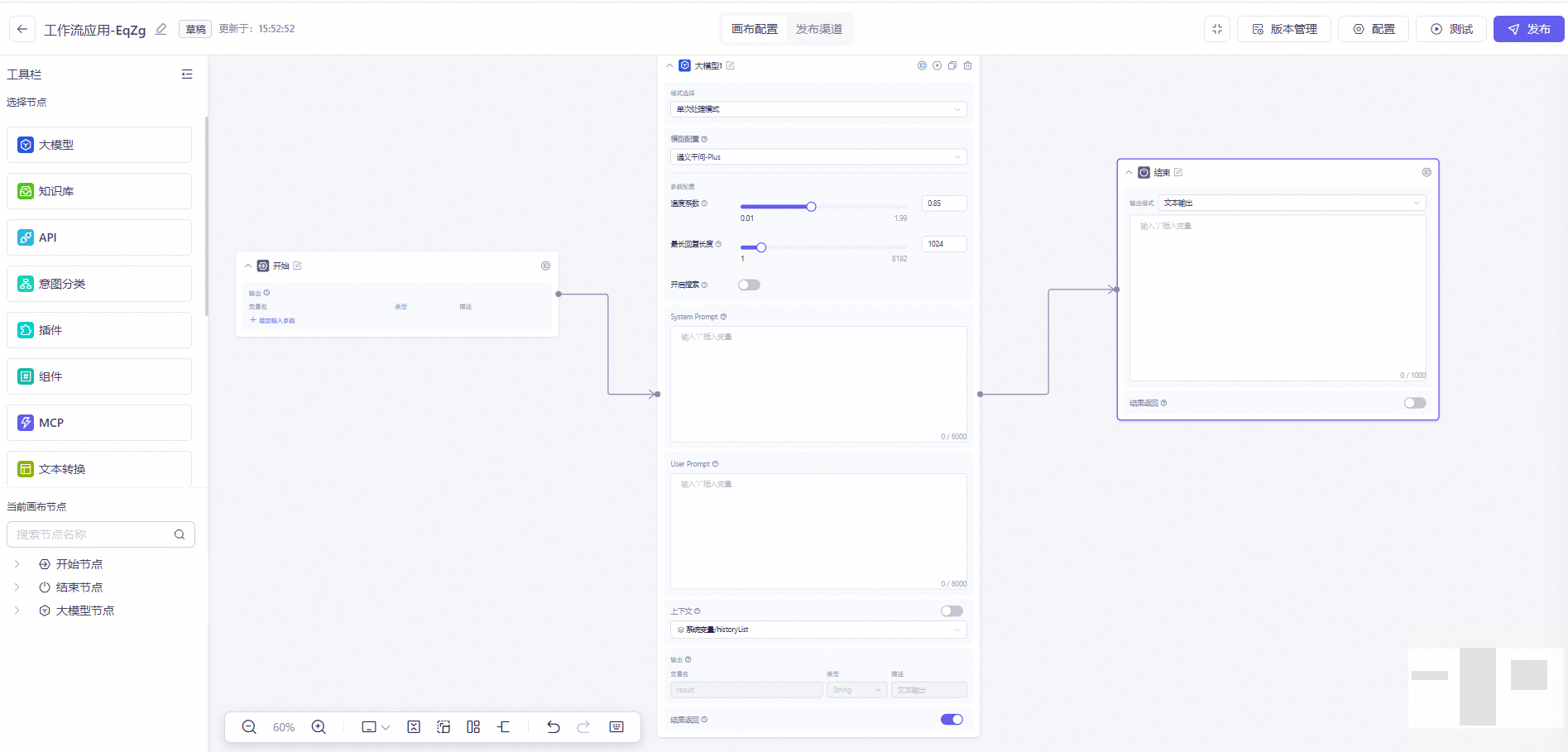
Configure the nodes as needed. For more information, see Case Two: Intelligent Shopping Guide. After you configure the nodes, click Publish.
Note-
Ensure that the output node of the corresponding Large Language Model (LLM) has "Return Result" enabled. Otherwise, it only supports output after all model responses are complete.
-
Ensure that the workflow end node uses text output and disable the "Return Result" switch. Otherwise, duplicate content will be generated.
-
Conversational workflow applications support passing custom parameters.
-
-
Return to the Application Management page and obtain the application ID.
-
Replace
YOUR_APP_IDinhttps://dashscope.aliyuncs.com/api/v1/apps/YOUR_APP_ID/completionwith the application ID obtained above to obtain the model address.
-
-
Step 1: Create a Large Language Model Gateway
In the Artificial Intelligence Cloud Call Service console > LLM Communication > Communication Intelligence Engine > LLM Gateway Configuration tab, click Create LLM Gateway, configure the basic information in the dialog box that appears, and click OK to complete the creation.

Configuration Item Description
You can use Qwen series models, open source models, or commercially mature models available in the marketplace. To build your own Large Language Model (LLM), complete fine-tuning and prompt configuration for your business scenario before integrating the model with the communication intelligent engine. You can integrate your own LLM only if it complies with the LLM gateway integration parameter protocol.
|
Configuration Item |
Description |
Best Practices Configuration |
|
Model Name |
Enter a custom name. |
Test Gateway |
|
Model Address |
Enter the LLM invocation address.
|
http://**** |
|
Authorization Code |
LLM service API key. If you use Alibaba Cloud Model Studio, access the Alibaba Cloud Model Studio console to obtain an API key. If no API key is available, click Create My API_KEY in the upper-right corner. |
s*********************************1 |
|
Model Temperature |
Model temperature is a parameter used to adjust the diversity and randomness of generated model output. It is typically between 0 and 1, supporting three decimal places. |
0.7 Note
This configuration parameter is a recommended value. |
|
Model Top P |
Also known as nucleus sampling, it randomly selects the next word from the group of words whose cumulative probability reaches p. |
0.9 Note
This configuration parameter is a recommended value. |
|
Model Top K |
A custom number. During sampling, it selects the next word only from the top K words with the highest probability. |
50 Note
This configuration parameter is a recommended value. |
|
Base Model Version |
The model version, passed as a parameter to the LLM. For example, Qwen model versions include qwen-plus, qwen-turbo, and qwen-max. For more information, see the Model List. Note
When using a Model Studio application, avoid configuring the base model version to prevent testing errors. |
qwen-plus |
Step 2: Test the Large Language Model Gateway
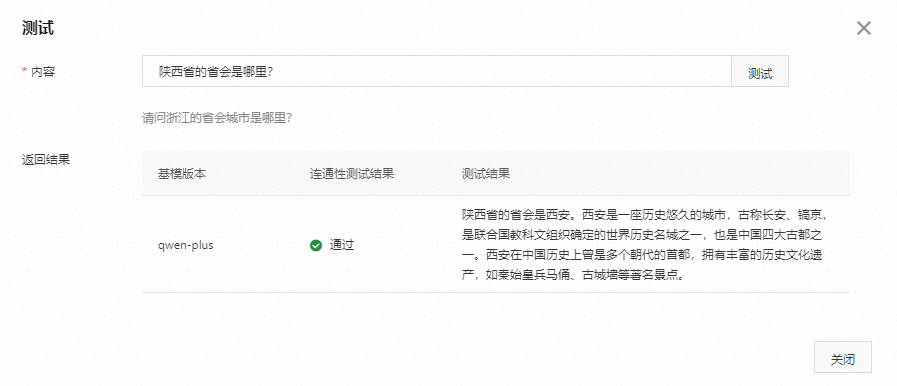
Customize test content, send it to the model for testing, and receive test results and content.
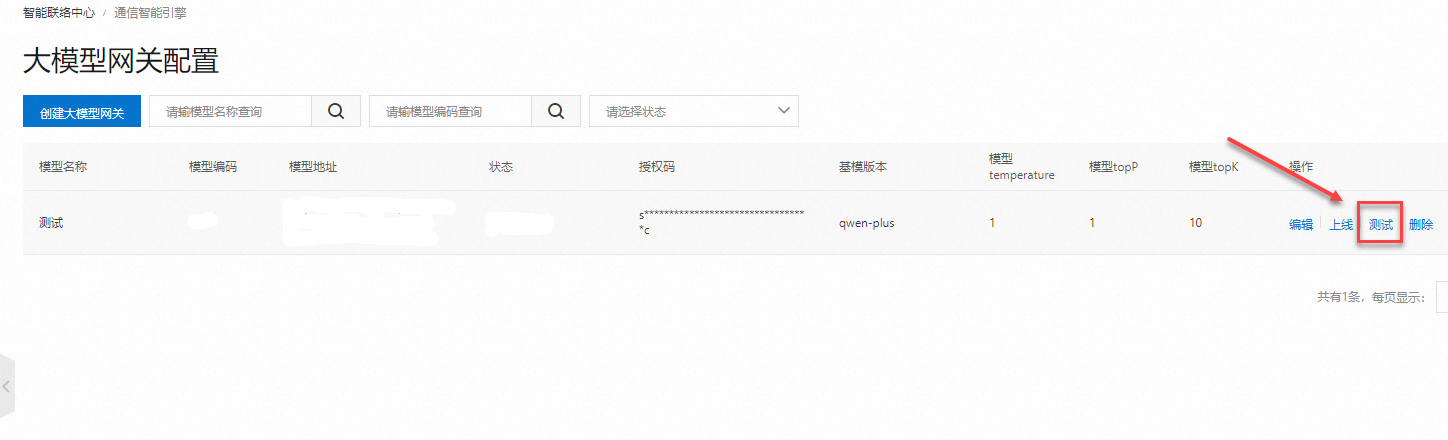
In the Artificial Intelligence Cloud Call Service console > Large Language Model Communication > Communication Intelligence Engine > Large Language Model Gateway Configuration tab, click Test for the created large language model gateway, enter test content in the pop-up dialog box, and click Test to view the test results and content.
Step 3: Publish the Large Language Model Gateway
Before you publish a Large Language Model (LLM) gateway, it must pass testing. After it passes testing, you can publish it. In the console, click the Publish button for the gateway that has passed testing, and then click Confirm Publish in the dialog box that appears.
-
Published gateways can be associated with LLM applications. After unpublishing, they cannot be associated with applications.
-
After a gateway is published, you can only unpublish it or add a new base model. You cannot delete or edit it. Gateways associated with applications can also be unpublished.
What to do next
-
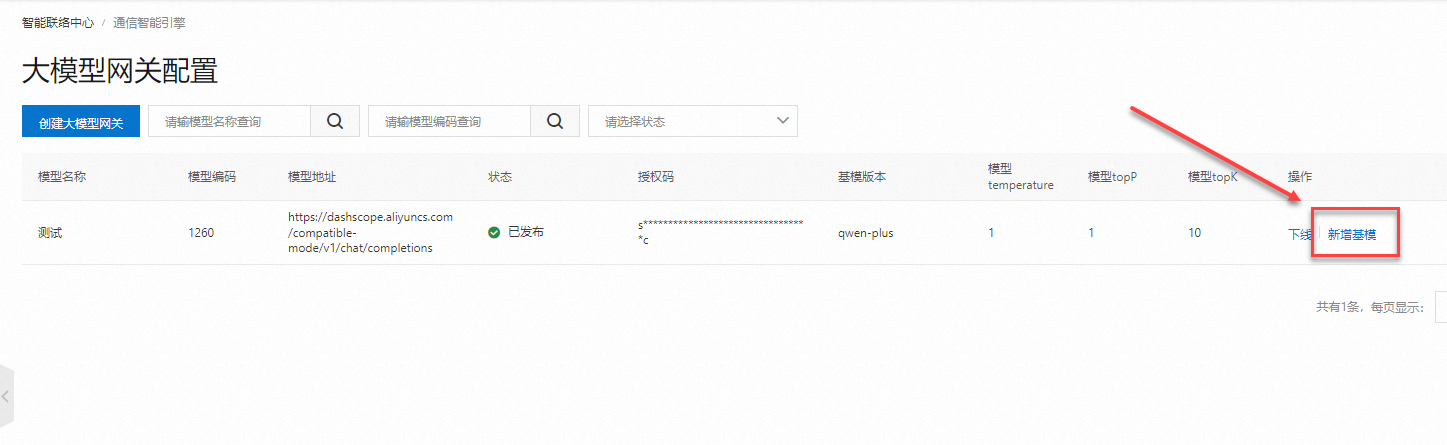
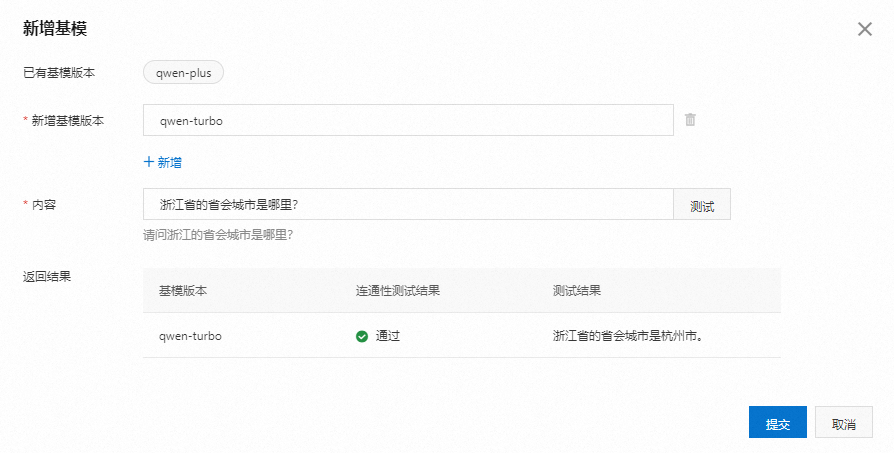
Add a base model version: A published Large Language Model (LLM) gateway can add a new base model version based on the existing one and send custom test content to the model for testing.
In the Artificial Intelligence Cloud Call Service console > Large Language Model Communication > Communication Intelligence Engine > Large Language Model Gateway Configuration tab, click Add Base Model for an online Large Language Model gateway. In the dialog box that appears, enter the new base model template and test content in the Content field. Click Test to view the test results and content. After the test results pass, click Submit to complete adding the base model.
-
Unpublish the Large Language Model Gateway
To unpublish a published Large Language Model (LLM) gateway, click the Unpublish button, and in the dialog box that appears, click Confirm Unpublish.
NoteAfter an application-associated gateway is unpublished, the application cannot be invoked normally.