Display Detection knowledge base API
This guide describes how to use the API to add product images, query records, and update or delete specific images in an existing Display Detection knowledge base.
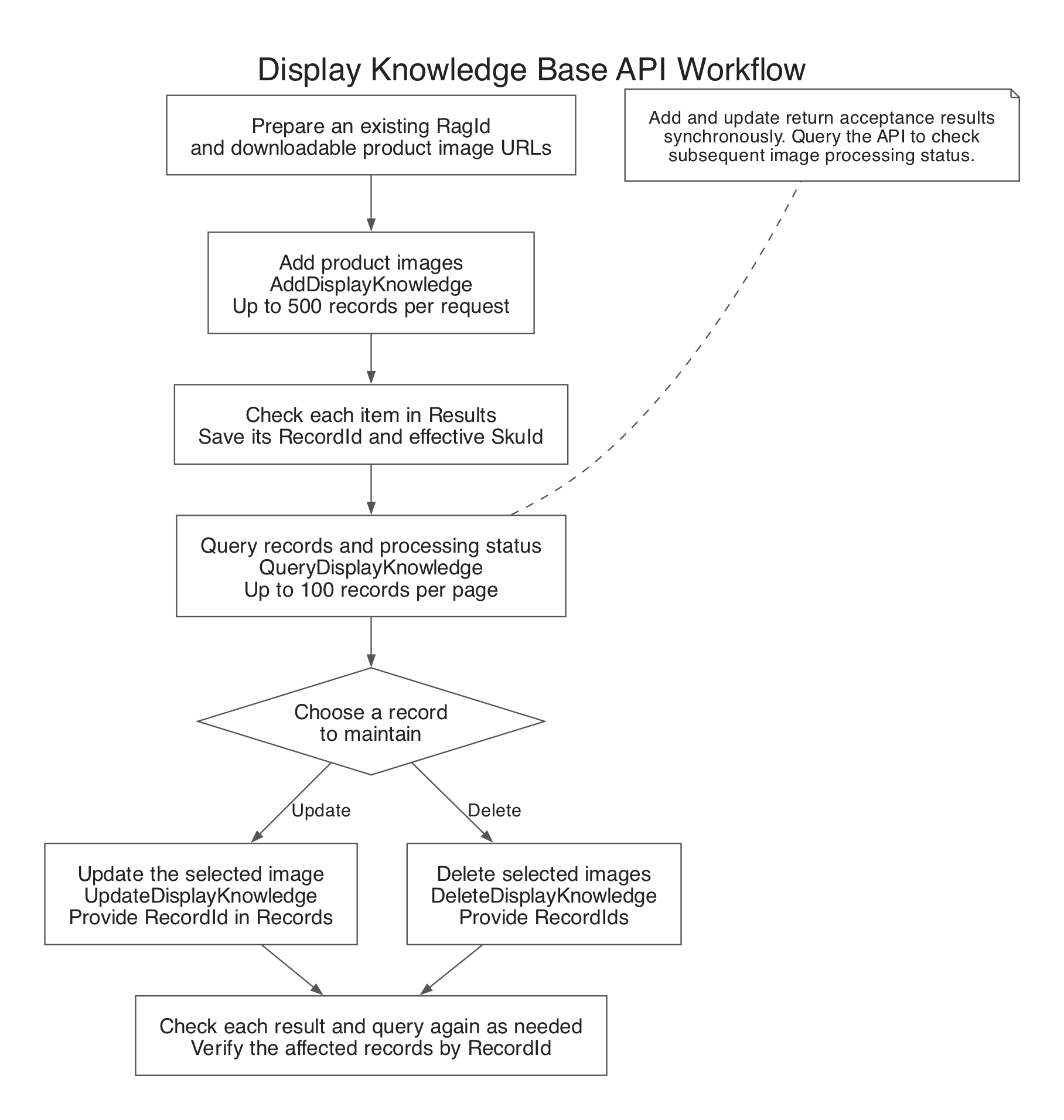
Display Detection knowledge base content management allows you to batch add, query, update, and delete product reference images. You can manage your existing knowledge bases by using the RagId and maintain individual image records by using the RecordId returned by the platform, which allows you to continuously update product information in your custom business systems.
Console access: Intelligent Inspection
I. API
1. Introduction
Use this set of APIs to manage image records in your existing Display Detection knowledge bases. You can upload multiple reference images for a single product from various angles, with each image stored as an independent record. You do not need to generate your own primary_key. When you add or query records, the platform returns a RecordId. Use this ID for all subsequent update and delete operations.
2. Use cases
Batch product data import: Batch add product names, IDs, and reference images to an existing knowledge base.
Routine product image maintenance: Replace packaging images, add reference images from new angles, and delete outdated images.
Custom system integration: Display images and their ingestion status in your business system, and use the record ID for precise maintenance.
3. Features
Function | API name | Limit per call |
Batch add |
| Up to 500 records |
Paginated query |
| 20 records per page by default, up to 100 |
Batch update |
| Up to 500 records |
Batch delete |
| Up to 500 record IDs |
All four APIs use HTTPS POST requests with the version 2026-04-28 and are authenticated using an AccessKey. Use the endpoint and region provided when you activate the service. We recommend using the official SDK or an OpenAPI tool on the server-side to handle signature generation and parameter serialization.
All four APIs return responses synchronously. For add and update operations, a successful result for an individual record indicates that the request was accepted for processing, not that the image processing is complete. Use the query API to check the record's status. The TaskId in the response is empty for these synchronous APIs, so you do not need to poll for status using a task ID.
4. Identifiers and workflow
Identifier | Purpose |
| The ID of an existing knowledge base. Used to target the knowledge base for the operation. |
| The business ID for a product. If left empty when adding a record, the platform generates one. We recommend saving the returned value. |
| The platform-generated ID for a single image record. Used for update and delete operations. |
You can use the same SkuId and name for multiple images of the same product. To manage them, first query by SkuId to retrieve all matching records, then select the specific RecordId to update or delete. We recommend maintaining a stable SkuId for each product and using distinct IDs for different products.
II. Rate limiting and authorization
Rate limiting: The specific Queries Per Second (QPS) threshold is not provided on the API page. The service's actual rate limits apply. For limits on batch sizes and query page sizes, refer to the table in the Features section.
Authorization: The caller must have access permissions for the API and the target knowledge base. When using a RAM user, an administrator must grant the necessary add, query, update, and delete permissions based on the applicable permission policy.
Credential usage: The AccessKey is a server-side credential and must not be exposed in browsers or mobile clients.
III. Request parameters
The following sections describe the business parameters for each API. All field names are case-sensitive. In the API model, these parameters are configured as query parameters. You must use an SDK or an OpenAPI tool to serialize arrays and objects. The JSON examples illustrate the parameter structure and do not represent the raw HTTP request body. Common signature parameters are omitted for brevity.
The sku_id, sku_name, and sku_image_url fields in a CSV file correspond to the SkuId, SkuName, and ImageUrl API parameters, respectively.
1. AddDisplayKnowledge: Add records
Parameter | Type | Description |
| String | Required. The ID of the existing knowledge base. |
| Array of objects | Required. The records to add. You can add up to 500 records in a single call. |
Fields for each record in the Records array
Field path | Type | Description |
| String | The SKU ID. If you leave this field empty, the platform generates an ID. |
| String | The product name. |
| String | The HTTP or HTTPS URL of the product image. |
Provide a product name and a valid image URL for each image. To add reference images from multiple angles, include each as a separate entry in the Records array.
Example request:
{
  "RagId": "your-rag-id",
  "Records": [
    {
      "SkuId": "SKU-001",
      "SkuName": "Sample Product",
      "ImageUrl": "https://example.com/front.jpg"
    },
    {
      "SkuId": "SKU-001",
      "SkuName": "Sample Product",
      "ImageUrl": "https://example.com/back.jpg"
    }
  ]
}
The image URLs are placeholders. Replace them with the actual URLs of your downloadable images.
2. QueryDisplayKnowledge: Query content
Parameter | Type | Description |
| String | Required. The knowledge base ID. |
| String | Optional. Filters results by an exact match on the SKU ID. |
| String | Optional. Filters results by keywords in the SKU name. |
| Array of strings | Optional. Filters records by status. Supported values are described in a later section. |
| Int32 | Optional. The page number. Default: 1. |
| Int32 | Optional. The number of records per page. Default: 20. Maximum: 100. |
Query by product ID:
{
  "RagId": "your-rag-id",
  "SkuId": "SKU-001",
  "PageNum": 1,
  "PageSize": 100
}
If you do not specify SkuId, SkuName, or Statuses, the API returns a paginated list of all content in the knowledge base. If multiple images match the same ID, the API returns all matching records. Use the TotalPage value to request subsequent pages and retrieve all results.
Query for failed records only:
{
  "RagId": "your-rag-id",
  "Statuses": ["FAILED"],
  "PageNum": 1,
  "PageSize": 100
}
3. UpdateDisplayKnowledge: Update records
First, obtain the RecordId of the record you want to update from an add or query response. Then, submit your changes.
Parameter | Type | Description |
| String | Required. The ID of the knowledge base where the record is located. |
| Array of objects | Required. The records to update. You can update up to 500 records in a single call. |
Fields for each record in the Records array
Field path | Type | Description |
| Int64 | The ID of the record to update. |
| String | Providing a non-empty value overwrites the original SKU ID. |
| String | The product name. |
| String | The HTTP or HTTPS URL of the product image. |
Include the current name and image URL that you want to keep, along with the fields you want to change. The SkuId is updated only if you provide a non-empty value. Omitting the field or providing an empty value leaves the existing ID unchanged.
Example request:
{
  "RagId": "your-rag-id",
  "Records": [
    {
      "RecordId": 10001,
      "SkuId": "SKU-001",
      "SkuName": "Sample Product",
      "ImageUrl": "https://example.com/front-new.jpg"
    }
  ]
}
10001 is an example record ID. Replace it with an actual ID returned by the platform. Updates are targeted by RecordId, so the operation will not automatically modify other images that share the same SkuId.
4. DeleteDisplayKnowledge: Delete records
Parameter | Type | Description |
| String | Required. The knowledge base ID. |
| Array of integers (int64) | Required. The IDs of the records to delete. You can delete up to 500 records in a single call. |
Example request:
{
  "RagId": "your-rag-id",
  "RecordIds": [10001, 10002]
}
This operation only deletes the specified records. To delete all reference images for a product, you must first query by SkuId, retrieve all records across all pages, verify the results, and then submit the corresponding RecordId values in batches.
5. Request details
When adding or updating records, provide a name and a valid HTTP(S) URL for each image. If you do not provide an
SkuIdwhen adding a record, the platform generates an ID. When updating, providing a non-emptySkuIdoverwrites the existing one; omitting the field or sending an empty value leaves the ID unchanged.Update and delete operations are targeted by
RecordIdand do not automatically affect a group of images that share the same SKU ID. To replace multiple images, you must specify each record ID. Use the add and delete APIs to add or remove a product's reference images.This set of APIs does not define a method to atomically replace an entire image collection by SKU ID, does not provide client-side idempotency request parameters, and does not automatically merge, roll back, or deduplicate multiple calls.
If you use temporary image URLs, ensure they remain valid and accessible while the platform downloads them.
RecordIdis anint64. Use an SDK or parsing method that preserves the precision of large integers.
Response parameters
1. Top-level fields
Field | Type | Description |
| Object | The business result object. Its fields are not nested within an additional |
| String | The request ID. Use it for troubleshooting. |
| String | The error code or status code of the call. The actual returned value is used. |
| String | The returned message or a description of a call failure. |
| Boolean | Indicates whether the call was successful. |
2. Common fields in Data
Field path | Type | Description |
| Map (key: String, value: int64) | Usage information. This field is empty for free API calls. An empty value does not indicate the billing rule. |
| String | This field is empty for synchronous API calls. It is not used as a credential for status queries. |
| Boolean | Indicates whether the business process was successful. |
| String | The business error code. |
| String | The business error message. |
| String | The knowledge base ID. |
| String | The current status of the knowledge base. This is returned separately from the status of individual records. |
3. Business results for create and update operations
Field path | Type | Description |
| int32 | The number of accepted records. |
| int32 | The number of failed records. |
| Array of objects | The processing result for each record. |
Fields for each result in the Data.Results array
Field path | Type | Description |
| int32 | The index of the record in the original request array. |
| Boolean | Indicates whether the record was accepted. |
| int64 | The platform record ID. |
| String | The ID of the stock keeping unit (SKU) that is in effect. |
| String | The record status. |
| String | The error code for the failed record. |
| String | The reason why the record failed. |
4. Business results for delete operations
In addition to AcceptedCount, FailedCount, and Results, the Data.RemainingCount (int32) field is also returned. This field indicates the number of visible records after the deletion.
The Results field has the same structure as in create and update operations. In a delete operation, Results[].Success indicates whether the record was deleted. The SkuId and Status fields are empty. Determine the operation result from the RecordId and Success fields, and the error message.
5. Business results for query operations
Field path | Type | Description |
| int32 | The total number of records. |
| int32 | The current page number. |
| int32 | The number of records on each page. |
| int32 | The total number of pages. |
| Array of objects | The records on the current page. |
Fields for each record in the Data.Records array
Field path | Type | Description |
| int64 | The image record ID. |
| String | The SKU ID. |
| String | The SKU name. |
| String | The record status. |
| String | The code for the failure reason. This is returned only if the status is |
| String | The description of the failure reason. This is returned only if the status is |
| String | A 24-hour signed URL for the image stored on the platform. |
| String | The expiration time of the signed URL. |
| String | The time the record was last modified. |
6. Status and success determination
The record status can be UPDATING, EMBEDDED, GENERATED, or FAILED. Use the actual returned values. Do not replace them with status values from previous versions. If the status is FAILED, use the failure code and message to handle the error. To check the availability of the knowledge base, also check the KnowledgeBaseStatus.
Check the results in the following order. First, check the top-level Success and Code fields. Second, check the Data.Success field and any business errors. For write operations, check the individual results in the Results array. For create and update operations, a successful acceptance does not mean that vectorization is complete. You must use the query API to check the record status later.
Response examples
The following examples show the response structure. The values for IDs, timestamps, statuses, error messages, and status codes are for demonstration only. The actual success status codes and business-specific error codes are based on the response from the service.
1. Add or modify: Record accepted
{
  "RequestId": "request-example",
  "Code": "success",
  "Success": true,
  "Message": "Success",
  "Data": {
    "UsageMap": {},
    "TaskId": "",
    "Success": true,
    "ErrorCode": "",
    "ErrorMessage": "",
    "RagId": "your-rag-id",
    "KnowledgeBaseStatus": "UPDATING",
    "AcceptedCount": 1,
    "FailedCount": 0,
    "Results": [
      {
        "Index": 0,
        "Success": true,
        "RecordId": 10001,
        "SkuId": "SKU-001",
        "Status": "UPDATING",
        "ErrorCode": "",
        "ErrorMessage": ""
      }
    ]
  }
}
2. Query: Returns two images for the same SKU
{
  "RequestId": "request-example",
  "Code": "success",
  "Success": true,
  "Message": "Success",
  "Data": {
    "UsageMap": {},
    "TaskId": "",
    "Success": true,
    "ErrorCode": "",
    "ErrorMessage": "",
    "RagId": "your-rag-id",
    "Total": 2,
    "PageNum": 1,
    "PageSize": 20,
    "TotalPage": 1,
    "Records": [
      {
        "RecordId": 10001,
        "SkuId": "SKU-001",
        "SkuName": "Example product",
        "Status": "UPDATING",
        "ImageUrl": "https://example.com/front.jpg?signature=example",
        "ImageUrlExpireTime": "2026-10-20T10:00:00+08:00",
        "GmtModified": "2026-10-19T10:00:00+08:00"
      },
      {
        "RecordId": 10002,
        "SkuId": "SKU-001",
        "SkuName": "Example product",
        "Status": "UPDATING",
        "ImageUrl": "https://example.com/back.jpg?signature=example",
        "ImageUrlExpireTime": "2026-10-20T10:00:00+08:00",
        "GmtModified": "2026-10-19T10:00:00+08:00"
      }
    ]
  }
}
3. Delete: Returns the deletion result
{
  "RequestId": "request-example",
  "Code": "success",
  "Success": true,
  "Message": "Success",
  "Data": {
    "UsageMap": {},
    "TaskId": "",
    "Success": true,
    "ErrorCode": "",
    "ErrorMessage": "",
    "RagId": "your-rag-id",
    "KnowledgeBaseStatus": "UPDATING",
    "AcceptedCount": 1,
    "FailedCount": 0,
    "RemainingCount": 1,
    "Results": [
      {
        "Index": 0,
        "Success": true,
        "RecordId": 10001,
        "SkuId": "",
        "Status": "",
        "ErrorCode": "",
        "ErrorMessage": ""
      }
    ]
  }
}
Error codes
For call errors, check Code and Message. For service errors, check Data.ErrorCode and Data.ErrorMessage. For errors in a single operation, check Results[ ].ErrorCode and ErrorMessage. For data import failures, check the FailureReason and FailureMessage of the record. For specific error codes, refer to the unified error codes of the Aidge platform and the actual response.
Scenario | Recommended action |
Partial failure | Check the failed items using |
Add request times out | First, query to check if the record has been created. Then, decide on the next action. Do not assume that resubmitting the request automatically handles duplicates. |
Image processing fails | Fix the source image or download URL. Use the existing |
Signed URL expires | Query again to get a new link. Do not re-upload. |
Target for modification or deletion is unclear | First, query by SKU ID and read through all pages. After checking each record, select the RecordId. |
Bulk maintenance | For write operations, do not exceed 500 records per batch. For queries, do not exceed 100 records per page. Check the results batch by batch. |
Embedding model is being upgraded | During the upgrade, the knowledge base does not support adding, modifying, or deleting records. Pause all write operations and retry after the upgrade is complete. |
Pricing
The price for these content management APIs is determined by the activated service configuration or a business agreement. The per-detection price for the Display Detection API does not directly apply to the knowledge base content management APIs.
Change history
Date | Description |
2026-10-19 | Added a user guide for the knowledge base content management API. The guide covers creating, querying, modifying, and deleting content. It also explains synchronous responses, locating items by RecordId, and paginated queries. |