Agent diagnostics
When an Agent run is interrupted by an authentication failure, a rate limit, or a network timeout, searching logs by hand is slow and misses issues. Agent diagnostics builds on the data collected by Agent observability, automatically detects interruption events in each session, and generates a health score for every instance, so you can find the root cause and fix it quickly.
Overview
Agent diagnostics extends Agent observability. In addition to the token consumption and execution traces that the View Agent execution traces feature collects, Agent diagnostics also collects session-level interruption events and generates diagnostics results for each instance. Agent diagnostics and trace viewing share the same data source, Simple Log Service (SLS). After you enable trace collection, the diagnostics capabilities are available as well. Agent diagnostics provides the following capabilities:
Automatic detection of 10 types of interruption that occur while an Agent runs, such as authentication errors, rate limits, and network timeouts
A health score from 0 to 100 for each instance and Agent to quantify the health of the Agent runs
Details of each interruption event so that you can pinpoint the root cause quickly
Diagnostics data is stored in SLS. For the data retention period and the maximum query time range, see Limits.
Limits
The following limits apply to Agent diagnostics:
| Limit type | Description |
| Regions | Only the Chinese mainland and China (Hong Kong) regions are supported. |
| Operating systems (x86 architecture) | Alibaba Cloud Linux 2, Alibaba Cloud Linux 3, Alibaba Cloud Linux 4, Ubuntu 22.04, and Ubuntu 24.04. |
| Instances | Only instances that run cosh or Openclaw applications. |
| Data retention and query range | Diagnostics data is stored in SLS and retained for up to 7 days. Data older than 7 days is automatically deleted. The maximum query time range is 7 days. |
| Other limits | Token statistics for Coding Plan are not yet supported. If you use Coding Plan, the input and output token counts may be 0. |
Run diagnostics
Before you begin, make sure that the following preparations are complete:
An Agent observability configuration is created through Component configuration in the Operating System console, with Enable Agent observability and Enable trace collection selected.
The SysOM component is updated to version 3.14 or later. If the version is earlier than 3.14, update the SysOM component on the component configuration page first.
The target instance is onboarded and associated with a configuration that has Agent observability enabled, as described in System Management.
After you complete the preparations, run Agent diagnostics as follows:
Log on to the Operating System console.
In the left-side navigation pane, choose Agent observability and diagnostics > Agent diagnostics.
Configure the query conditions at the top of the page:
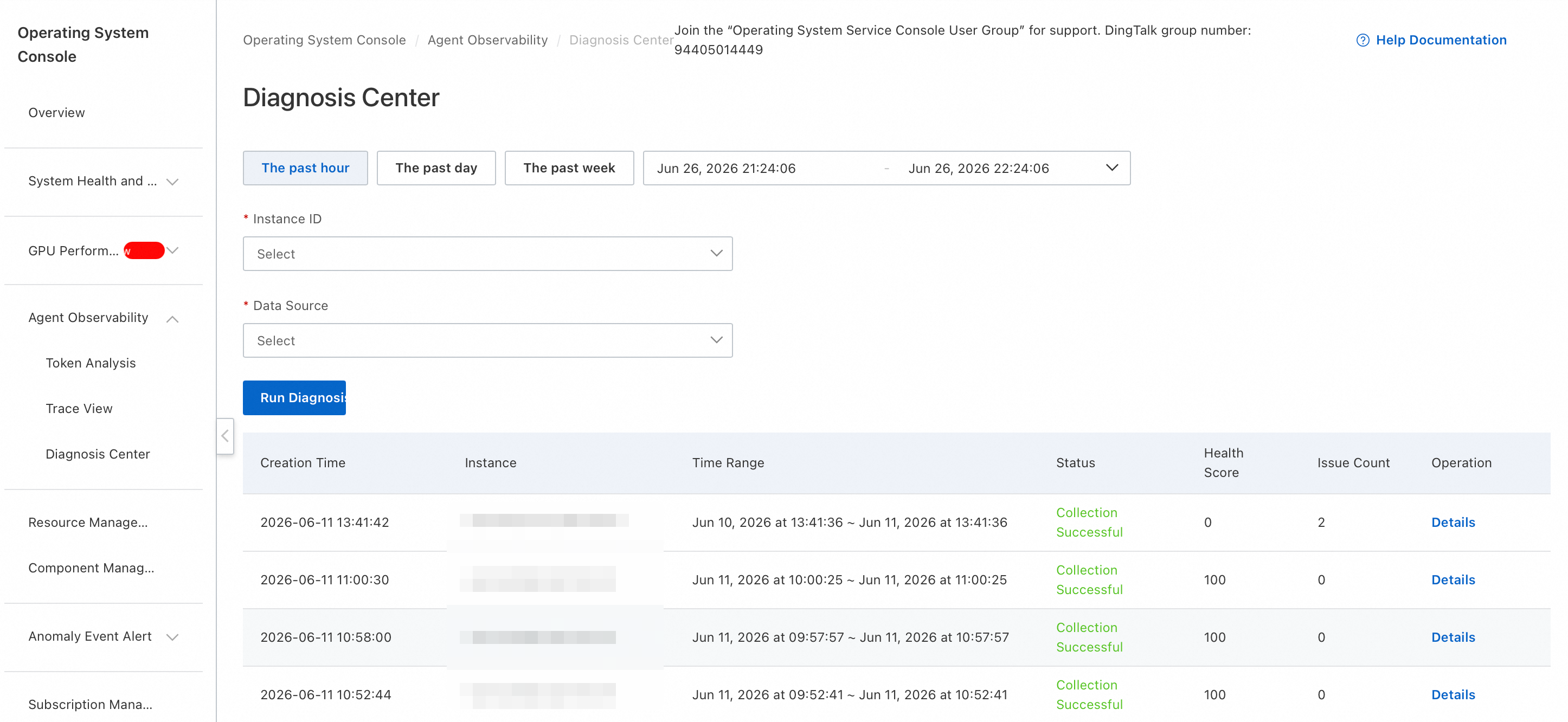
Time range: Select the time range to query. The quick options 1 hour, 24 hours, and 7 days are available.
Instance ID: Select the ECS instance to diagnose from the drop-down list.
Data source: Select a specific Agent application on the instance from the drop-down list.
Click Run diagnostics and confirm the diagnostics parameters.
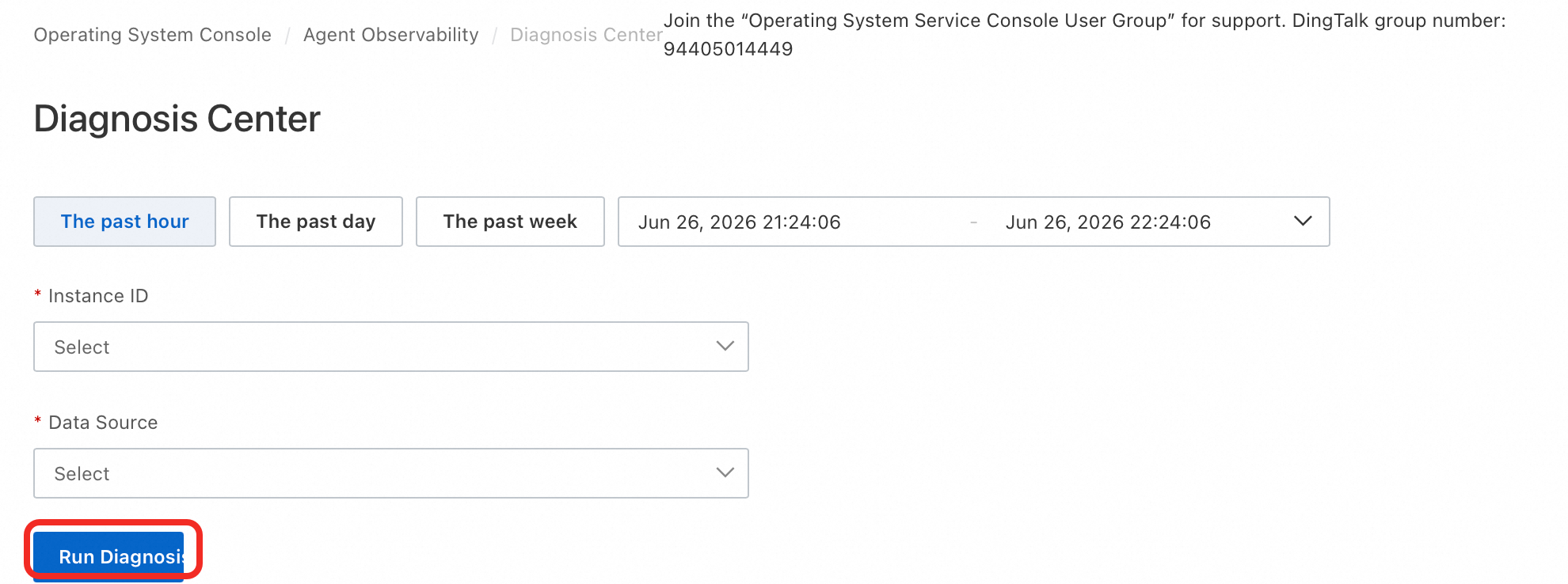
Parameter Description Instance ID The ECS instance to diagnose. Data source filter The Agent applications that appeared on the instance within the selected time range. If you do not select an application, all Agents on the instance are diagnosed. Time range The quick options 1 hour, 24 hours, and 7 days, or a custom start and end time. For the maximum query time range, see Limits. After you confirm the parameters and submit, a new diagnostic task is added to the Diagnostics history list.
Each record in the Diagnostics history list shows the creation time, instance, time range, status, health score, number of issues, and available actions. After the task completes, click Details in the Actions column to view the diagnostics results.
View diagnostics details
In the Diagnostics history list, click Details in the Actions column of the target diagnostic task to open the diagnostics details page. The page contains the following areas:
Summary card
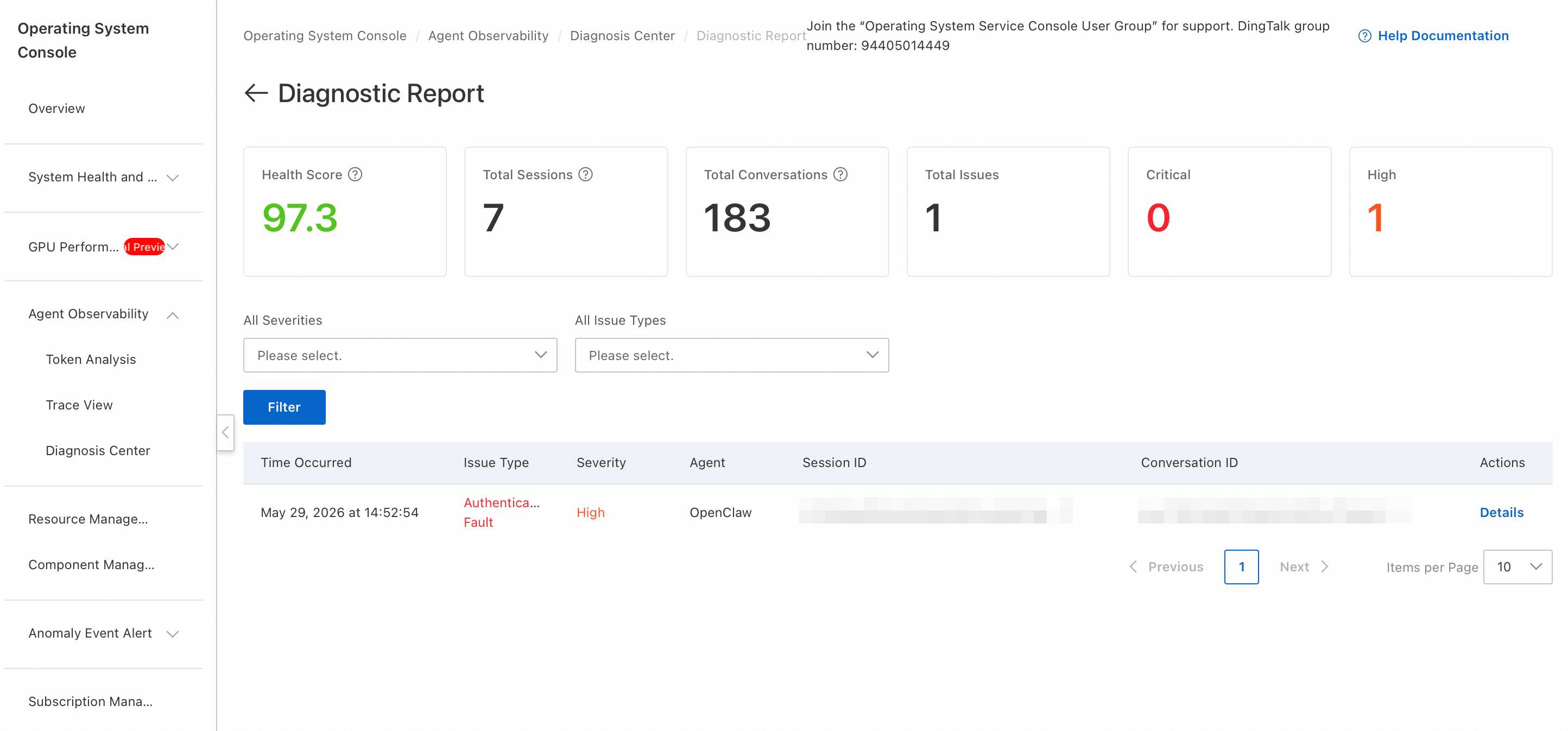
The summary card shows the overall conclusion of the diagnostic task and contains the following information:
Health score: An integer score from 0 to 100. Each score range is displayed in a different color with a different rating. For the score ranges and ratings, see Health score. For the calculation algorithm, see .
Total sessions/Total conversations: The number of sessions and conversations for the selected instance and Agent within the diagnostics time range.
Issue counts: The total number of issues, and the numbers of unresolved, critical, and high-severity issues.
Diagnostics metadata: The instance, Agent, time range, and task creation time.
Filter bar
Use the filter bar to filter the interruption events in the event list by the following conditions:
Event list

The event list shows all events that are identified as interruptions. By default, the events are sorted by occurrence time in descending order. Each event record contains the following fields:
| Field | Description |
| Occurrence time | The time when the interruption event occurred. |
| Issue type | The interruption type, distinguished by a colored label. |
| Severity | The severity level of the event. |
| Agent | The name of the Agent application where the interruption occurred. |
| Session ID | The identifier of the session in which the interruption occurred. |
| Status | The current processing status of the event. |
| Actions | Click Details to view the complete information about the event. |
Event details
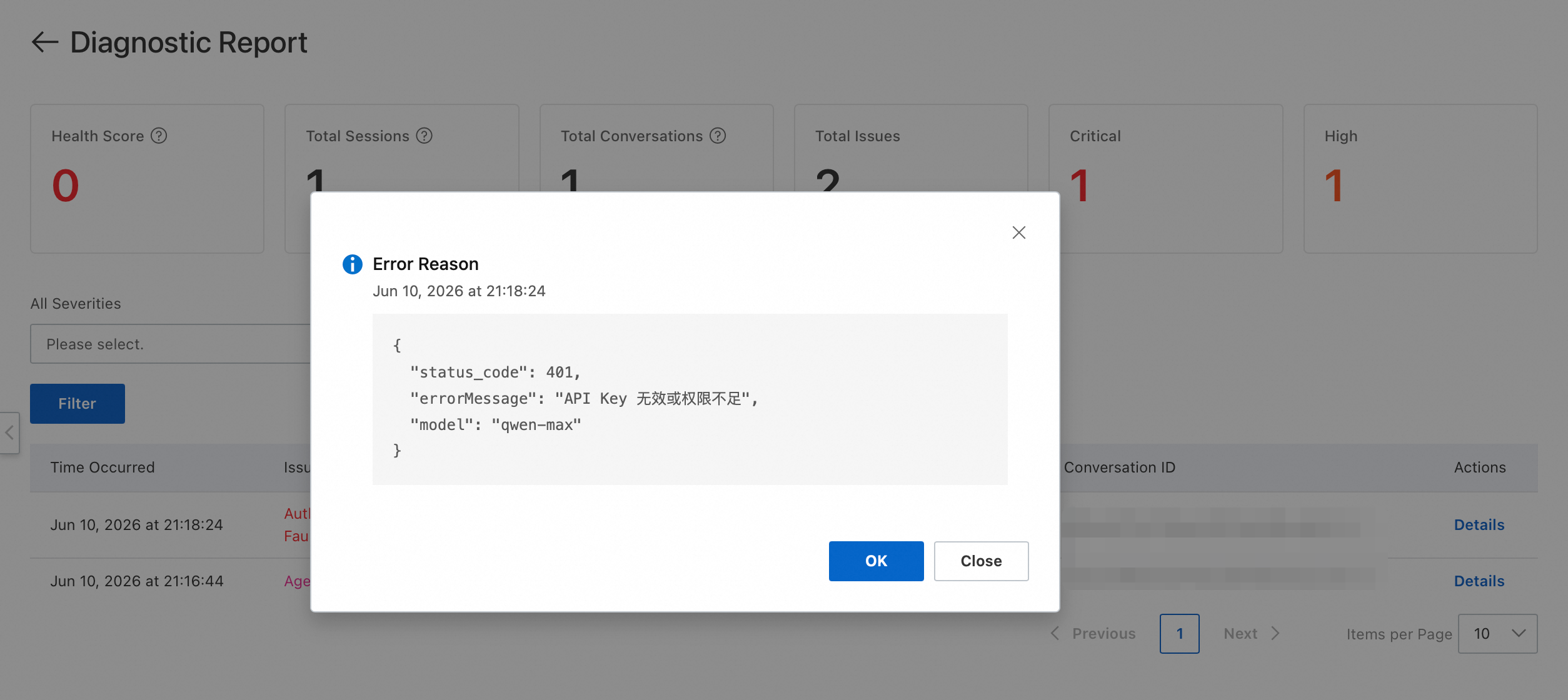
In the event list, click Details in the Actions column of the target event. The event details panel slides out from the right and shows the specifics of that interruption event, so you can identify the cause and fix it.
Issue types
Agent diagnostics identifies the following 10 types of interruption:
| Issue type | Meaning |
| Agent crash | The Agent process disappears unexpectedly at runtime. A crash reduces the health score only when it interrupts an active conversation. A crash while idle does not reduce the score. |
| Authentication error | The API key is invalid or has insufficient permissions. |
| Rate limit | The LLM API is throttled. |
| Network timeout | The gateway times out and the request never reaches the LLM. |
| Service unavailable | The LLM service is overloaded or down. |
| Context overflow | The request exceeds the context length limit of the model. |
| Security filtering | The LLM security policy blocks the output. |
| SSE truncation | The SSE stream is missing the normal termination flag. |
| Token limit | The output is truncated because it reaches the max_tokens limit. |
| LLM error | Other LLM call errors. |
Health score
The health score ranges from 0 to 100 and reflects how healthy the Agent ran during the diagnostics period. The following table lists the score ranges and the corresponding colors and ratings.
| Health score range | Color | Rating |
| ≥ 90 | Green | Healthy |
| 70 to 89 | Blue | Good |
| 50 to 69 | Orange | Warning |
| < 50 | Red | Critical |
Formula:
Health score = 100 - min(100, weighted deductions / total sessions × 100)Deduction weights: In the formula, weighted deductions is the sum of the deduction weights of all interruption events. Each event is weighted by its severity level:
| Severity | Deduction weight |
| Critical | 10 points |
| High | 5 points |
| Medium | 2 points |
| Low | 1 point |
Core principle: Only interruptions that actually affect user conversations reduce the score. An Agent crash counts as a deduction only when it interrupts an active conversation; a crash while idle does not. The other 9 issue types all occur during LLM calls and always affect users, so they always reduce the score.