Use an Alibaba Cloud Linux image in Docker
Alibaba Cloud provides official Docker images for Alibaba Cloud Linux, regularly updated with the latest OS features and security patches. You can pull, run, and delete these container images on ECS instances.
Create a Docker container from an Alibaba Cloud Linux image
-
Pull an Alibaba Cloud Linux Docker image.
sudo docker pull alibaba-cloud-linux-<image_version>-registry.<region_ID>.cr.aliyuncs.com/alinux<image_version>/alinux<image_version>:<TAG>-
<image_version>: The version of Alibaba Cloud Linux, such as2or3. -
<region_ID>: The ID of the image's region, such ascn-hangzhou. -
(Optional)
<TAG>: The Docker image tag. Defaults to the latest version if omitted.
-
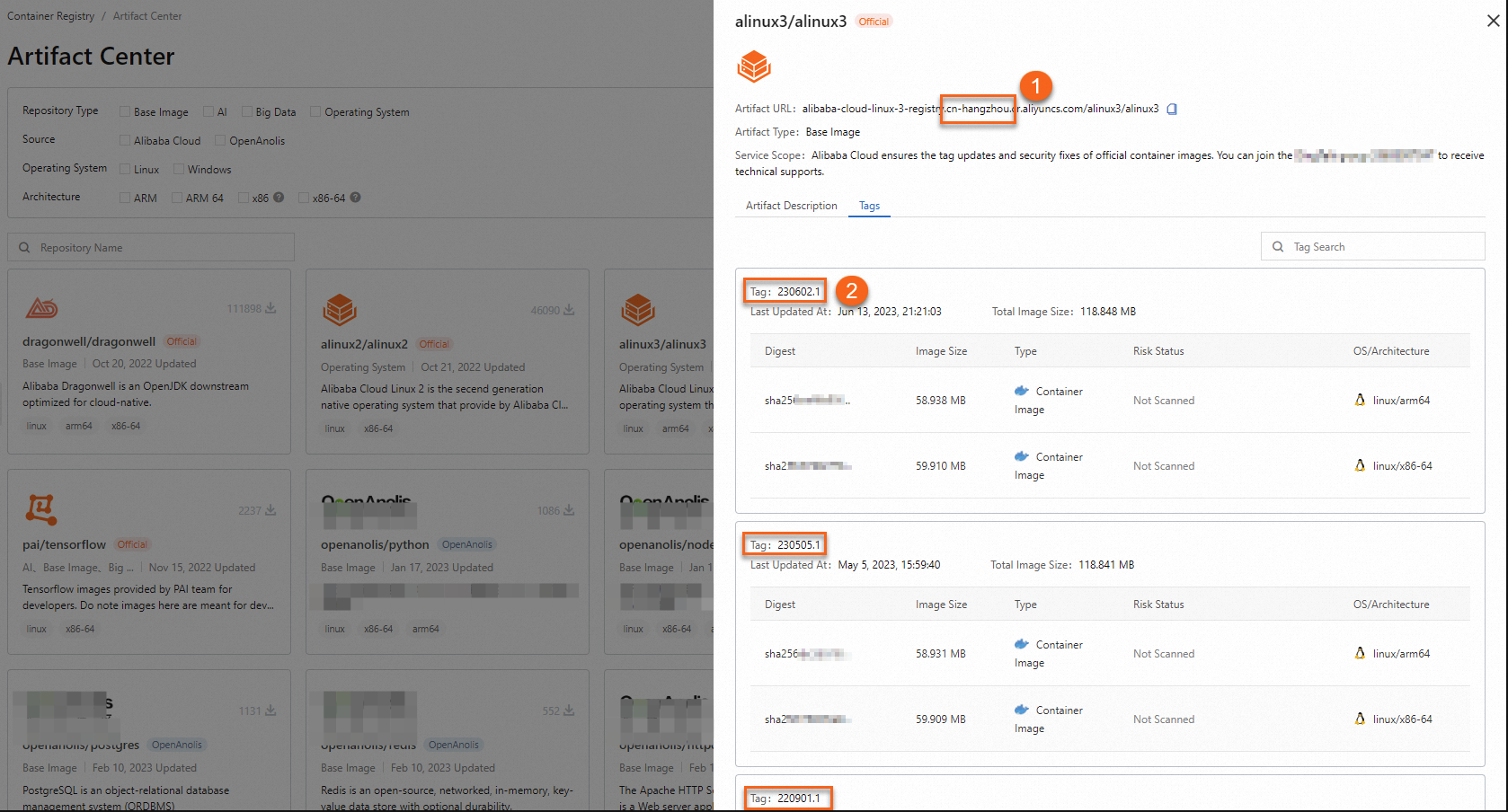
Click alinux2/alinux2 or alinux3/alinux3 to view the Docker image tag information for Alibaba Cloud Linux 2 and Alibaba Cloud Linux 3.
For example, the following figure shows Alibaba Cloud Linux 3 Docker image details. ① indicates the image region, and ② indicates the image tags.
Sample commands:
-
Pull the
220901.1tag of the Alibaba Cloud Linux 3 Docker image in thecn-hangzhouregion.sudo docker pull alibaba-cloud-linux-3-registry.cn-hangzhou.cr.aliyuncs.com/alinux3/alinux3:220901.1 -
Pull the latest Alibaba Cloud Linux 2 Docker image in the
cn-hangzhouregion.sudo docker pull alibaba-cloud-linux-2-registry.cn-hangzhou.cr.aliyuncs.com/alinux2/alinux2
-
-
Verify the image pull.
sudo docker imagesThe output confirms that the
220901.1Alibaba Cloud Linux 3 image and the latest Alibaba Cloud Linux 2 image were pulled.
-
Create and enter a Docker container.
sudo docker run -it alibaba-cloud-linux-<image_version>-registry.<region_ID>.cr.aliyuncs.com/alinux<image_version>/alinux<image_version>:<TAG> /bin/bash-
<image_version>: The version of Alibaba Cloud Linux, such as2or3. -
<region_ID>: The ID of the image's region, such ascn-hangzhou. -
(Optional)
<TAG>: The Docker image tag. Defaults to the latest version if omitted.
Sample commands:
-
Create a Docker container from the
220901.1tag of the Alibaba Cloud Linux 3 image in thecn-hangzhouregion.sudo docker run -it alibaba-cloud-linux-3-registry.cn-hangzhou.cr.aliyuncs.com/alinux3/alinux3:220901.1 /bin/bash -
Create a Docker container from the latest Alibaba Cloud Linux 2 image in the
cn-hangzhouregion.sudo docker run -it alibaba-cloud-linux-2-registry.cn-hangzhou.cr.aliyuncs.com/alinux2/alinux2 /bin/bash
 Note
Note-
Inside the container, you can run commands at the shell prompt.
-
Run
exitto leave the container.
-
-
(Optional) Restart and enter the Docker container.
The
exitcommand stops the container. Restart and re-enter it to continue using it.-
Find the
CONTAINER IDof the created container.sudo docker ps -aThe
CONTAINER IDcolumn shows the container ID.
-
Start the Docker container.
sudo docker start <CONTAINER ID>Replace
<CONTAINER ID>with the actual ID of your Docker container.Run
sudo docker psto verify the container is running.
-
Enter the running Docker container.
Replace
<CONTAINER ID>with the actual ID of your Docker container.sudo docker exec -it <CONTAINER ID> /bin/bashThe output confirms you re-entered the container.

-

Delete a Docker container and image
Delete unused containers and images to free resources.
-
Stop the Docker container.
Replace
<CONTAINER ID>with the actual ID of your Docker container.sudo docker stop <CONTAINER ID> -
Delete the Docker container.
Replace
<CONTAINER ID>with the actual ID of your Docker container.sudo docker rm <CONTAINER ID> -
View all Docker containers.
sudo docker ps -aThe output confirms the container is deleted.
-
Find the image's repository name.
sudo docker imagesThe
REPOSITORYcolumn shows the image name. -
Delete the Docker image.
Replace
<REPOSITORY>with the actual name of your image.sudo docker rmi <REPOSITORY>The output confirms the image is deleted.



References
-
Docker usage and command reference: Docker documentation.
-
For complex deployments, use container orchestration tools like
docker-compose. To manage and distribute container images, use Container Registry (ACR).