Java memory diagnosis
The Java memory diagnosis feature is used when a Java application consumes a large amount of memory for an unknown reason. It scans the memory of a Java process and its containing Pod, breaking down consumption from both the JVM and the actual process's perspectives.
Scope
-
Region
This feature is currently available only in the Chinese mainland and China (Hong Kong) regions.
-
Operating system
Architecture
Operating system
x86 architecture
Rocky Linux 9.5
Rocky Linux 9.1
Ubuntu 20.04
Alibaba Cloud Linux 3 Container-Optimized Edition
Rocky Linux 8.8
Ubuntu 22.04
Alibaba Cloud Linux 3 Pro
Alibaba Cloud Linux 2/3
CentOS 7.6 and later, or CentOS 8
Anolis OS 7/8
Ubuntu 24.04
ARM architecture
Not supported.
Before you begin
-
If you are using a RAM user, make sure that your Alibaba Cloud account has granted the necessary permissions by attaching the
AliyunECSReadOnlyAccessandAliyunSysomFullAccesssystem policies to the RAM user. For more information, see Manage RAM user permissions. -
The instance must be managed by the OOS console before you run the diagnosis. Unmanaged instances are not supported.
Procedure
-
Go to the OOS console - System Diagnosis page. In the upper-left corner of the page, select the region where your target instance is located.
-
Set the diagnosis mode to node diagnosis. In the Diagnosis Type list, select Memory Diagnosis. In the Diagnostic Item list, select Java Memory Diagnosis and enter the target Instance ID.
-
Select a Java memory diagnosis mode:
-
Diagnose Java Process: Select this mode if you know the process ID (PID) of the Java process that you want to diagnose. You will need to enter the PID.
-
Diagnose the Pod Where the Java Process Resides: Select this mode if the Java process is running in a Pod. You will need to enter the name of the Pod where the Java process resides.
This mode supports only single-container business Pods where the Java process is the main process (PID 1).
-
-
Select the duration for JNI memory allocation profiling in minutes. If you select Disable, profiling is not performed.
-
Click Run Diagnosis. In the Diagnostic Records section, you can click View Report for the corresponding record.
Diagnostic report
-
Basic information
The Basic Information section contains fundamental details about the diagnosis, including the instance ID (resource ID), diagnostic item, diagnostic report ID, and the time the diagnosis was initiated.
-
Diagnostic conclusion
If an anomaly in Java memory usage is detected, the details of the anomaly are displayed in this section.
-
Diagnostic suggestion
If the memory usage of the Java process is abnormal, this section provides recommendations for further troubleshooting.
Diagnostic details
-
Java process information overview and Pod/container information
This section displays basic information about the Java process, including its PID, JVM memory usage (the memory usage from the JVM's perspective), Java process memory usage (the actual memory occupied by the process), anonymous memory usage, and file-backed memory usage.
If you use the 'Diagnose the Pod Where the Java Process Resides' mode, this section also shows the Resident Set Size (RSS) and working set memory of the Pod and container.
-
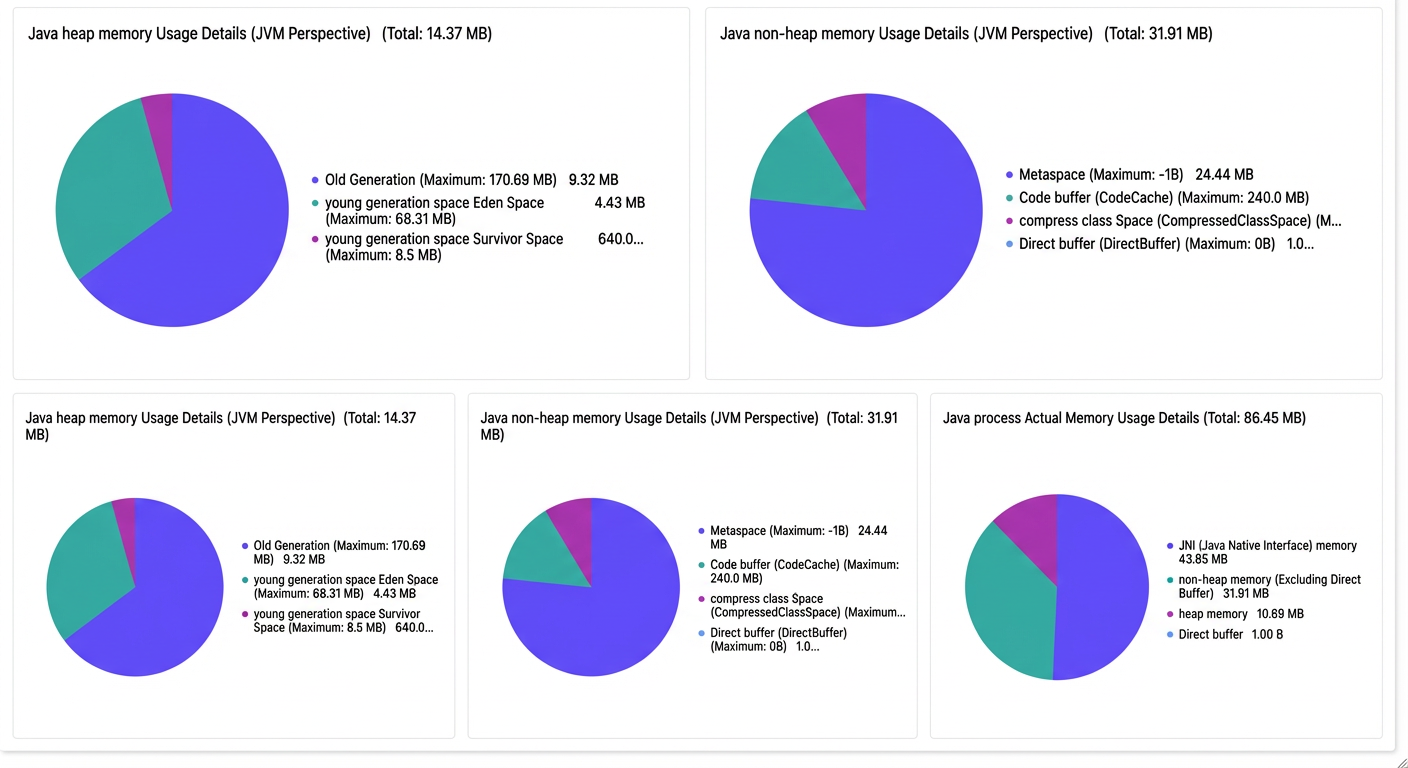
Java process memory details
Three pie charts visualize the details of on-heap memory usage (JVM perspective), off-heap memory usage (JVM perspective), and the actual memory usage of the Java process. This helps you identify which memory component consumes the most resources, both from the JVM perspective and in terms of actual memory usage.
-
Top 10 heap object memory usage
This section lists the top 10 classes by on-heap memory consumption in the current JVM, including the class name, the number of instances, and the total size occupied by those instances.
-
Top 10 class loaders by number of loaded classes
This section lists the top 10 class loaders by the number of classes loaded, including the loader's name, the number of classes it has loaded, and the number of loader instances.
-
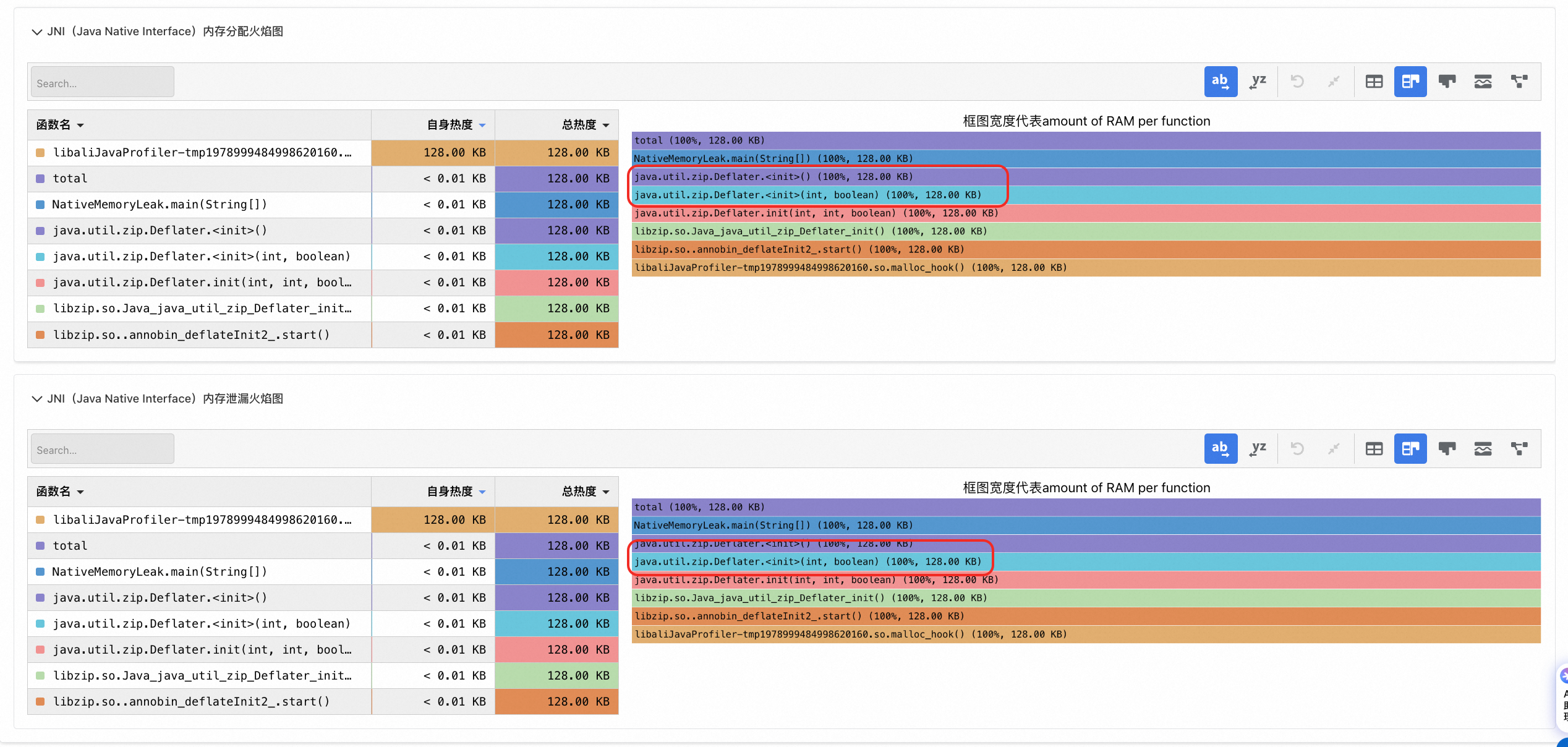
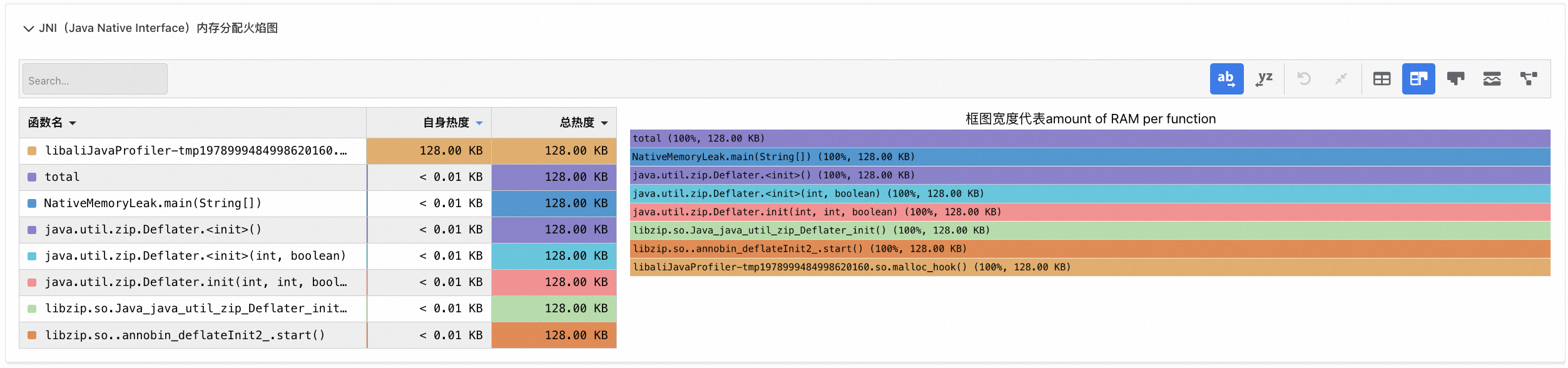
JNI (Java Native Interface) memory allocation flame graph
If you enabled JNI memory allocation profiling, this section displays a flame graph of JNI memory allocation calls for the current Java process. The flame graph shows all call paths that allocate JNI memory. Note: Because data is collected by sampling, the memory size in the flame graph is an approximation, not the actual allocated size.
-
JNI (Java Native Interface) memory leak flame graph
If you enabled JNI memory allocation profiling, this section displays a flame graph of potential JNI memory leaks for the current Java process. The flame graph shows all allocation call paths that may have JNI memory leaks. Note: Because data is collected by sampling, the memory size in the flame graph is an approximation, not the actual allocated size.
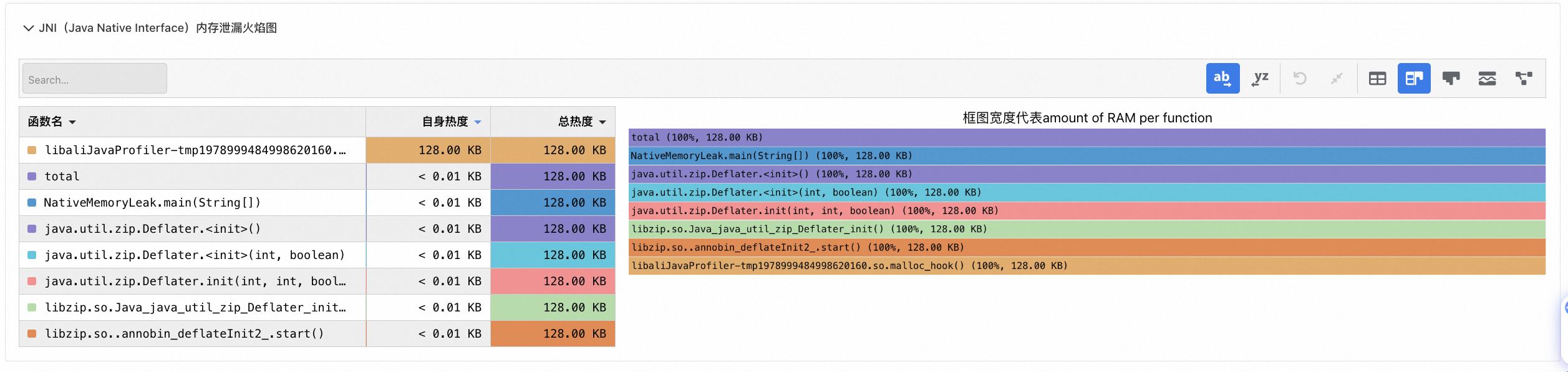
The flame graph is displayed only if you enable JNI memory allocation profiling at the start of the diagnosis and view the report after the profiling duration ends.
Case study
This case study shows how to use java memory diagnosis to resolve common issues, such as a Pod with high memory usage or Out of Memory (OOM) errors, or a Java process whose high memory usage is not reflected in JVM monitoring data.
Symptoms
A container monitoring system shows that the RSS memory of a Java application Pod in a Kubernetes cluster is continuously increasing, eventually leading to an OOM error. However, JVM monitoring shows that the on-heap and off-heap memory usage is nearly 100 MB less than the RSS memory reported by the container monitoring system. The goal is to identify the source of this 100 MB memory discrepancy.
|
|
|
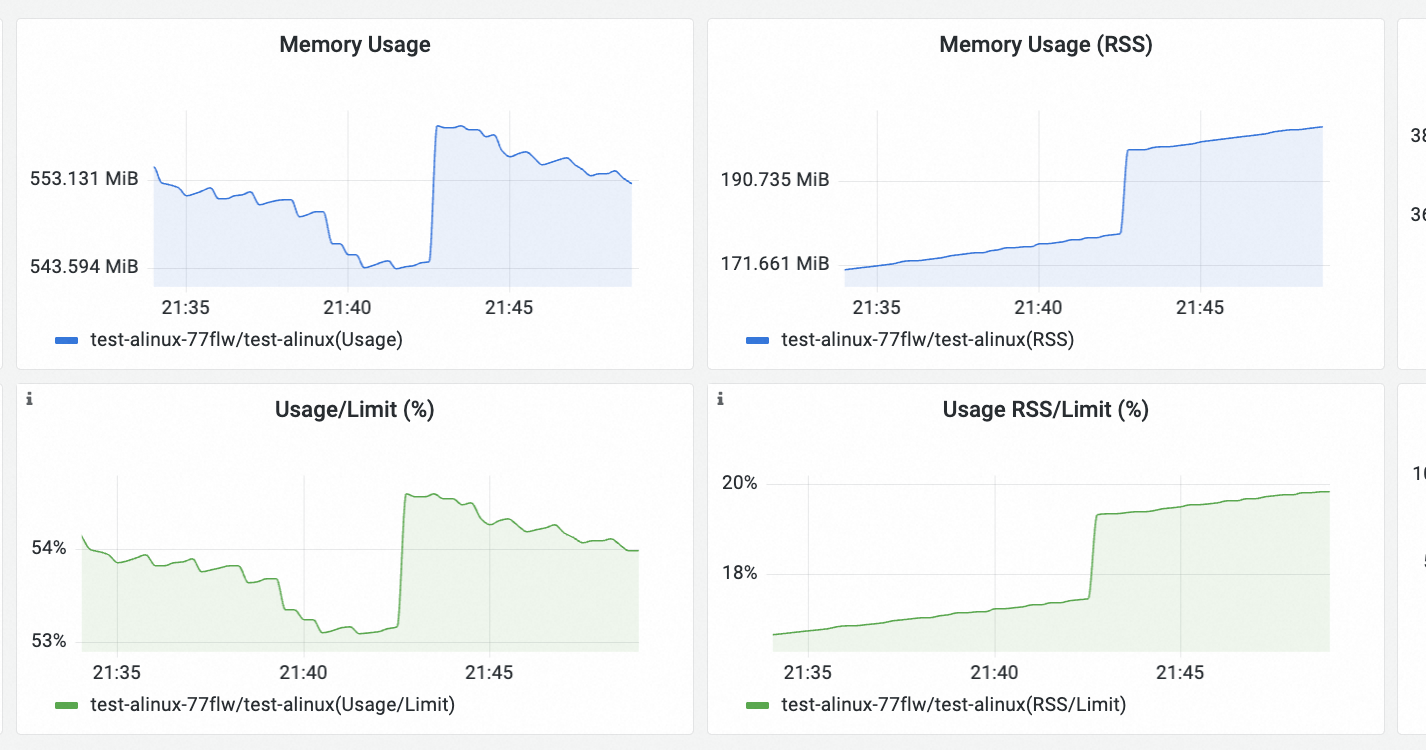
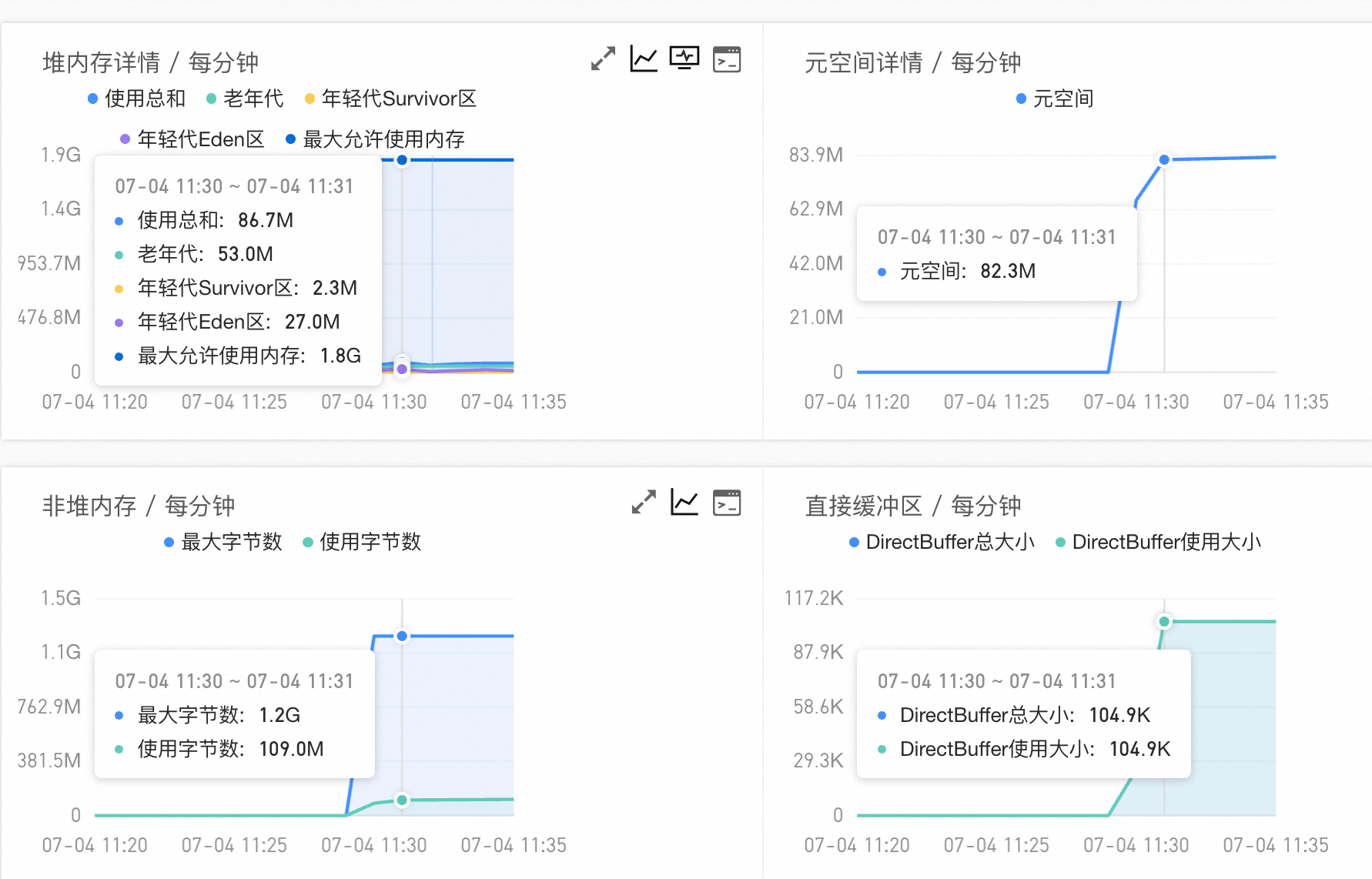
Analysis
In this scenario, we use the java memory diagnosis feature in the OOS console to diagnose the business Pod. The results are as follows:
The Diagnostic Conclusion is High JNI memory usage, and the Diagnostic Recommendation is to view the JNI memory allocation flame graph and check for JNI memory leaks.
The conclusion and suggestion indicate a JNI memory leak. This is a common cause for discrepancies between RSS and JVM memory, as JNI memory usage is typically not tracked by the JVM.
Solution
Run the diagnosis again with JNI memory profiling enabled. After the specified duration, view the report. The JNI memory allocation and leak flame graphs reveal that a large number of java.util.zip.Deflater objects are created but not properly released, causing a JNI memory leak. The issue is resolved by fixing the leak in the code.