Metrics Platform
The Metrics Platform for AnalyticDB for MySQL is an AI-powered analytics platform that integrates large language models, a knowledge base, and scenario analysis templates. You can use natural language to analyze data within your cluster. The platform automatically understands the data, proposes analysis requirements, expands on analytical paths, retrieves data, searches the knowledge base, and uses various tools to deliver results.
Enable the Metrics Platform
Step 1: Prepare an AnalyticDB for MySQL instance
-
You have created an Enterprise Edition or Basic Edition cluster.
ImportantModel inference is computationally intensive. When creating an instance, we recommend the following:
-
Use the Subscription billing method for cost-effectiveness.
-
If you have already created a model inference service, set the Enable AI Node option to No.
-
If you have not yet created a model inference service, we recommend enabling AI nodes in the Ask. Select the
ADB.MLTensor.5specification and set the quantity to 8. When you create the inference service later, the system automatically applies the prepaid resources if you select the same AI node specification. -
If you do not purchase AI node resources when you create the instance, the model inference service defaults to the pay-as-you-go billing method.
-
-
You have created a database account and configured an IP whitelist.
Step 2: Create a model inference service
-
On your instance details page, go to .
-
Create a new inference service and configure it as follows:
-
Model Selection: Select Metrics Platform Model (Platform + Knowledge Base).
-
Resource Configuration: Select the appropriate AI node specification and quantity.
-
Platform (base) - Worker configuration: We recommend the resource specification
ADB.MLTensor.5with8resource cards. -
Knowledge base (emb) - Worker configuration: We recommend the resource specification
ADB.MLTensor.2with1resource card. -
Remove the storage mount.
-
-
-
After the service is created, view the Invocation Information in the Service Call column. Record the Endpoint URL and API Key for later use.
Step 3: Create the Metrics Platform
-
On the instance details page, go to .
-
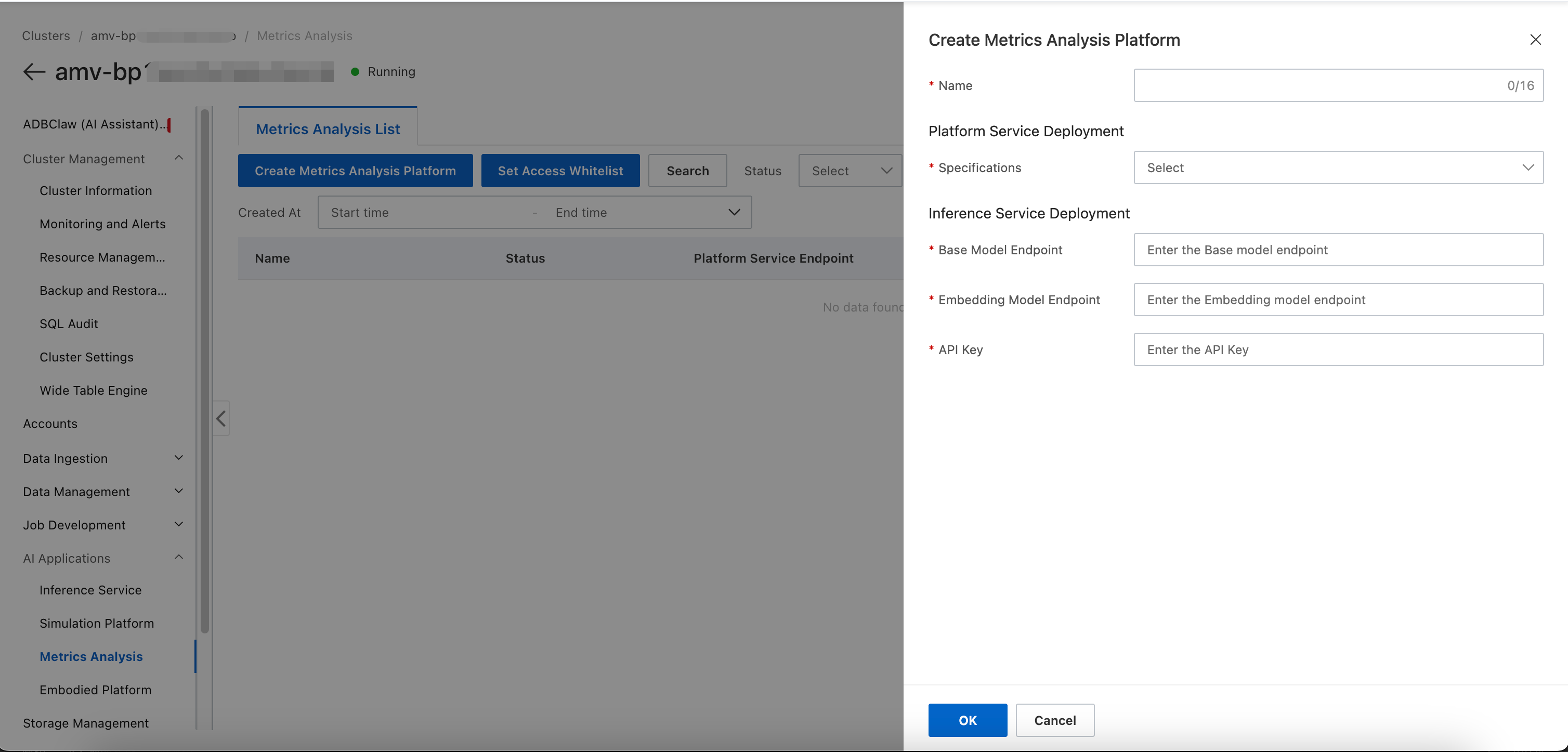
On the Metrics Platform list page, click Create Metrics Analysis Platform. In the Create Metrics Analysis Platform dialog box, enter the model inference service information obtained in the previous step: in the Base Model Endpoint field, enter the Endpoint URL recorded in Step 2. Then click OK.
Network configuration
Choose the appropriate network configuration based on your deployment architecture.
Scenario 1: Same-VPC deployment
-
Description: The model inference service and Metrics Platform are deployed in an AnalyticDB for MySQL instance within the same VPC.
-
Network path:
Metrics Platform -> VPC internal network -> model inference service. -
Procedure: When you create the Metrics Platform, use the model access endpoint within the VPC. No IP whitelist configuration is required.
Scenario 2: Different VPC deployment (public network access)
-
Description: The Metrics Platform needs to access the model inference service, which is deployed in another VPC, over the public network.
-
Network path:
Metrics Platform -> user VPC -> public NAT gateway (SNAT) -> public network -> model inference service. -
Procedure:
-
Create a public NAT gateway for the Metrics Platform's VPC and configure SNAT rules to enable public network access. You can skip this step if public network access is already enabled.
-
Obtain the outbound public IP address of the public NAT gateway.
-
In the security group or IP whitelist of the AnalyticDB for MySQL instance that hosts the model inference service, add the public IP address obtained in the previous step.
-
Scenario 3: Different VPC deployment (GA acceleration)
-
Description: Cross-region deployment that uses Global Accelerator (GA) to accelerate public network access.
-
Network path:
Metrics Platform -> user VPC -> public NAT gateway -> Global Accelerator (GA) instance -> model inference service. -
Procedure:
-
Configure public network access for the Metrics Platform's VPC (see Step 1 in Scenario 2).
-
Create a Global Accelerator (GA) instance.
-
In the access control settings of the GA instance, add the IP address of the public NAT gateway for the Metrics Platform.
-
In the IP whitelist of the AnalyticDB for MySQL instance that hosts the model inference service, add the service IP address provided by the GA instance.
-
Platform usage
For new users, we recommend this path to explore the platform's features:
-
Go to database management to configure and test your data source connection.
-
Go to knowledge management to create a simple knowledge base and add a few business terms.
-
Return to the Chat Assistant and try a basic Automatic request.
-
After you are familiar with the basic workflow, explore advanced features like scenario templates and user management.
First-time login
-
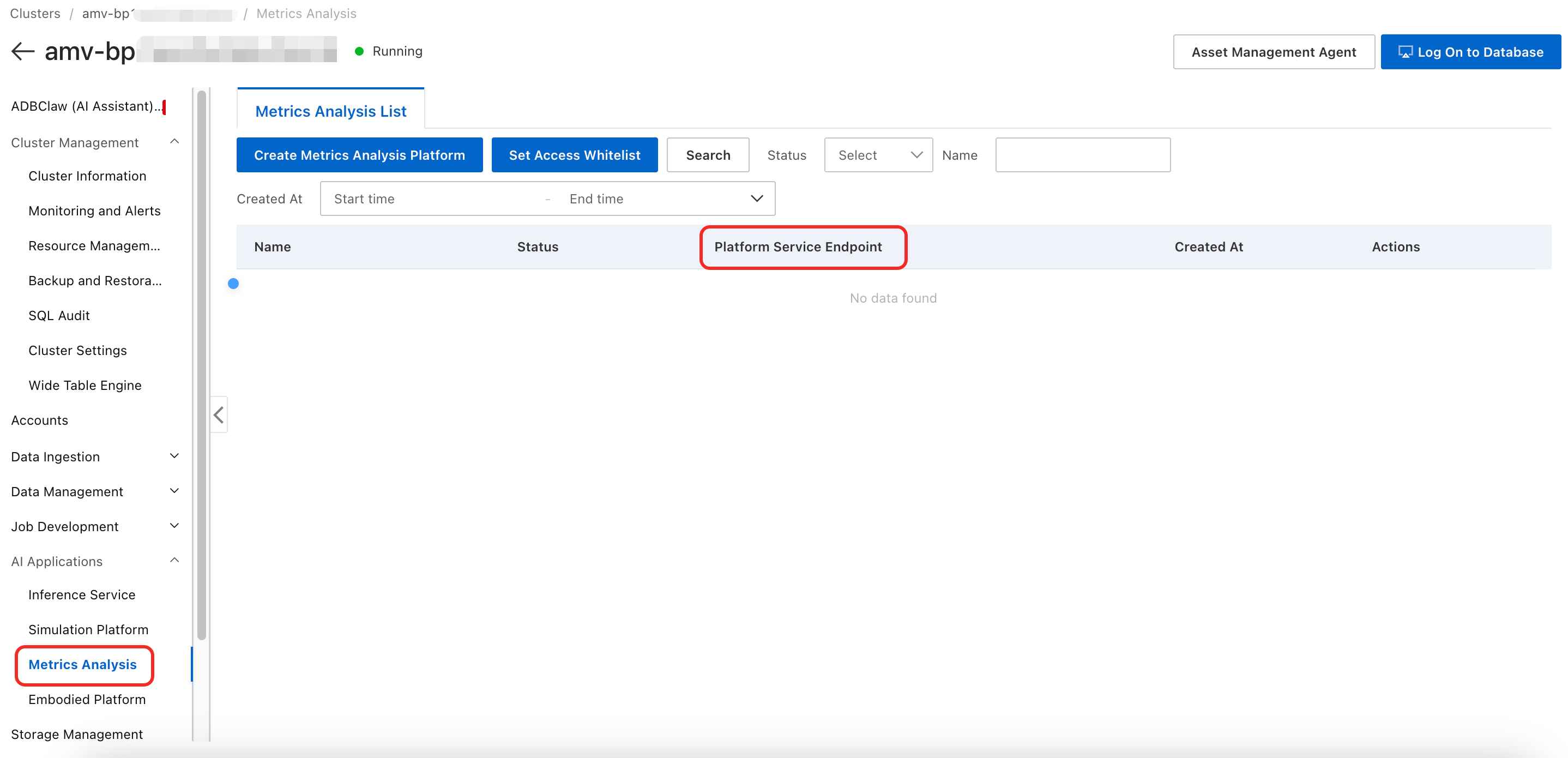
On the Metrics Analysis List page of your instance, click the target Platform service address.
-
Log in with the default system credentials. The default username and password for the administrator account are both
admin. For security, change your password immediately after your first login. -
After you log in, the Ordinary User page appears.
Chat Assistant
The Creator is the core interface for all intelligent analysis. A successful analysis typically involves the following key elements:
-
A clear analysis request: In the conversation box, describe your needs as precisely as possible, including:
-
Data source: Which table or file do you want to analyze?
-
Data scope: Do you want to analyze all data or a subset that meets specific conditions?
-
Analysis action: Do you want to see trends, find the best/worst performers, or get optimization suggestions?
-
Business terms: If your request includes domain-specific terms, abbreviations, or formulas, ensure they are already in the knowledge base.
-
-
Understand the core modes: Before making a request, adjust the conversation mode as needed.
Mode type
Option
Description
Conversation mode
Data Retrieval and Analysis (Default)
Automatically retrieves data from the database, generates code or SQL, and returns a report based on your request.
Open conversation
Allows simple, context-aware conversations, similar to a large language model. You can also use it to further interpret generated analysis reports.
Execution mode
Ask (Default)
The platform executes the request directly without pre-generating an execution plan. This lightweight interaction is ideal for exploratory, drill-down queries. In this mode, you cannot view plan details or save the session as a scenario template.
Plan
The platform first generates a global execution plan based on your request. You can preview and edit the plan before executing it. This provides a controllable analysis process, suitable for generating stable metrics or reports.
Execution method
Automatic (Default)
After you submit a request, the analysis proceeds automatically step-by-step. The platform controls the entire process, and you cannot intervene except to stop the execution.
Manual
After you submit a request, you execute each step manually. In Plan mode, you can also roll back steps.
-
Use auxiliary functions:
-
 Specify Database: Temporarily specify a data source for analysis in the current conversation.
 -
 Local Upload: Upload local files such as
 .xlsxand.csvfor supplementary analysis. -
 Online Search: Allows the platform to search the public internet for additional context when its knowledge is insufficient. This is disabled by default.
-
Advanced features
Knowledge management
A knowledge base is crucial for improving analysis accuracy. We recommend building both a global public knowledge base and scenario-specific knowledge bases. Organize content by business scenario or metric category and upload business-related documents to help the platform understand your domain-specific terms more accurately.
-
To create a knowledge base, enter a name.
-
To manage knowledge points, you can create, view, and edit them within a specific knowledge base.
-
To export a knowledge base, export all its knowledge points as a JSON file.
Database management
Configure the data sources that the platform needs to connect to. By default, AnalyticDB for MySQL is supported. You only need to enter the connection information for your ADB instance and test the connection.
Scenario templates
Save frequent and standard analysis logic as templates to enable rapid analysis.
-
Create a template: In Plan mode, you can save a successful analysis process as a template.
-
View and use a template:
-
Click a template to view its details, including the preset question content, execution plan, and a snapshot of the associated knowledge base.
-
Click Start Conversation to quickly launch a new analysis task based on the template.
-
-
Version management: Manage different versions of the same template, allowing you to track, roll back, and publish template assets.
User management
The Metrics Platform has two built-in roles: Administrator and Ordinary User. An Administrator has full permissions to configure and manage the platform. A general user can submit data analysis requests and use scenario templates in the Chat Assistant.
-
Create a user:
-
Click the Creator button in the upper-right corner of the page.
-
In the dialog box that appears, enter a Database Account, set a Password, and assign the appropriate Role.
-
Click OK to finish.
-
-
To edit or delete users:
In the user list, find the target user. You can perform management tasks such as resetting a password or deleting the account from the Actions column.