Get Started with Image Search
This tutorial walks you through building an image search system with AnalyticDB for MySQL that supports both text-to-image and image-to-image retrieval. Using publicly available sample images, you will create an image library, import images with custom tags, and run semantic search queries.
Overview
The AnalyticDB for MySQL image search service combines multimodal large language models with native vector storage to deliver end-to-end image management and retrieval. It provides APIs for image library management, image import, and image search. You can organize images into libraries, batch-import them through Object Storage Service (OSS) JSONL files, and search by text description or by a reference image.
Image libraries support three search modes:
|
Mode |
Use case |
Search capability |
Description |
|
|
Product and apparel retrieval |
Image-to-image |
Requires specifying a target item name at creation time. |
|
|
Image libraries, content recommendation, multi-category images |
Image-to-image, text-to-image |
Performs whole-image semantic embedding. Suitable for the public images used in this tutorial. |
|
|
Mixed face and general image retrieval |
Image-to-image |
Automatically switches between face feature extraction and whole-image semantic matching based on image content. |
This tutorial uses the general_search mode, which supports both text-to-image and image-to-image search.
Preview
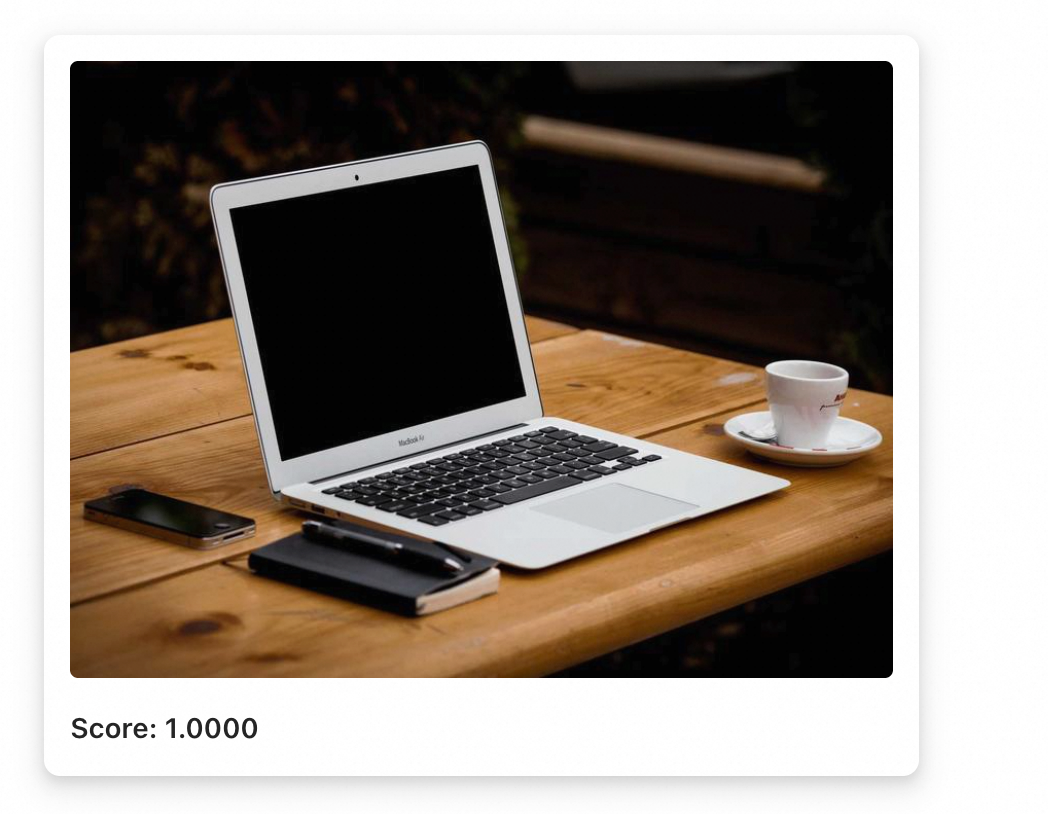
By following this tutorial, you will build a retrieval system that supports both text-to-image and image-to-image search using the image search API. Because the response body returns only the image_uri and the similarity score, the final results of both search methods are shown below for a more intuitive preview.
Text-to-image: Enter the text a macbook to return the most semantically relevant images.
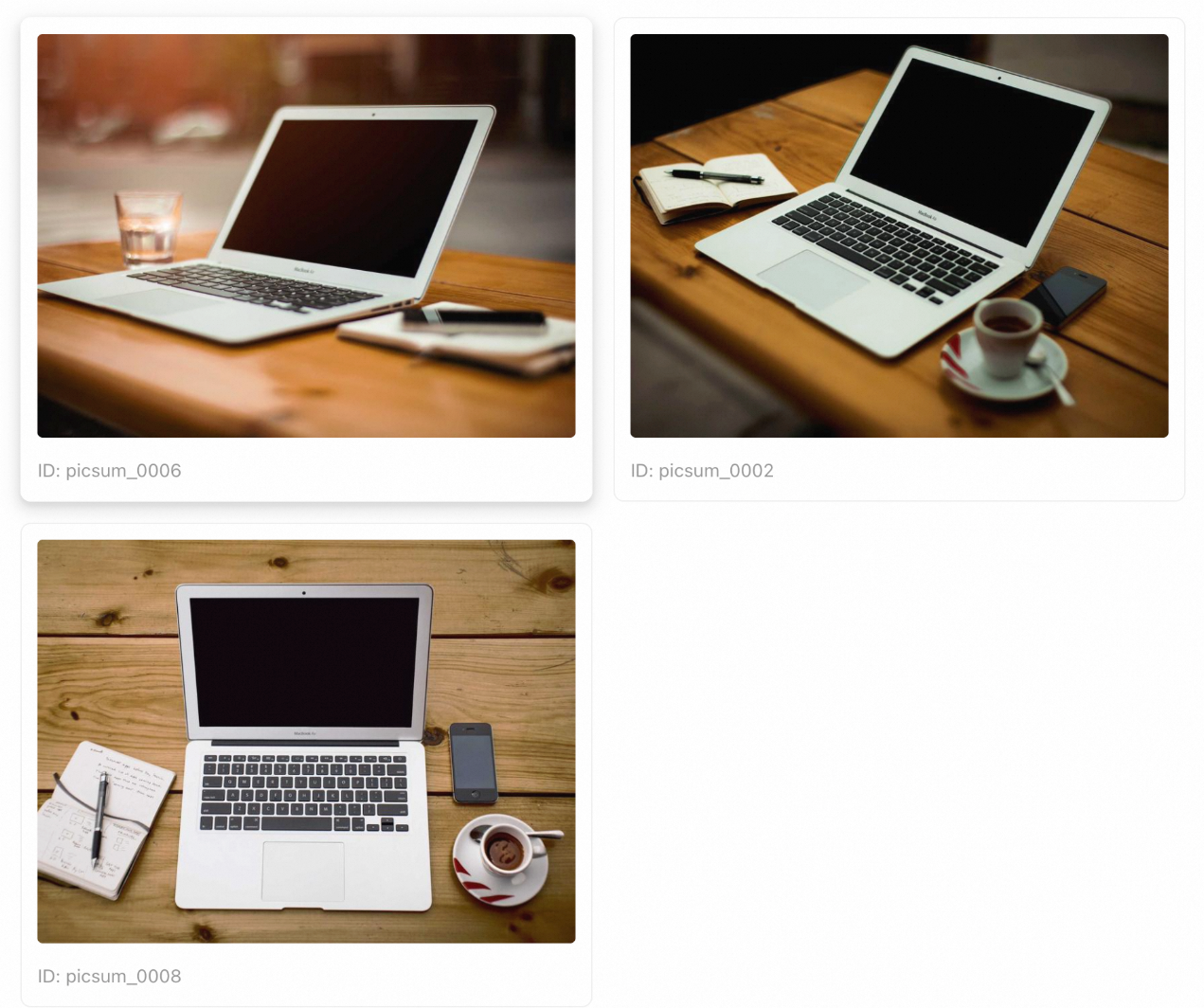
Image-to-image: Provide a query image to return the most visually similar images.
Before you begin
Before you start, make sure the following prerequisites are met:
-
You have created an AnalyticDB for MySQL cluster.
-
Image search is enabled on your cluster.
ImportantImage search is currently available by invitation only. To request access, submit a support ticket or contact your account manager.
-
You have an OSS bucket in the same region as your AnalyticDB for MySQL cluster. The bucket is used to store sample images and the batch import JSONL file.
-
Python 3 and curl are installed on your local machine.
This tutorial uses the following environment variables. Replace the placeholder values with your actual configuration:
export IMAGE_SEARCH_ENDPOINT="http://<host>:<port>"
export API_PREFIX="$IMAGE_SEARCH_ENDPOINT/api/v1/operators/image-search"
export OSS_BUCKET="<your-bucket-name>"
export OSS_PREFIX="image-search/picsum"
export LIBRARY_NAME="picsum_general_search"
|
Variable |
Description |
|
|
The access URL of the image search service. You can find this in the AnalyticDB for MySQL console after the service is enabled. |
|
|
The name of your OSS bucket. The bucket must be in the same region as your cluster. |
|
|
The path prefix for storing sample data in OSS. |
|
|
The name of the sample image library created in this tutorial. |
Step 1: Prepare and upload sample images
This tutorial uses public images from Lorem Picsum, a service that provides a paginated API for downloading freely licensed photographs. The following script downloads 100 images at a fixed resolution of 800×600 pixels and generates a JSONL file for batch import.
Create a file named prepare_picsum_data.py:
import json
import urllib.request
from pathlib import Path

# Output directories and files
ROOT = Path(".")
IMAGE_DIR = ROOT / "images"
OUTPUT_FILE = ROOT / "import_task.jsonl"

# Object path prefix in OSS
IMAGE_PREFIX = "image-search/picsum/images"

# Lorem Picsum public API
LIST_URL = "https://picsum.photos/v2/list?page=1&limit=100"
IMAGE_SIZE = "800/600"

IMAGE_DIR.mkdir(exist_ok=True)

# Fetch the image list
with urllib.request.urlopen(LIST_URL) as resp:
    items = json.loads(resp.read().decode("utf-8"))

# Generate the JSONL file
with OUTPUT_FILE.open("w", encoding="utf-8") as out:
    for index, item in enumerate(items, start=1):
        source_id = int(item["id"])
        image_id = f"picsum_{source_id:06d}"
        file_name = f"{image_id}.jpg"
        local_path = IMAGE_DIR / file_name
        image_url = f"https://picsum.photos/id/{source_id}/{IMAGE_SIZE}"

        # Download the image
        if not local_path.exists():
            print(f"Downloading {image_url}")
            urllib.request.urlretrieve(image_url, local_path)

        # Write a JSONL record
        record = {
            "image_id": image_id,
            "image_uri": f"{IMAGE_PREFIX}/{file_name}",
            "action": "ADD",
            "tags": {
                "dataset": "picsum",
                "source_id": source_id,
                "author": item.get("author", ""),
                "sample_index": index,
                "width": 800,
                "height": 600,
            },
        }
        out.write(json.dumps(record, ensure_ascii=False) + "\n")

print(f"Generated {OUTPUT_FILE}")
Run the script and verify the output:
python3 prepare_picsum_data.py
head -n 3 import_task.jsonl
Each line in the generated JSONL file is a JSON record in the following format:
{"image_id": "picsum_000000", "image_uri": "image-search/picsum/images/picsum_000000.jpg", "action": "ADD", "tags": {"dataset": "picsum", "source_id": 0, "author": "Alejandro Escamilla", "sample_index": 1, "width": 800, "height": 600}}
The following table describes the fields in each record:
|
Field |
Type |
Description |
|
|
string |
A unique identifier for the image. |
|
|
string |
The object path of the image within the OSS bucket. |
|
|
string |
The operation type. |
|
|
object |
Custom key-value pairs for tag-based filtering during search. |
Upload the images/ directory and the import_task.jsonl file to your OSS bucket. You can use the OSS console, ossutil, or the OSS SDK.
After uploading, verify that the following objects exist in OSS:
image-search/picsum/images/picsum_000000.jpg
image-search/picsum/import_task.jsonl
Step 2: Create an image library
-
Create an image library in
general_searchmode and declare the tag fields that will be used for import and filtering.curl -X POST "$API_PREFIX/library/create" \ -H 'Content-Type: application/json' \ -d "{ \"library_name\": \"$LIBRARY_NAME\", \"mode\": \"general_search\", \"description\": \"Lorem Picsum public images for image search demo\", \"tag_schema\": [ {\"name\": \"dataset\", \"type\": \"string\"}, {\"name\": \"source_id\", \"type\": \"int\"}, {\"name\": \"author\", \"type\": \"string\"}, {\"name\": \"sample_index\", \"type\": \"int\"}, {\"name\": \"width\", \"type\": \"int\"}, {\"name\": \"height\", \"type\": \"int\"} ] }"A successful response looks like this:
{
  "status": "SUCCESS",
  "message": null,
  "data": {
    "library_name": "picsum_general_search",
    "status": "initing"
  }
}
The
data.statusvalue ofinitingmeans the library is being initialized. Once initialization completes, the status changes toready. The search mode and tag schema of an image library cannot be modified after creation. To change them, delete the library and create a new one. -
Call the list endpoint to confirm the library status is
readybefore proceeding.curl -X GET "$API_PREFIX/library/list"Sample response:
{ "status": "SUCCESS", "message": null, "data": { "total": 1, "libraries": [ { "library_name": "picsum_general_search", "mode": "general_search", "image_count": 0, "status": "ready", "message": null, "description": "Lorem Picsum public images for image search demo" } ] } }NoteIf the library status is still
initing, wait a moment and try again. If it showsfailed, check themessagefield for the error details and recreate the library.
Step 3: Import images
Create an asynchronous batch import task using the JSONL file stored in OSS:
curl -X POST "$API_PREFIX/image/tasks/create" \
  -H 'Content-Type: application/json' \
  -d "{
    \"library_name\": \"$LIBRARY_NAME\",
    \"meta_file_uri\": \"oss://$OSS_BUCKET/$OSS_PREFIX/import_task.jsonl\",
    \"save_image\": false
  }"
A successful response returns a task ID:
{
  "status": "SUCCESS",
  "message": null,
  "data": {
    "task_id": "task_x9y8z7w6v5"
  }
}
Use the task ID to check the import progress:
export TASK_ID="task_x9y8z7w6v5"

curl -X GET "$API_PREFIX/image/tasks/results/$TASK_ID"
When all images are processed successfully, the response looks like this:
{
  "status": "SUCCESS",
  "message": null,
  "data": {
    "task_id": "task_x9y8z7w6v5",
    "task_status": "SUCCESS",
    "total": 100,
    "processed": 100,
    "failed_count": 0,
    "message": null
  }
}
This tutorial sets save_image to false, so search results return only the image_uri, similarity score, and tags — not the image content itself. Set this to true if you need search results to include the Base64-encoded image data.
If failed_count is greater than 0, check the following:
-
The JSONL file is properly formatted (one JSON record per line).
-
The images referenced by
image_urihave been uploaded to OSS. -
The image search service has permission to read from the OSS bucket.
-
The tag fields match the
tag_schemadeclared when the image library was created.
Step 4: Search by text
Create a helper script named search_by_text.py that builds the search request payload:
import json
import os
import sys

query_text = " ".join(sys.argv[1:]) or "a macbook"
payload = {
    "library_name": os.environ.get("LIBRARY_NAME", "picsum_general_search"),
    "query_text": query_text,
    "top_k": 3,
    "tag_filter": [
        {"field": "dataset", "op": "=", "value": "picsum"},
    ],
    "return_frame": False,
}
print(json.dumps(payload, ensure_ascii=False))
Run the text-to-image search request:
python3 search_by_text.py "a macbook" | \
  curl -X POST "$API_PREFIX/search/by-text" \
    -H 'Content-Type: application/json' \
    -d @-
The results in the response are sorted by similarity score in descending order. For the query text a macbook, the returned images are shown below:
The following table describes the key request parameters:
|
Parameter |
Description |
|
|
The text description to search for. Supports multilingual input. |
|
|
Maximum number of results to return. Defaults to 10. |
|
|
Tag-based filter conditions. Supports exact match, containment, and logical combinations (AND/OR). |
|
|
Whether to include Base64-encoded image data in the response. Set to |
The tags object in each result contains all tag fields for the image library, including user-defined tags and internal reserved fields such as int_tag1 through int_tag5 and str_tag1 through str_tag5. Reserved fields that have no value are set to null. You can safely ignore them in your application.
Step 5: Search by image
Create a helper script named search_by_image.py that reads a local image and builds the search request payload:
import base64
import json
import os
import sys
from pathlib import Path

query_image = Path(sys.argv[1])
payload = {
    "library_name": os.environ.get("LIBRARY_NAME", "picsum_general_search"),
    "image_base64": base64.b64encode(query_image.read_bytes()).decode("utf-8"),
    "top_k": 3,
    "tag_filter": [
        {"field": "dataset", "op": "=", "value": "picsum"},
    ],
    "return_frame": False,
}
print(json.dumps(payload, ensure_ascii=False))
Run the image-to-image search request:
python3 search_by_image.py images/picsum_000000.jpg | \
  curl -X POST "$API_PREFIX/search/by-image" \
    -H 'Content-Type: application/json' \
    -d @-
The query image used in this example is shown below:

Sample response:
{
  "status": "SUCCESS",
  "message": null,
  "data": {
    "results": [
      {
        "image_id": "picsum_000000",
        "image_uri": "image-search/picsum/images/picsum_000000.jpg",
        "image_base64": null,
        "score": 1.0000,
        "tags": {
          "dataset": "picsum",
          "source_id": 0,
          "author": "Alejandro Escamilla",
          "sample_index": 1,
          "width": 800,
          "height": 600
        }
      }
    ]
  }
}
The most visually similar images returned by the service (Top-K) are shown below:
When the query image exists in the library, it typically appears as the top result with a similarity score of 1.0. When the query image is not in the library, the service returns the most visually or semantically similar images.
Clean up
If you no longer need the sample image library, delete it to release resources:
curl -X POST "$API_PREFIX/library/delete" \
  -H 'Content-Type: application/json' \
  -d "{
    \"library_name\": \"$LIBRARY_NAME\"
  }"
Deleting an image library permanently removes all image data stored in it. This action cannot be undone. Image files and JSONL files in OSS are not automatically deleted. Clean them up separately if you want to free the storage space.