Multi-cluster scaling model
The multi-cluster scaling model lets interactive resource groups automatically scale compute resources based on query workloads. By distributing queries across one or more clusters, this model supports resource isolation and high-concurrency scenarios.
Prerequisites
An AnalyticDB for MySQL Enterprise Edition, Basic Edition, or Data Lakehouse Edition cluster is created.
-
The minor version of your cluster is 3.1.10.0 or later.
NoteTo view and update the minor version, go to the Configuration Information section on the Cluster Information page in the AnalyticDB for MySQL console.
Multi-cluster resource group
Without the multi-cluster feature, a resource group uses only a single cluster to execute queries. All queries submitted to the resource group share its compute resources. If too many queries run at the same time, they compete for resources, which slows down performance. When the concurrency limit is reached, subsequent queries are queued.
A multi-cluster resource group consists of one or more clusters. It handles fluctuating workloads by provisioning cluster resources statically or dynamically. When an access node receives a query, it uses load balancing to assign the query to a specific cluster within the resource group. Queries on different clusters run independently and do not interfere with each other, as shown in the following figure.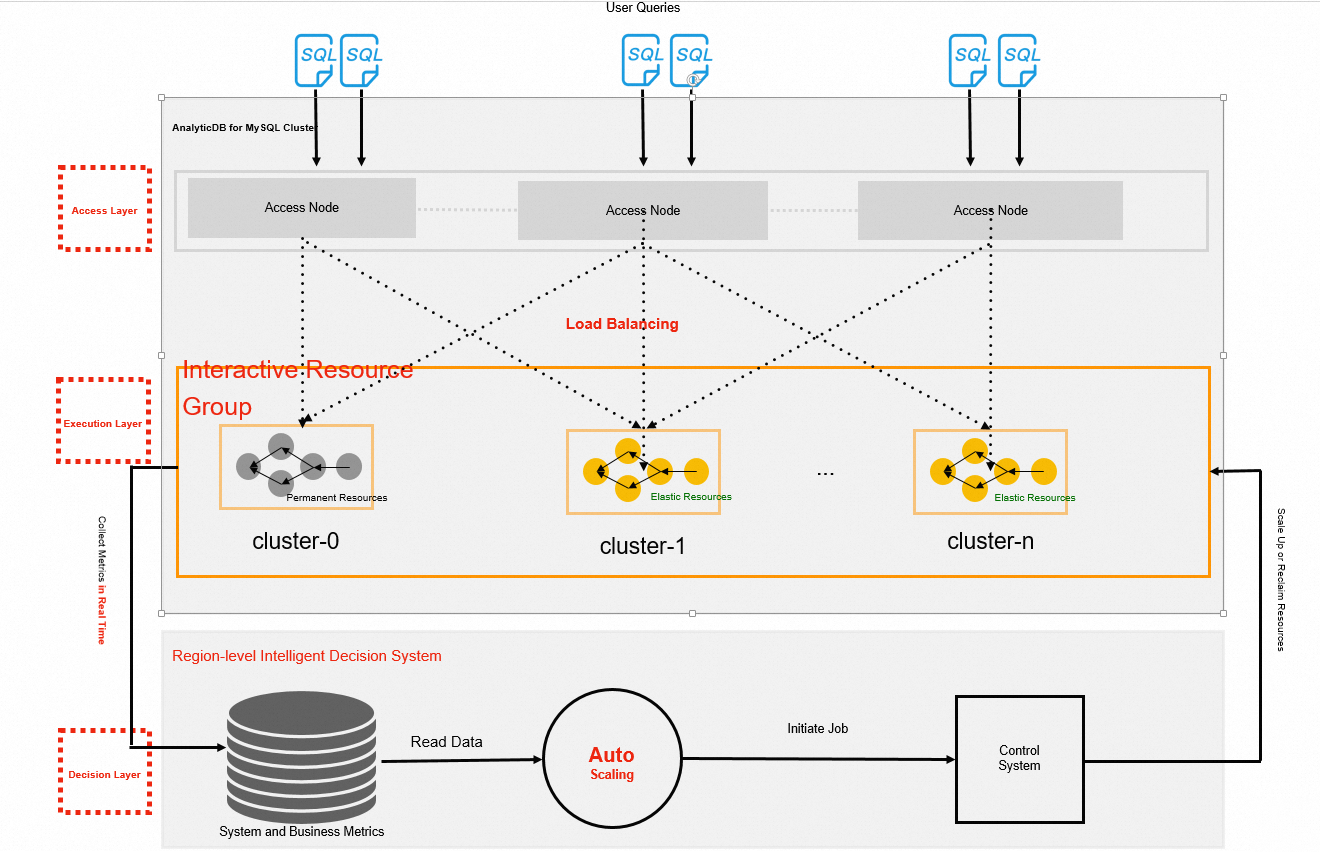
A multi-cluster resource group is ideal for improving concurrency for small and medium-sized queries and reducing resource contention. It does not improve the speed of slow-running queries or ETL jobs.
Benefits of the multi-cluster feature
For a resource group that does not have the multi-cluster feature enabled, you must perform the following manual operations when the query workload increases and compute resources become insufficient:
-
Manually adjust the resources of the resource group to meet business needs.
-
If large and small queries compete for resources and slow down the response time of small queries, you must redirect the large queries to another resource group.
-
When the query workload decreases and there are redundant compute resources, manually scale down the resources of the resource group to save costs.
A resource group with the multi-cluster feature enabled consists of multiple clusters of the same size, which provides the following benefits:
-
In elastic mode, you do not need to manually adjust the size of the resource group to handle fluctuating query workloads. AnalyticDB for MySQL automatically adjusts the number of clusters based on the query load.
-
In maximum mode, you can control the total compute resources of the resource group by adjusting the number of clusters.
-
Clusters within a resource group are isolated from each other. A large query affects only the cluster on which it runs and does not affect queries on other clusters.
Limitations
-
The multi-cluster scaling model is applicable only to interactive resource groups.
-
Resource groups created on clusters with a minor version earlier than 3.1.10.0 do not support the multi-cluster scaling model. To use this feature, create a new interactive resource group.
-
For Data Lakehouse Edition clusters, an interactive resource group cannot simultaneously use the multi-cluster scaling model (that is, you set both Maximum Clusters and Minimum Clusters for the resource group) and a specified scaling plan, such as an Interactive Resource Group scaling plan or a Default Proportional Scaling for EIUs plan.
Billing
After you enable the multi-cluster feature, the number of clusters in an interactive resource group scales elastically. You are charged for elastic resources based on usage, which is calculated by using the following formula: Specifications per cluster × Number of clusters. For more information, see Pricing for Enterprise Edition and Basic Edition and Pricing for Data Lakehouse Edition.
Enabling the multi-cluster feature
You can enable the multi-cluster feature when you create a resource group or by modifying the configuration of an existing resource group.
-
Log on to the AnalyticDB for MySQL console, and in the upper-left corner, select the region where your cluster resides. In the left-side navigation pane, click Clusters, and then click the ID of the target cluster.
-
In the left-side navigation pane, click and go to the Resource Groups tab.
-
On the Resource Groups page, click Create Resource Group or find the target resource group and click Modify in the Actions column.
-
Make sure that the job type is Interactive, enable the multi-cluster feature, and then configure the following parameters.
Parameter
Description
Engine
Select Xihe engine or Spark.
-
Xihe engine: This resource group supports only Xihe SQL.
-
Spark engine: This resource group supports only Spark jobs. Spark jobs are processed interactively.
Cluster Size
The size of a single cluster in ACU. You can specify any value, but the minimum is 16 ACU.
If you select the Spark engine, you must understand the mapping between Cluster Size and Spark driver and Spark executor specifications to select an appropriate Cluster Size. For more information, see Appendix: Mapping between cluster size and Spark driver and Spark executor specifications.
Minimum Clusters
The minimum number of clusters that must be maintained in the resource group. This value must be less than or equal to the value of Maximum Clusters. The minimum value is 1.
-
When you set different Minimum Clusters and Maximum Clusters, AnalyticDB for MySQL dynamically scales in or out between the configured Minimum Clusters and Maximum Clusters based on the query load of the resource group.
-
If you set the same value for Minimum Clusters and Maximum Clusters, AnalyticDB for MySQL starts the specified number of clusters after the resource group is created. This allows you to statically control the total compute resources of the resource group.
Maximum Clusters
The maximum number of clusters the resource group can scale to. The maximum value is 10.
-
When you set different Minimum Clusters and Maximum Clusters, AnalyticDB for MySQL dynamically scales in or out between the configured Minimum Clusters and Maximum Clusters based on the query load of the resource group.
-
If you set the same value for Minimum Clusters and Maximum Clusters, AnalyticDB for MySQL starts the specified number of clusters after the resource group is created. This allows you to statically control the total compute resources of the resource group.
Spark Configuration
Spark application configuration parameters that apply to all Spark jobs that run in this resource group. To configure parameters for a specific Spark job, set them in the code when you submit the job.
NoteThis parameter can be configured only when Engine is set to Spark engine.
-
-
Click OK to enable the multi-cluster feature.
After the multi-cluster feature is enabled, the Resource Groups tab displays the minimum, maximum, and current number of running clusters for the resource group. You can also click Monitoring in the Actions column to view detailed metrics for the resource group.
Effects of modifying cluster limits
Changing the Minimum Clusters and Maximum Clusters values affects the number of running clusters as described in the following sections.
When Minimum Clusters and Maximum Clusters are different:
-
Increase Maximum Clusters: This action raises the upper limit for the number of clusters. The current number of running clusters does not change until the workload requires more resources.
-
Decrease Maximum Clusters: If the current number of running clusters is greater than the new maximum value, excess clusters stop accepting new queries. The system reduces the number of running clusters after the queries on them are complete.
-
Increase Minimum Clusters: New clusters are created immediately to meet the specified minimum number.
-
Decrease Minimum Clusters: If the current number of running clusters is greater than the new minimum value, AnalyticDB for MySQL continuously monitors your query load within a 5-minute window. The system scales in to the configured minimum value only when the workload meets the scale-in conditions.
When Minimum Clusters and Maximum Clusters are the same:
-
Increase both Maximum Clusters and Minimum Clusters: The number of clusters is immediately increased to the new value.
-
Decrease both Maximum Clusters and Minimum Clusters: Excess clusters stop accepting new queries. They are scaled down after their current queries are complete.
Appendix: Cluster size and Spark specification mapping
The specifications and number of Spark drivers and Spark executors depend on the selected CPU-to-memory ratio. When you enable the multi-cluster feature, you can add the spark.adb.warehouse.instance.spec parameter in the Spark Configuration section to set the CPU-to-memory ratio for the Spark driver and Spark executor specifications.
Valid values for the spark.adb.warehouse.instance.spec parameter are:
-
MEMORY (default): Uses a CPU-to-memory ratio of
1:8for Spark drivers and Spark executors. -
GENERAL: Uses a CPU-to-memory ratio of
1:4for Spark drivers and Spark executors. -
COMPUTE: Uses a CPU-to-memory ratio of
1:2for Spark drivers and Spark executors.
The following table lists the mapping between cluster size and the Spark driver and Spark executor specifications.
|
Cluster size |
MEMORY (CPU-to-memory ratio 1:8) |
GENERAL (CPU-to-memory ratio 1:4) |
COMPUTE (CPU-to-memory ratio 1:2) |
|||
|
Spark driver specifications |
Spark executor specifications |
Spark driver specifications |
Spark executor specifications |
Spark driver specifications |
Spark executor specifications |
|
|
16 ACU (3X-Small) |
4 cores, 32 GB |
3 × 2 cores, 16 GB |
4 cores, 16 GB |
3 × 4 cores, 16 GB |
4 cores, 8 GB |
4 × 4 cores, 8 GB |
|
24 ACU (2X-Small) |
8 cores, 64 GB |
1 × 8 cores, 64 GB |
8 cores, 32 GB |
4 × 4 cores, 16 GB |
8 cores, 16 GB |
11 × 2 cores, 4 GB |
|
36 ACU (X-Small) |
8 cores, 64 GB |
2 × 8 cores, 64 GB |
8 cores, 32 GB |
7 × 4 cores, 16 GB |
8 cores, 16 GB |
18 × 2 cores, 4 GB |
|
72 ACU (Small) |
16 cores, 128 GB |
4 × 8 cores, 64 GB |
16 cores, 64 GB |
7 × 8 cores, 32 GB |
16 cores, 32 GB |
37 × 2 cores, 4 GB |
|
144 ACU (Medium) |
16 cores, 128 GB |
10 × 8 cores, 64 GB |
16 cores, 64 GB |
16 × 8 cores, 32 GB |
16 cores, 32 GB |
41 × 4 cores, 8 GB |
|
240 ACU (Large) |
16 cores, 128 GB |
9 × 16 cores, 128 GB |
16 cores, 64 GB |
28 × 8 cores, 32 GB |
16 cores, 32 GB |
71 × 4 cores, 8 GB |
|
360 ACU |
16 cores, 128 GB |
14 × 16 cores, 128 GB |
16 cores, 64 GB |
43 × 8 cores, 32 GB |
16 cores, 32 GB |
54 × 8 cores, 16 GB |
|
480 ACU (X-Large) |
32 cores, 256 GB |
18 × 16 cores, 128 GB |
32 cores, 128 GB |
56 × 8 cores, 32 GB |
32 cores, 64 GB |
71 × 8 cores, 16 GB |
|
864 ACU (2X-Large) |
64 cores, 512 GB |
32 × 16 cores, 128 GB |
32 cores, 128 GB |
52 × 16 cores, 64 GB |
32 cores, 64 GB |
131 × 8 cores, 16 GB |