Manage workloads with resource groups
The resource group management feature in AnalyticDB for PostgreSQL allows you to associate database accounts with resource groups. You can configure settings such as the maximum number of concurrent transactions, CPU utilization, and memory percentage for the queries within each group. This improves resource elasticity and query performance.
Limitations
-
For an AnalyticDB for PostgreSQL V6.0 instance with minor version v6.6.1.0 or later, or an AnalyticDB for PostgreSQL V7.0 instance with minor version v7.0.6.3 or later, you can switch to resource group management in the console.
-
For an AnalyticDB for PostgreSQL V6.0 instance with a minor version earlier than v6.6.1.0, or an AnalyticDB for PostgreSQL V7.0 instance with a minor version earlier than v7.0.6.3, you must submit a ticket to switch to resource group management.
To learn how to view the minor version of an instance, see View the minor version.
Resource groups
AnalyticDB for PostgreSQL supports resource management by using resource groups. Compared to resource queues, resource groups provide more fine-grained control and manage a more comprehensive range of resource types. Resource group management and resource queue management cannot be used at the same time. You can use only one of them. After you enable resource group management, resource queues are automatically disabled. For more information about resource queues, see Use Resource Queues for Workload Management.
Using resource groups, you can associate one or more database accounts with a resource group and configure specific CPU, memory, and concurrency limits for each group. This allows you to manage queries submitted by the associated accounts. However, the SET, RESET, and SHOW commands are not affected by resource group configurations.
V6.0 resource groups
The following table describes the configurable resource parameters for AnalyticDB for PostgreSQL V6.0 resource groups.
|
Parameter |
Description |
Value |
|
CONCURRENCY |
The maximum number of concurrent transactions (queries that run in parallel) allowed in the resource group. |
Optional. Default value: 50. Valid values: 1 to the value of |
|
CPU_RATE_LIMIT |
The CPU allocation ratio for the resource group when multiple groups compete for CPU resources. |
Required. No default value. Valid values: 0 to 100. The sum of the values for all resource groups cannot exceed 100. |
|
MEMORY_LIMIT |
The percentage of the total memory that the resource group can use. For more information, see V6.0 resource group memory management. |
Optional. Default value: 0. Valid values: 0 to 100. The sum of the values for all resource groups cannot exceed 100. |
|
MEMORY_SHARED_QUOTA |
The percentage of a resource group's memory that is allocated to its shared memory pool. For more information, see V6.0 resource group memory management. |
Optional. Default value: 80. Valid values: 0 to 100. |
|
MEMORY_SPILL_RATIO |
The memory usage threshold for memory-intensive transactions. This is also the threshold for operator disk spilling. |
Optional. Default value: 0. Valid values: 0 to 100. |
V6.0 resource group memory management
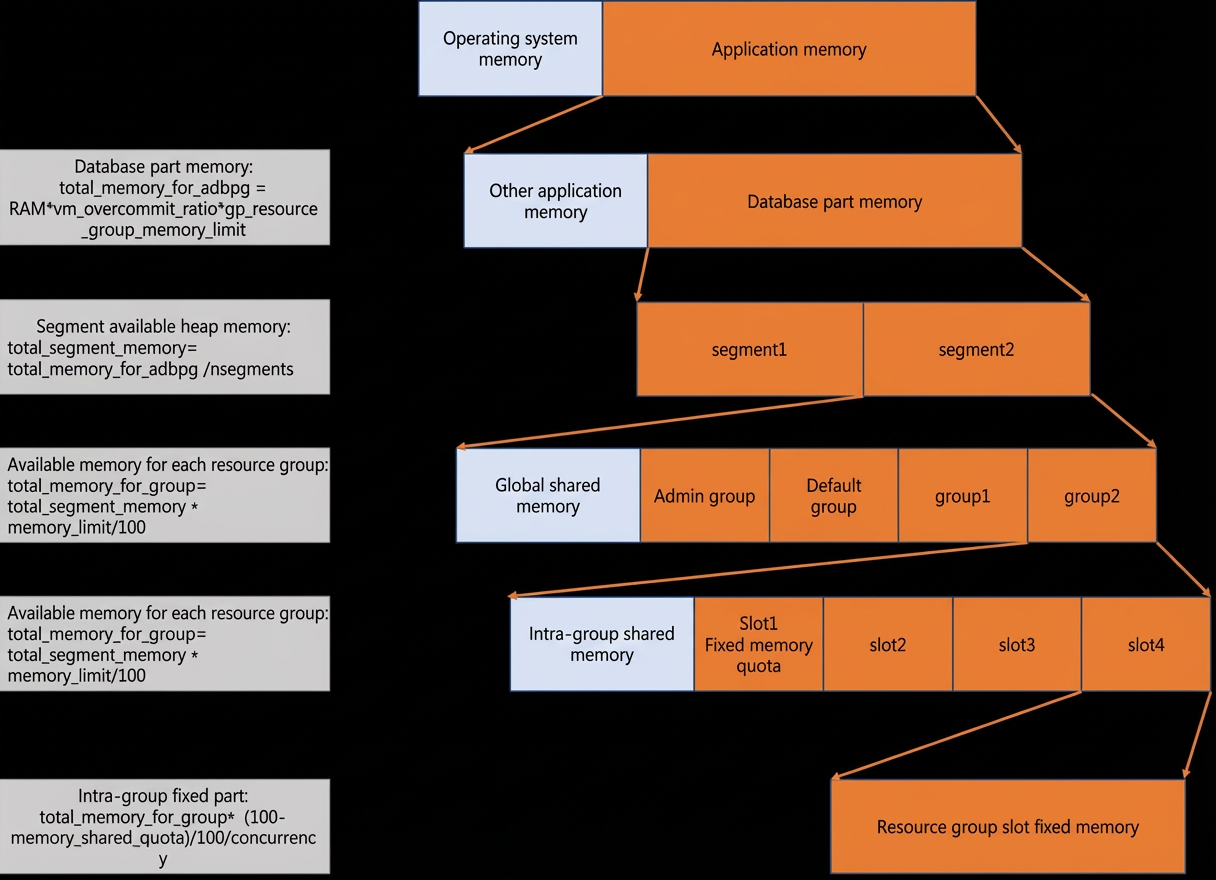
The database reserves memory for each resource group based on its MEMORY_LIMIT setting. If the sum of the MEMORY_LIMIT values for all resource groups is less than 100, the remaining unreserved memory is allocated to a global shared memory pool. The database allocates this global shared memory to transactions on a first-come, first-served basis.
Within the reserved memory pool of each resource group, the system uses the MEMORY_SHARED_QUOTA setting to divide the memory into fixed and shared portions. If MEMORY_SHARED_QUOTA is set to 100, all memory within the resource group is treated as shared and is available to all tasks. If MEMORY_SHARED_QUOTA is less than 100, the system divides the memory into a fixed portion and a shared portion. The fixed portion is exclusively for individual tasks, while the shared portion is a common memory space for all tasks. The following figure illustrates the memory management mechanism for AnalyticDB for PostgreSQL V6.0 resource groups.
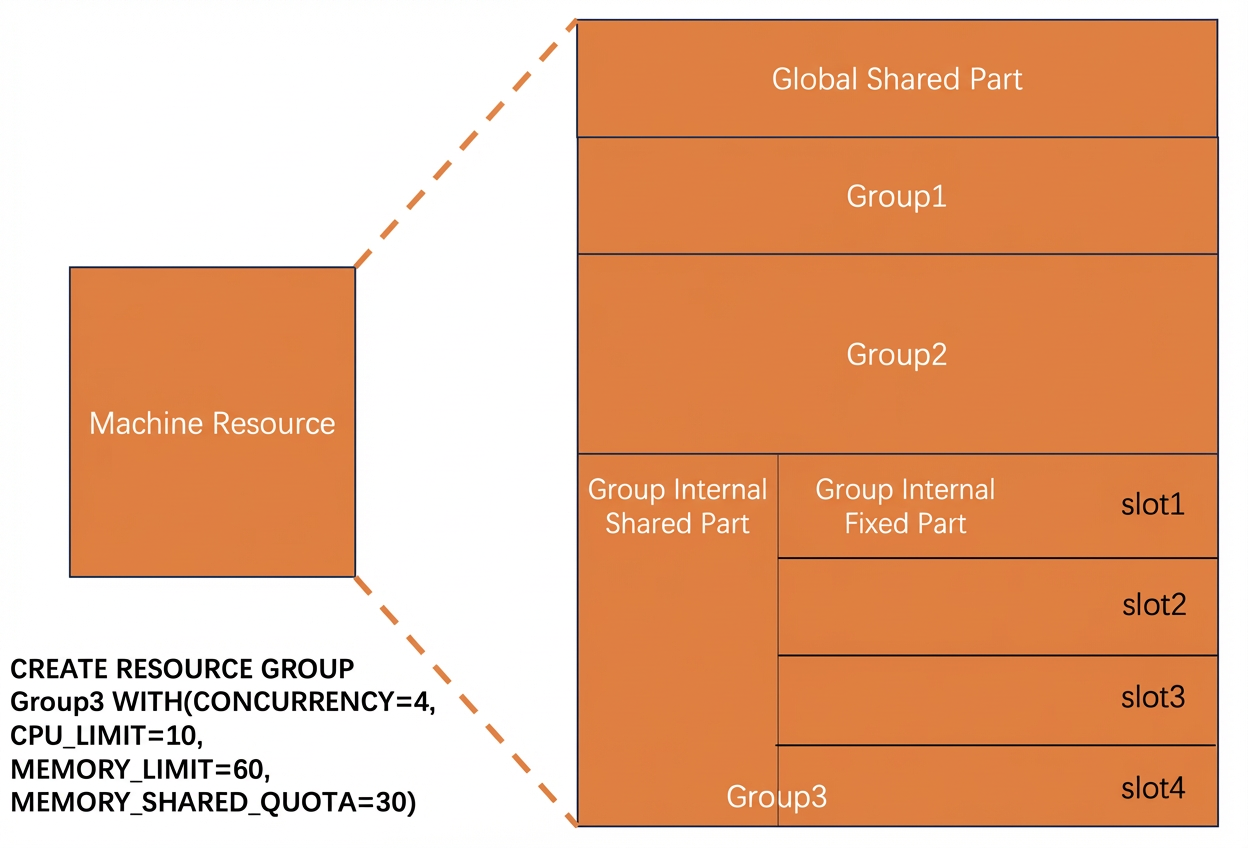
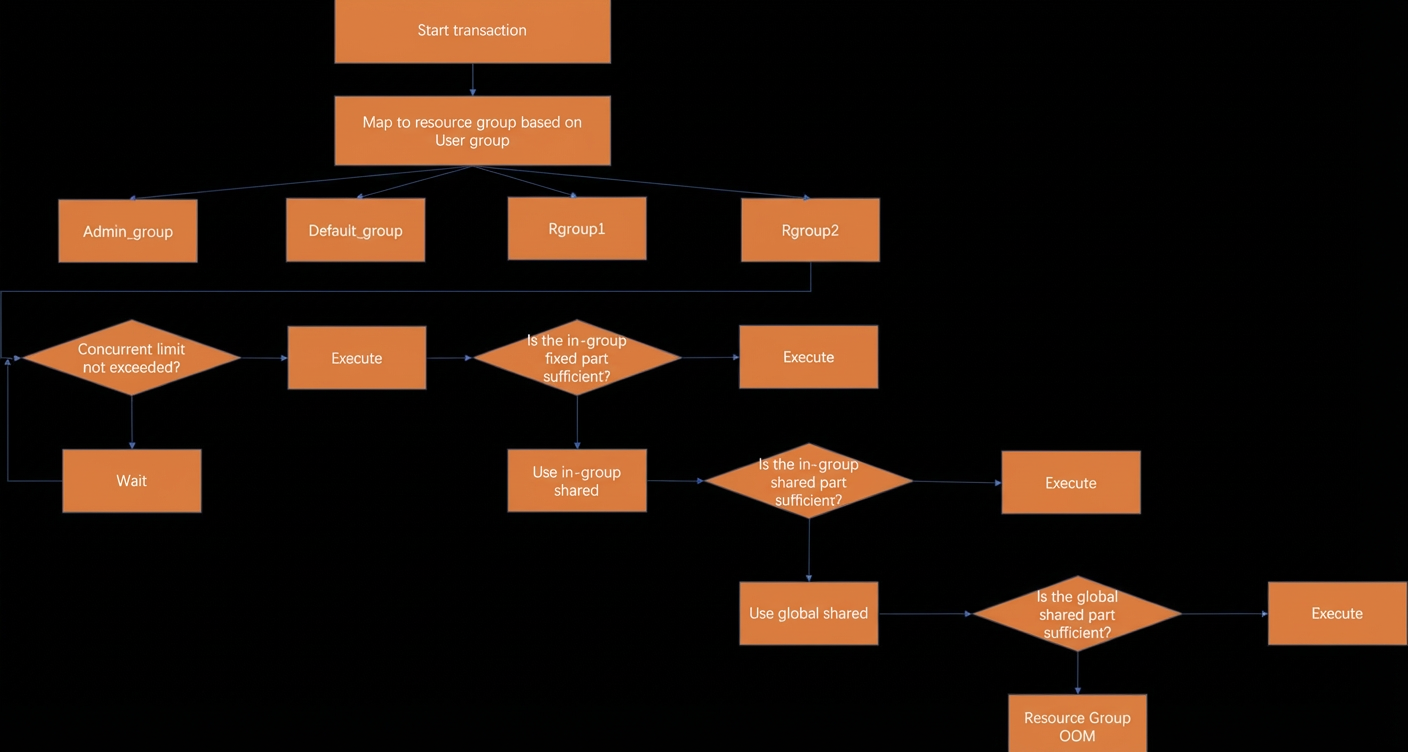
When managing memory for resource groups, AnalyticDB for PostgreSQL divides the host's memory pool into three parts: intra-group fixed memory, intra-group shared memory, and global shared memory. When a query is executed, it first uses the intra-group fixed memory. If this is insufficient, it requests memory from the intra-group shared pool. If the intra-group shared memory is also exhausted, it requests memory from the global shared pool. If the global shared memory is also insufficient, the query is terminated with an Out of Memory (OOM) error. The following figure illustrates this process.
A database query fails due to insufficient memory if all of the following conditions are met:
-
No intra-group shared memory is available.
-
No global shared memory is available.
-
The transaction requests additional memory.
In practice, size the intra-group fixed memory to cover the memory requirements of most queries. This ensures that the maximum number of queries can run in parallel during peak traffic. If a business query suddenly requires a large amount of memory, a sufficient shared memory pool ensures its normal execution.
V6.0 resource group concurrency management
-
When the number of queries entering the system reaches the concurrency limit of a resource group, new queries for that group must wait. The concurrency queue follows a first-in, first-out (FIFO) principle.
-
When a submitted query is waiting due to the concurrency limit, its status in the
pg_stat_activityview iswaiting, and thewaiting_reasonisgroup.
V6.0 resource group CPU management
AnalyticDB for PostgreSQL resource groups allow you to manage the CPU allocation ratio for each group using a preemptive CPU management approach. The database allocates CPU time slices based on the CPU_RATE_LIMIT value set for each group. If a resource group has a high CPU_RATE_LIMIT value, it receives more CPU time slices during contention, allowing it to execute more tasks. Conversely, a lower value restricts its CPU resource usage. The resource management feature also supports CPU preemption. If one resource group is executing tasks while others are idle, that group can use all available CPU resources.
-
If two resource groups are both busy, a group with
CPU_RATE_LIMITset to 40 is allocated twice the CPU resources of a group withCPU_RATE_LIMITset to 20. -
If a resource group with
CPU_RATE_LIMITset to 40 has no incoming queries, a resource group withCPU_RATE_LIMITset to 20 can use almost all CPU resources.
V6.0 disk spilling management
AnalyticDB for PostgreSQL resource groups allow you to manage the disk spilling threshold for queries. In AnalyticDB for PostgreSQL, memory-intensive operators can generate large amounts of intermediate results that may need to be temporarily spilled to disk. You can adjust the MEMORY_SPILL_RATIO to increase or decrease this spilling. Therefore, only operations that generate a large number of intermediate results are controlled by this setting. Many operations cannot be spilled to disk and will continue to consume memory, potentially causing memory usage to increase beyond the defined limit.
-
If
MEMORY_SPILL_RATIOis greater than 0, the operator spilling threshold is determined by this parameter. When the memory usage of a memory-intensive transaction reaches this threshold, its data is spilled to disk. -
If
MEMORY_SPILL_RATIOis 0, the operator spilling threshold is determined by thestatement_memparameter. For more information aboutstatement_mem, see Tune performance parameters.
When the cluster load is high and memory resources are limited, you can lower the MEMORY_SPILL_RATIO of the relevant resource group. This causes memory-intensive operators such as hashagg, join, and sort to perform more disk spilling during computation, which reduces memory consumption. When the cluster load is low and memory resources are abundant, you can increase the MEMORY_SPILL_RATIO. This raises the spilling threshold, allowing more computations to be performed in memory and improving query execution efficiency.
V7.0 resource groups
The following table describes the configurable resource parameters for AnalyticDB for PostgreSQL V7.0 resource groups.
|
Parameter |
Description |
Value |
|
CONCURRENCY |
The maximum number of concurrent transactions (queries that run in parallel) allowed in the resource group. When the number of queries entering the system reaches this limit, new queries for the group must wait. The waiting queue has no length limit and follows a FIFO principle. |
Optional. Default value: 50. Valid values: 1 to the value of |
|
CPU_MAX_PERCENT |
The maximum CPU utilization for the resource group. |
Required. No default value. Valid values: 0 to 100. The sum of the values for all resource groups can exceed 100. |
|
CPU_WEIGHT |
The CPU allocation weight of the resource group. |
Optional. Default value: 50. Valid values: 0 to 500. |
|
MEMORY_LIMIT |
The target total memory usage for the resource group. The value is an integer. Unit: MB. |
Optional. Default value: -1, which means the memory limit for a single query is determined by The value must be greater than 0 and less than the value of the For more information about the |
|
MIN_COST |
The minimum optimizer cost for a query to be managed by this resource group. Queries with an optimizer cost below this value are not controlled by the resource group and use global resources. |
Optional. Default value: 0, which means that the resource allocation priority of operations within this resource group is not affected by a minimum cost limit. Valid values: 0 to 2147483647. |
V7.0 resource group concurrency management
-
When the number of queries entering the system reaches the concurrency limit of a resource group, new queries for that group must wait. The concurrency queue follows a FIFO principle.
-
When a submitted query is waiting due to the concurrency limit, its
wait_event_typein thepg_stat_activityview isResourceGroup. -
If a large number of queries are waiting in a group due to the concurrency limit, you should increase the group's concurrency capacity to avoid impacting query performance.
V7.0 resource group memory management
In AnalyticDB for PostgreSQL V7.0, resource groups manage memory usage based on the MEMORY_LIMIT configuration, in conjunction with the statement_mem and gp_resgroup_memory_query_fixed_mem parameters.
-
If
gp_resgroup_memory_query_fixed_memis set to a value greater than 0, the maximum memory that a single query can use is limited to that value. -
If
gp_resgroup_memory_query_fixed_memis set to its default value of 0, the resource group determines the memory for a single query based onstatement_memandMEMORY_LIMIT. Details are as follows:-
If the
MEMORY_LIMITof the resource group is set to -1, the memory limit for a single query managed by the group is determined bystatement_mem. -
If the
MEMORY_LIMITof the resource group is set to a value greater than -1, the memory limit for a single query ismax(MEMORY_LIMIT/CONCURRENCY, statement_mem). For example, a database has a resource group namedetlwithMEMORY_LIMITset to 2.0 GB and a concurrency value of 5. By default, a single query is expected to use 400 MB of memory. Consider the following scenarios:
-
-
User
etl1submits query Q1 and sets the session-levelgp_resgroup_memory_query_fixed_memto 800 MB (set gp_resgroup_memory_query_fixed_mem='800MB') andstatement_memto 900 MB. Q1 can use a maximum of 800 MB of memory. -
User
etl2submits query Q2 without configuring the session-levelgp_resgroup_memory_query_fixed_memparameter, and setsstatement_memto 300 MB. Since 300 MB is less than 400 MB, Q2 is submitted to the system and uses 400 MB of memory. -
User
etl3submits query Q3 without configuring the session-levelgp_resgroup_memory_query_fixed_memparameter, and setsstatement_memto 700 MB. Since 700 MB is greater than 400 MB, Q3 is submitted to the system and uses 700 MB of memory.
V7.0 resource group CPU management
In AnalyticDB for PostgreSQL V7.0, resource groups use CPU_MAX_PERCENT to manage the maximum CPU utilization for each group and CPU_WEIGHT to manage the allocation ratio among groups. The system allocates CPU time slices according to the CPU_WEIGHT ratio of each group, while ensuring that the CPU utilization of each group does not exceed its CPU_MAX_PERCENT value.
For example, a database has two groups, rg1 and rg2. For rg1, CPU_MAX_PERCENT is 30 and CPU_WEIGHT is 100. For rg2, CPU_MAX_PERCENT is 60 and CPU_WEIGHT is 50.
-
If only
rg1has active queries andrg2is idle, the CPU utilization ofrg1can reach 30%, but the group will not use more even if idle CPU is available. In this scenario,rg2has no active queries, so its CPU utilization is 0%. -
If both
rg1andrg2have active queries, the database allocates CPU time slices based on the 100:50 weight ratio. However, once a resource group reaches itsCPU_MAX_PERCENTlimit, it no longer receives additional CPU resources. For example, afterrg1reaches 30% CPU utilization, subsequent time slices are allocated torg2(as long as it is below its 60% limit), which ensures thatrg1does not exceed its 30% cap.
Enable resource group management
Enable or disable resource group management in the console
For AnalyticDB for PostgreSQL V6.0 instances with minor version v6.6.1.0 or later, you can enable or disable resource group management in the console. Switching the resource management mode from resource queues to resource groups restarts the instance, which will be unavailable for about 5 minutes. Plan this operation during off-peak hours to avoid disrupting your business. Follow these steps:
- Log on to the AnalyticDB for PostgreSQL console.
- In the upper-left corner of the console, select a region.
- Find the instance that you want to manage and click the instance ID.
-
In the left-side navigation pane, click Workload Management.
-
Click Enable Resource Group Management, and in the confirmation dialog box, click OK.
Enable or disable by submitting a ticket
For AnalyticDB for PostgreSQL V6.0 instances with a minor version earlier than v6.6.1.0 or for any AnalyticDB for PostgreSQL V7.0 instance, you must submit a ticket to enable or disable resource group management.
You cannot use the console to manage resource groups for AnalyticDB for PostgreSQL V7.0 instances. You can only manage them by using SQL statements.
After you enable resource group management, the system automatically creates a resource group named default_group. On the Resource Group Monitoring tab of the page, you can view monitoring information for all resource groups, including CPU and memory usage for each segment.
Due to underlying architecture reasons, some instances do not support resource group CPU and memory monitoring. Submit a ticket to confirm whether your instance supports this feature.
Create a resource group
After you enable resource group management, you can create a new resource group by using the console or by running an SQL statement.
-
AnalyticDB for PostgreSQL V6.0 reserves the
admin_groupresource group to manage the database's internal system workloads. -
In an AnalyticDB for PostgreSQL V6.0 instance, the total CPU (
CPU_RATE_LIMIT) and memory (MEMORY_LIMIT) allocation across all resource groups is 100%. Theadmin_groupresource group reserves 10% of the CPU and 10% of the memory. Therefore, the sum of theCPU_RATE_LIMITandMEMORY_LIMITvalues for all other resource groups (including newly created groups and thedefault_group) cannot exceed 90. -
AnalyticDB for PostgreSQL V7.0 has three default resource groups:
admin_groupandsystem_groupare used to manage the database's internal system workloads, anddefault_groupis used by default for all other users.
Using the console
-
On the Workload Management page, click Create Resource Group.
-
Configure the parameters according to the limits described in the Limitations section, and then click Save.
Using SQL
CREATE RESOURCE GROUP <group_name> WITH (group_attribute=value [, ... ])For AnalyticDB for PostgreSQL V6.0, group_attribute includes:
CPU_RATE_LIMIT=integer
MEMORY_LIMIT=integer
[ CONCURRENCY=integer ]
[ MEMORY_SHARED_QUOTA=integer ]
[ MEMORY_SPILL_RATIO=integer ]
For AnalyticDB for PostgreSQL V7.0, group_attribute includes:
CPU_MAX_PERCENT=integer
[CPU_WEIGHT=integer ]
[ CONCURRENCY=integer ]
[ MEMORY_LIMIT=integer ]
[ MIN_COST=integer ]
View resource group configurations
After you create a resource group, you can view its configuration by using the console or by running an SQL statement.
Using the console
On the Workload Management page, view the configurations of all resource groups in the resource group configuration area.
Using SQL
Use the following SQL statement to view resource group configurations:
SELECT * FROM gp_toolkit.gp_resgroup_config;Modify resource group configurations
You can modify resource group configurations by using the console or by running an SQL statement.
Using the console
-
On the Workload Management page, click Edit above the list of resource groups.
-
Modify the concurrency, CPU usage, or memory percentage of a resource group based on your business requirements, and then click Save.
Using SQL
For AnalyticDB for PostgreSQL V6.0, only a privileged account can modify the configuration of any resource group except for admin_group. Standard accounts cannot perform this operation.
ALTER RESOURCE GROUP <group_name>
SET CONCURRENCY|CPU_RATE_LIMIT|MEMORY_LIMIT|MEMORY_SHARED_QUOTA|MEMORY_SPILL_RATIO <value>;
Examples:
-
Change the concurrency of the
testresource group to 20.ALTER RESOURCE GROUP test SET CONCURRENCY 20; -
Change the CPU utilization of the
test_pg1resource group to 20.ALTER RESOURCE GROUP test_pg1 SET CPU_RATE_LIMIT 20;
For AnalyticDB for PostgreSQL V7.0, only a privileged account can modify the configuration of any resource group except for admin_group and system_group. Standard accounts cannot perform this operation.
ALTER RESOURCE GROUP <group_name>
SET CPU_MAX_PERCENT|CPU_WEIGHT|CONCURRENCY|MEMORY_LIMIT|MIN_COST <value>;
Examples:
-
Change the concurrency of the
testresource group to 20.ALTER RESOURCE GROUP test SET CONCURRENCY 20; -
Change the maximum CPU utilization of the
test_pg1resource group to 20.ALTER RESOURCE GROUP test_pg1 SET CPU_MAX_PERCENT 20;
Assign a database account to a resource group
You can assign a database account to a resource group by using the console or by running an SQL statement. For information about how to create a database account, see Create and manage users.
-
Each resource group can be associated with one or more database accounts, but each account can be assigned to only one resource group.
-
By default, the privileged account is assigned to the
default_groupresource group. -
A database account that is not assigned to any resource group is automatically assigned to the
default_groupresource group.
Using the console
-
On the Workload Management page, in the resource group allocation area, click the
 icon on the card of the target resource group.
 -
Select a Role (database account) and click OK.
Using SQL
Only a privileged account can assign accounts to a resource group. Standard accounts cannot perform this operation. Use one of the following syntaxes to assign a database account to a specified resource group:
-
Assign a resource group to an existing database account.
ALTER ROLE <user_name> RESOURCE GROUP <group_name>; -
Assign a resource group when creating a new database account.
CREATE ROLE <user_name> WITH LOGIN RESOURCE GROUP <group_name>;
Delete a resource group
You can delete a resource group by using the console or by running an SQL statement.
Using the console
On the Workload Management page, find the target resource group, click Delete in the Actions column, and then click OK.
Using SQL
Only a privileged account can delete a resource group. Standard database accounts cannot perform this operation.
|
Version |
Parameter |
Can be deleted |
|
AnalyticDB for PostgreSQL V6.0 |
|
No |
|
|
No |
|
|
AnalyticDB for PostgreSQL V7.0 |
|
No |
|
|
No |
|
|
|
No |
DROP RESOURCE GROUP <group_name>;Manually query resource group monitoring information
V6.0
SELECT * FROM gp_toolkit.gp_resgroup_status;The following table describes the returned fields.
|
Field |
Description |
|
rsgname |
The name of the resource group. |
|
groupid |
The ID of the resource group. |
|
num_running |
The number of currently running queries. |
|
num_queueing |
The number of currently queued queries. |
|
num_queued |
The total number of queries that have been queued in this resource group. |
|
num_executed |
The total number of queries that have been executed in this resource group. |
|
total_queue_duration |
The total queue time for this resource group. Unit: seconds. |
|
cpu_usage |
The CPU utilization of the resource group on each segment. |
|
memory_used |
The total amount of memory currently used by the resource group. Unit: MB. |
|
memory_available |
The total amount of memory available to the resource group. Unit: MB. |
|
memory_quota_used |
The total amount of memory actually used from the fixed portion of the resource group. Unit: MB. |
|
memory_quota_available |
The total amount of memory available in the fixed portion of the resource group. Unit: MB. |
|
memory_quota_granted |
The total allocated memory for the fixed portion of the resource group. |
|
memory_shared_used |
The total amount of memory actually used from the shared portion of the resource group. Unit: MB. |
|
memory_shared_available |
The total amount of memory available in the shared portion of the resource group. Unit: MB. |
|
memory_shared_granted |
The total allocated memory for the shared portion of the resource group. |
V7.0
Query queue time and queue count
SELECT * FROM gp_toolkit.gp_resgroup_status;The following table describes the returned fields.
|
Field |
Description |
|
groupid |
The ID of the resource group. |
|
groupname |
The name of the resource group. |
|
num_running |
The number of currently running transactions in the resource group. |
|
num_queueing |
The number of currently queued transactions in the resource group. |
|
num_queued |
The total number of transactions that have been queued in the resource group. |
|
num_executed |
The total number of transactions that have been executed in the resource group. |
|
total_queue_duration |
The total queue time for the resource group. Unit: seconds. |
Query CPU and memory usage
SELECT * FROM gp_toolkit.gp_resgroup_status_per_host;The following table describes the returned fields.
|
Field |
Description |
|
groupid |
The ID of the resource group. |
|
groupname |
The name of the resource group. |
|
hostname |
The name of the host. |
|
cpu_usage |
The CPU utilization, as a percentage. |
|
memory_usage |
The total amount of memory currently used by the resource group on this segment. Unit: MB. |
Disable resource group management
If you need to switch the resource management mode back to resource queues, you can disable resource group management in the console. The process involves restarting the instance, which will be unavailable for about 5 minutes. Plan this operation during off-peak hours to avoid disrupting your business. Follow these steps:
-
Log on to the AnalyticDB for PostgreSQL console.
-
In the upper-left corner of the console, select the region where the instance resides.
-
Find the target instance and click its instance ID.
-
In the left-side navigation pane, click Workload Management, and then click Disable Resource Group Management.