Upgrade or downgrade a Cloud-native API Gateway instance specification
Upgrade or downgrade the specification of a Cloud-native API Gateway instance to match your workload requirements.
Prerequisites
A Cloud-native API Gateway instance is created. Create a gateway instance.
Background information
Both Subscription and Pay-as-you-go billing models support specification changes. For billing details, see Billing overview.
Procedure
-
The upgrade or downgrade takes approximately 4 to 5 minutes. During this time, you cannot perform operations on the instance in the console.
-
For instances with two or more nodes, rolling deployment with automatic data synchronization ensures zero business impact. Single-node instances do not provide high availability, and service interruptions may occur during the change.
-
Perform the upgrade or downgrade during off-peak hours to minimize business impact.
Log on to the API Gateway console.
In the left-side navigation pane, click . In the top navigation bar, select a region.
-
On the Instances page, select the target gateway instance.
Pay-as-you-go
-
Click Upgrade in the Actions column, or click
 > Downgrade in the Actions column.
 -
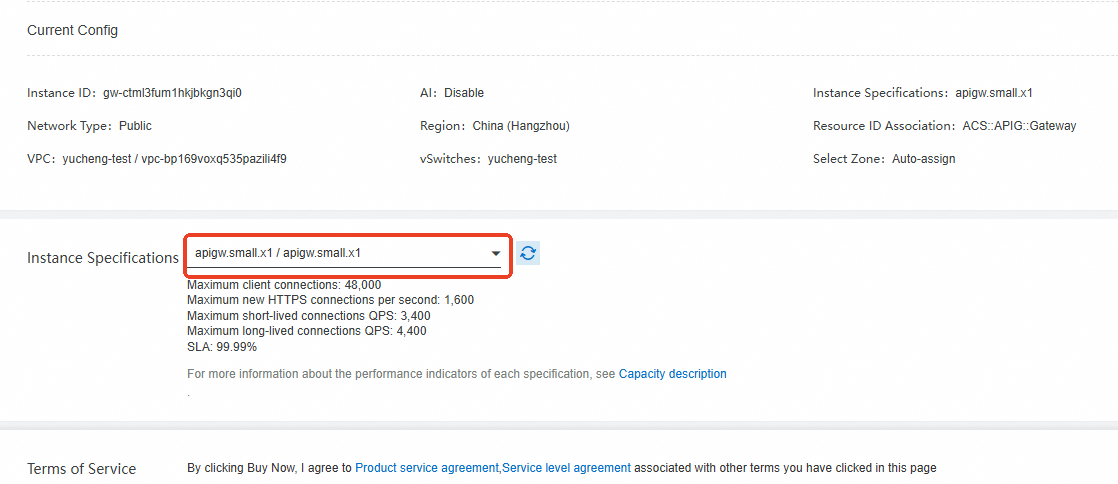
On the Cloud-native API Gateway (Pay-as-you-go) | Upgrade/Downgrade or Cloud-native API Gateway (Pay-as-you-go) | Downgrade page, select an instance specification from the GatewaySpec list.
-
Read and agree to the Terms of Service.
Subscription
-
Click Upgrade in the Actions column, or click
> Downgrade in the Actions column. -
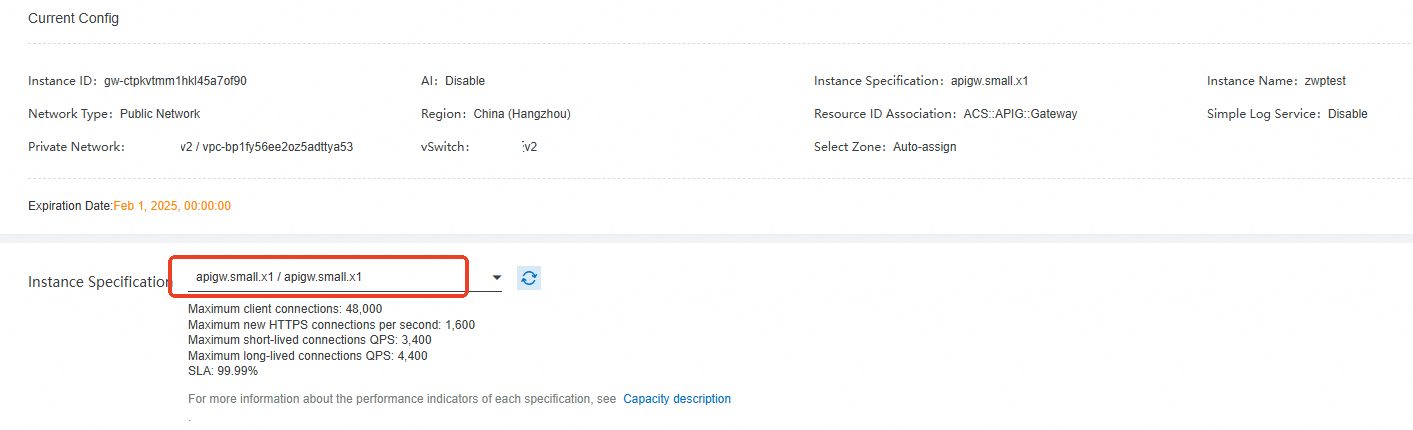
On the Cloud-native API Gateway (Subscription) | Upgrade/Downgrade or Cloud-native API Gateway (Subscription) | Downgrade page, select an instance specification from the GatewaySpec list.
-
Read and agree to the Terms of Service.
-
-
Click Buy Now.
-
On the Basic Information tab, verify that the Instance Type field shows the new specification.