Introduction
AUI Kits is a low-code solution that provides UI components for audio and video applications in interactive live streaming scenarios. You can reuse the functional modules in AUI Kits to quickly build an interactive live streaming application, reducing development costs and cycles.
Overview
The interactive live streaming solution includes a rich set of features, such as live stream publishing, recording and playback, interactive messaging, and audio/video co-hosting. It is suitable for a wide range of live streaming businesses. The kit includes two sets of AUI components: portrait mode and landscape mode. The primary difference is their intended use case. Portrait mode focuses on entertainment and enables direct, real-time interaction. Viewers can request to join the host in an audio/video co-hosting session, and hosts can start a stream from their mobile devices. In contrast, landscape mode is designed for professional presentations. It requires the host to start the stream from a PC and allows for screen sharing and multimedia file presentations. However, landscape mode only offers bullet chat for interaction. Based on these differences, you can choose the appropriate mode and features for your needs. The following sections describe each mode in detail.
Portrait mode
Use cases
Use case 1: E-commerce live streaming
The provided source code does not implement this feature. You must implement it by following the instructions in Implement gift-giving and product card features by using custom interactive messages.
Use case 2: Entertainment live streaming
Hosts can start a stream from a mobile phone or dedicated streaming device to interact with viewers or other hosts.
-
Supports audio/video co-hosting between hosts and viewers.
-
Supports adjustable beauty effects.
-
Supports stable and smooth live streaming for up to one million concurrent publishers and ten million concurrent viewers.
-
Supports recording and playback.
Supported platforms
For portrait mode, the host client is supported on Android and iOS. The viewer client is supported on Android, iOS, desktop web, and WeChat Mini Program.
|
Mode |
Platform |
Role |
Developer guide |
|
Portrait mode |
Android |
|
|
|
iOS |
|
||
|
Desktop web |
Viewer |
||
|
WeChat Mini Program |
Viewer |
Feature showcase
Live room list
After a user logs in, the application displays a list of all live rooms, including their titles, cover images, host nicknames, statuses, and popularity.
The top-right corner of the page provides a shortcut to the Last Livestream. The list distinguishes between ongoing streams and playbacks. A Create Livestream button is at the bottom of the page.
Create a livestream (host)
When creating a livestream, the host can set its title and announcement. The host can also configure stream properties. If Standard mode is selected, viewers cannot co-host. If Co-hosting mode is selected, viewers can request to join the host on video.
Start a livestream (host)
After a host starts a livestream, the following features are available:
-
Adjust streaming effects, including beauty effects and camera orientation.
-
Interact through chat and mute all viewers.
-
Manage co-hosting requests by accepting or rejecting them. During a co-hosting session, the host can manage the viewer's devices, such as camera and microphone.
On the stream preparation screen, the host can enter a Livestream Title at the top. The bottom toolbar contains tabs such as Beautification, Face Shaping, Makeup, Filters, and Stickers. Clicking Beauty Effects opens a panel with preset styles like None, Basic, Popular, Advanced, and Cute, and also supports Manual Beautification adjustments.
Watch a livestream or playback (viewer)
When a viewer enters a live room, the following features are available:
-
Watch the livestream. If the stream has ended, a playback is available.
-
Interact through chat.
Watching on a mobile device
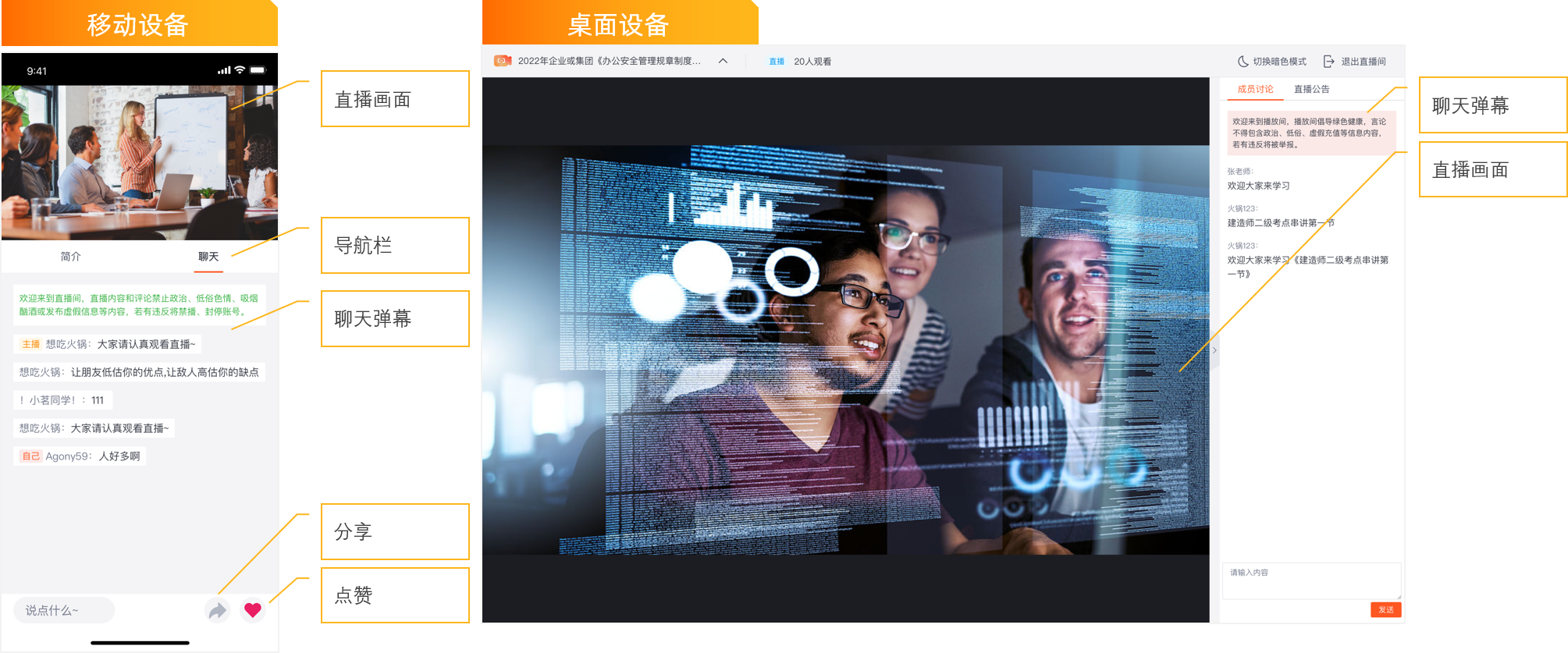
The mobile interface displays the Viewers count and an Exit Livestream button at the top. It also shows the Livestream Announcement. The bottom toolbar provides buttons for Request Co-hosting, Share, and Like. After a stream ends, a Playback button appears. During playback, a progress bar and an In Playback status label are displayed at the bottom.
Watching on desktop web
The desktop web playback interface provides Switch to Dark Mode and Exit Livestream buttons at the top. The right-side panel includes Member Discussion and Livestream Announcement tabs. The bottom playback control bar allows users to pause, seek, adjust volume, and enter full-screen mode.
Watching on a WeChat Mini Program
The mobile interface displays the host's avatar, a Follow button, and the number of online viewers at the top. A livestream announcement is overlaid on the video, such as "Welcome to the livestream! Illegal, vulgar, pornographic, smoking, and alcohol-related content is strictly prohibited. Please report any violations." At the bottom, there is a comment input field and interaction icons for sharing and liking.
Host-viewer audio/video co-hosting
Co-hosting livestreams support the following features:
-
A viewer can request to co-host. If the host approves, the viewer confirms and can then go on-air.
-
During a co-hosting session, users can adjust beauty effects and manage devices like cameras and microphones.
A live channel with guest spot mode enabled contains three core screens:
-
Co-hosting View: The live channel simultaneously displays video windows for the streamer and multiple guests, with up to six participants on screen at the same time.
-
Co-hosting Requests: On the Co-hosting Requests tab, the streamer can view the list of pending requests and Accept or Reject each request.
-
Co-hosting Management: On the On-Stage Members tab, the streamer can manage guests who are already on stage, including toggling their microphone and camera and performing the Remove from Stage action.
Landscape mode
Use cases
Use case: Enterprise live streaming
The host starts a stream from a computer or a dedicated streaming device and uses screen sharing to present to the audience. Viewers can interact with the host through bullet chat.
-
Supports viewing on multiple platforms to maximize reach.
-
Supports recording and playback for distribution during and after the live event.
-
Supports adjustable beauty effects.
Supported platforms
For landscape mode, the host client is supported on Windows and macOS. The viewer client is supported on Android, iOS, and desktop web.
|
Mode |
Platform |
Role |
Developer guide |
|
Landscape mode |
Windows |
Host |
|
|
macOS |
Host |
||
|
Android |
Viewer |
||
|
iOS |
Viewer |
||
|
Desktop web |
Viewer |
Feature showcase
Get a livestream link (host)
To start a stream in landscape mode, the host must first use the Live Streaming Assistant for macOS, paste the link into the application, and then enter the live room.
After entering the live room, the center of the screen shows a stream preview. The right-side panel is for Member Discussion, where the host can send chat messages or enable mute all. The bottom toolbar provides functions such as Unmute, Turn on Camera, Beautification, Share Screen, Settings, and Multimedia. The red Start Livestream button is on the far right.
Start a livestream (host)
Unlike portrait mode, landscape mode includes a built-in screen sharing feature that allows the host to capture and publish a specific desktop screen.
The main interface in landscape mode includes a camera feed area and a chat panel on the right, which supports bullet chat and mute all. The bottom toolbar provides controls for Switch Audio Device/Toggle Microphone, Switch Video Device/Toggle Camera, Settings, and End Livestream.
Click the Beautification button on the bottom toolbar to open the Device Detection dialog, then select Beautification Settings. After enabling beautification, you can adjust parameters in the Basic Beautification, Advanced Beautification, Filters, and Stickers sub-tabs. Basic Beautification allows you to adjust sliders for Skin Smoothing, Sharpening, Whitening, and Rosy. Click Done when finished.
Watch a livestream or playback (viewer)
Viewers can join from mobile devices or desktop web browsers.
System requirements
|
Role |
Platform |
Compatibility requirements |
Recommended devices |
||||
|
Host |
Android |
Android 5.0 or later. |
Mid-range to high-end Android devices with 3 GB of RAM or more. |
||||
|
iOS |
iPhone or iPad with iOS 10.0 or later. |
|
|||||
|
Windows |
64-bit Windows 10 or later. |
|
|||||
|
macOS |
macOS 10.14 or later. |
Models released in 2017 or later are recommended. |
|||||
|
Viewer |
Android |
Android 5.0 or later. |
Mid-range to high-end Android devices with 3 GB of RAM or more. |
||||
|
iOS |
iPhone or iPad with iOS 10.0 or later. |
|
|||||
|
Mobile web |
To use ultra-low latency live streaming playback, the following minimum browser versions are required:
|
For the best user experience on the mobile web viewer client, we recommend:
|
|||||
|
Desktop web |
To use ultra-low latency live streaming playback, the following minimum browser versions are required:
|
For the best user experience, we strongly recommend using the latest official version of Google Chrome for the desktop web viewer client. |
|||||
|
WeChat Mini Program |
|
||||||
Features
|
Feature |
Description |
||||||
|
Video streaming |
Supports protocols such as ultra-low latency live streaming (RTS) and standard live streaming (FLV, HLS), in addition to playback. |
||||||
|
Audio/video co-hosting |
A host can invite a viewer to co-host, or a viewer can request to join. Other users can watch the co-hosting session in real time. |
||||||
|
Beauty effects |
Supports configurable features such as beautification, face shaping, filters, stickers, and background removal to enhance the streaming quality. |
||||||
|
Bullet chat |
Hosts and viewers in the live room can interact using text messages. |
||||||
|
Room information |
Displays information such as the livestream title, cover image, host nickname, and popularity. |
||||||
|
Custom development |
The UI components are open-source, allowing for customization as needed. |
||||||
Contact us
For more information or technical support, submit a ticket.