Quick start
Walk through the Alert Management workflow end to end: report an alert from ARMS, send a notification to a DingTalk group, and receive your first alert card.
Procedure
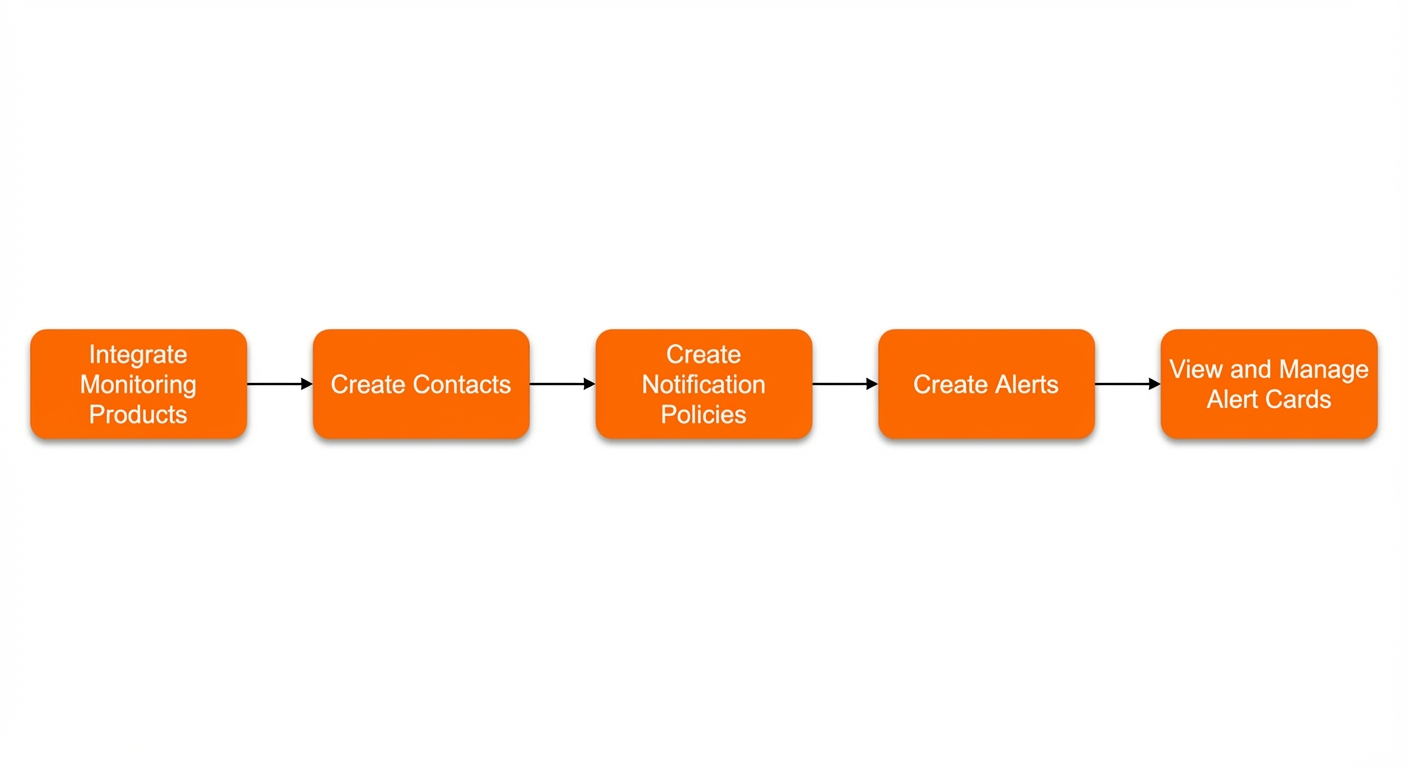
Step 1: Integrate a monitored service
ARMS is integrated with Alert Management by default. To integrate other monitored services, see notification integration.
Step 2: Create a notification object
Alert Management sends notifications through SMS, phone, email, DingTalk, and other channels. The following example creates a DingTalk group as the notification target. To create other types of notification objects, see Notification objects.
-
Log on to the ARMS console. In the left-side navigation pane, choose .
-
On the DingTalk/Lark/WeCom tab, click DingTalk.
-
In the panel that appears, set the following parameters and click OK.
Parameter
Description
Name
Enter a name for the DingTalk chatbot.
Signature key
Optional. If you configure a signature key, DingTalk uses it for signature-based authentication. If you do not configure a key, DingTalk performs authentication based on a keyword whitelist by default. The keyword is alert. For more information, see the official DingTalk documentation.
Webhook URL
Enter the webhook URL of the DingTalk chatbot.
Send daily statistics
If you select this option, you must specify the times to send daily statistics. Use a comma (,) to separate multiple time points, in the
HH:SSformat. At the specified times, ARMS alert management sends a daily alert summary, including the total, resolved, and unresolved alert counts.Card content configuration
Customize the style and content of the alert notification card.
Step 3: Create a notification policy
The following example merges all P1-severity alert events into a single notification and sends it to the DingTalk group. For more information, see Notification policies.
-
Log on to the ARMS console. In the left-side navigation pane, choose .
-
On the Notification Policies page, click Create Notification Policy.
-
At the top of the Create Notification Policy page, enter a name for the policy.
-
In the Matching Rule section, configure rules to match alert events.
ImportantSilence policies take precedence over notification policies. Alert events that match a silence policy are silenced and therefore cannot be matched by a notification policy. To learn how to create a silence policy, see Silence policy.
-
Select No Preset Source. This setting makes the notification policy filter all alert events based on the matching rules before sending notifications.
-
Set the matching rule expression. You can define a custom tag or select an existing one. For example: _aliyun_arms_alert_level equals P1.
-
Click Next.
-
-
In the Event Group section, select Do Not Group, and then click Next.
-
In the Notification Objects section, set the following parameters.
-
Set Notification object to DingTalk/Lark/WeCom and select the DingTalk chatbot you created in Step 2.
-
Specify whether to send a clearing notification after an alert is resolved.
If you enable this option, the system automatically changes the alert status to Resolved when all underlying events are resolved and sends a notification to the handler.
-
Configure the notification template. For more information, see Configure notification templates and webhook templates.
-
Set the notification period during which alert notifications are sent. For example, set the notification period to
00:00-23:59. -
Optional: Select a ticketing system to push alerts to. To learn how to integrate with a ticketing system, see Notification integration.
-
Click Next.
-
-
In the Repeat/escalation policy section, configure whether to resend notifications or use an escalation policy.
-
Do not use an escalation policy. The notification is sent only once while the alert is active.
-
Repeat notifications: Set a frequency. While an alert is active, notifications are sent repeatedly at the specified frequency until the alert is resolved.
-
Escalation policy: Select an escalation policy. While an alert is active, notifications are sent to other notification objects according to the selected policy.
-
-
After you complete the configuration, click Save.
Step 4: Create an alert rule
Alert rule creation varies by monitored service. For ARMS-specific instructions, see the following topics:
-
Application Monitoring: See Application monitoring alert rules.
-
Browser Monitoring: See Browser monitoring alert rules (new).
-
Prometheus Service: See Create an alert rule.
Step 5: View and manage alert cards
Alert cards in the DingTalk group display basic alert information. You can customize the card content by editing the notification template in the notification policy. For more information, see Manage alerts in a notification group.