Add and use an Alibaba Cloud API data source
Monitoring cloud resources often requires switching between service consoles to check metrics, inventory, and status. The Alibaba Cloud OpenAPI data source plugin connects Grafana directly to cloud service APIs, so you can query and visualize resource data from multiple services in a single dashboard.
Prerequisites
Before you begin, make sure you have:
Grafana 9.0.x or later -- Managed Service for Grafana or a self-managed instanceFor more information, see Get started with Managed Service for Grafana.
Alibaba Cloud OpenAPI plugin -- pre-installed on Managed Service for Grafana 9.0.x and later. For self-managed Grafana, install from the Alibaba Cloud OpenAPI GitHub repository
A Resource Access Management (RAM) user with permissions to call the target cloud service APIs. See Create a RAM user
An AccessKey pair (AccessKey ID and AccessKey secret) for the RAM user. Save the AccessKey secret at creation time -- the console does not display it again. See View AccessKey pairs of a RAM user.
Log on to Grafana
Log on to the Managed Service for Grafana console. In the left-side navigation pane, click Workspace Management.
On the Workspace Management page, find your workspace and click the URL in the URL column to open Grafana.
Log on with the Grafana administrator account and the password you set when you created the workspace, or click Sign in with Alibaba Cloud to use your current Alibaba Cloud account.
Add the OpenAPI data source
Navigate to the data source configuration page. The path differs by Grafana version:
Grafana version | Navigation path |
10.0.x and later | Click the |
9.0.x | Hover over the |
 icon > Administration > Data sources > + Add new data source
 icon > Data sources > Add data source
Search for OpenAPI and select it from the results.
Configure the data source
On the OpenAPI data source configuration page, set the following parameters and click Save & test.
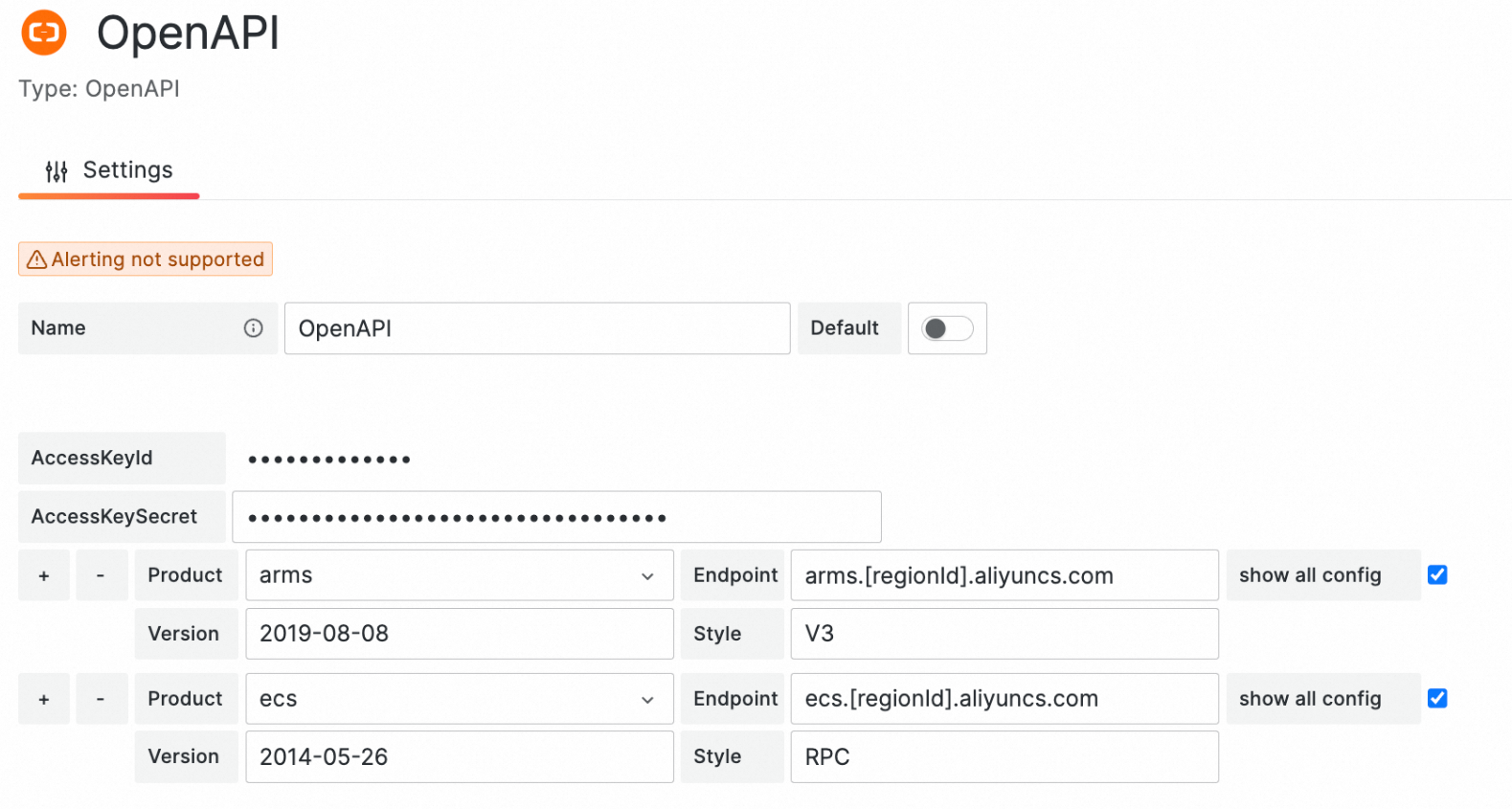
Parameter | Description |
Name | A display name for this data source. |
AccessKeyId | The AccessKey ID of the RAM user authorized to call cloud service APIs. See View AccessKey pairs. |
AccessKeySecret | The AccessKey secret of the RAM user. The console displays this value only at creation time -- use the copy you saved. |
Product | The cloud service to query. Select from the drop-down list or type to search. |
Endpoint | The API endpoint for the selected service. Find this in the API reference of the service. See Endpoints for examples. |
Version | The API version. Find this in the API reference of the service (for example, |
Style | The API calling style: Remote Procedure Call (RPC) or Resource-Oriented Architecture (ROA). Check the API reference to determine which style your target service uses. |
If the message "Data source is working" appears, the data source is configured correctly.
Tip: If the test fails, verify that: - The AccessKey pair is valid and not disabled - The RAM user has the required API permissions - The endpoint matches the target region
Common endpoints
The following table lists endpoints for frequently used Alibaba Cloud services. For a complete list, see the API reference for each service.
Service | Endpoint example (China (Hangzhou)) | API version | API style |
| RPC | ||
|
| RPC |
To query multiple regions with a single data source, you can enter the endpoint in the arms.[regionId].aliyuncs.com format to support more regions. If you enter the endpoint in this format, you must specify the region ID in the request parameters when you call an API operation.
Create a dashboard panel
After you add the data source, create a dashboard panel to query and display cloud service data.
Navigate to the dashboard creation page. The path differs by Grafana version:
Grafana version | Navigation path |
10.0.x and later | Click the |
9.0.x | Click the Dashboards icon > New Dashboard > Add a new panel > select the OpenAPI data source from the Data source drop-down list on the Query tab |
 icon > Dashboards > New > New Dashboard > + Add visualization > select the OpenAPI data source
Configure the query
On the Query tab, configure the following settings:
Action tab
Parameter | Description |
product | The cloud service name. Use the same value as the Product parameter in the data source configuration. |
action | The API operation to call. See the API reference for available operations. For example, ARMS operations are listed in List of operations by function. |
pathName | The request path. Required only for ROA-style APIs. |
method | The HTTP method: |
Params tab
Click Add param to add request parameters as key-value pairs. The required parameters depend on the API operation you are calling -- check the API reference for details.
Fields tab
Field | Description |
Field | A JSONPath expression that specifies which data to extract from the JSON response. Use |
Type | The data type for the extracted field. Default: |
Alias | A display name for the field in the panel. |
Examples
For working dashboard examples that use the OpenAPI data source, visit the OpenAPI demo dashboards.