Disable HTTP/2 for HTTPS on an ingress gateway
If your client has issues with HTTP/2 over HTTPS and you cannot modify its configuration, you can disable the HTTP/2 protocol on the ingress gateway.
Prerequisites
Step 1: Verify the default configuration
To verify that Application-Layer Protocol Negotiation (ALPN) defaults to HTTP/2, run the following command to access the ingress gateway. Replace <INGRESS_GATEWAY_IP> with the IP address of your ingress gateway.
curl -k -H Host:b.aliyun.com --resolve b.aliyun.com:443:<INGRESS_GATEWAY_IP> https://b.aliyun.com/status/418 -vExpected output:
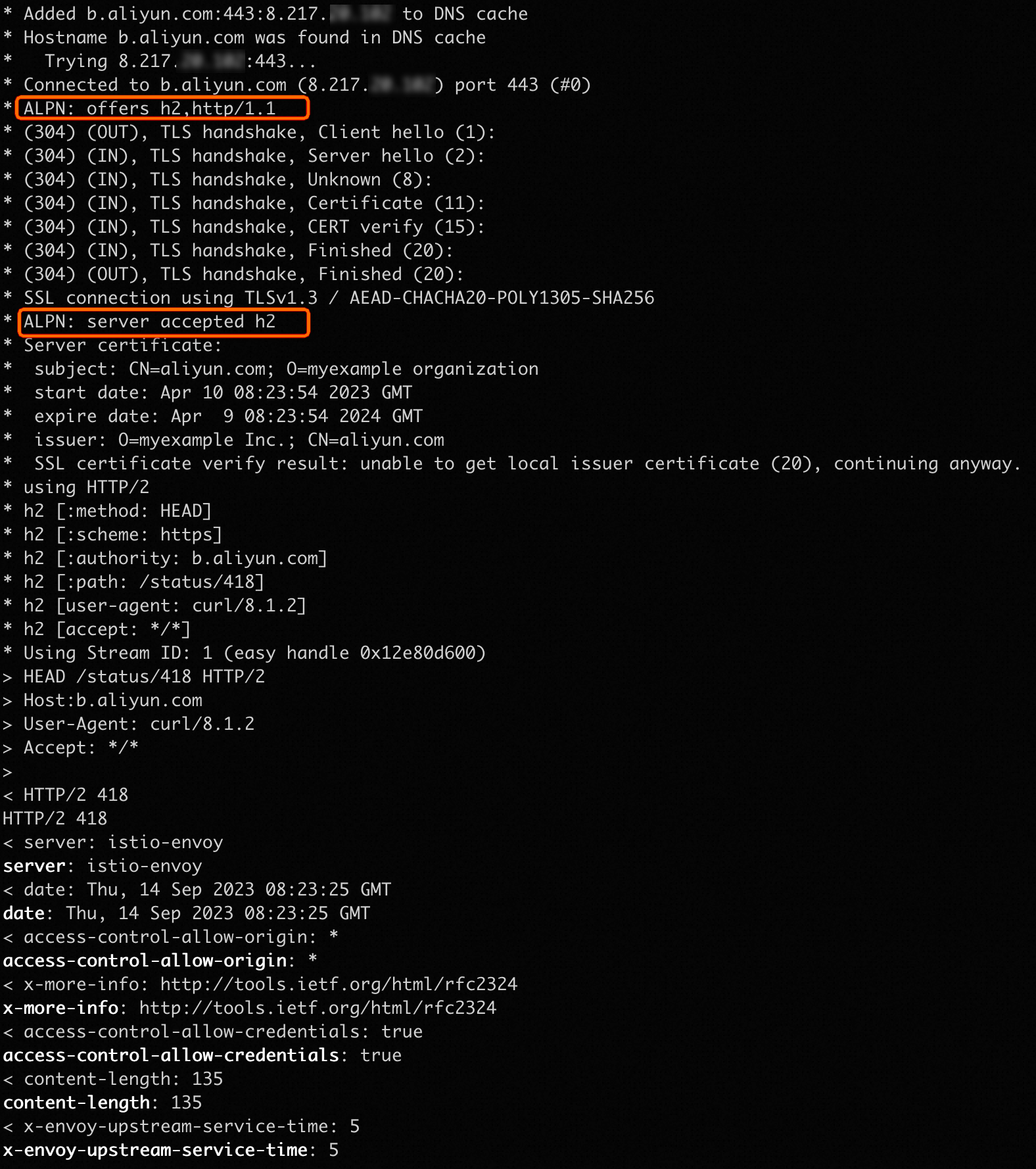
The output shows that the client offers both HTTP/2 and HTTP/1.1 in the ALPN list. By default, the gateway prioritizes and selects HTTP/2.
Step 2: Disable HTTP/2 for HTTPS
-
Log on to the ASM console. In the left-side navigation pane, choose .
-
On the Mesh Management page, click the name of the ASM instance. In the left-side navigation pane, choose .
-
On the Ingress Gateway page, find the target gateway and click View YAML in the Actions column. In the Edit dialog box, add the
podAnnotationsconfiguration under thespecfield, and then click OK.podAnnotations: proxy.istio.io/config: | httpsHttp2Disabled: trueNoteThis configuration causes the gateway to restart.
Step 3: Verify that HTTP/2 is disabled
Run the following command again to access the ingress gateway. Replace <INGRESS_GATEWAY_IP> with the IP address of your ingress gateway.
curl -k -H Host:b.aliyun.com --resolve b.aliyun.com:443:<INGRESS_GATEWAY_IP> https://b.aliyun.com/status/418 -vExpected output:
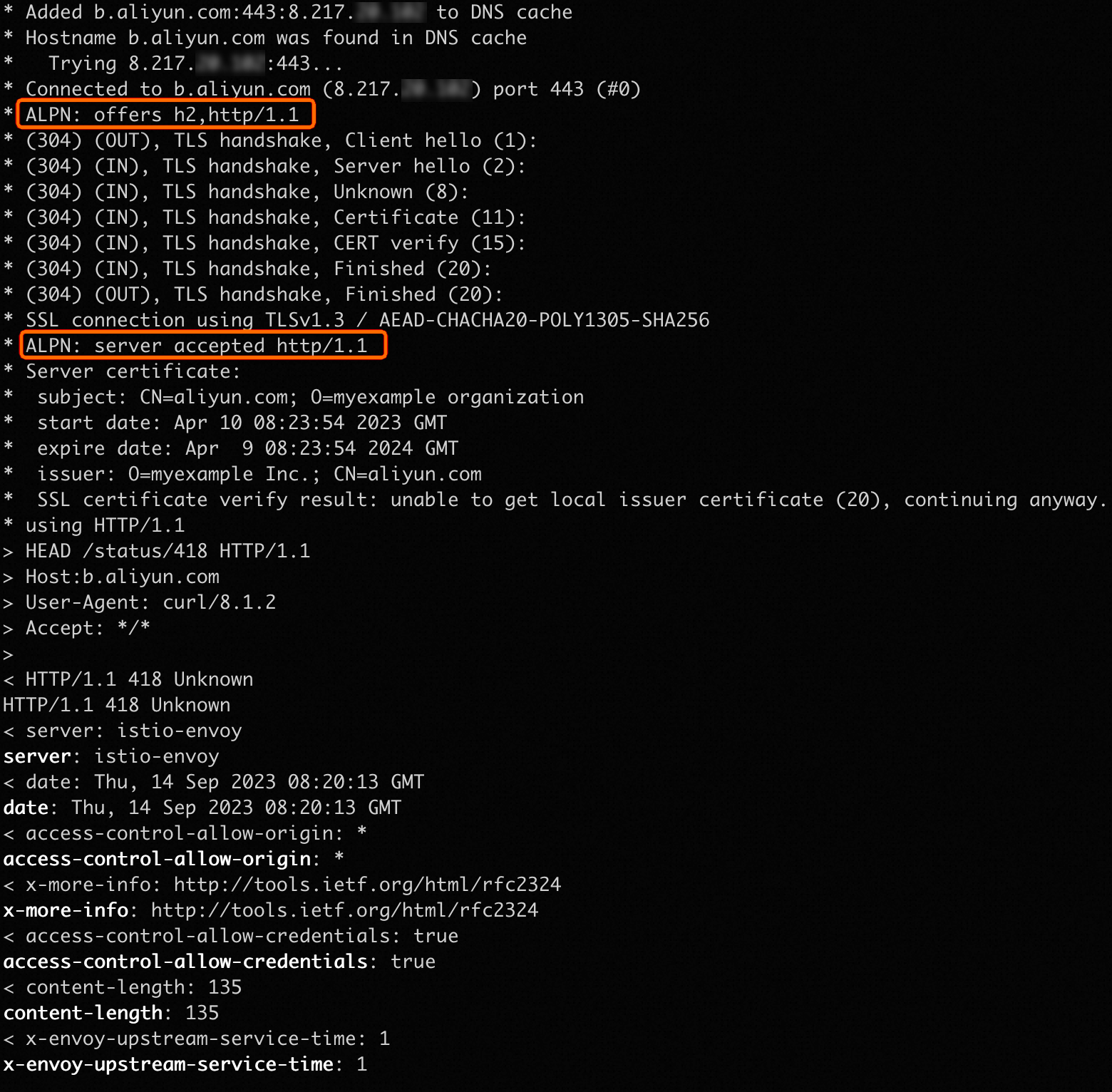
The output shows that the negotiated ALPN protocol is HTTP/1.1. This confirms that HTTP/2 is disabled.