Enable control plane log collection and alerting (new version)
Alibaba Cloud Service Mesh (ASM) provides Log Center, which you can use to view control plane and data plane logs from the ASM console. After you enable log collection, you can use Log Center to view control plane logs, configure log-based alerting rules, view data plane logs, and access related dashboards. This topic describes how to enable control plane log collection and log-based alerting.
Prerequisites
Simple Log Service (SLS) is activated for your Alibaba Cloud account. For more information, see Activate Simple Log Service.
ImportantYou are not charged by ASM for collecting logs. However, Simple Log Service (SLS) charges you based on the volume of ingested data or the features that you use. For more information about SLS billing, see Billing overview.
The logtail-ds component is installed in the data plane cluster. For more information, see Enable Logtail.
A cluster is added to an ASM instance that is version 1.17.2.35 or later. For more information, see Add a cluster to an ASM instance and Upgrade an ASM instance.
NoteIf your ASM instance is earlier than version 1.17.2.35, see Enable control plane log collection and log-based alerting (old version).
Enable control plane log collection
-
Log on to the ASM console. In the left-side navigation pane, choose .
-
On the Mesh Management page, click the name of the ASM instance. In the left-side navigation pane, choose .
On the Log Center page, click the Control-Plane Logs tab. Select New project or Use existed project, configure the relevant parameters, and then click Enable Control-Plane Log Collection. In the Submit dialog box, click OK.
After logs are collected to Simple Log Service (SLS), you can perform the following operations:
View control plane logs on the console. For more information, see View control plane logs.
Enable log-based alerting to promptly detect control plane issues. For more information, see Configure log-based alerting for the control plane.
If you no longer need this feature, click Disable Control-Plane Log Collection in the upper-right corner of the Control-Plane Logs tab. In the Submit dialog box, click OK.
View control plane logs
After enabling control plane log collection, logs from the managed control plane are collected to Simple Log Service (SLS). You can view or query control plane logs in the SLS console or on the ASM console's integrated log browser.
It may take a few moments for SLS to establish log distribution. You might not see logs on the console immediately after you enable log collection.
Method 1: Use the ASM console
-
Log on to the ASM console. In the left-side navigation pane, choose .
-
On the Mesh Management page, click the name of the ASM instance. In the left-side navigation pane, choose .
On the Log Center page, click the Control-Plane Logs tab to view log information.
Method 2: Use the SLS console
Log on to the Simple Log Service console.
In the Projects section, click the name of the log service project that corresponds to your target cluster.
In the left-side navigation pane, click the target Logstores. On the page that appears, view the log information.
Configure control plane log alerts
After enabling control plane log collection, you can configure log-based alerting for the control plane.
-
Log on to the ASM console. In the left-side navigation pane, choose .
On the Mesh Management page, click the name of the target ASM instance. In the left-side navigation pane, choose .
On the Log Center page, click the Control-Plane Logs tab, and then click Alert Setting in the upper-left corner.
In the Control-Plane Alert Setting dialog box, select an Action Policy as needed and click Enable Alert. In the Note dialog box, click Submit.
An Action Policy defines how to send notifications when an alert is triggered. Two types are supported: ASM Built-in Action Strategy and Custom action strategy. For more information, see Action policies By default, the ASM built-in action policy does not have any notification channels configured. You can click the
 icon and follow the instructions to open the Simple Log Service alert center and configure the channels. If an alert is triggered, refer to Solutions.
Configure alert contacts
You can configure the built-in action policy to set alert notification recipients and notification templates. Add members to the built-in alert user group so they receive alert notifications.
Log on to the Simple Log Service console.
In the Projects section, click the name of your project. In the left-side navigation pane, click Alerts.
On the Alert Center page, choose Notification Objects > User Group Management.
On the User Group Management tab, find sls.app.asm.builtin and click Edit in the Actions column.
In the Edit User Group dialog box, select the members to add, click the
 icon to add them to the group, then click OK.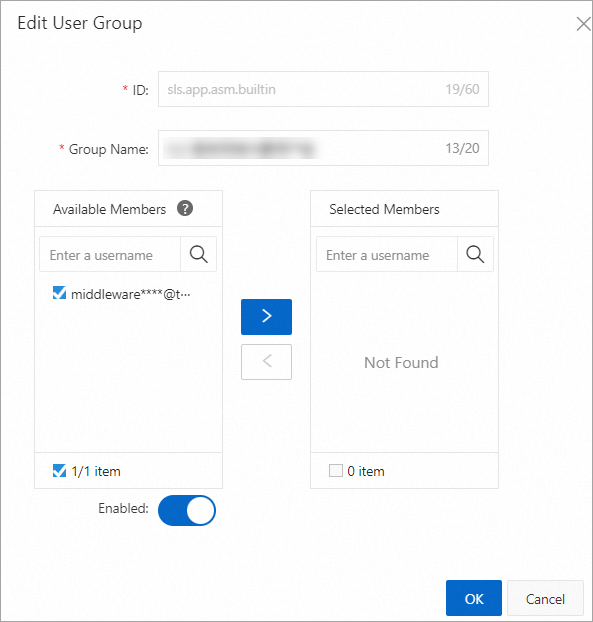
Triggered alert notification example
This topic cannot cover every alert item. The following example shows how to trigger the "Configuration push from the mesh control plane fails" alert by using an incorrect configuration.
-
Log on to the ASM console. In the left-side navigation pane, choose .
-
On the Mesh Management page, click the name of the ASM instance. In the left-side navigation pane, choose . On the page that appears, click Create from YAML.
On the Create page, select the target namespace and a scenario template, and then configure the YAML.
This example uses the default namespace to configure an ASM Gateway. The following is a sample YAML configuration:
apiVersion: networking.istio.io/v1beta1
kind: Gateway
metadata:
  name:  gateway-test
  namespace: default
spec:
  selector:
    istio: ingressgateway
  servers:
    - hosts:
        - '*console.aliyun.com'
      port:
        name: https
        number: 443
        protocol: HTTPS
      tls:
        credentialName: not-existing-credential
        mode: SIMPLE
View the alert notification.
-
Log on to the ASM console. In the left-side navigation pane, choose .
-
On the Mesh Management page, click the name of the ASM instance. In the left-side navigation pane, choose .
On the Log Center page, click the Control-Plane Logs tab and search for
ACK ERRORto view the alert information.If you have configured an email address for your alert contacts, you can also check your email for the alert notification.
-
Solutions
Warnings for mesh configuration
ASM Mesh Diagnosis has found potentially risky mesh configurations in your cluster. These configurations may cause ASM to produce unexpected results. You can go to the Mesh Diagnosis page to view the alert details and follow the suggestions on the Mesh Diagnosis page to correct the misconfigurations. For more information, see Use ASM Mesh Diagnosis.
Mesh configuration errors
ASM Mesh Diagnosis has found incorrect mesh configurations in your cluster. These configurations pose a high risk of causing unexpected behavior. You should check the alert details on the Mesh Diagnosis page as soon as possible and follow the guidance on the Mesh Diagnosis page to fix the configurations. For more information, see Use ASM Mesh Diagnosis.
Configuration push failure from invalid mesh configuration
The following table lists common error messages for data plane synchronization failures and provides the corresponding solutions. If you cannot find your error message, submit a ticket.
Error message | Solution |
| This alert indicates that the data plane cluster does not support the certificate configured for the data plane. You must reconfigure the certificate. Only P-256 ECDSA certificates are supported. For more information, see Enable HTTPS on an ASM gateway. |
| This alert indicates that the certificate path configured for the data plane is incorrect or the certificate does not exist. Verify that the certificate mount path matches the path configured in the gateway. For more information, see Enable HTTPS on an ASM gateway. |
| This alert indicates that a duplicate listener port is configured for the gateway. Check your gateway configuration and remove the duplicate port. |
| This alert indicates that the implementation for |
| This alert indicates that the xDS v2 protocol used by your data plane is deprecated. This issue usually occurs when the sidecar proxy version on the data plane is incompatible with the control plane version. To resolve this issue, upgrade the data plane sidecar proxies by deleting their pods. The latest sidecar proxy version is automatically injected when the pods are recreated. |
Expired certificate causes gateway failure
This alert indicates that a certificate in Certificate Management has expired and requires immediate action.
Upcoming certificate expiration
This alert indicates that a certificate in Certificate Management is about to expire and should be renewed soon.
Related operations
Modify the control plane log project
-
Log on to the ASM console. In the left-side navigation pane, choose .
-
On the Mesh Management page, click the name of the ASM instance. In the left-side navigation pane, choose .
On the Log Center page, below the Control-Plane Logs tab, click Change Log Project. In the Change Log Project dialog box, modify the settings as needed and click Submit.