View a vertical scaling task
This topic describes how to view the details of a vertical scaling task, including its running time, execution result, and logs.
Procedure
-
Go to the Vertical Scaling page.
-
Log on to the Auto Scaling console.
-
In the left-side navigation pane, click Vertical Scaling.
-
In the top navigation bar, select a region.
-
-
On the Vertical Scaling page, find the desired vertical scaling task based on criteria such as the trigger type and the upgrade or downgrade type.
-
In the Actions column, click Details to view the details of the vertical scaling task.
The following tabs are commonly used:
-
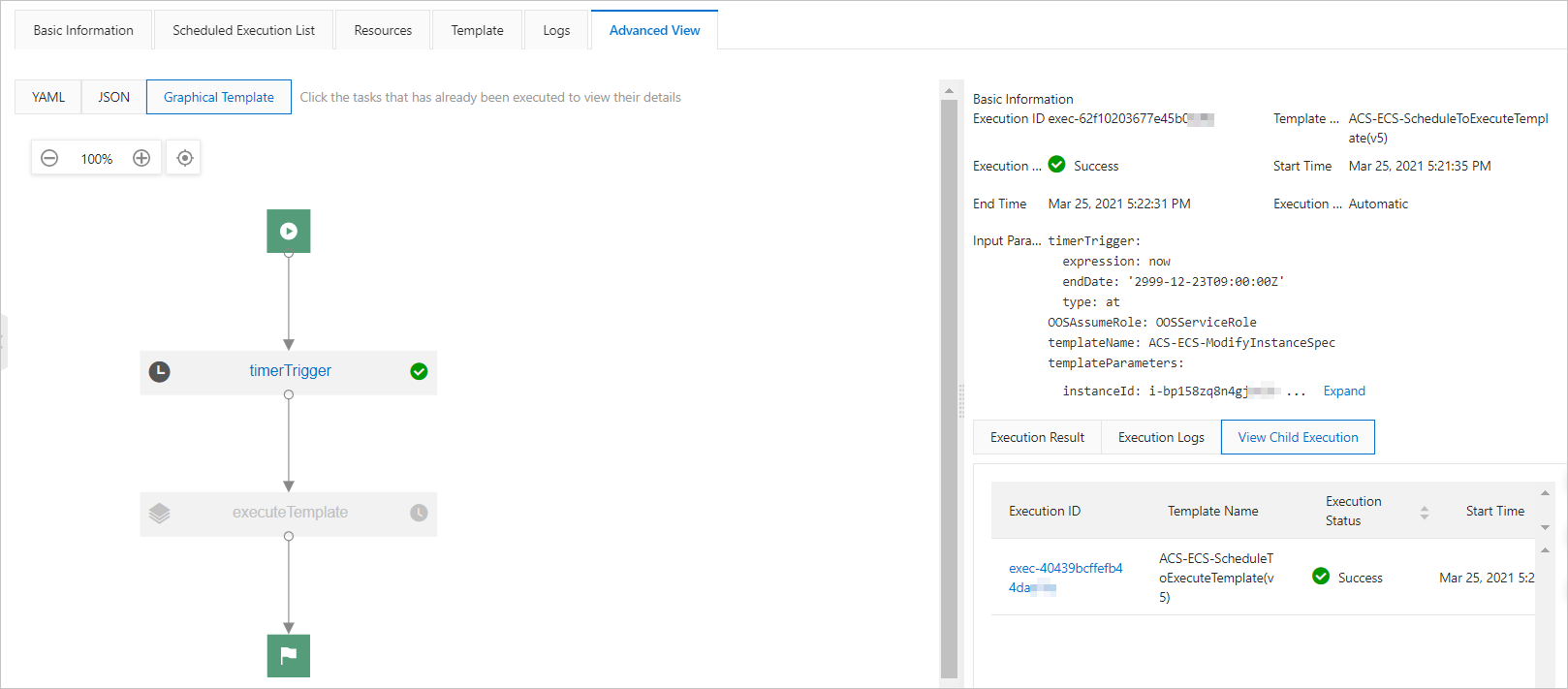
On the Advanced View tab, you can view the basic information, execution modules, execution results, and execution logs of the task.
-
Optional: On the Scheduled Execution List tab, you can view previously executed tasks and upcoming execution times for scheduled tasks.

-
Optional: On the Event Alarm Execution List tab, you can view the execution history of threshold-based tasks.

-
FAQ
-
On the Vertical Scaling page, if the task status is Waiting, does this mean the task has not been executed?
No, it does not. The Waiting status indicates that the task is configured to continue running. This status does not indicate whether the task has been previously executed. For example, a threshold-based task may have already been executed multiple times, but its status remains Waiting.
-
Why does the task fail and report the error "User not authorized to operate on the specified resource, or this API doesn't support RAM" when I hover over the
 .
. This error occurs because the RAM role used by Operation Orchestration Service (OOS) does not have the required permissions. To resolve this issue, grant the AliyunECSFullAccess and AliyunESSFullAccess permissions to the RAM role. For more information, see Manage the permissions of a RAM role.