How to submit an app job
Updated at:
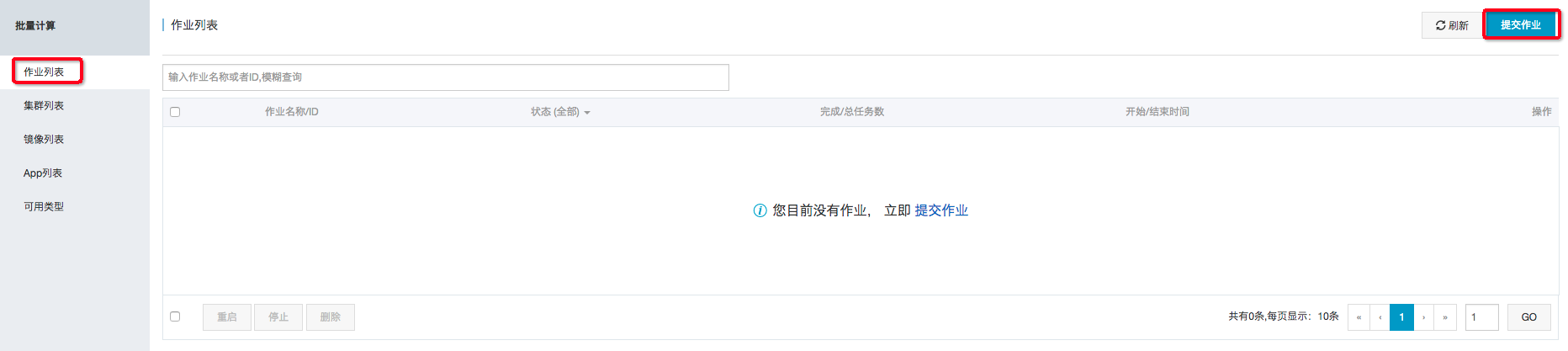
In the BatchCompute console, navigate to the job list and click Submit Job to open the job submission page.
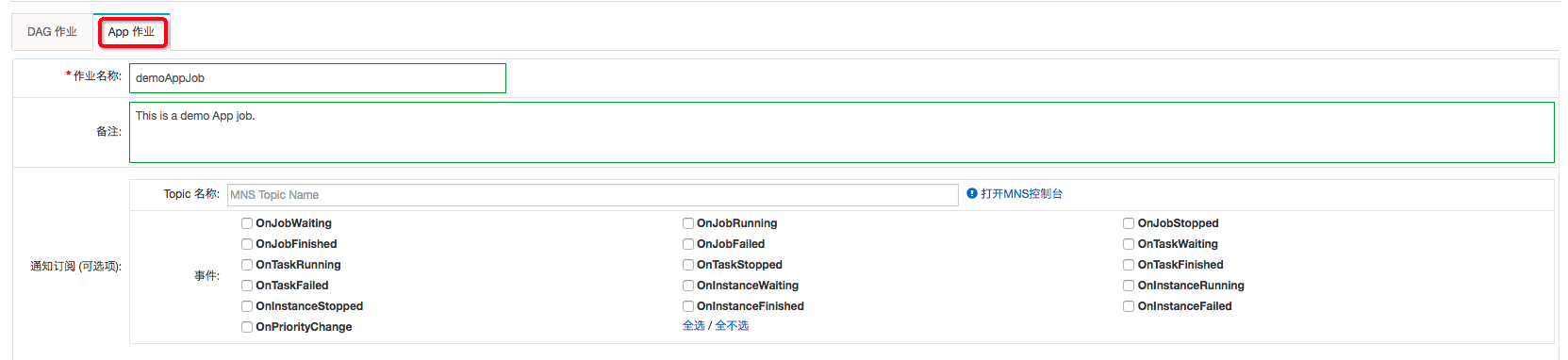
On the job submission page, select App Job and then select the app that you want to use. The parameters are described as follows:
- Job Name: The name of the job. This parameter is required.
- Description: The description of the job. This parameter is optional.
- Notification Subscription: The configuration for message notifications. Specify the message event that triggers the notification. This parameter is optional.
- App Information: First, select an app. Then, configure the app information in the following sections:
- Inputs: The input parameters for the app job. The specific parameters, such as OSS paths or other custom parameters, are defined by the app.
- Outputs: The output parameters for the app job. The specific parameters, such as OSS paths or other custom parameters, are defined by the app.
- Logging: The log path for the app job.
- StdoutPath: The OSS path for the standard output log of the app job.
- StderrPath: The OSS path for the standard error log of the app job.
- Config:
- The configuration items are defined in the app. You can use the default configurations or customize them as needed.
- ClassicNetwork: Specifies whether to use a classic network. Because a VPC is recommended, the default value is False.
- ReserveOnFail: Specifies whether to retain the cluster environment for troubleshooting if a task fails. The default value is False. You can enable this option if required.

After the job is successfully submitted, you can view its running status in the BatchCompute console and wait for the job to complete.
Is this page helpful?