Table data management
This topic describes how to import and manage data for Table Q&A.
Function overview
The Table Q&A feature uses an algorithm that relies on a specific table. You can provide this table using the Table Data Management feature. This feature lets you add, edit, delete, and update table data to help you manage it efficiently.
Access the feature
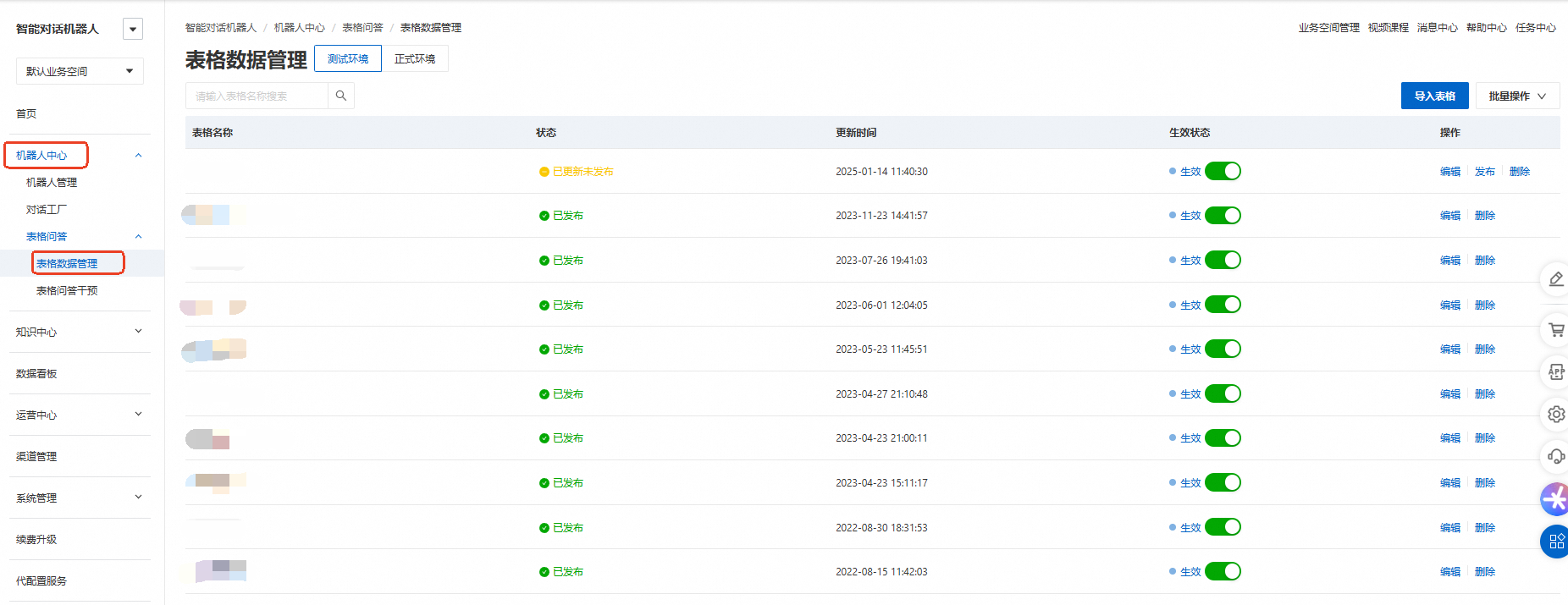
On the Chatbot homepage, navigate to Robot Center > Table Q&A > Table Data Management to open the table data management page.
Import a table
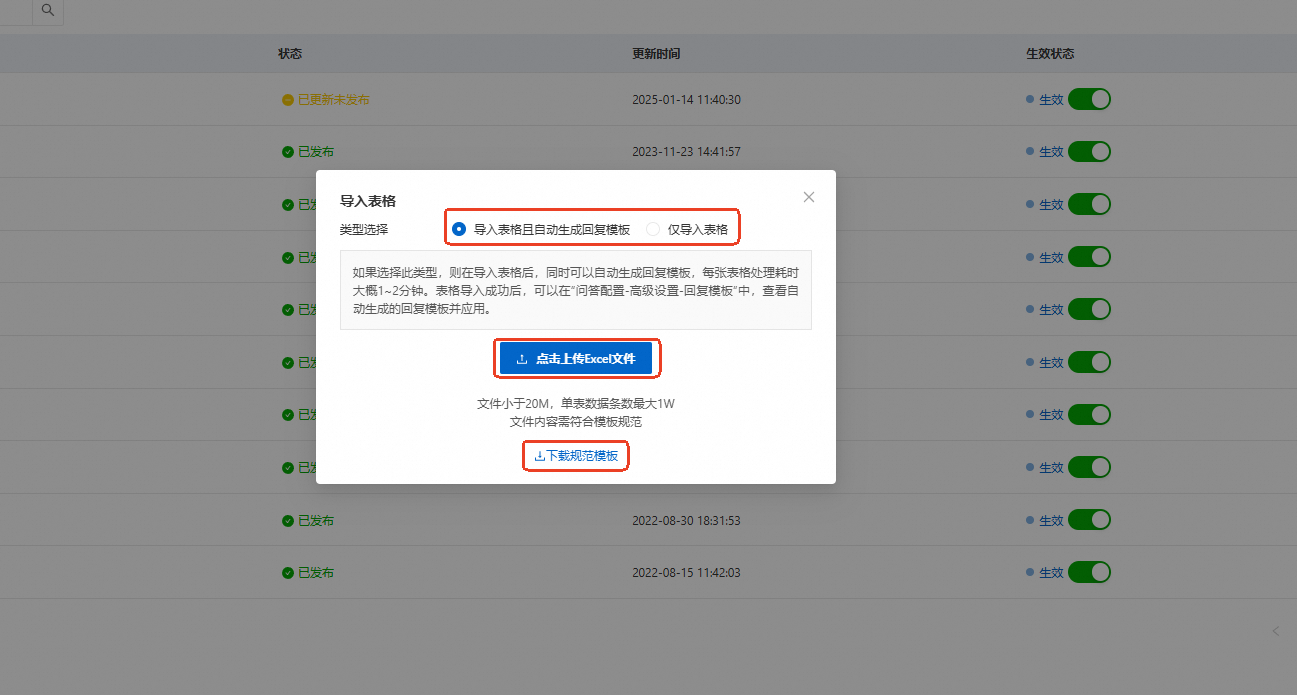
On the table data management page, click Import Table to open the table import page.
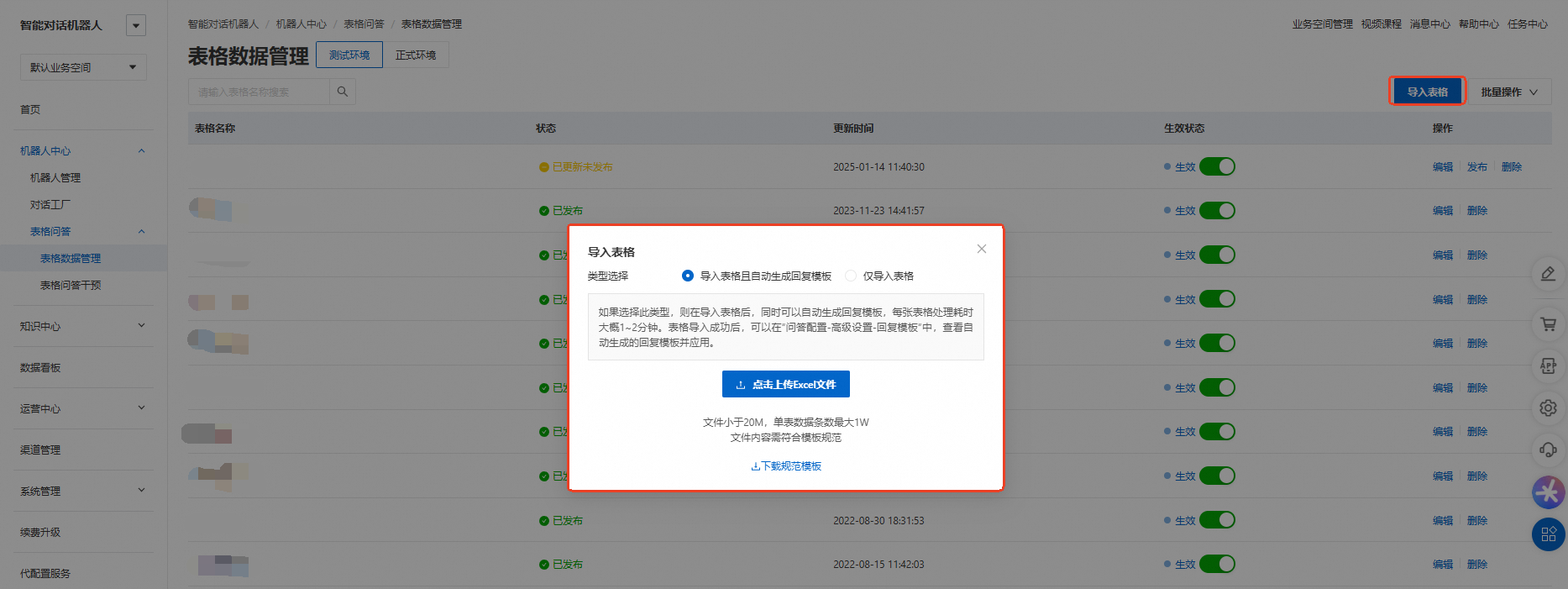
Select an import type and upload an Excel file.
Import table and automatically generate a reply template: After you import a table, a reply template is automatically generated. This process takes about 1 to 2 minutes per table.
Import table only: This process takes about 10 seconds per table.
ImportantWhen you import a table, ensure that the file is correctly formatted. For more information about the format, see the standard template.
To download the template, click Download Standard Template.
For more information about reply templates, see Table Q&A intervention.
In the Task Hub, you can view the import progress. After the import is complete, refresh the page to view the table.
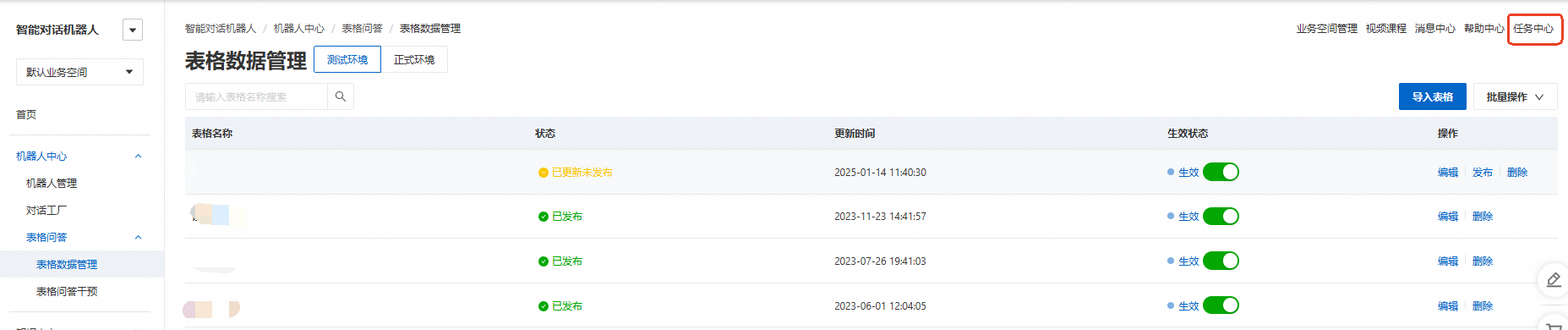
Table import template
The Table Q&A template consists of three sheets: table, header, and synonym. The sheet names are fixed and cannot be changed.
Where:
table: Contains the table data. This sheet is required.
header: Contains the table structure configuration. This sheet stores the table's schema information, which defines each table header. This sheet is optional.
synonym: Contains the synonym list for table headers (column names). This sheet is optional.
Table sheet description
When you prepare your data, note the following:
The first row must contain the table name. Do not delete the first row.
Column names must be unique.
If the content includes dates, use the YYYY-MM-DD format, such as 2020-07-04.
Header sheet overview
This sheet contains the structural information of the table, which defines the meaning of each column. The Table Q&A product supports default properties. You can leave this information empty, but you must keep all table headers. The fields are described as follows:
Column Name: The name of each column in the table.
Column Value Property: The property of the table header. Each column can have only one column value property. The available properties are described as follows.
PRIMARY: The primary attribute. Each table can have only one primary attribute column.
KEY: A key attribute. When the Chatbot asks a follow-up question, it prioritizes key attributes.
MODIFIER: A standard property that is the default for a column if no other property is set.
BUSINESS_KEY: The business key, which is a unique identifier for integration with an external database. When you integrate with an external database, this column serves as the unique identifier. Its values must be unique. Each table can have only one BUSINESS_KEY column. The business key is not used in question and answer (Q&A) pairs.
The primary attribute is the most important attribute in the table. All other attributes describe the content of the primary attribute. For example, a "Fund Products" table might include columns such as "Fund Name", "Fund Risk", and "Fund Yield". In this case, "Fund Name" should be set as the primary attribute. The values in the "Fund Risk" and "Fund Yield" columns describe the primary attribute.
If a user does not specify what to query, the system queries the primary attribute column by default. For example, consider the question, "Which funds have a yield higher than four percent?" This question does not specify a table header to query. In this case, the system queries the primary attribute column "Fund Name".
If a user specifies a query condition for the primary attribute but does not specify what content to query, the system returns key attribute columns first, followed by modifier attribute columns. A maximum of 20 columns are returned. For example, consider the question, "Tell me about Fund A." This question specifies a query condition where the primary attribute "Fund Name" is "Fund A", but it does not specify what information to retrieve about Fund A. In this case, the system returns up to 20 columns of information and prioritizes key attribute columns.
Entity Type: The data type of the column values. The supported data types are described as follows:
Data type
Description
Example
text
Text type.
NoteIf you do not specify a data type when you import the document, the system defaults to the text type.
Fund A
bool
Boolean type. It has only two values: true and false.
true
date
Date format.
NoteCurrently, only the YYYY-MM-DD format is supported.
1999-02-23
number
Numeric type.
NoteNo unit by default.
1234
duration
A time interval.
NoteCurrently supports four units: day, week, month, and year.
30 days
one month
one year
list_text
Text array. A collection of text data.
["XinXin","LiLi"]
["22"]
[]
list_number
Number array.
[332,221]
[11]
[]
list_date
Date array.
["2021-02-06","2021-12-01"]
["2021-12-11"]
[]
range_number
Number range.
[32,233]
[]
range_date
Date range.
["2021-12-02","2021-12-17"]
[]
rich text
Rich text.
NoteYou must edit the format of rich text data within the product, as shown in the following figures:
ImportantArray and timestamp range data can be an empty array or an empty timestamp range, such as "[]", but the data cell cannot be empty.
For array and range types, the cell must contain valid syntax, such as `[]` for an empty array or range. A blank cell is not allowed. If the format is invalid, the table fails the system check during the upload.
For non-array and non-range types, the cell can be empty.
Unit: The unit of the column values. If you specify a unit, the Table Q&A result automatically includes the unit in the response to the user.
Synonyms: Synonyms for the column name. Separate multiple synonyms with a vertical bar (|).
Enable Fuzzy Query: The default value is FALSE. If you set this to TRUE, the column supports fuzzy queries. For example, a user asks, "Which wealth management products have a yield of 4%?" The table contains only a product with a 3.99% yield. If fuzzy query is enabled, the system can return the product with the 3.99% yield.
Fuzzy Query Range: If fuzzy query is enabled, you must specify a range. For example, if the yield is 4% and the range is 0.02, the system returns results within the range of [3.98, 4.02].
The synonym sheet
This sheet contains synonyms for values in the table. It includes three columns: Column Name, Normalized Column Value, and Synonyms. If there are no synonyms, you must still keep the sheet and its headers. The fields are described as follows:
Column Name: The name of a column from the `table` sheet.
Normalized Column Value: A value from the specified column in the `table` sheet.
Synonyms: Synonyms for the "Normalized Column Value". Separate multiple synonyms for the same value with a vertical bar (|).
Edit a table online
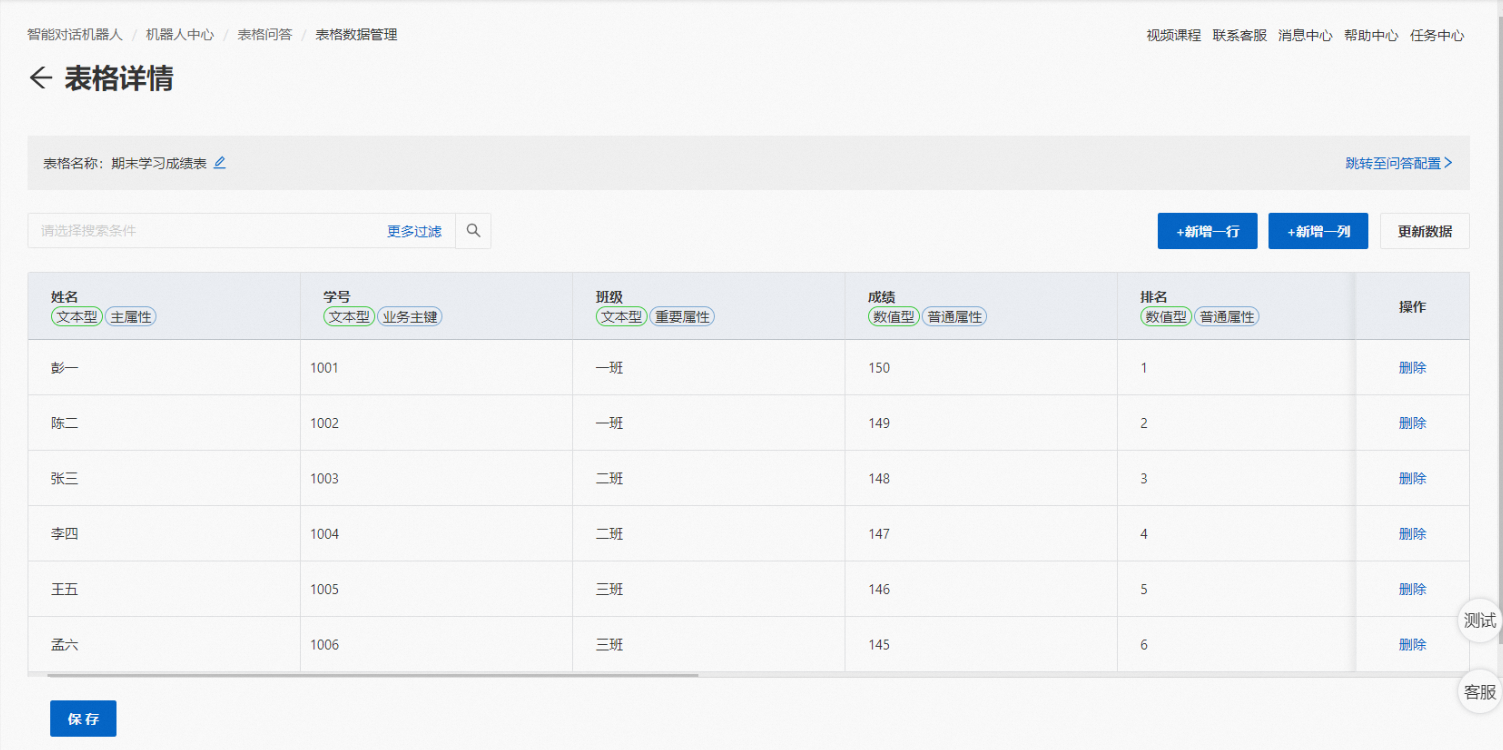
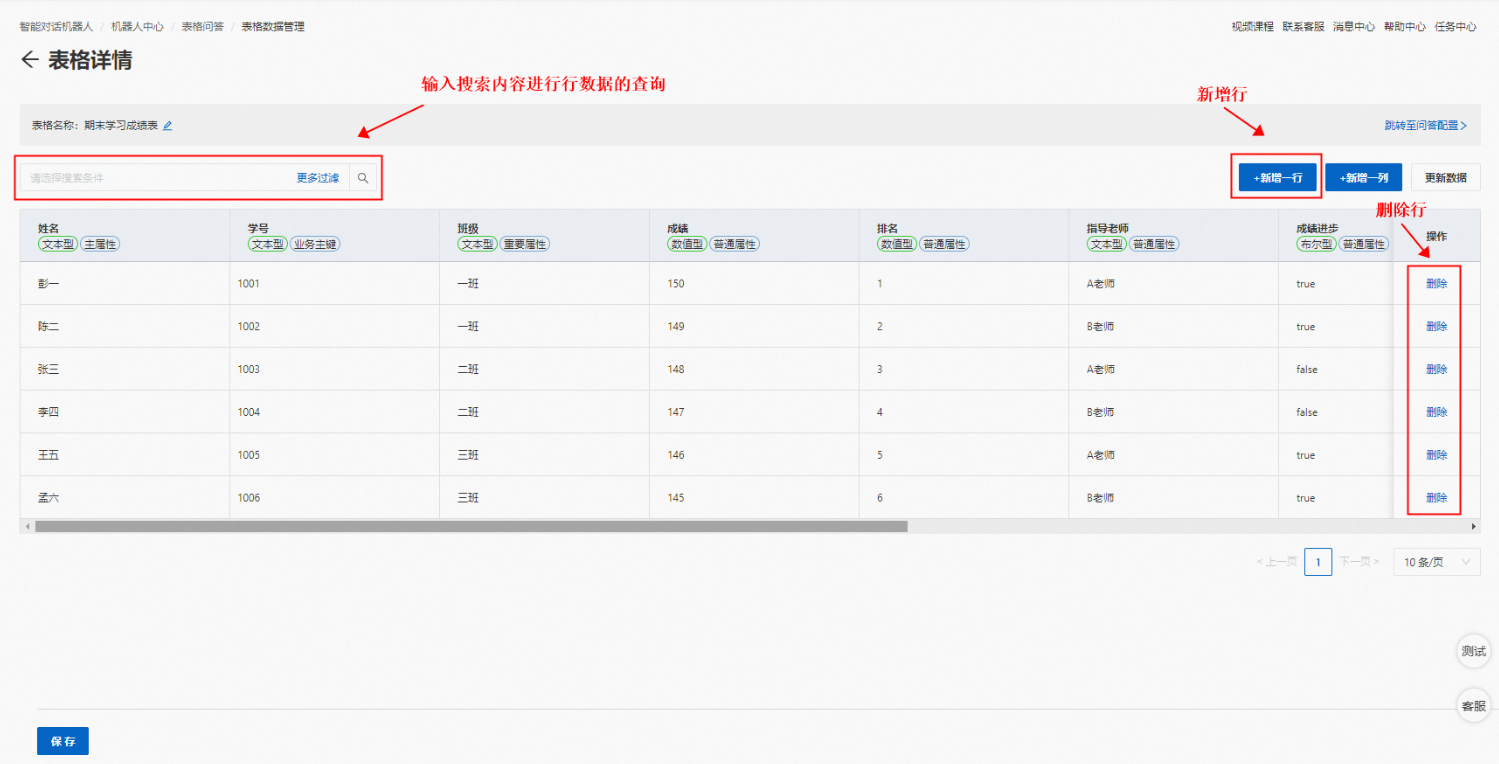
After the table is imported, click Edit to the right of the table to open the details page.


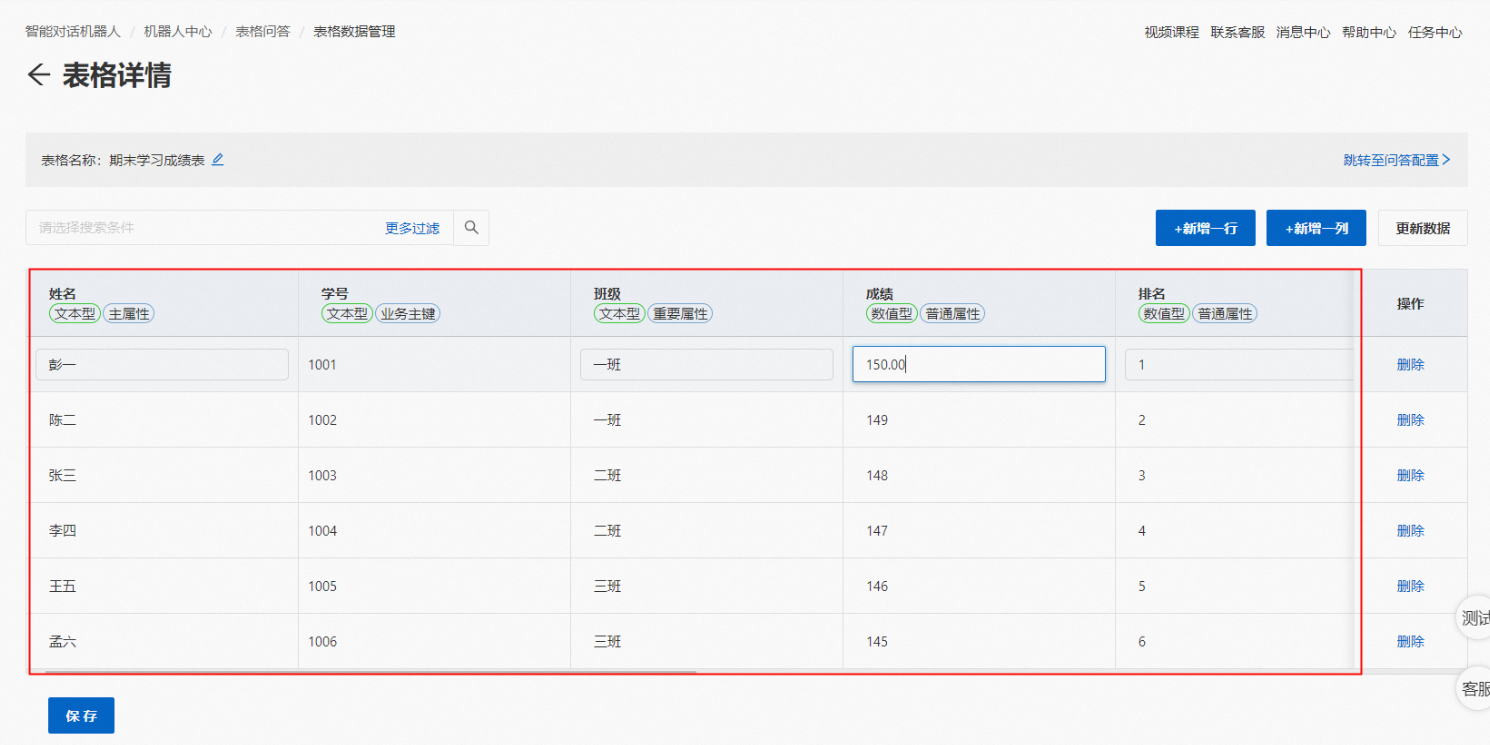
On the details page, you can edit the table data as needed. You can perform the following operations online:
Edit the data in a specific row and column. You can click the data in a cell to edit it.
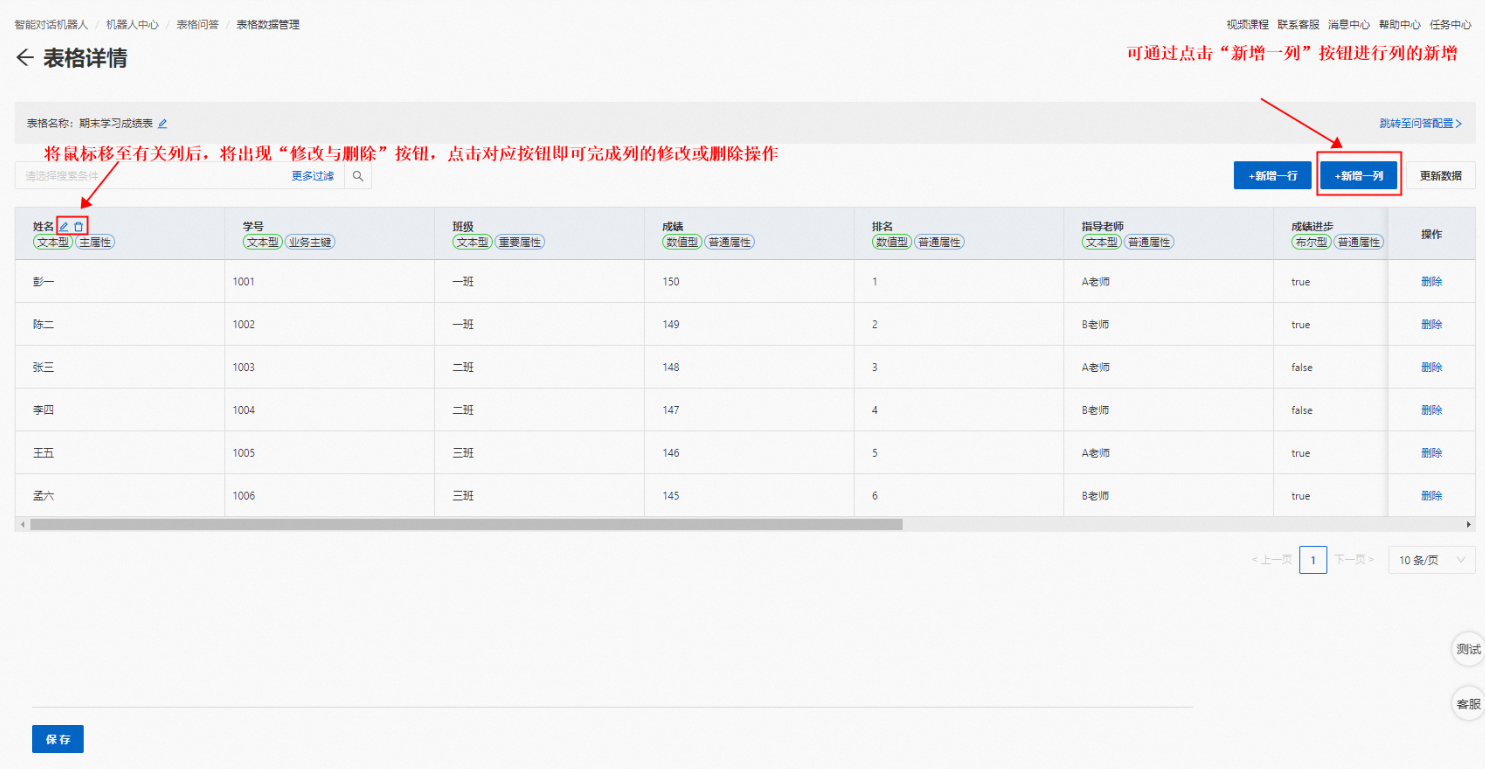
Add, delete, or modify columns.
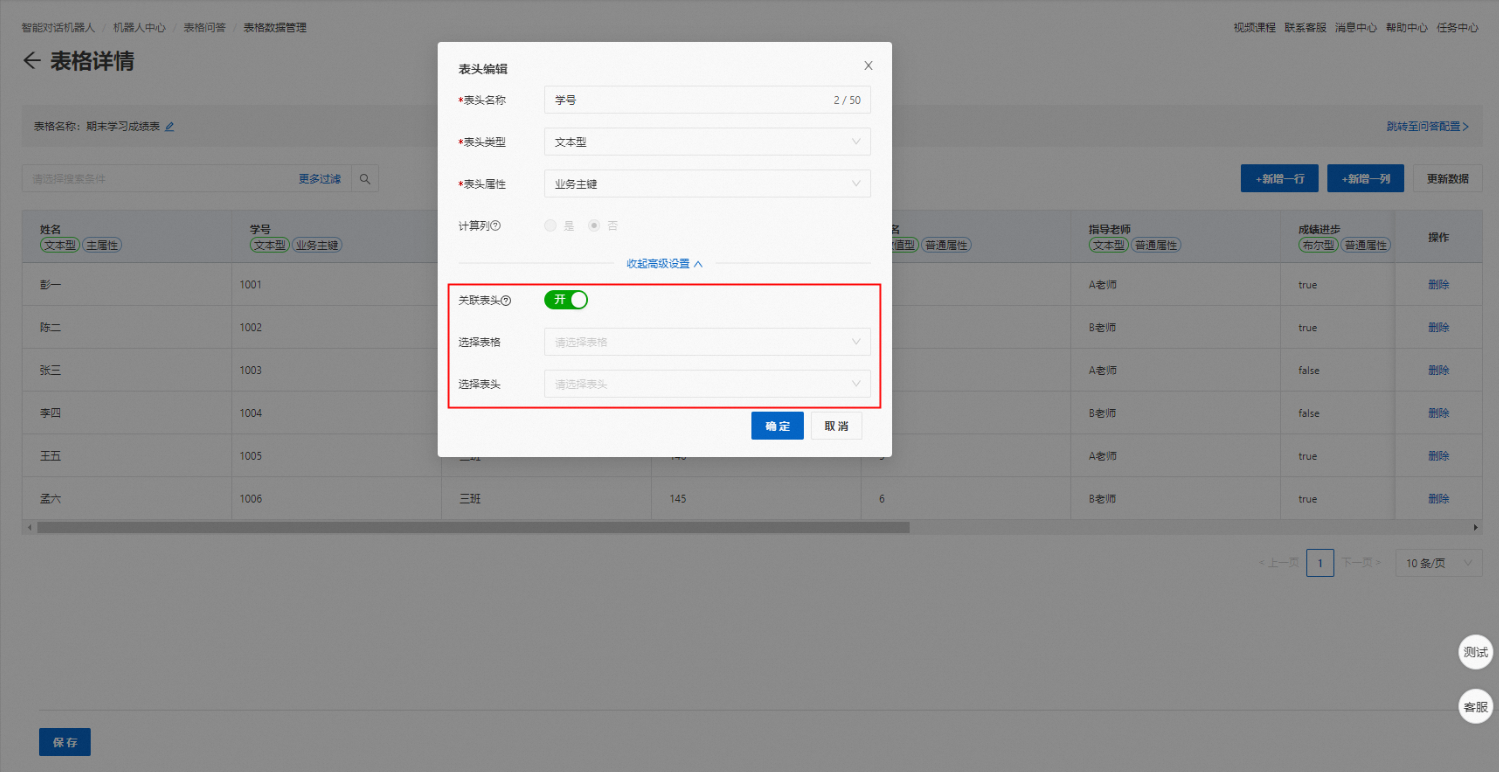
NoteThe following section describes the column editing interface and its features:
Approximate Query: Supports approximate queries only for numeric data. When enabled, the system queries for data within a specified error range.
Join Table Header: This lets you answer a single question by querying data from multiple tables. You can store data in different tables and perform cross-table queries by joining their headers. Except for the joined headers, other header names in the joined tables cannot be the same. For example, by joining the relevant headers, you can query for Student A's grades from a "Grades" table and address from a "Basic Information" table at the same time.
You can join a maximum of three tables. A single column cannot be both the source of one join and the target of another. For example, a column in Table A cannot join to a column in Table B while also being the target of a join from a column in Table C. However, a single column can be the target of multiple joins. For example, columns from both Table B and Table C can join to the same column in Table A.
You cannot delete the headers of primary attribute or business attribute columns.
Add, delete, or find rows.
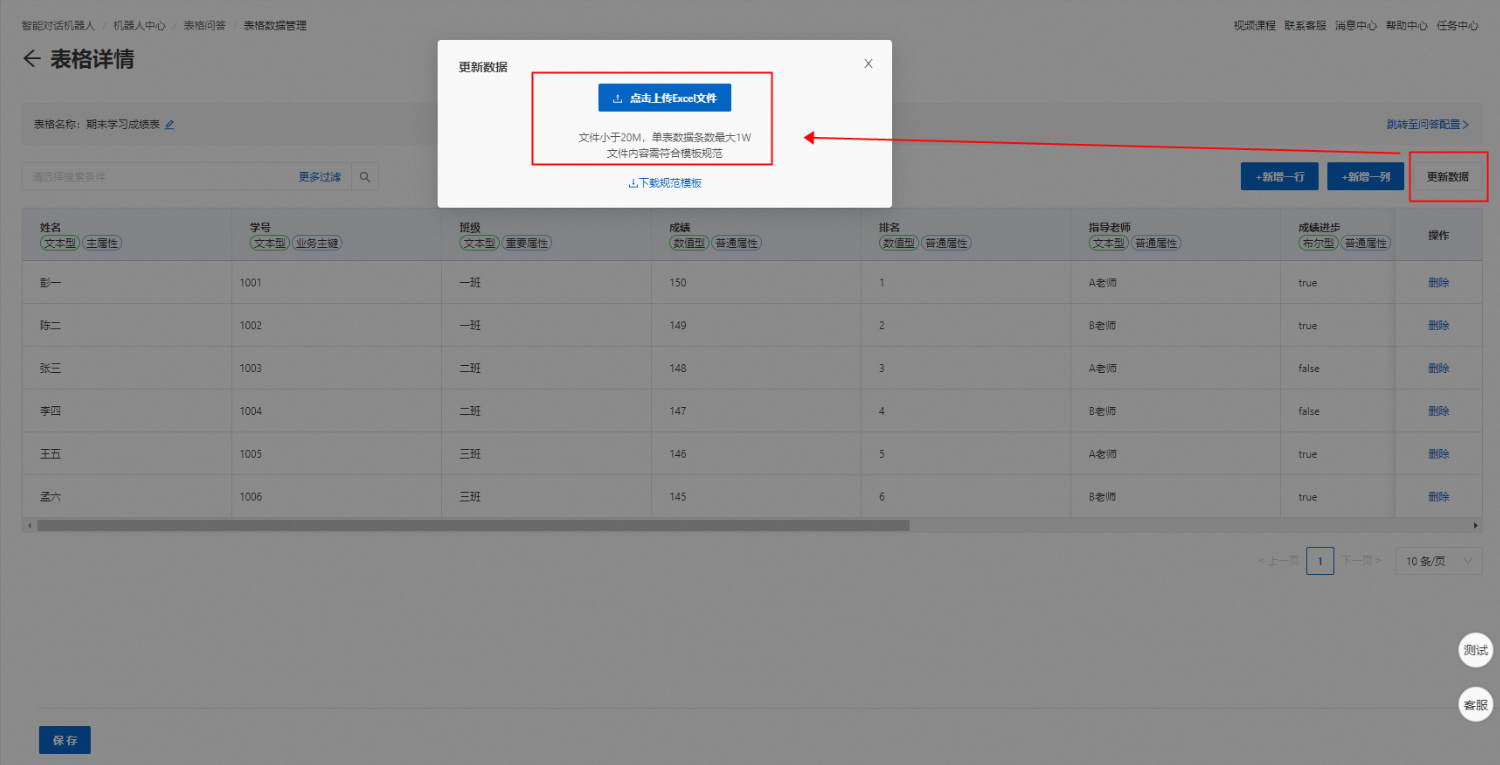
Batch update data
Click Update Data and upload the updated Excel file to perform a batch data update.