Bastionhost provides several ways to authorize access to assets: for individual users, for user groups, and through authorization rules. This topic describes how to view authorization details, find assets and users linked to an authorization rule, and export these relationships.
Prerequisites
You have configured the required authorizations. For more information, see Authorize assets and asset accounts, Authorize asset groups, and Authorization rules.
View authorization relationships
User and asset authorization
Log on to the Bastionhost console. In the top navigation bar, select the region where your Bastionhost instance is located.
In the list of Bastionhost instances, find the target instance and click Manage.
In the navigation pane on the left, choose .
-
On the Users page, view the user authorization relationships.
-
In the user list, you can view the number of hosts, databases, and asset groups authorized for each user.

-
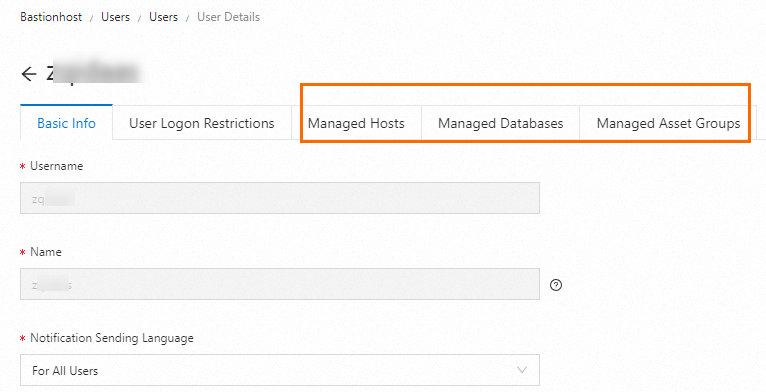
Click the name of a user to view their authorized assets and the permissions inherited from user groups and authorization rules.
-
User group authorization
Log on to the Bastionhost console. In the top navigation bar, select the region where your Bastionhost instance is located.
In the list of Bastionhost instances, find the target instance and click Manage.
In the navigation pane on the left, choose .
-
On the User Groups page, view the user group authorization details.
-
In the user group list, you can view the number of hosts, databases, and asset groups authorized for each user group.

-
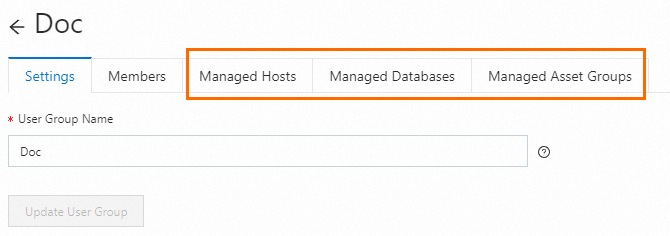
Click the name of a user group to view its list of authorized assets.
-
Assets and users in authorization rules
Log on to the Bastionhost console. In the top navigation bar, select the region where your Bastionhost instance is located.
In the list of Bastionhost instances, find the target instance and click Manage.
In the navigation pane on the left, click Authorization Rules.
-
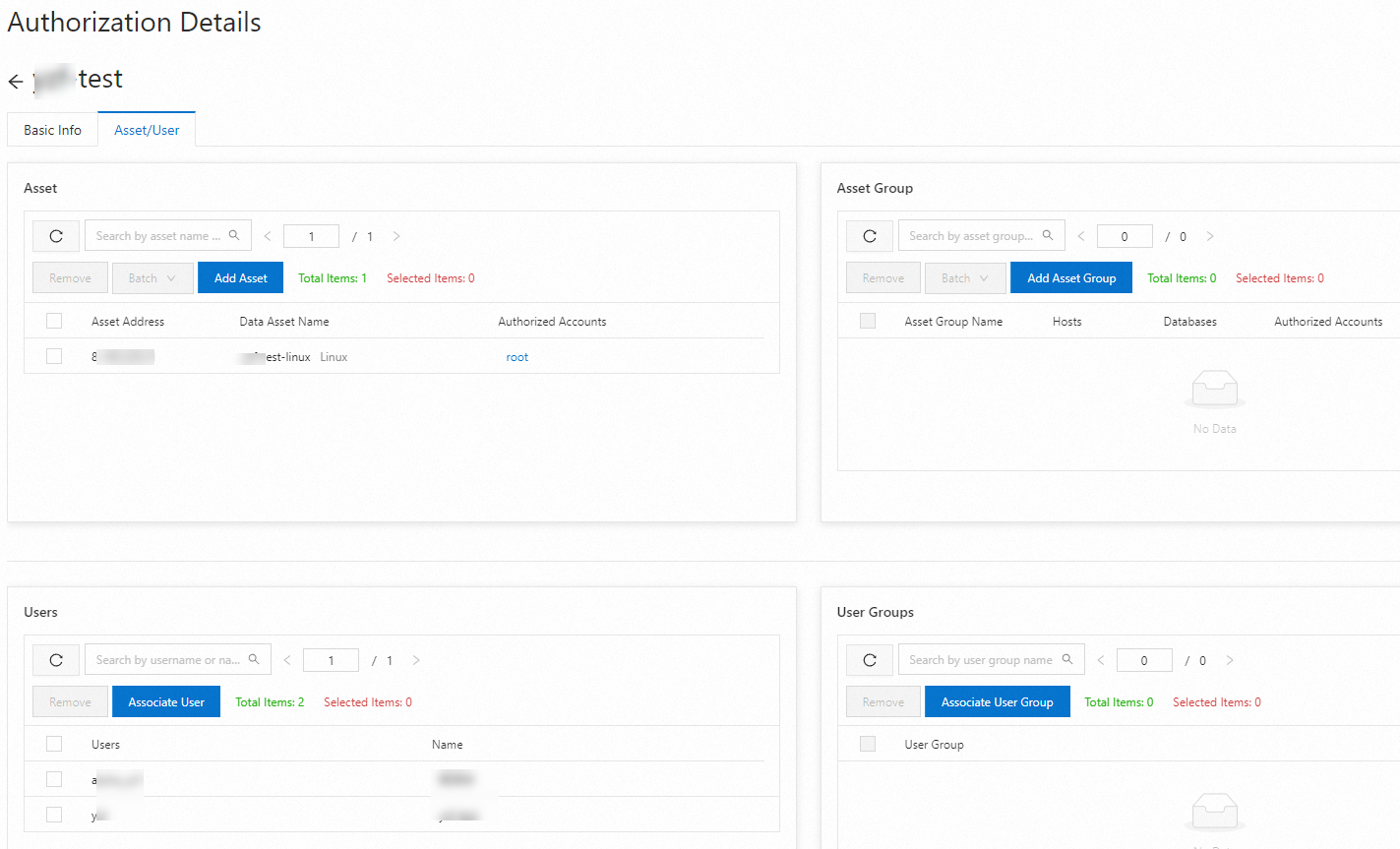
On the Authorization Rules page, click the name of an authorization rule. On the Asset/User tab, you can then view the assets and users associated with the rule.
Export user and asset authorization relationships
Log on to the Bastionhost console. In the top navigation bar, select the region where your Bastionhost instance is located.
In the list of Bastionhost instances, find the target instance and click Manage.
In the navigation pane on the left, choose .
-
On the Users page, click Export Authorization Data.
A .csv file containing the authorization data is downloaded to your computer.