You can manage your application's models by changing the version of its associated bounded context. After an application is created, you can associate new bounded contexts or disassociate existing ones. This topic describes how to associate and disassociate bounded contexts.
These actions are available only for unpublished or undeployed applications.
Associate a bounded context
Log in to BizWorks, in the select Platform drop-down list selected microservice Development Platform.
Click the
 icon or the text box in the upper-right corner of the page. From the drop-down list, click the name of the project that you want to view and click the Applications tab. On the Applications page, click the name of the target central application.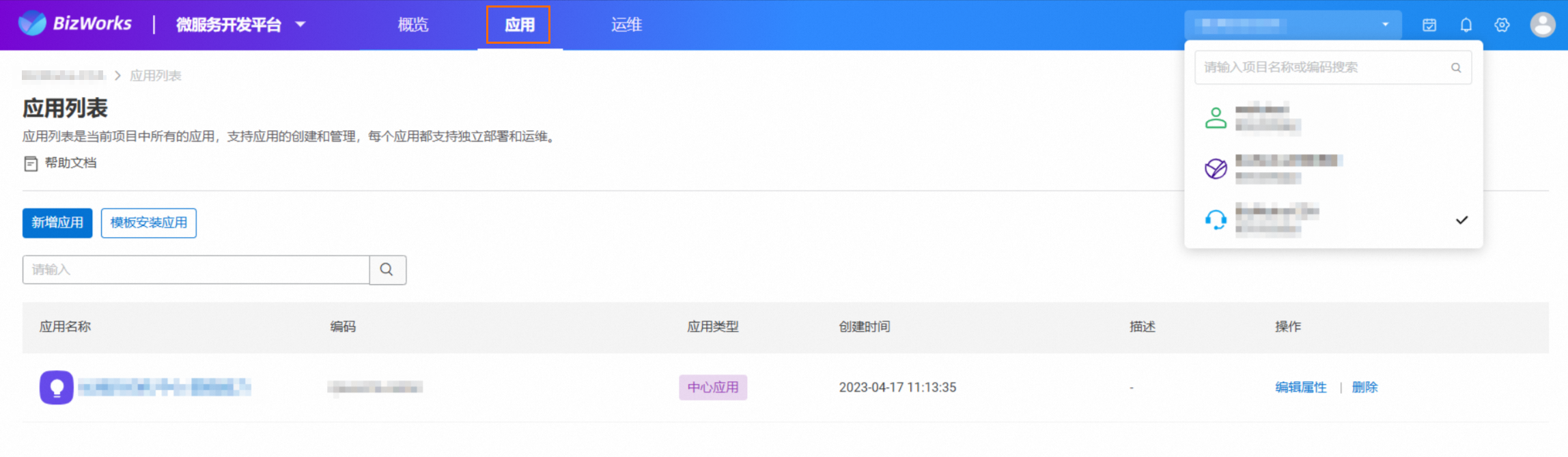
In the left-side navigation pane, choose .
The Model Linkage Features toggle is enabled by default and enables the following:
Generate code in the scaffolding based on the associated model.
Compare the platform model with your branch code to identify differences.
Merge a code model into the platform's design-time model.
Enable two-way synchronization between local code and the platform model in the IDE plugin. This includes features such as incrementally generating code from the model, comparing the model with code, and validating local code against platform model conventions with
quickfixsuggestions.
On the Bounded Contexts page, click associate bounded context.
In the associate bounded context panel, click Add.
From the associate bounded context drop-down list, select the target bounded context.
ImportantA bounded context cannot be associated if it is already associated with another application.
Click Save.
For the bounded context you want to modify, click change version in the Actions column.
In the Change Dependent Bounded Context Version dialog box, select the target version from the change version drop-down list, and click Change.
Disassociate a bounded context
On the Bounded Contexts page, find the bounded context you want to disassociate, and click disassociate in the Actions column.
In the Disassociate Bounded Context dialog box, click disassociate.
NoteThis action disassociates the bounded context from the current application version only and does not affect other versions.
Publish a model
For detailed instructions about publishing a model, see Publish a bounded context version.