The Data Model Designer lets you visualize the primary keys, fields, and reference relationships between data models. You can also use it to create, edit, and delete data models.
Procedure
Log in to BizWorks, in the select Platform drop-down list selected modeling Platform.
Click the
 icon or the text box in the upper-right corner of the page. From the drop-down list, click the name of the project that you want to view and click the Modeling tab. In the Modeling navigation bar, choose .
 On the Bounding Context page, click the name of the bounding context.
In the navigation pane for the target Bounded Context, click Data Model. On the Data Model page, click Data Model Designer.
On the Data Model Designer canvas, you can view basic information about existing data models and their reference relationships.
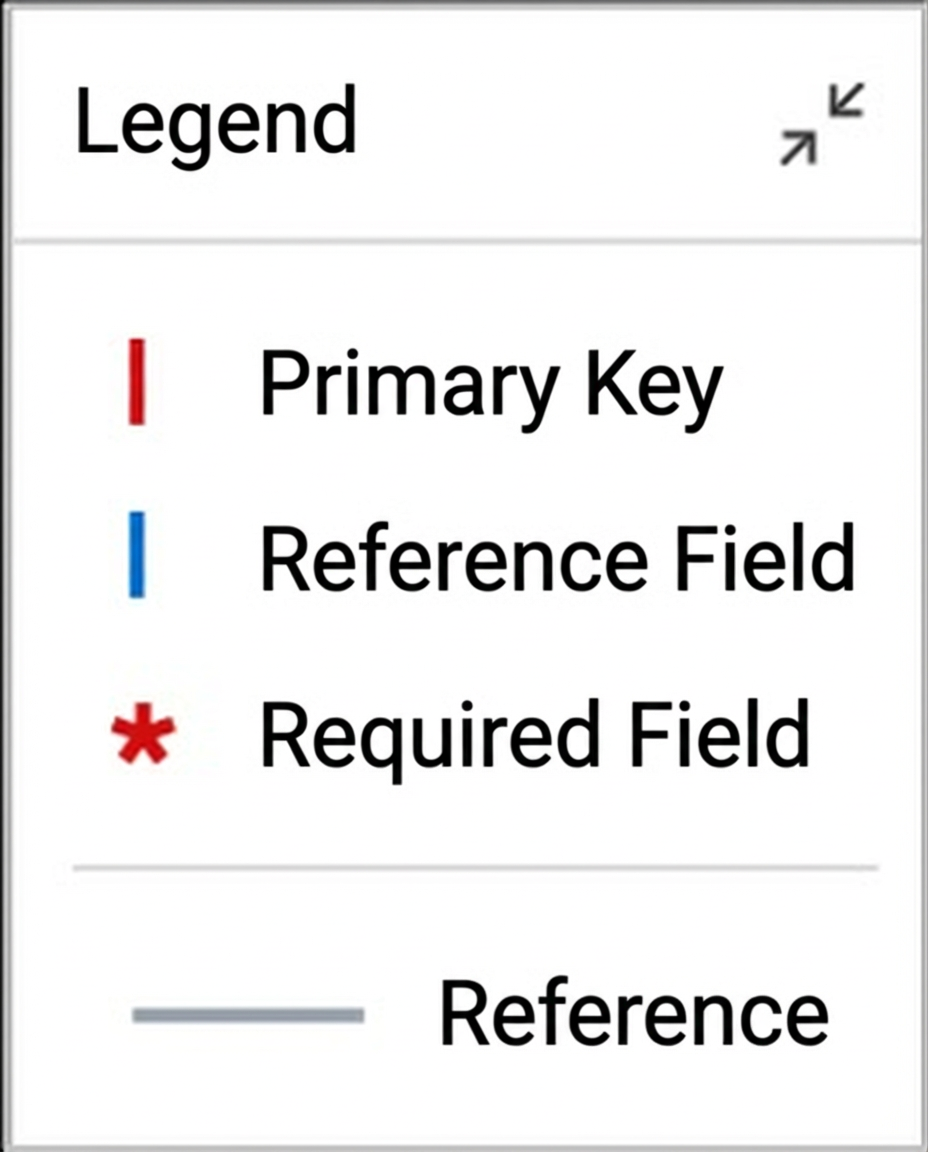
Click the legend on the right side of the page to learn what the different symbols, colors, and lines mean.
Click Export Image in the upper-right corner to export an image of the data models.
Optional: Click Display Settings in the upper-right corner of the page. In the Display Settings dialog box, set Show Field Name, Displayed Code, and Field Display, then click OK.
On the left side of the canvas, click Add Data Model to add a data model. For more information, see Create and manage data models.
Optional: Click the target data model's card on the canvas, then click the
 icon in its upper-right corner. In the right-hand panel that opens, you can edit the model's basic information, fields, and indexes. Click the
  icon to delete the data model.
Alternatively, right-click the target data model's card and select an option to orchestrate it.
When you finish editing, click Save in the upper-right corner of the canvas.