Purge abnormal nodes
Updated at:
For resources that fail to deploy or that have been released from the console, you can purge abnormal nodes to remove deployment errors while retaining the resource icons in CADT for redeployment.
This example shows an ECS instance that fails to deploy because the instance type is out of stock. The same procedure applies to abnormal nodes caused by any other deployment failure.
-
If an ECS instance type is out of stock in a zone during deployment, the CADT architecture diagram shows an error, which indicates that the ECS instance failed to be created.
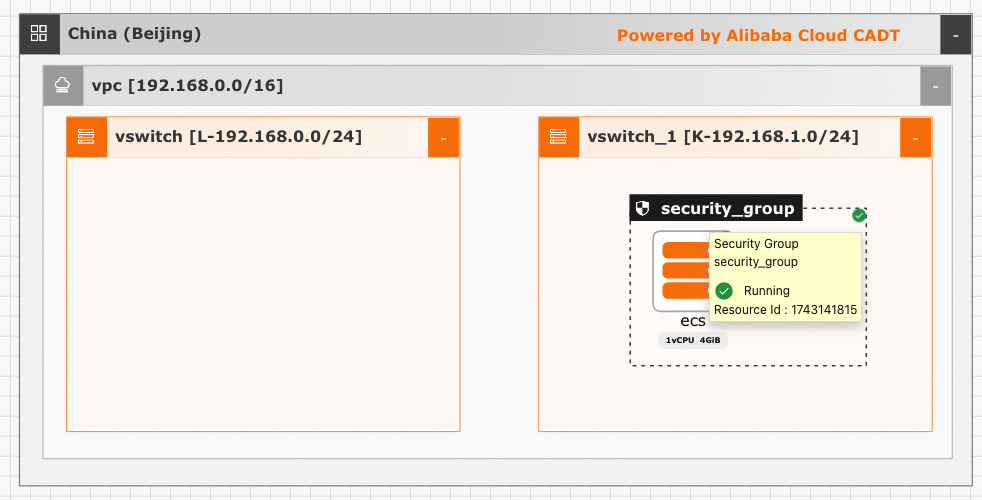
-
In the status bar, change Current Mode to Edit. This lets you operate on the resources in the diagram.

-
Right-click the abnormal node, and then select Operation > Purge Abnormal State Node.
ImportantThe Purge Abnormal State Node operation does not release the resources that failed to deploy. If an abnormal resource has an instance ID, go to the corresponding console to release the resource.


-
Click OK. A `Task submitted` message appears. After the task runs successfully, the architecture diagram automatically reloads, and the error icon on the node is removed.
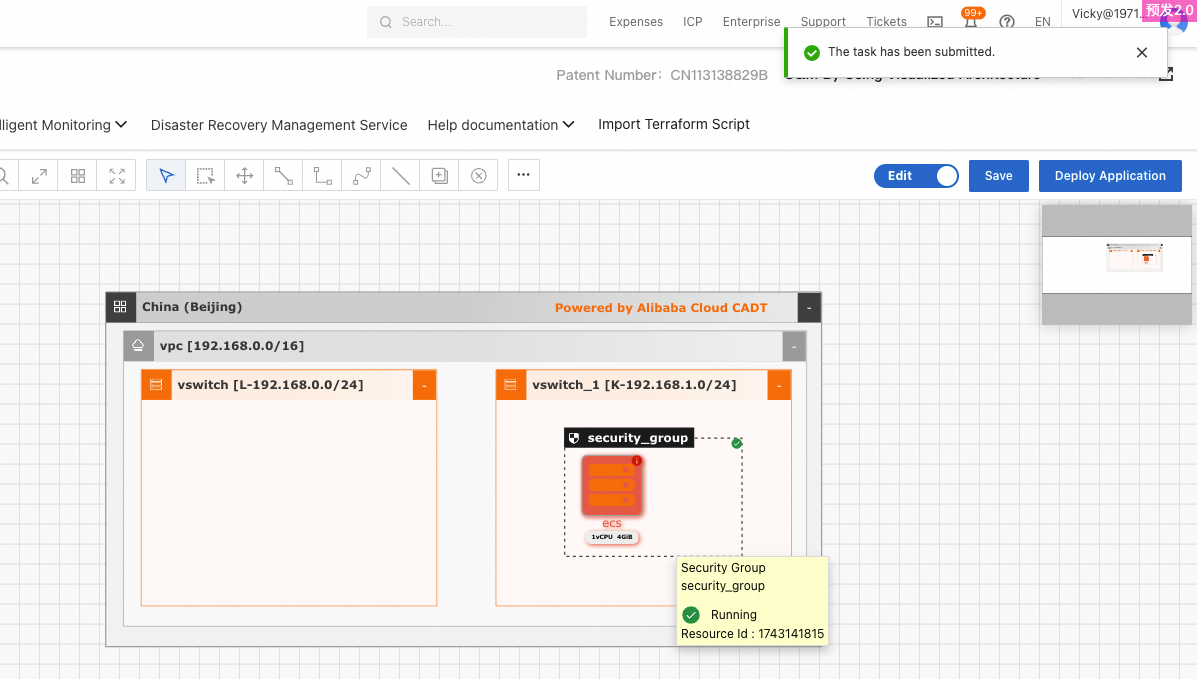
-
After the status updates, make changes as needed. Remember to set the status bar to Edit mode.
a. Save the application. Drag the node to another zone. In the dialog box that appears, click OK to confirm the move. Save the application, and then deploy it again.

b. Double-click the icon to change the configuration, such as the ECS instance type. Save the configuration, and then deploy it again.


Is this page helpful?