Overview
Cloud Architect Design Tool (CADT) provides the disaster recovery management feature for users who require high availability. You can use the disaster recovery management feature to plan, optimize, deploy, and test high-availability services. Before and after a service is released, you can regularly perform disaster recovery tests on the service to verify whether the service system can withstand resource failures or zone failures. This ensures system robustness.
Features
Disaster recovery plan
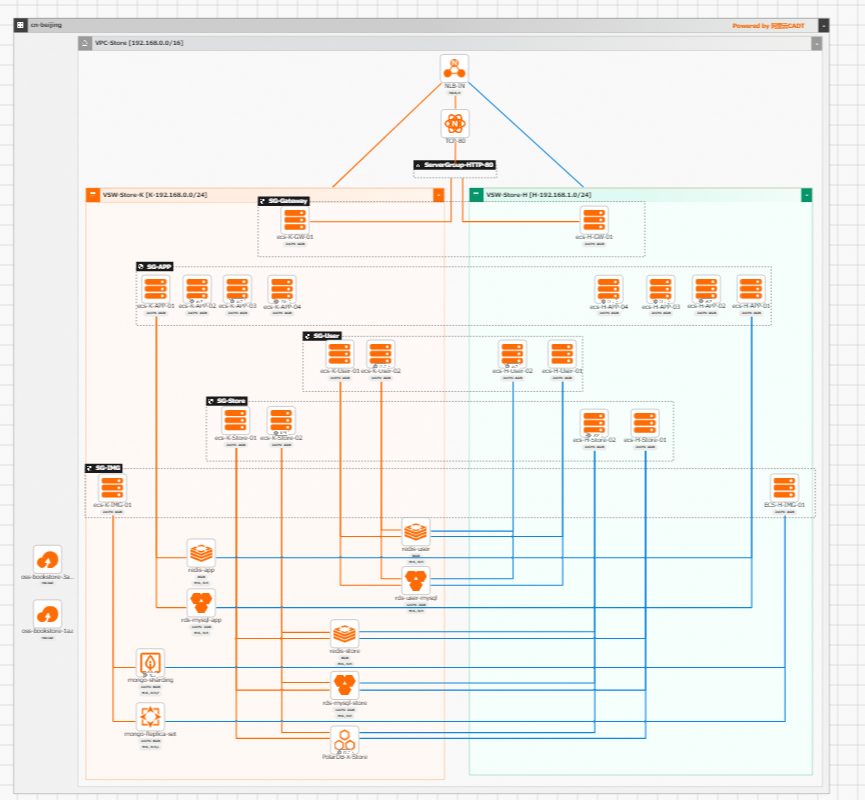
Before you deploy resources, you can use CADT to design a service deployment architecture in a visualized manner. This helps you plan a disaster recovery architecture.
Disaster recovery detection
After you create a disaster recovery plan for an application, the disaster recovery management feature automatically detects the resources that support disaster recovery tests and the risky resources that do not support high availability in the application.
-
Supported resources: In the View Resources dialog box, click the Supported Resources tab to view a list of resources. The list includes details such as resource name, resource type, resource ID, resource status, region, zone, and standby zone. Click Export Resource List to export the list.
-
Risky resources
NoteRisky resources do not affect disaster recovery tests. However, we recommend that you transform the risky resources for disaster recovery.
In the View Resources dialog box, click the Risky Resources tab to view a list of risky resources, which includes columns for sequence number, resource name, resource type, resource ID, and remarks. For example, if an OSS bucket such as
oss-bookstore-1azis not configured for zone-redundant storage, the Remarks column displays a message similar to "This bucket is not configured for zone-redundant storage!". You can click Export Resource List to export the information about risky resources.
Disaster recovery test
You can perform a disaster recovery test to simulate failover and failback operations that are performed when a resource failure or a zone failure occurs to verify whether a service system can meet the expected disaster recovery requirements and whether the disaster recovery plan created for the system is reasonable.
-
Failover: Simulates a failure to verify that the application can meet its recovery objectives. Click the Disaster Recovery Plan Failover button to start the process. During the failover, the status of each disaster recovery plan updates sequentially. For example, the status of DR-GW changes to Switched over, while the statuses of DR-APP and DR-USER show Switching over.... You can expand DR-APP to view the failover progress of its resources, such as ecs, kvstore, and rds.
-
Failback: After a disruption is resolved, a failback returns resources to their original state, which validates the effectiveness of your disaster recovery plan. Click the Disaster Recovery Plan Failback button in the top toolbar to start the failback. During the process, the status of each disaster recovery plan updates. For example, the status of DR-GW changes to Switched back, while the statuses of DR-APP and DR-USER show Switching back.... The disaster recovery test is complete once all plans have failed back.
Terms
Disaster recovery plan
To perform a disaster recovery test on a CADT application, you must create a disaster recovery plan for it. You can test only applications that are associated with a disaster recovery plan. On the Disaster recovery management service page, click Create Disaster Recovery Plan in the upper-left corner to begin. After creation, the page displays the name of your disaster recovery plan and provides buttons for operations such as Create Disaster Recovery Set, View Architecture Diagram, Disaster Recovery Plan Failover, and Disaster Recovery Plan Failback. The table below lists the disaster recovery sets, including their sequence numbers, IDs, names, statuses, and creation times.
Disaster recovery set
Disaster recovery tests are performed by using disaster recovery sets. A disaster recovery set is a flexible combination of different products and failover policies within a single disaster recovery plan, which allows for customized test configurations. On the page for a specific disaster recovery plan, such as CADT Failover Demo, click the Create Disaster Recovery Set button to create a new set. The list of disaster recovery sets displays information for each set, including its sequence number, ID, name, status, creation time, and an Actions column with options such as Prepare for Switch, View Preparation Results, Disaster Recovery Set Failover, Configure, and Delete. In the example, a disaster recovery set named S1 has a status of Created. The top of the page also includes buttons for operations such as View Architecture Diagram, Disaster Recovery Plan Failover, Disaster Recovery Plan Failback, View Resources, and Synchronize Resource Data.
Disaster recovery failover
A resource failover test is performed based on the resources configured in the disaster recovery set and the failover policy.
The Disaster Recovery Plan Failover operation triggers a failover for all disaster recovery sets within the current disaster recovery plan. The Disaster Recovery Set Failover operation triggers a failover for only the specified disaster recovery set.
Disaster recovery failback
In contrast to the disaster recovery failover operation, the disaster recovery failback operation switches resources to the previous state in which they were before the failover operation was performed. During the failover process, the system records the configurations of the primary and secondary nodes of the resources. During the failback process, the system restores the configurations of the primary and secondary nodes to the configurations before the failover operation was performed.
You can perform the disaster recovery plan failover operation to switch all the disaster recovery sets in the current disaster recovery plan. You can perform the disaster recovery set failover operation to switch only the resources in the disaster recovery set.
To initiate a failback, click Disaster Recovery Plan Failback in the toolbar, or click Disaster Recovery Set Failback in the Actions column of a specific disaster recovery set.
Supported services
The following table describes the services supported by CADT.
Category | Service |
Elastic computing | Elastic Compute Service (ECS) |
Database services | ApsaraDB RDS
|
Tair (Redis OSS-compatible) | |
ApsaraDB for MongoDB
| |
PolarDB
| |
PolarDB-X
| |
ApsaraDB for OceanBase | |
Network | Network Load Balancer (NLB) and Application Load Balancer (ALB) |
Middleware | Microservices Engine (MSE) |
Container Service for Kubernetes (ACK) | ACK managed cluster and ACK dedicated cluster |