Smart water level analysis
The Cloud Architect Design Tool (CADT) Monitoring Dashboard integrates the Smart Water Level Analysis feature of Cloud Monitor. This feature helps you optimize your resource configurations by periodically collecting and analyzing resource usage data.
Features
Use Smart Water Level Analysis for tasks like resource assessment, usage evaluation, and cost analysis. It provides periodic insights into your resource utilization, helping you right-size your resources and optimize costs. For example, you can upgrade high-usage resources to improve performance or downgrade and release low-usage resources to reduce costs.
Billing
The following table describes the billing rules for Smart Water Level Analysis.
|
Billing rule |
Description |
|
Billing method |
Pay-as-you-go on a daily basis. You are charged only for successfully generated reports. The fee is the product of the number of resource instances in the report's scope, the reporting period in days, and the unit price. The unit price is CNY 0.14 per instance per day. Note
Smart Water Level Analysis generates daily bills. If a report fails to generate on a given day, the bill for that day is CNY 0. |
|
Billing formula |
Smart Water Level Analysis fee = Number of monitored instances × Reporting period (days) × Unit price |
|
Billing example |
Suppose you want to generate a report for the period from April 19, 2021, to April 25, 2021, and there are 100 instances with collectible monitoring metrics during this period. Smart Water Level Analysis fee = 100 instances × 7 days × CNY 0.14/instance/day = CNY 98 Note
The billing example is for reference only. For actual fees, refer to the purchase page of the specific Alibaba Cloud product. |
Supported cloud products and monitoring metrics
For details, see Supported cloud products and monitoring metrics for Smart Water Level Analysis.
Create an analysis task
-
Log on to the Cloud Architect Design Tool (CADT) console. In the left-side navigation pane, choose Smart Monitoring > Monitoring Dashboard.
-
On the Monitoring Dashboard page, click Smart Water Level Analysis.
-
On the Smart Water Level Analysis page, click Create Analysis Task.
NoteIf you are a RAM user, ensure you have the
AliyunCloudMonitorFullAccesssystem policy. For more information, see Grant permissions to a RAM user. -
In the Create or Modify Report Task panel, configure the parameters for the analysis task.
Parameter
Description
Task type
The execution frequency of the Smart Water Level Analysis task. Valid values:
-
One-time
-
Weekly
-
Monthly
Name
The name of the Smart Water Level Analysis task.
Description
The description of the Smart Water Level Analysis task.
Start and end time
The time range for the report. Valid values:
-
One-time: A period from 1 to 31 days. The report is generated the day after the end time. You can query data only from the last three months.
-
Weekly: Monday to Sunday. The report is generated the day after the end time.
-
Monthly: From the first day to the last day of a month. The report is generated on the first day of the next month.
NoteYou do not need to configure this parameter. Cloud Monitor automatically collects data for one month for the report task.
Tag
The tag for the Smart Water Level Analysis report.
You need to set only the tag key, not the tag value. Cloud Monitor automatically aggregates statistics by tag value. For example, an ECS instance has the tag key
Appand the tag valuesGroup1andGroup2. If you set the tag key toAppin the analysis task, the generated report contains two columns of data:App:Group1andApp:Group2.You can set up to three tags. Separate multiple tags with a comma (,).
Product
The cloud products to be included in the analysis.
Alert contact group
Select an alert contact group.
In this example, set Task type to Weekly, Name to Resource Water Level Analysis Demo, and Description to CADT Monitoring Dashboard Smart Water Level Analysis. Set Start and end time from Monday to Sunday. For Product, select ECS, Elastic IP Address, RDS, and Classic Load Balancer (CLB) (private network). For Alert contact group, select Cloud account alert contact. Then, click Confirm.
-
-
After completing the configuration, click Confirm. A confirmation dialog box appears, informing you that the report will incur a fee. For weekly or monthly tasks, a report for the previous period is generated at the beginning of each week or month. For more information about billing, see the Billing section. Click OK.
-
After the task is created, it appears in the task list on the Smart Water Level Analysis page with a status of Enabled. The task list displays information for each task, such as its name, type, status, time range, creation date, and latest report date. In the Actions column, click View Latest Report to view the analysis report or click Download Latest Detailed Report to download the report.
View an analysis report
Use the Smart Water Level Analysis report and its resource evaluation details to optimize your resources.
-
On the Smart Water Level Analysis page, find the target task and click View Latest Report in the Actions column.
NoteYou can view the report on the CADT Monitoring Dashboard or in the Cloud Monitor console. To view the report in the console, find the task on the Smart Water Level Analysis page, click the ... icon in the Actions column, and then select View Report in Console.
The report contains the following two main sections:
-
Resource distribution
This section shows the distribution of all resources in the report by cloud product, resource group, region, and financial unit.
NoteThe resources in the report are the cloud resources within the statistical period that you selected for the analysis task.
-
Water level details
-
You can filter for target resources by selecting resource group or financial unit. At the top of the Water level details page, click the Resource group drop-down list to switch the filter dimension between financial unit and resource group. You can then use tabs such as All resource groups, Elastic IP Address, and load balancer to select the target cloud product for filtering.
-
After filtering, the report displays the water level details for the resources of each cloud product. The report content is divided into three parts: cloud product resource distribution, water level statistics and comparison, and resource workload evaluation. The following section uses ECS as an example.
-
-
Cloud product resource distribution
This section shows the distribution of the filtered ECS resources by resource group, financial unit, and region.
Note-
When you filter by financial unit, the Instance resource group distribution is displayed.
-
When you filter by resource group, the Resource financial unit distribution is displayed.
The page provides tabs for different cloud products, such as ECS, load balancer, Elastic IP Address, and RDS. You can switch between these tabs to view the resource distribution for each product. A donut chart on the left shows the instance distribution by resource group, and a map on the right shows the resource distribution by region.
-
-
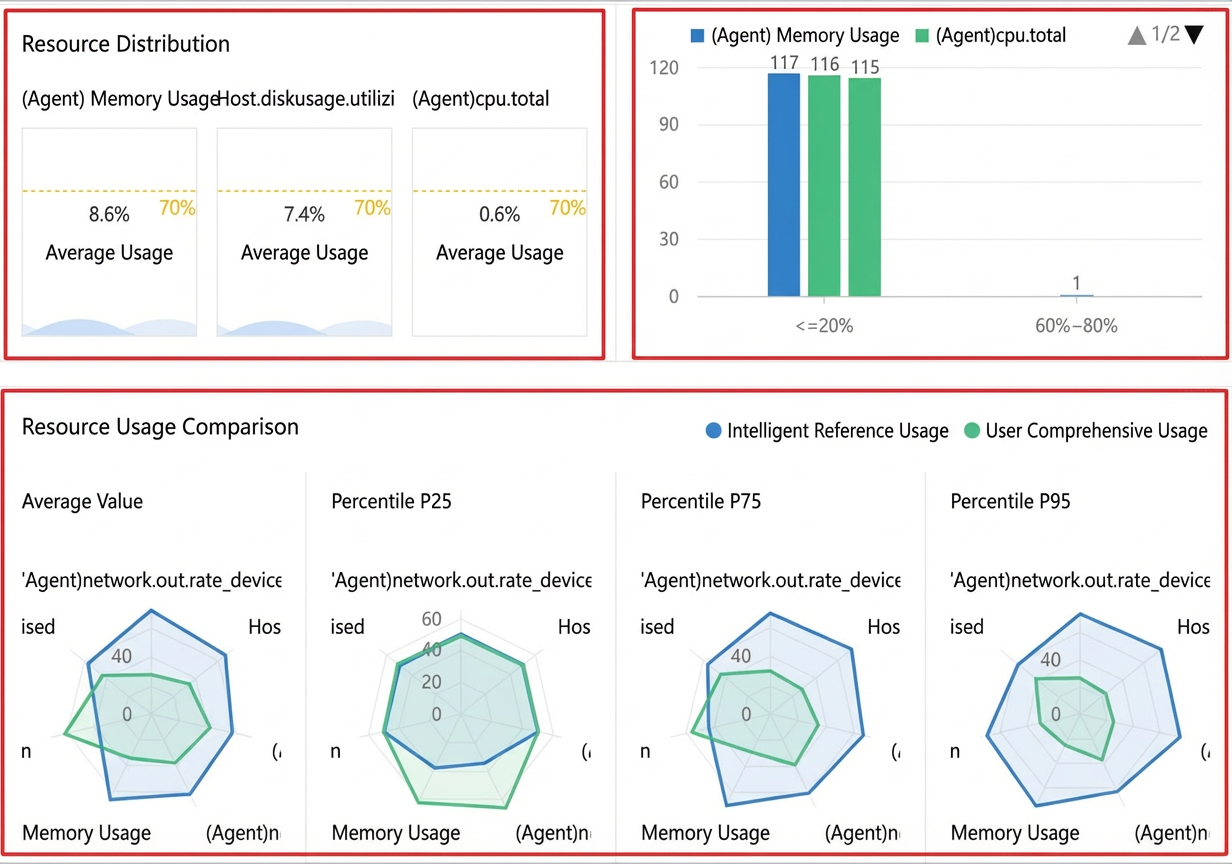
Water level statistics and comparison
This section displays the average water level for the three core metrics of the target resources during the reporting period. It also shows the number of resources distributed across different water level ranges and provides a reference water level based on historical data and intelligent algorithms.
Note-
For information about the supported cloud products and their monitoring metrics, see Supported cloud products and monitoring metrics for Smart Water Level Analysis.
-
For information about how resource water level comparison is calculated, see Resource water level comparison logic.
-
-
Resource workload evaluation
This section presents the workload assessment for the selected resources, as generated by the Cloud Monitor intelligent algorithm. Based on their water level, resources are categorized as High Workload, Low Workload, Normal, or Idle. Some resources may be classified as Unknown due to insufficient data.
NoteCurrently, resource workload evaluation is supported only for ECS. For information about the workload evaluation algorithm, see ECS resource workload evaluation algorithm.
On the Water level evaluation overview page, the Resource workload distribution area displays the number of instances in each workload category in a gauge chart. In the Water level evaluation details section below, you can click a workload category tab to view the list of resources in that category. You can also filter the list by resource group, region, and instance type.
-
Download a report
You can download Smart Water Level Analysis reports to view and analyze resource monitoring data.
-
On the Smart Water Level Analysis page, find the target task and click Download Latest Detailed Report in the Actions column.
-
The report is downloaded as an Excel file. This report contains information about your resources and the maximum, minimum, and average values for their monitoring metrics. The downloaded spreadsheet includes instance information columns (such as User ID, instance_id, Instance name, Region, Availability zone, Instance type, Creation date, IP, Resource group ID, and Resource group name) and metric columns such as cpu_total(%), memory_usedutilization(%), and networkin_rate(Mbits/s). For each metric, statistical values such as max, min, avg, P90, and P95 are provided.
Disable a task
Disabling a Smart Water Level Analysis task stops it from generating new reports.
-
On the Smart Water Level Analysis page, find the target task. In the Actions column, click the ... icon and select Disable.
-
After the task is disabled, its status changes to Disabled.