Integrate HTML5 slider verification into an Android app
Hybrid app development technology lets you integrate a mobile HTML5 slider verification widget directly into your app. You can enable the WebView component within your app's services to implement bot detection. Users complete the Captcha by sliding a puzzle piece, similar to unlocking a phone. This design allows legitimate users to pass the bot detection challenge (Turing test) seamlessly.
The mobile HTML5 Captcha widget also offers rapid iteration and strong compatibility. This integration method eliminates compatibility problems caused by dependencies and references in native app components. The rapid iteration of the HTML5 slider verification widget helps your app respond more effectively to advanced attack scenarios.
Integrating the HTML5 slider verification widget into an Android app involves the following steps:
Android app: Use the WebView component to enable and deploy the service page that requires the slider verification widget.
Frontend: In the HTML5 page, call native Java code from a JavaScript function and pass the recorded user behavior parameters to the Alibaba Cloud Captcha server-side.
HTML5 page server-side: Integrate the slider verification server-side software development kit (SDK).
Step 1: Enable and deploy the service page on the Android app side
In the Activity file of your Android app project, import the dependency libraries for the WebView component.
        import android.webkit.WebView;
        import android.webkit.WebSettings;
        import android.webkit.WebViewClient;
        import android.webkit.WebChromeClient;
In the AndroidManifest.xml configuration file, set the permissions to load web pages.
Note: If your app calls other HTTP resources, you must add the corresponding configuration.
        <uses-permission android:name="android.permission.INTERNET"/>
        <application
        ...
        android:usesCleartextTraffic="true"
        ...>
In the activity_main.xml layout file, add the WebView component.
        <WebView android:id="@+id/webview"
            android:layout_height="match_parent"
            android:layout_width="match_parent" />
In the Activity file, load the HTML5 service page.
        public class MainActivity extends AppCompatActivity {
            private WebView testWebview;
            @Override
            protected void onCreate(Bundle savedInstanceState) {
                super.onCreate(savedInstanceState);
                setContentView(R.layout.activity_main);
                initView();
            }
            private void initView() {
                // Page layout.
                testWebview = (WebView) findViewById(R.id.webview);
                // Set the screen to be adaptive.
                testWebview.getSettings().setUseWideViewPort(true);
                testWebview.getSettings().setLoadWithOverviewMode(true);
                // Disable cache loading. This ensures that the latest slider verification widget is retrieved quickly during an attack.
            testWebview.getSettings().setCacheMode(WebSettings.LOAD_NO_CACHE);
                // Set the page to load directly in the WebView component instead of the default browser.
                testWebview.setWebViewClient(new WebViewClient(){
                    @Override
                    public boolean shouldOverrideUrlLoading(WebView view, String url) {
                        view.loadUrl(url);
                        return true;
                    }
                });
                // Enable JavaScript support for the WebView component.
                testWebview.getSettings().setJavaScriptEnabled(true);
                    // Create a bridge for JavaScript to call the Java interface.
                testWebview.addJavascriptInterface(new testJsInterface(), "testInterface");
                // Load the service page.
                testWebview.loadUrl("http://39.x.x.x/demo/");
            }
        }
In the Activity file, add a custom Java interface named `testJsInterface` and define the `getSlideData` method to retrieve slider data.
        import android.webkit.JavascriptInterface;
        public class testJsInterface {
            @JavascriptInterface
            public void getSlideData(String callData) {
                System.out.println(callData);
            }
        }
In the `initView()` method of the Activity, attach the custom Java interface to the JavaScript function.
        // Enable JavaScript support for the WebView component.
        testWebview.getSettings().setJavaScriptEnabled(true);
        // Create a bridge for JavaScript to call the Java interface.
        testWebview.addJavascriptInterface(new testJsInterface(), "testInterface");
Step 2: Add a JavaScript function to the HTML5 frontend code to call a JavaScript function in the app's business logic
Make sure that the frontend integration code for slider verification is added to your HTML5 service page. For more information, see Frontend code integration.
In the HTML5 service page, add a JavaScript function. This function calls the custom Java interface within the callback that is triggered when a user slides the slider to the end.
        function slideCallBack(data) {
            var result = {
                'nc_token':nc_token,
                'sessionid':data.csessionid,
                'sig':data.sig
            };
            // Call the Java interface.
            window.testInterface.getSlideData(JSON.stringify(result));
        }
Step 3: Integrate the slider verification server-side SDK
On the server for the HTML5 service page, integrate the slider verification server-side SDK. For more information, see the documentation on integrating the server-side code.
Result
After you complete these steps, the HTML5 slider verification widget is integrated into your Android app and provides Captcha functionality.
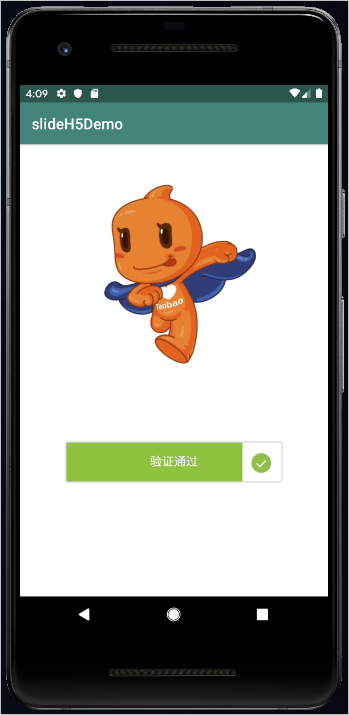
When a user slides the slider to the end in the app, the HTML5 service page calls the `testInterface.getSlideData` interface. This call passes the recorded user behavior parameters to the Alibaba Cloud Captcha server-side. The server detects automated threats and returns a result based on the detection outcome and your configured business logic.
