This topic describes the configuration options for the agent workspace. These settings are managed at the instance level.
Access the feature
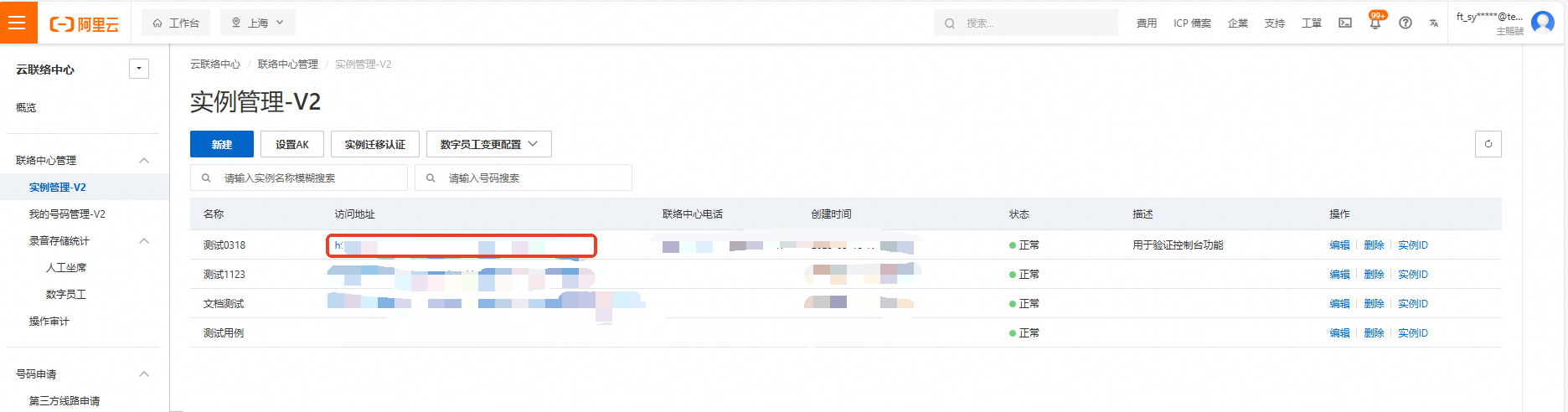
Log on to the Cloud Contact Center console. In the left navigation pane, choose Instance Management - V2, then click the endpoint of a specific instance to open its console.
Click the menu button in the upper-right corner of the page and select Voice Services to enter the Voice Services console. In the left navigation pane, choose Settings.
On the Settings page, select the Agent Workspace tab, then click Manage at the bottom of the page to open the agent workspace configuration.
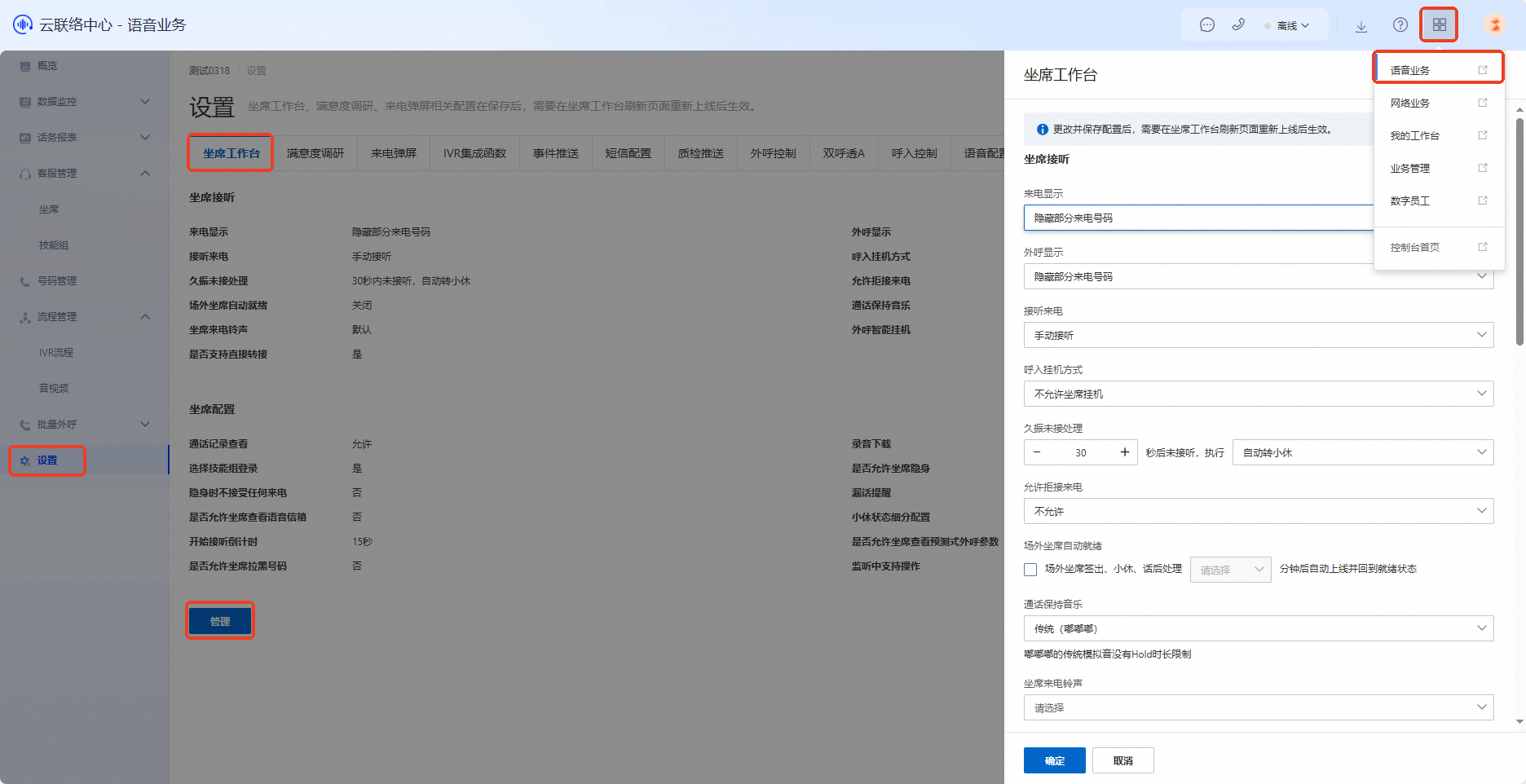
After saving your changes, agents must refresh and log back on to the agent workspace for the new settings to take effect.
Inbound call handling
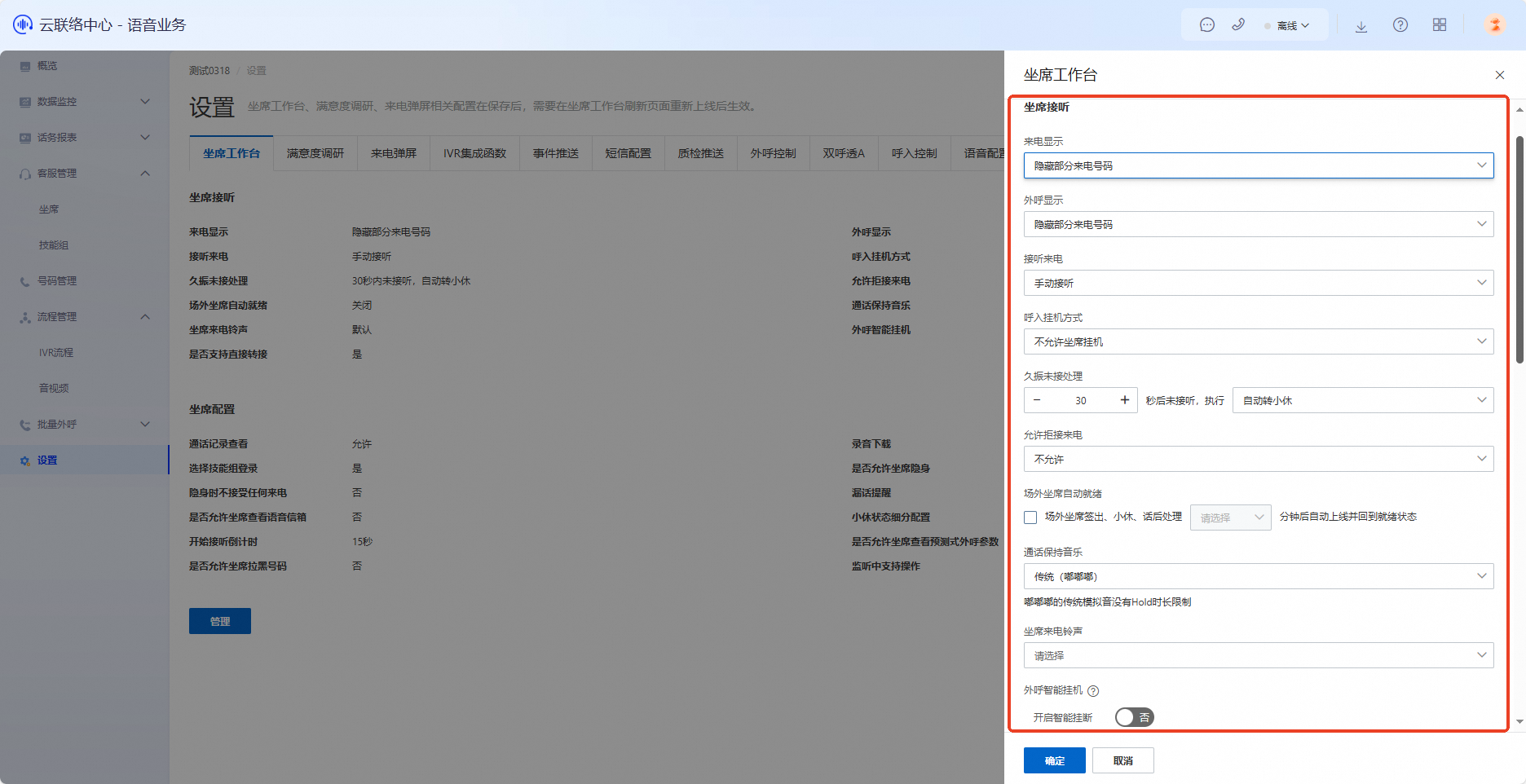
Caller ID display: Choose from Hide all caller numbers, Hide part of the caller number, or Show part of the caller number. This setting only masks numbers in the frontend interface—it does not hide them at the API level. The effect appears in the agent workspace panel under call records, outbound calls, and inbound call screens.
Outbound caller ID display: Same options as caller ID display.
Inbound hang-up method: Choose Allow agent to hang up or Do not allow agent to hang up. This setting controls whether an agent can end an inbound call after answering. For example, companies with strict service standards may disable this option to prevent agents from hanging up first.
Handling unanswered long-ringing calls: Set a custom time between 5 and 90 seconds. If a call is not answered within this period, the agent’s status can change to Break, remain unchanged, or be moved out.
Auto-answer incoming calls: Choose Manual answer or Auto-answer. With auto-answer enabled, the system answers the call automatically after n seconds without agent interaction. Manual answer requires the agent to click the answer button.
Allow call rejection: Choose Not allowed, Allow and set status to Break, Keep current status, or Move out. If set to Not allowed, agents cannot reject ringing calls. If set to Allow and set status to Break, the agent’s status changes to Break after rejecting a call. Other options behave similarly.
Auto-ready for remote agents: Turn this on or off. When enabled, set the time to 2, 5, or 10 minutes. After this time elapses without receiving a call, a remote agent’s status automatically returns to Ready. This feature is disabled by default.
Hold music: Choose Traditional (beep-beep), Preset audio, or Custom audio. During a call, if the agent places the customer on hold, the customer hears this music. Traditional and preset audio use system-defined templates. For custom audio, upload a file up to 15 minutes long in MP3, WAV, M4A, or WMA format and preview it before saving.
Agent ringtone: Choose Continuous tone, Metallic bright, Metallic continuous, Rotary phone sound, Electronic tone, or Custom audio. These are the sounds agents hear when a call comes in. The first five options use system-defined templates. For custom audio, upload a file under 500 KB in MP3 or WAV format and preview it.
Smart hang-up for outbound calls: Turn this on or off. When enabled, the system uses algorithms to detect carrier ringback tones during outbound calls and decides whether to hang up automatically. A floating prompt appears next to the hang-up button before auto-hang-up, allowing manual cancellation. Set a countdown timer between 5 and 10 seconds after detection to trigger the automatic hang-up.
Enable direct transfer: Choose Yes or No. If Yes, the softphone panel shows the Direct Transfer button. If No, the button is hidden.
Agent configuration
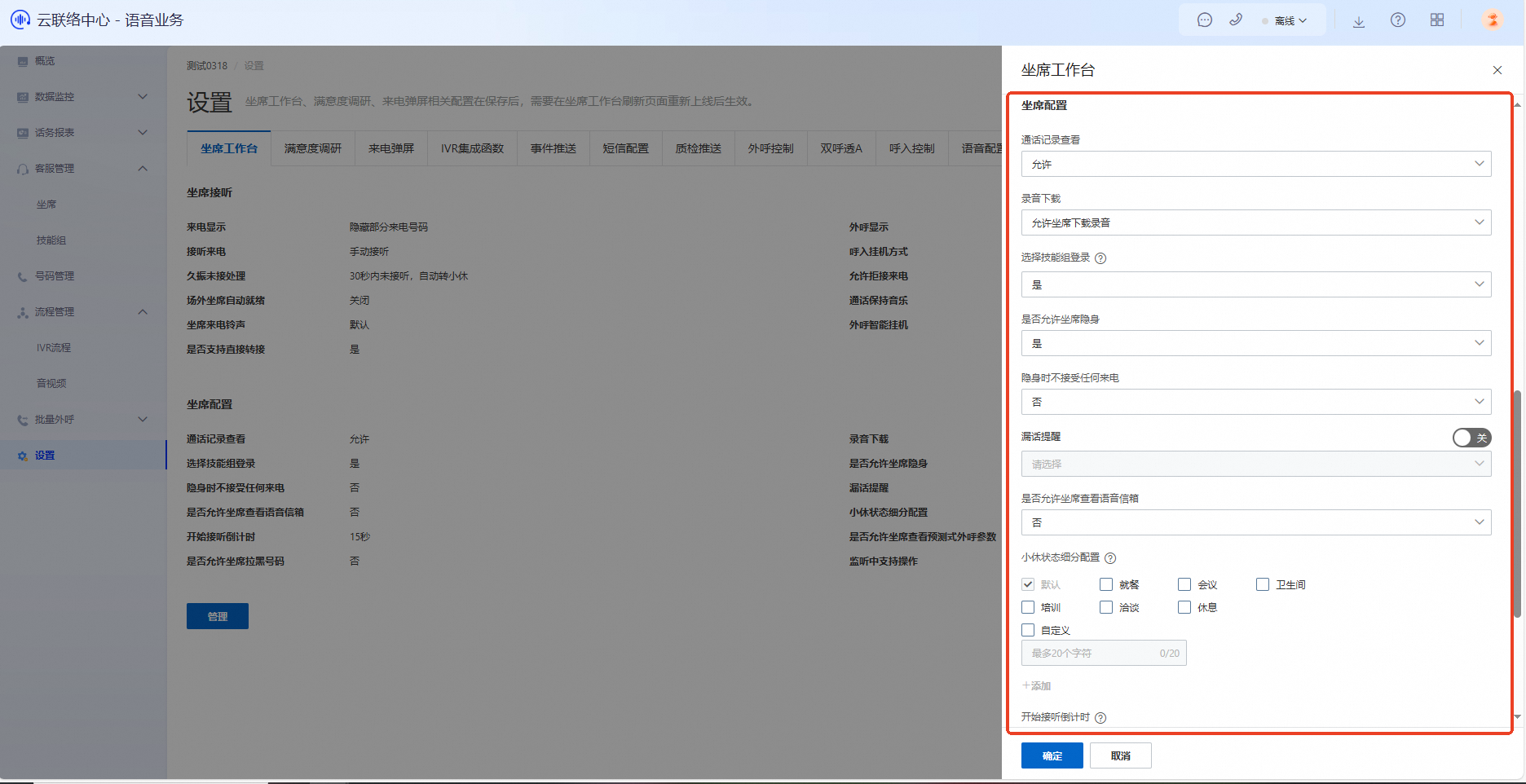
View call records: Choose Allow or Do not allow. This setting determines whether agents can see the Call Records section under Traffic Reports after logging into the Cloud Contact Center instance backend. Use “Do not allow” to prevent agents from viewing customer phone numbers.
Download recordings: Choose Allow agents to download recordings or Do not allow agents to download recordings. This controls whether agents can download call recordings from the call records interface.
Select skill group at logon: Choose Yes or No. If Yes, agents can choose which skill group to work with and receive calls only from that group during a session. If No, agents are automatically assigned to all skill groups they belong to upon logon.
Allow agents to make outbound-only calls: Choose Yes or No. If Yes, agents can click the Outbound-Only button in the Cloud Contact Center panel. If No, the button is unavailable.
Do not accept any calls while in Invisible mode: Choose Yes or No. If Yes, agents cannot receive internal calls or transfers while in Invisible mode. If No, they can still receive such calls. This setting only affects internal calls and transfers. External customers cannot reach agents in Invisible mode regardless of this setting.
Allow agents to view voicemail: Choose Yes or No. If Yes, the Voicemail menu appears for agents. If No, it is hidden.
Missed-call SMS reminder: This setting configures SMS notifications for missed outbound calls—such as when a call goes unanswered, is rejected, or encounters a busy signal. Agents can send a friendly SMS reminder to inform customers of the missed call.
Detailed Break status options: Provides granular Break status choices, such as Meal, Meeting, Restroom, Training, Discussion, Rest, or Custom. After you configure this feature, agents see these options when they click Break in the workspace.
Post-call ready delay: Set how long (0–30 seconds) an agent must wait after ending a call before becoming ready to take the next one.
Allow agents to view predictive dialing parameters: Choose Yes or No. This restricts certain agents from viewing specific predictive dialing parameters.
Allow agents to block numbers: When enabled, agents can block numbers from the call records section of the softphone panel. When disabled, this option is hidden.
Actions allowed during monitoring: While being monitored, agents can place calls on hold, mute, or transfer to another agent.