WeCom Customer Service integration
Integrate WeCom Customer Service with Chatbot to enable large model-powered Q&A.
Make sure you have completed WeCom enterprise verification.
A domain name is required to receive callback messages from WeCom Customer Service.
This sample project does not support replies with images or rich text messages. If you need this functionality, refer to the documentation to develop your own integration.
Demo
Overview
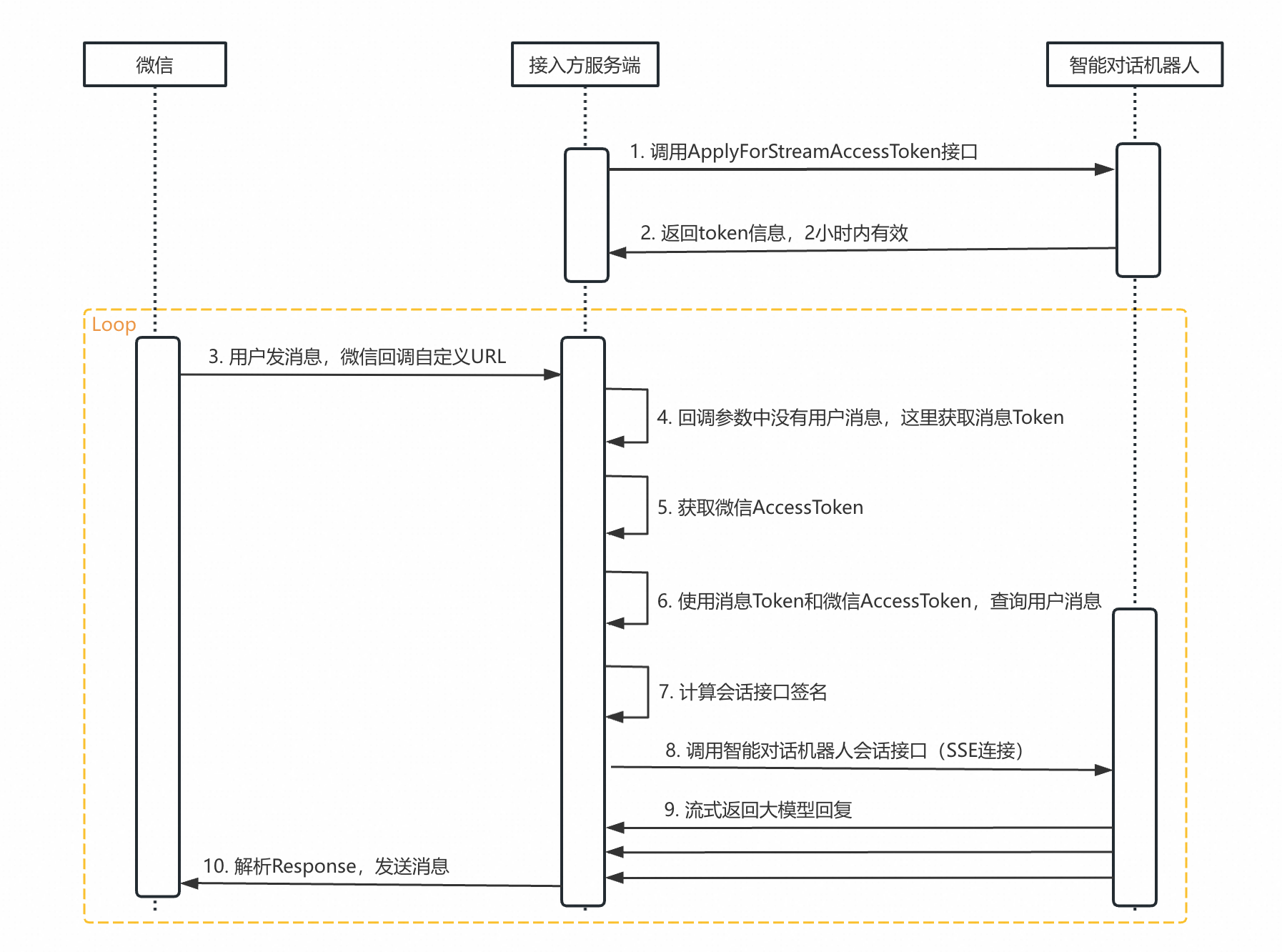
Call the ApplyForStreamAccessToken API. For more information, see Obtain connection information for streaming calls.
The connection signature returned by the ApplyForStreamAccessToken API is valid for two hours. You must obtain a new one before it expires.
Listen for and receive message events from WeCom Customer Service, such as when a user sends a message. For more information, see Receive messages and events.
From the message event in the previous step, obtain the token used to query the plaintext message from the callback parameters.
Obtain the access token from WeCom. This access token is required for every API call to WeCom. For more information, see Obtain an access token.
Use the message token and the WeCom access token to call the Get Message API to retrieve the content of the user's question.
Calculate the signature for the session API. For more information, see Session API signature.
Call the session API by using Server-Sent Events (SSE) streaming and listen for SSE events to obtain the streaming output from the large model. For more information, see Streaming session API.
The large model streaming API may return multiple responses. Each response contains the full reply. The frontend should replace the old content with the new content. For information about response parameters, see Streaming session API.
Wait for the large model to generate the reply, and then send the complete message to the user.
Example
Sample project code
Run the project
This sample project requires Java Development Kit (JDK) 8. For more information, see Install the JDK on Windows.
Follow the steps in Configure Chatbot to obtain the required Chatbot parameters for the sample project.
Follow the steps in Configure WeCom Customer Service to obtain the required WeCom Customer Service parameters for the sample project.
Enter the parameters you obtained into the
application.propertiesconfiguration file of the sample project.Run
com.aliyun.chatbot.channel.WebApplication. You can also package the project into a JAR file and run it with thejava -jarcommand.Open http://localhost:8091/ in your browser and scan the QR code with WeChat to start a conversation with the large model-powered customer service bot.
Parameters
Parameter | Description |
ALIYUN_ACCESS_KEY | The Access Key ID of your Alibaba Cloud account. |
ALIYUN_SECRET_KEY | The AccessKey Secret of your Alibaba Cloud account. |
CHATBOT_INSTANCE_ID | The bot ID. |
CHATBOT_AGENT_KEY | The AgentKey for the business space. You can find this key on the Business Space Management page. |
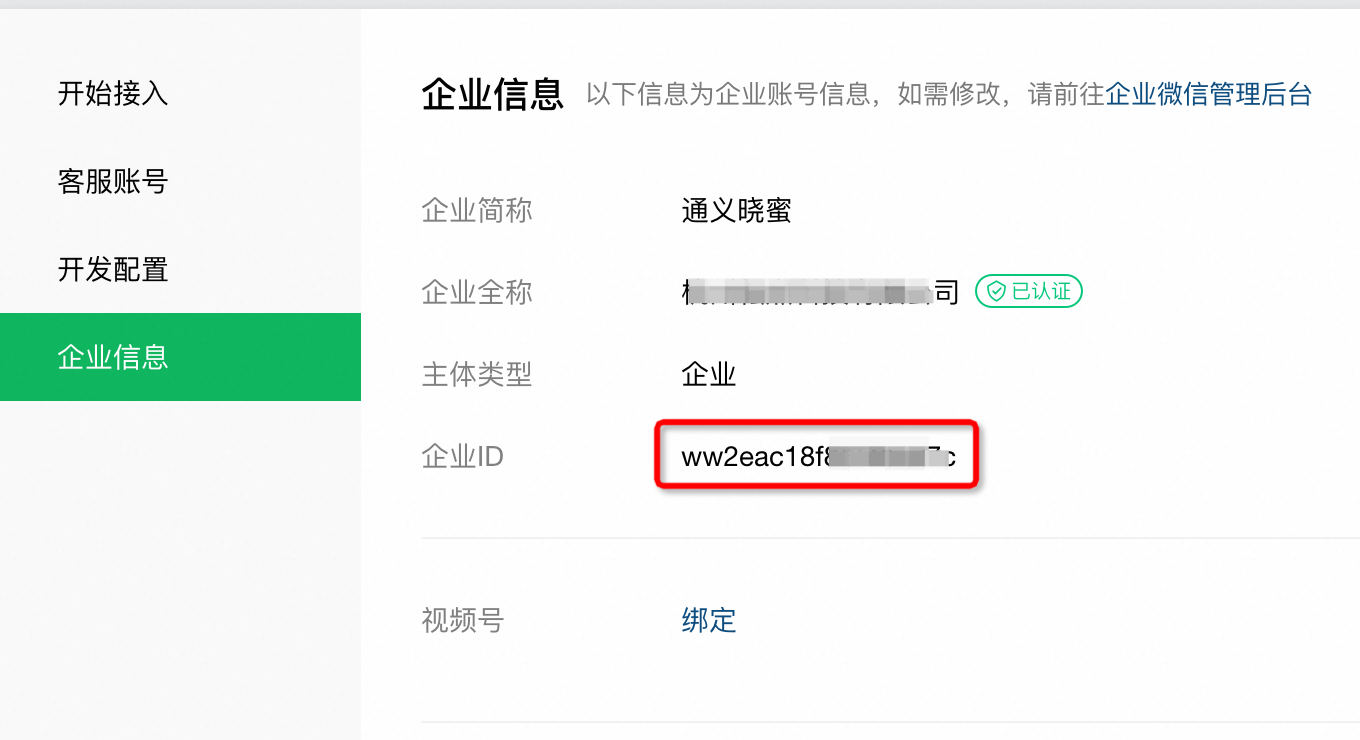
WX_CORP_ID | The enterprise ID. Go to the Enterprise Information menu and copy the enterprise ID. |
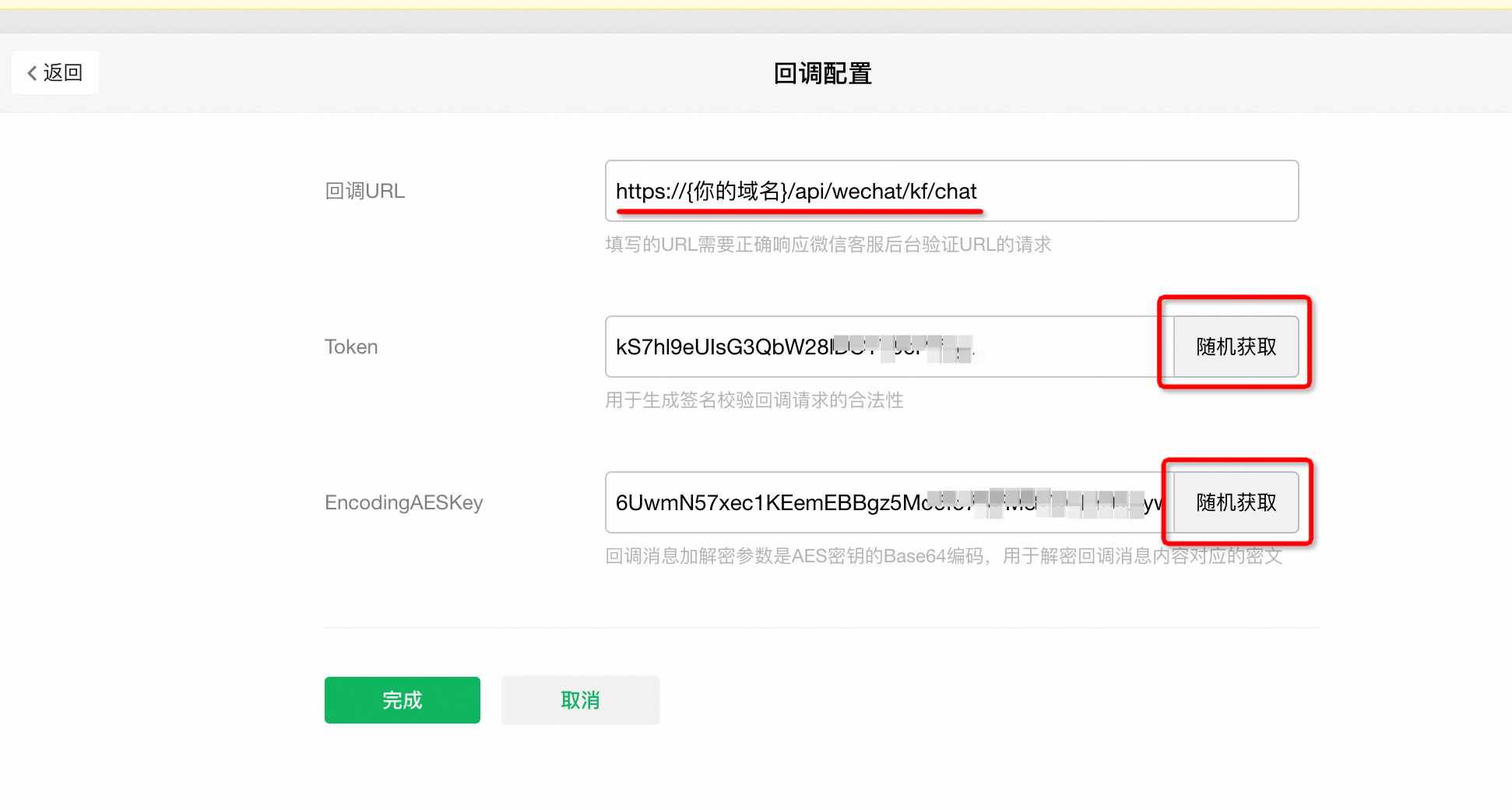
WX_TOKEN | The token for the WeCom Customer Service callback configuration. Click Random to generate the Token and EncodingAESKey. |
WX_ENCODING_AES_KEY | The EncodingAESKey for the WeCom Customer Service callback configuration. Click Random to generate the Token and EncodingAESKey. |
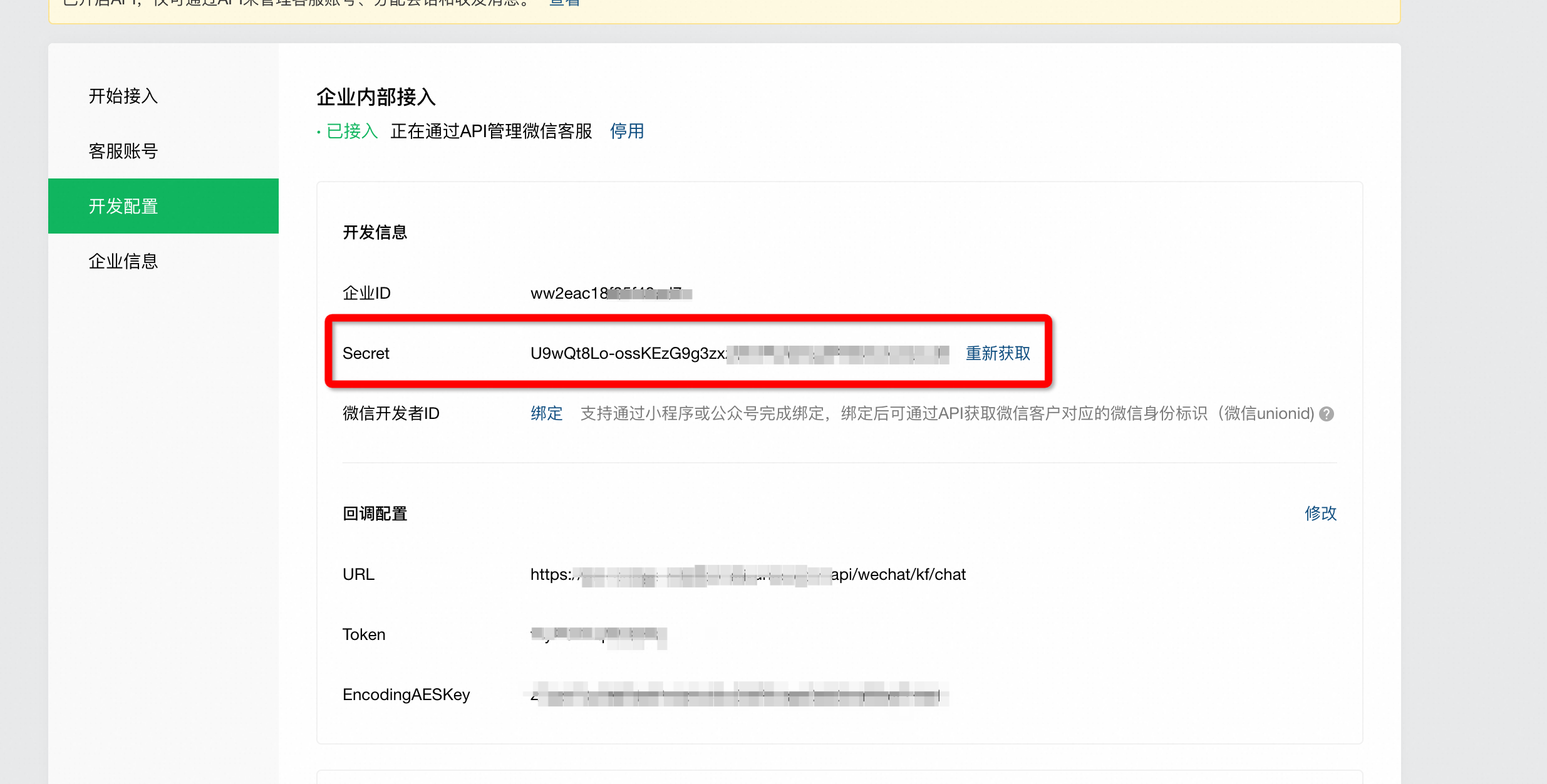
WX_SECRET | The Secret from the development configuration. After completing the previous step, click Development Configuration again to obtain the Secret. |
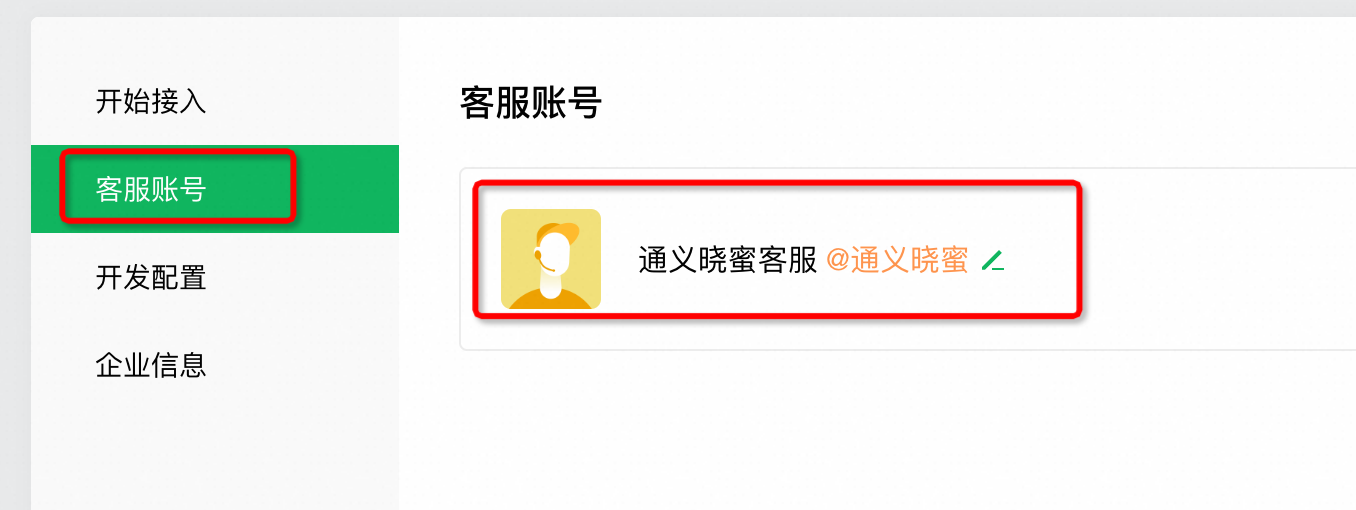
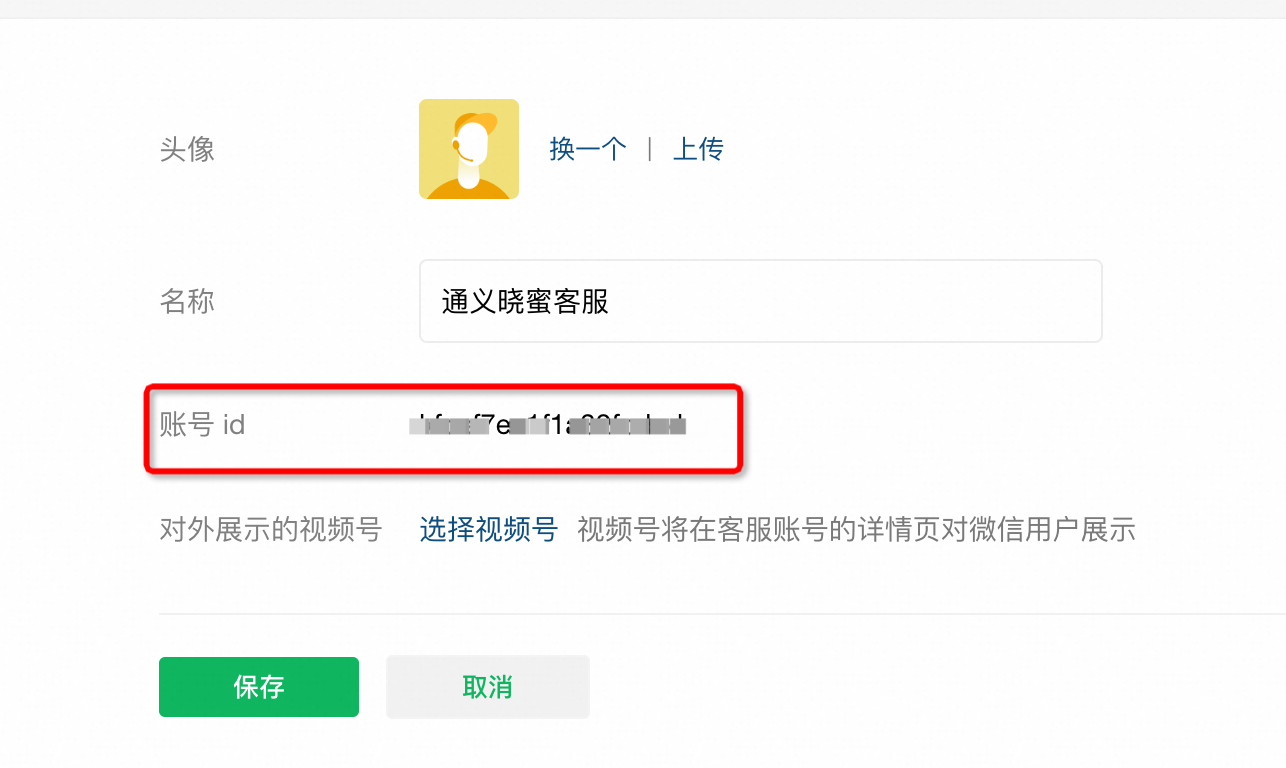
WX_KF_ID | The WeCom Customer Service ID. In Customer Service Configuration, select the Customer Service Account menu, choose the appropriate account, and obtain the Customer Service ID. |
Chatbot configuration
Log on to the Chatbot console at https://chatbot.console.aliyun.com.
Create a bot, obtain the bot ID, and then publish the bot. If the Publish button is unavailable, skip this step.
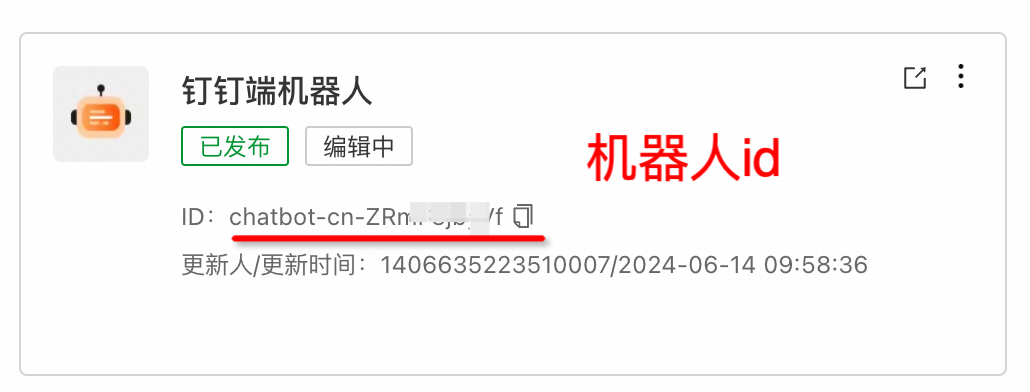
Obtain the AgentKey of the business space. You can find it on the Business Space Management page.

Obtain the Access Key ID and AccessKey Secret for your Alibaba Cloud account. You can find them on the AccessKey page.
WeCom Customer Service configuration
Log on to the WeCom Customer Service platform.
Select the Enterprise Information menu and copy the enterprise ID.
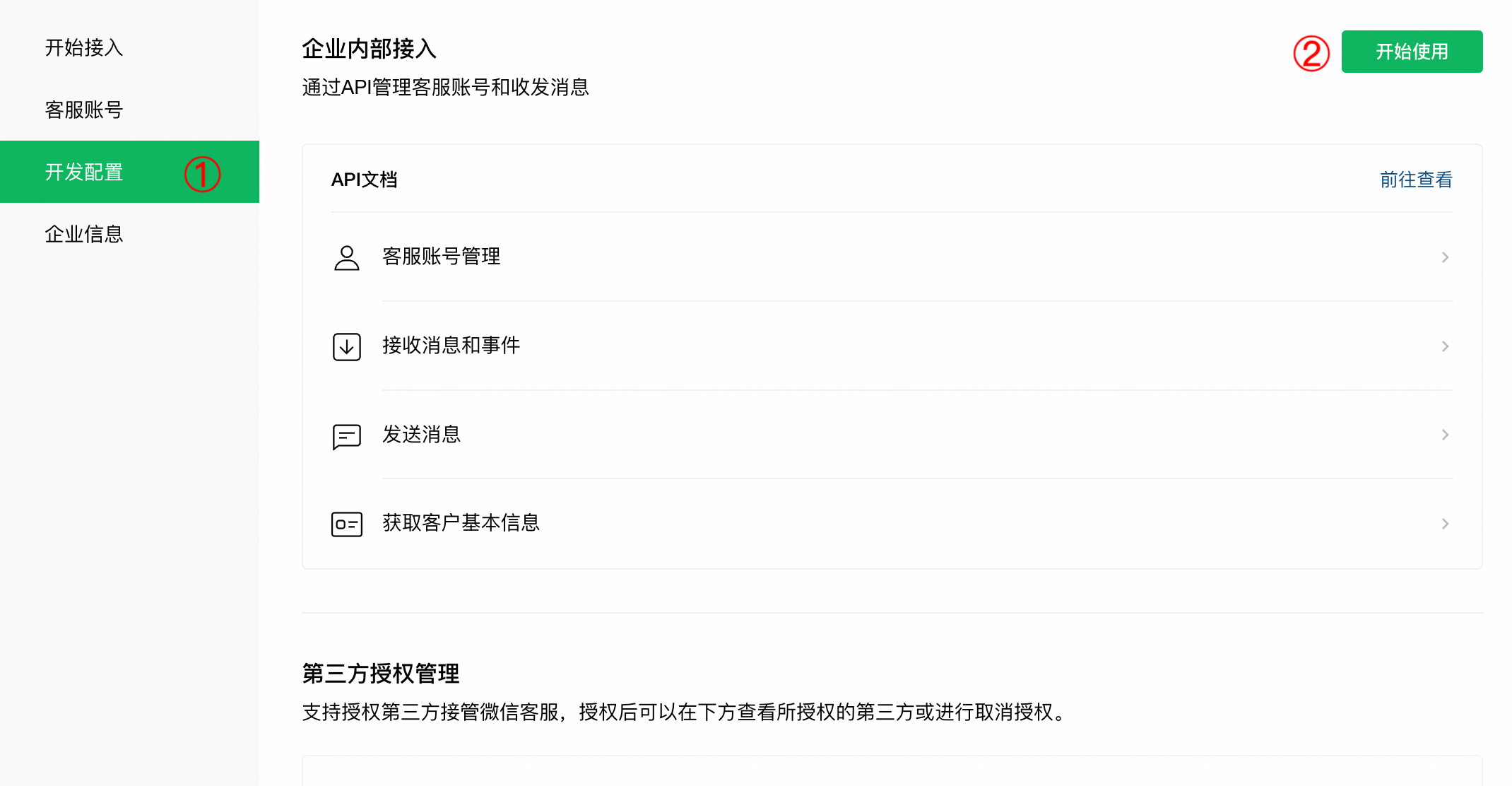
Select the Development Configuration menu, and then click Get Started.
Configure the callback API information.

Callback URL: https://{your_domain_name}/api/wechat/kf/chat.
Click Random to generate the Token and EncodingAESKey.
If you click Complete immediately, you will receive an "openapi callback address request failed" error. To prevent this, first configure the enterprise ID, Token, and EncodingAESKey in your code and deploy the sample project to ensure the callback URL is publicly accessible.
After completing the previous step, click Development Configuration again to obtain the Secret.
In Customer Service Configuration, select the Customer Service Account menu, choose the corresponding account, and obtain the Customer Service ID.
FAQ
Q: When I configure the callback API, I receive an "openapi callback address request failed" error after I click Complete. What should I do?
A: You must add the enterprise ID, Token, and EncodingAESKey to your code and deploy the sample project. Ensure the callback URL is publicly accessible.
Q: Why don't I receive image replies from the bot?
A: This sample project does not support replies with images or rich text messages. If you need this functionality, refer to the documentation to develop your own integration.
Q: Why are rich text answers not displayed correctly?
A: WeCom Customer Service does not support rendering rich text, such as Markdown or HTML.