This topic describes how to configure business hours in Omnichannel.
Feature access
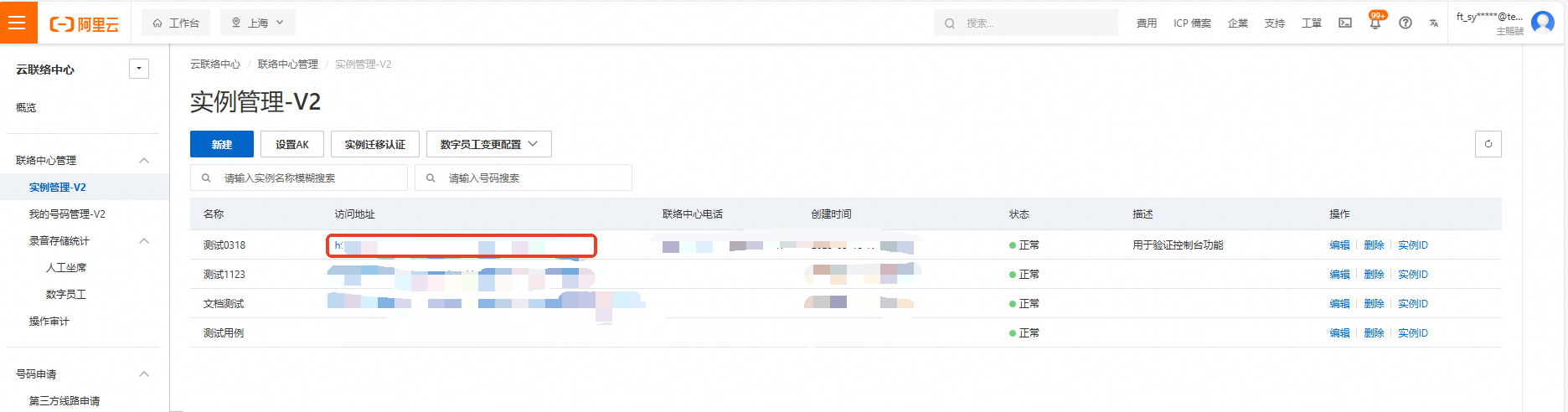
Log on to the Cloud Call Center console. In the left-side navigation pane, choose Instance Management-V2, and then click the access URL of an instance to open its console.
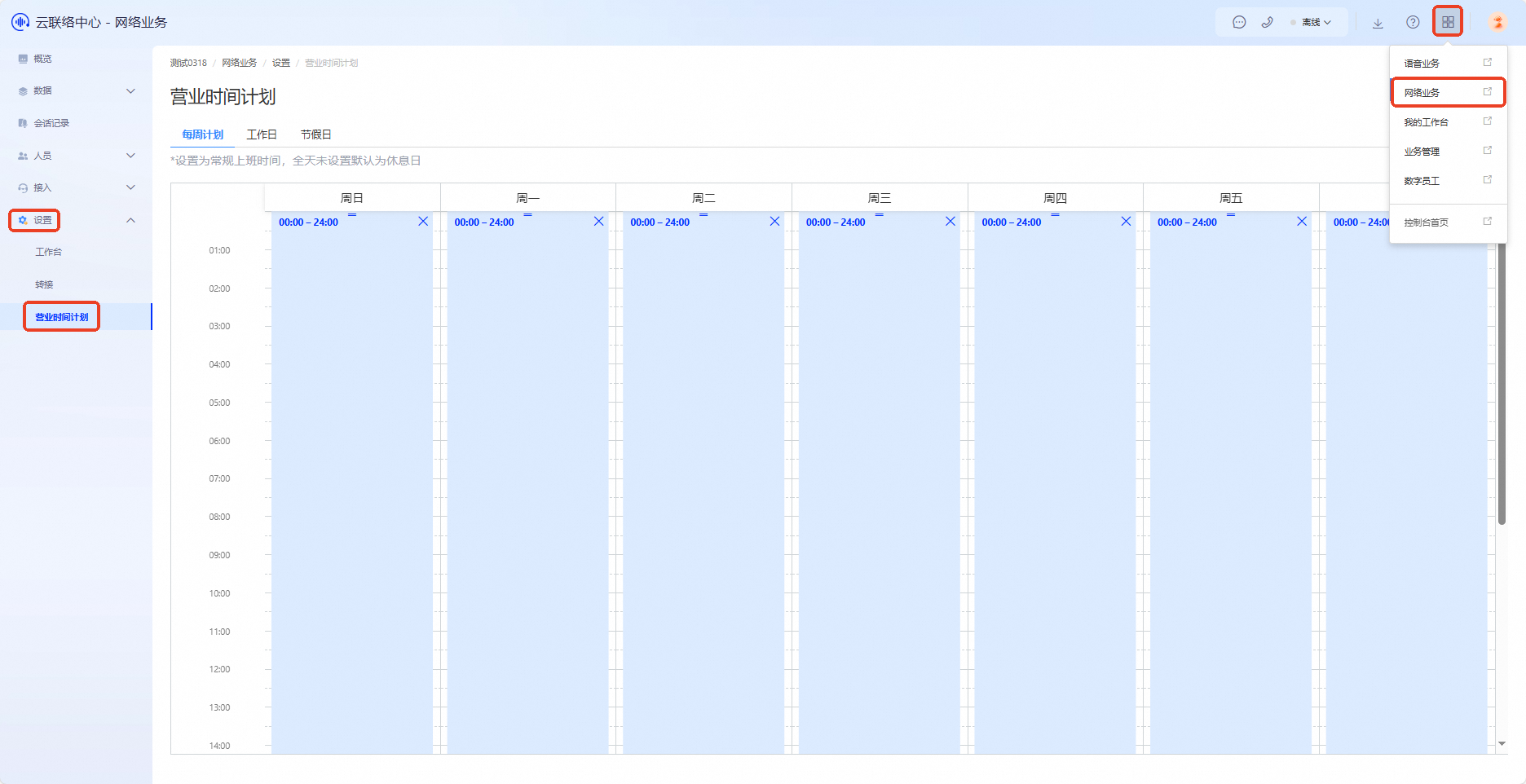
In the upper-right corner of the page, click the menu button and choose Omnichannel to open the Omnichannel console. In the left-side navigation pane, choose Settings > Business hour schedule.
Weekly schedule
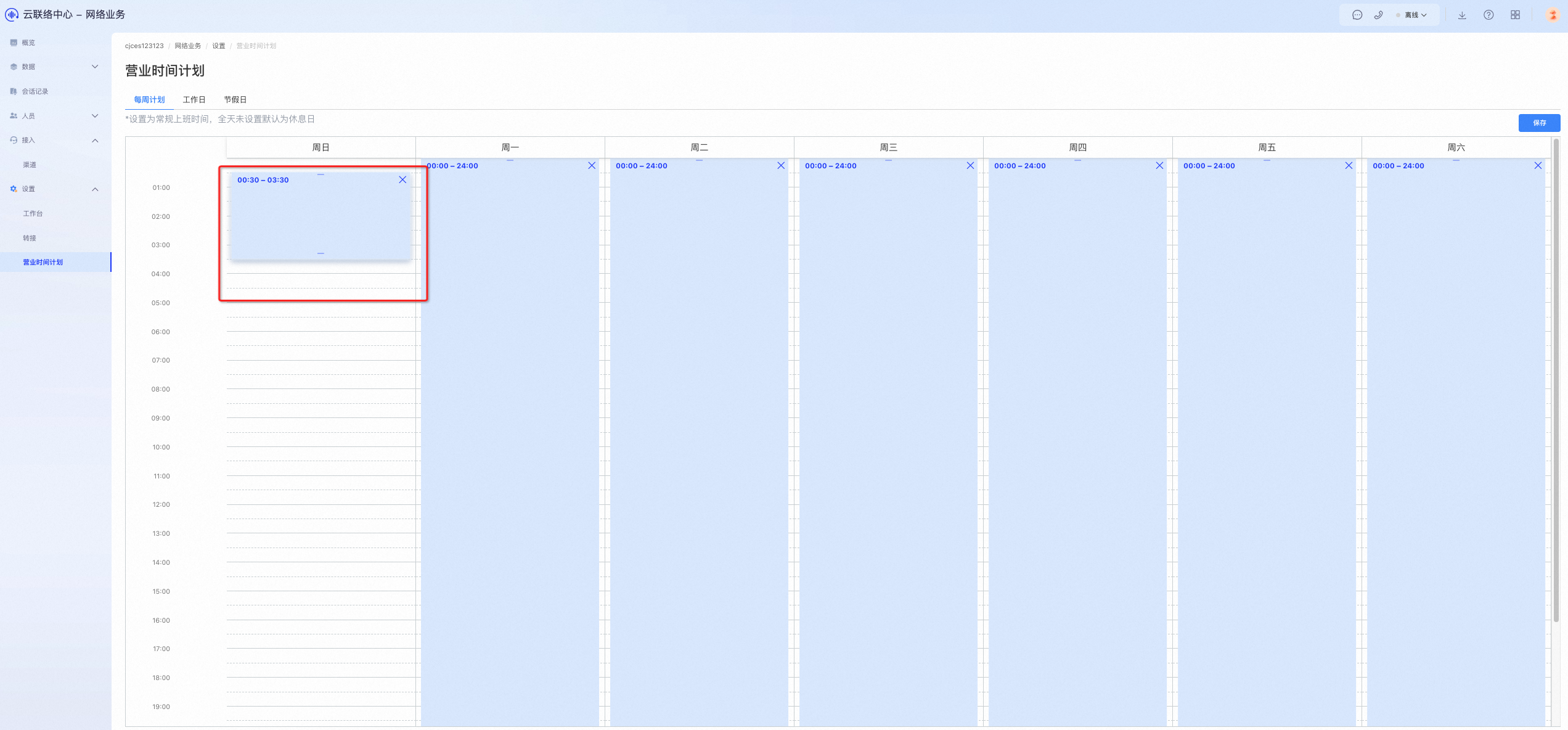
On the Weekly schedule tab, set the regular working hours for agents. By default, any day without configured hours is a day off.
The minimum time unit you can configure is 30 minutes. Each row in the schedule represents a 30-minute interval.
Workdays
On the Workday tab, you can add special workdays that are exceptions to your regular weekly schedule, such as workdays to compensate for public holidays. The system provides preset options for these workdays.
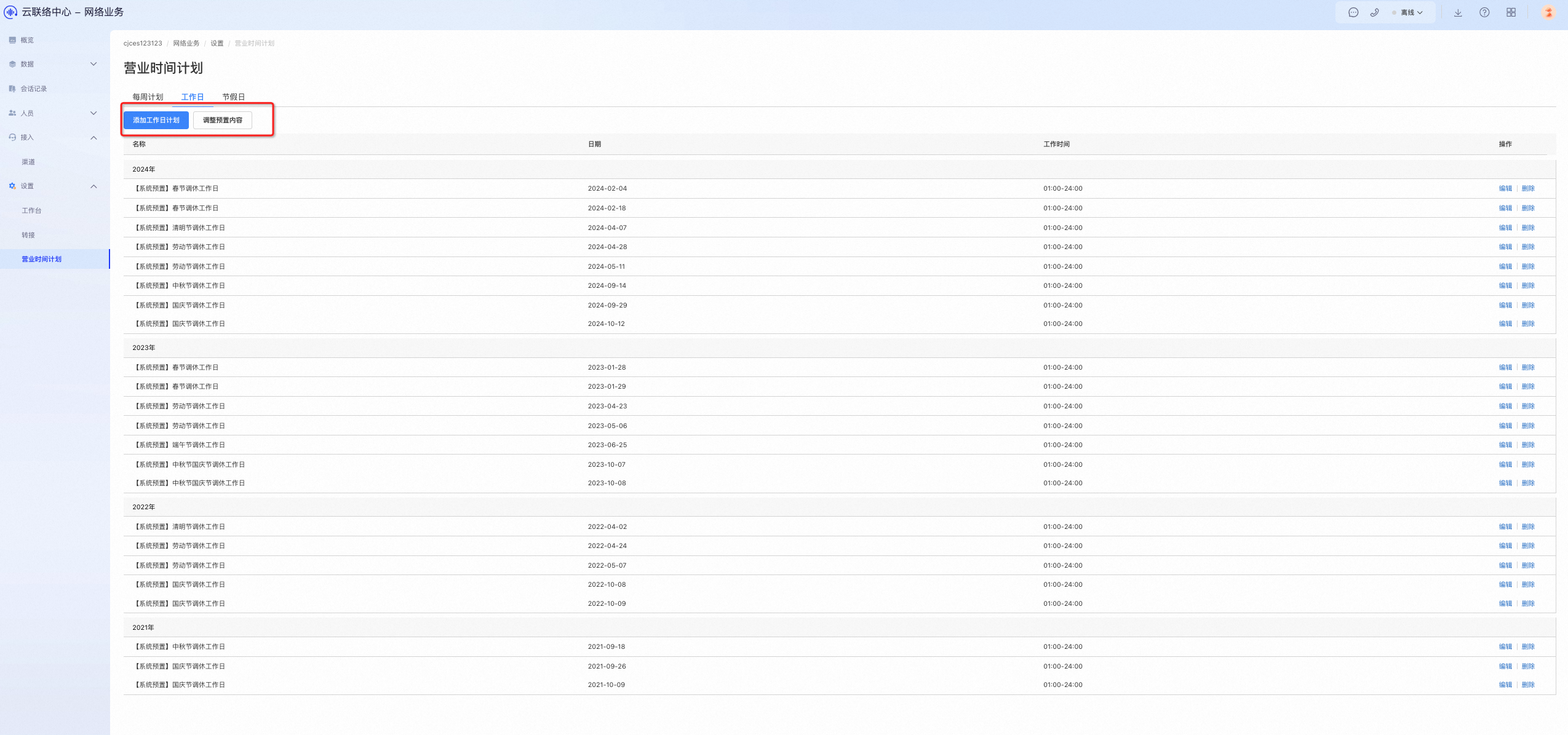
Add workday schedule
To set special working hours, click Add Workday Schedule.
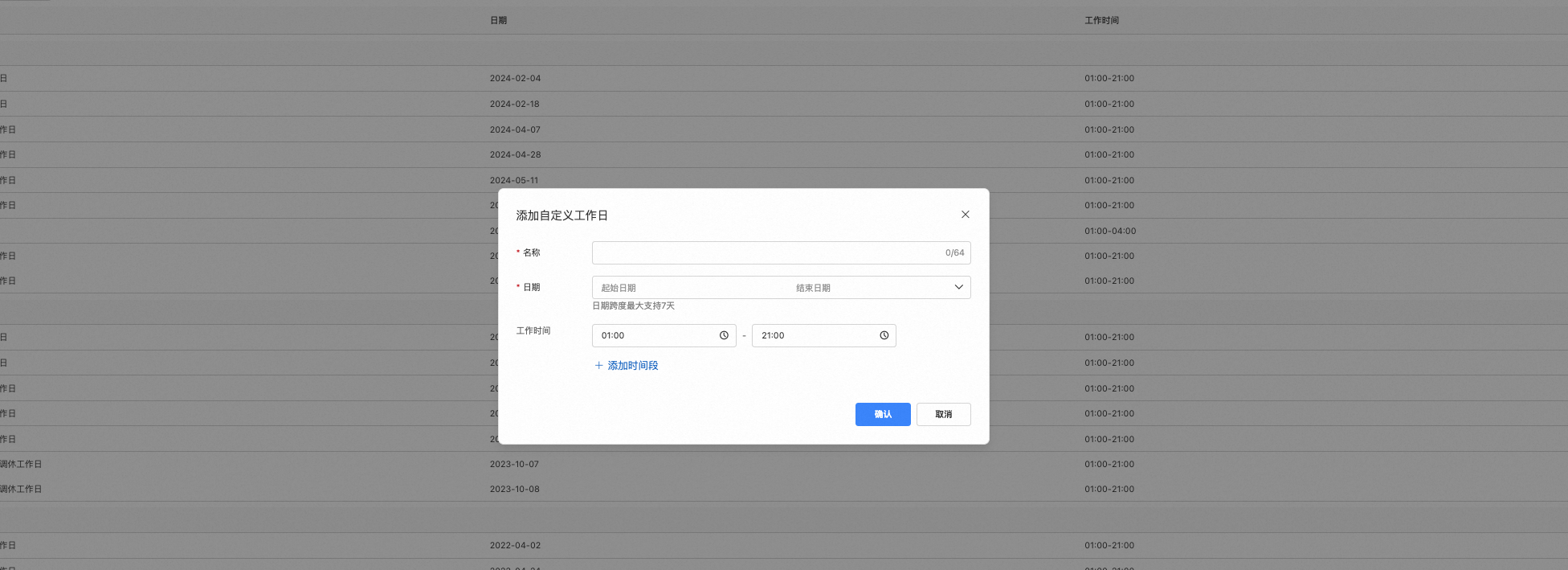 Note
NoteThe start time must be earlier than the end time.
The date range can span a maximum of 7 days.
The working hours apply to all dates in the selected range.
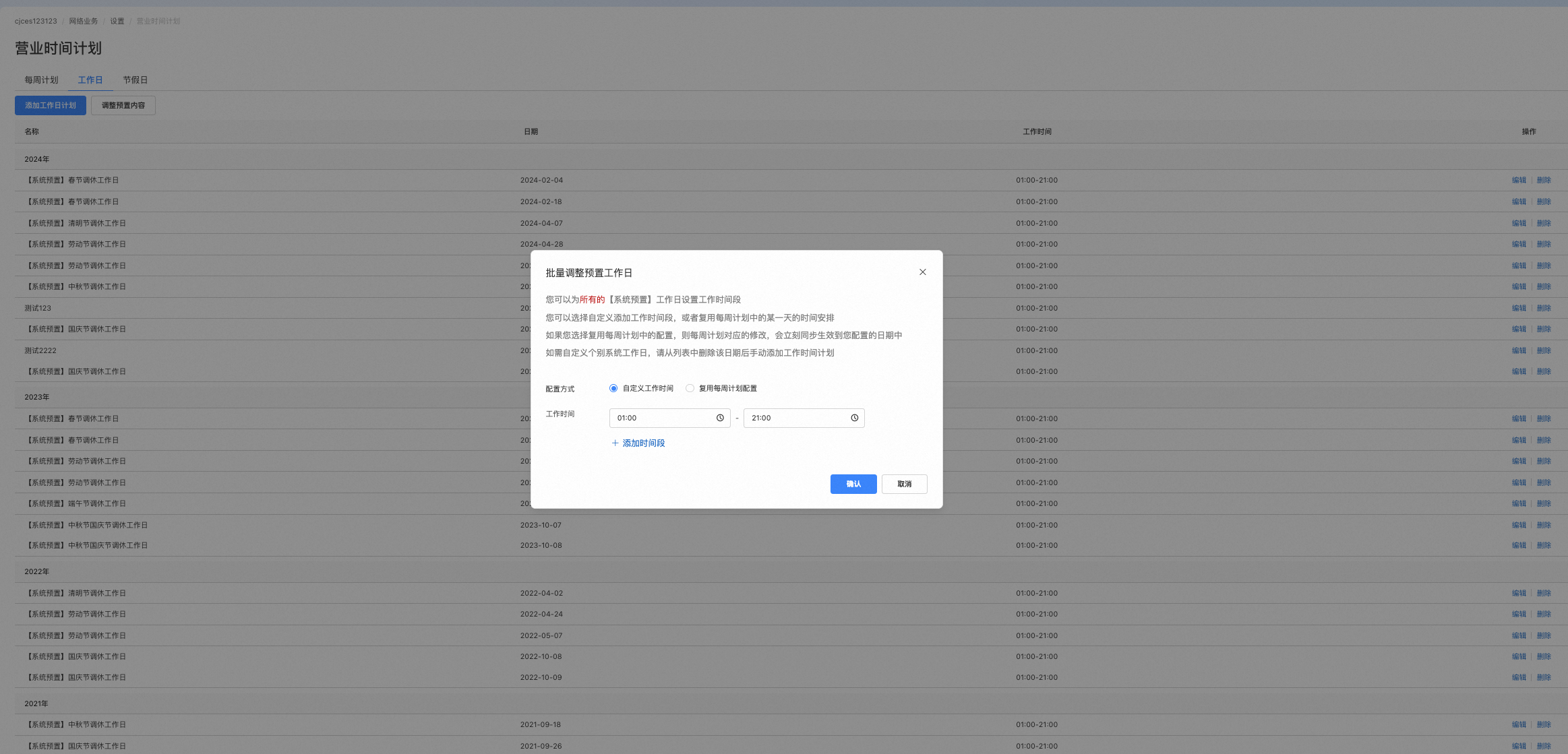
Adjust preset schedules
You can set working hours for all system preset workdays. You can either define custom working hours or apply an existing weekly schedule.
 Note
NoteYou can either add custom time slots or reuse the schedule from a specific day in your weekly schedule.
If you apply a weekly schedule, any subsequent changes to that schedule automatically apply to these workdays.
To customize an individual system preset workday, remove it from the list and then manually add a new workday schedule.
Holidays
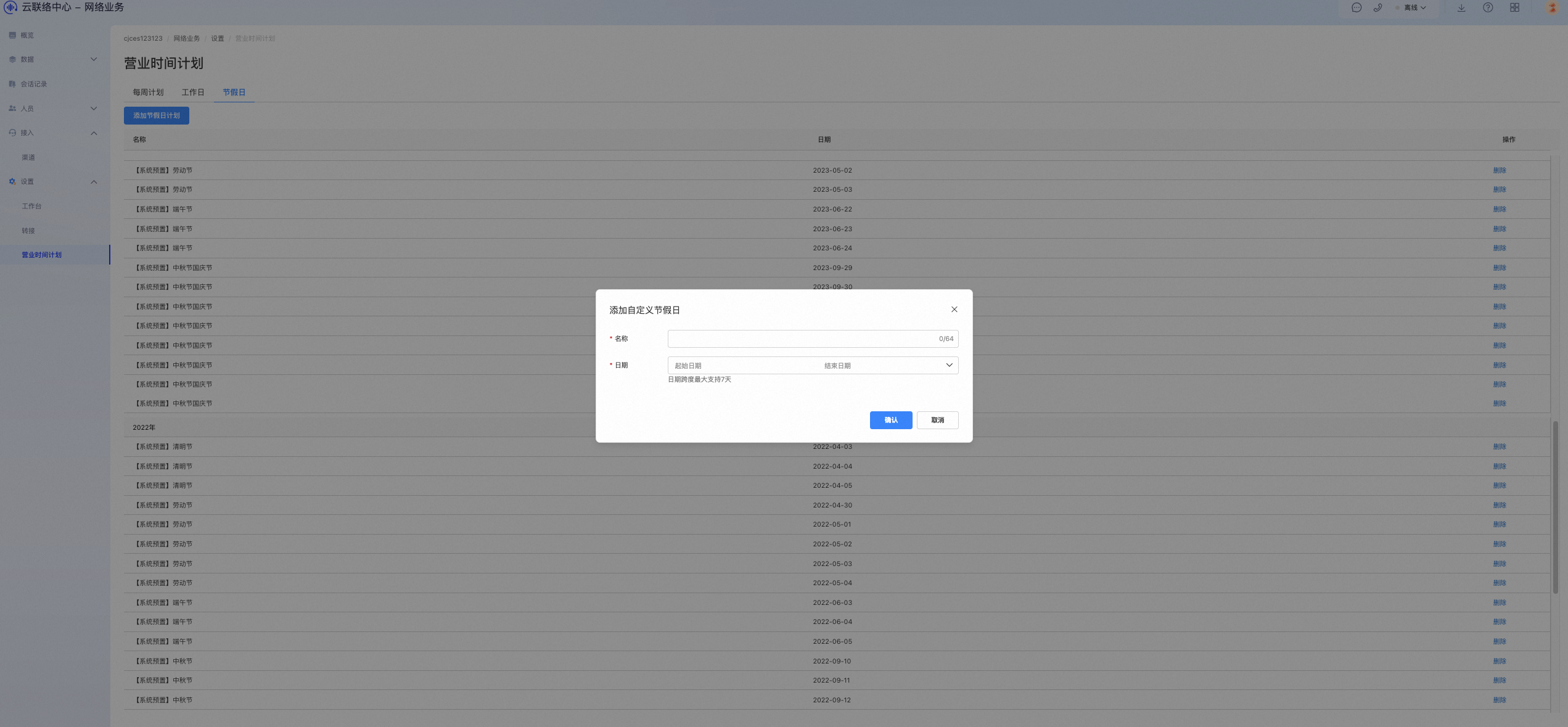
On the Holiday tab, you can add days off that override your regular weekly schedule, such as public holidays. The system provides preset holidays.
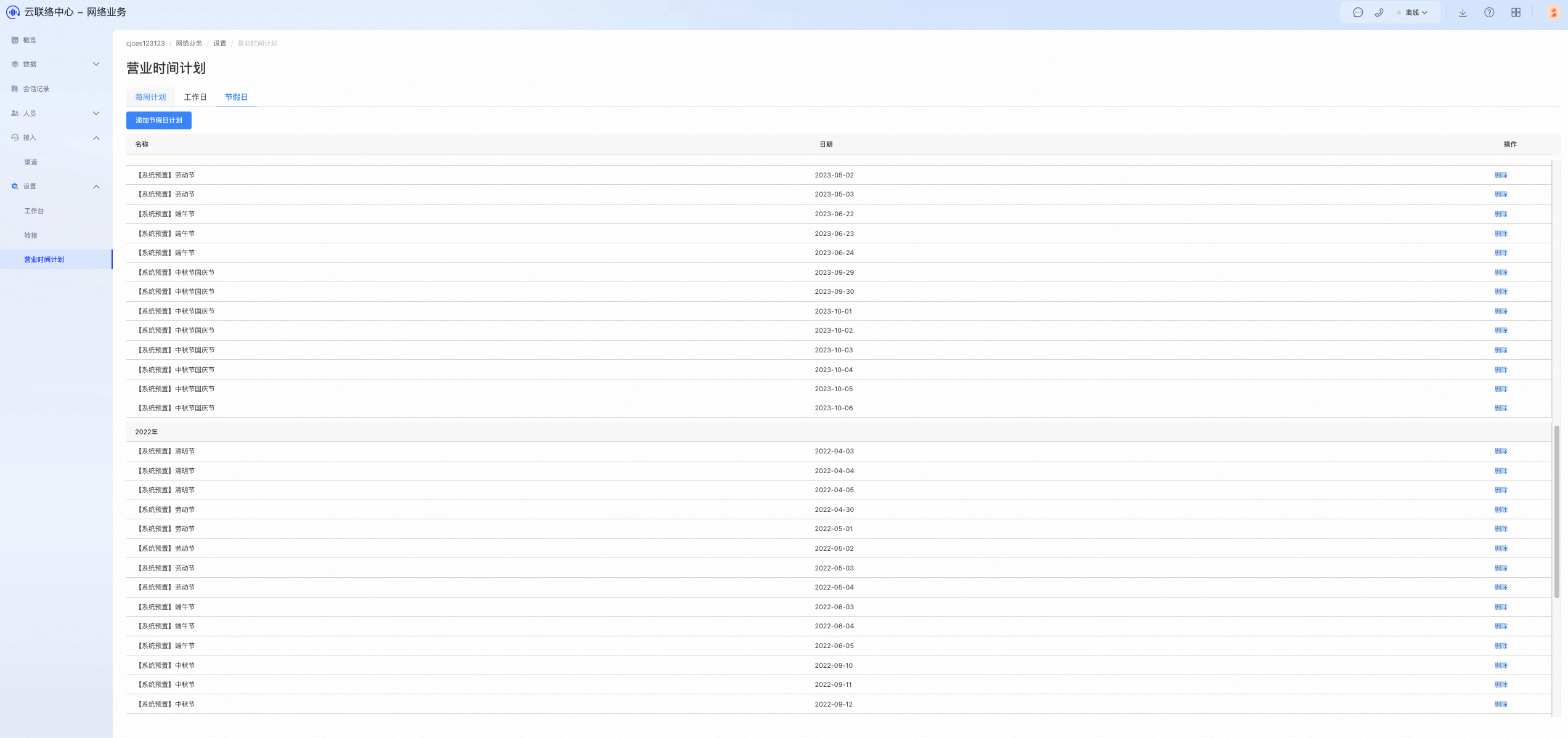
Add holiday schedule
When you add a custom holiday, you only need to specify the date.