Skill Groups
This topic describes how to create a skill group and explains its features in detail.
Function Overview
A skill group is a logical grouping of agents based on specific capabilities. It manages multiple agents who handle incoming calls. Because agents differ in ability, they are typically assigned skill levels—ranging from 1 (highest) to 10 (lowest)—to prioritize call routing.
Access the Feature
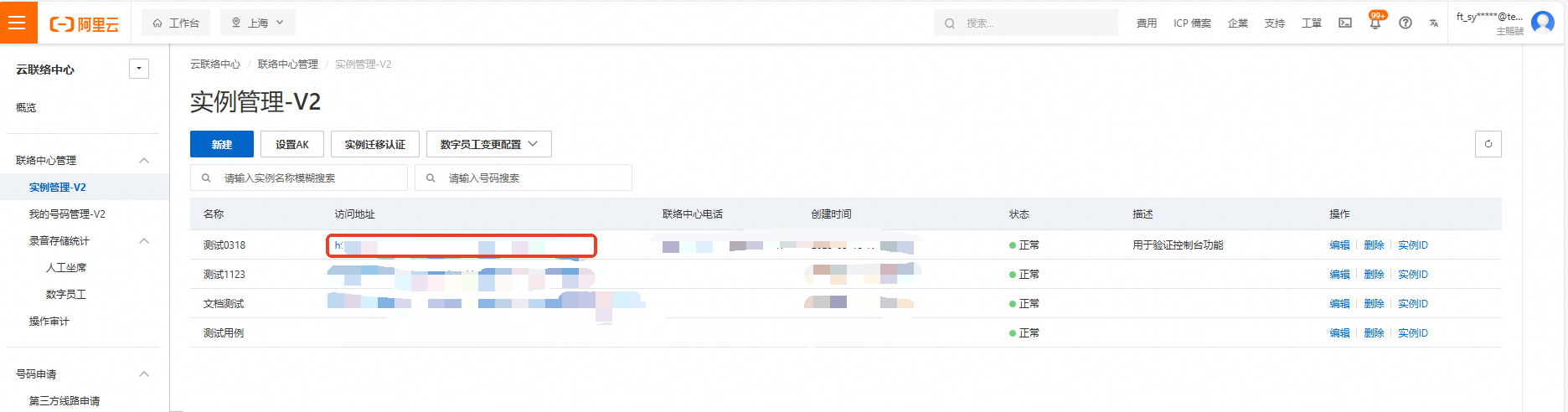
Log on to the Cloud Contact Center console. In the navigation pane on the left, choose Instances > Instance Management-V2. Click the endpoint of a specific instance to open its console.
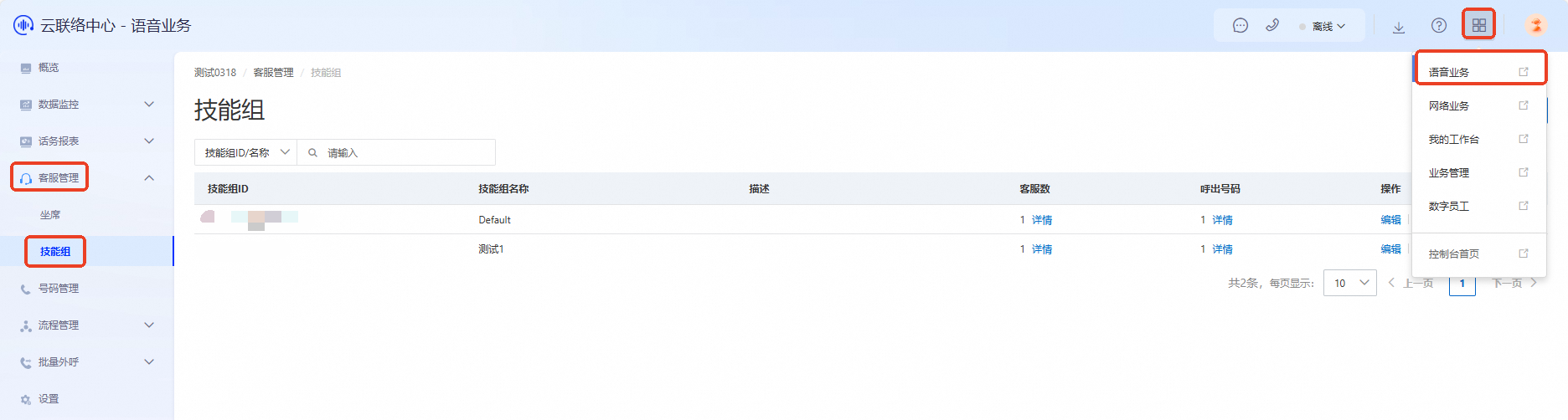
Click the menu button in the upper-right corner of the page and select Voice Services to open the Voice Services console. In the navigation pane on the left, choose Agent Management > Skill Groups.
Function Introduction
Create a Skill Group
Go to the Skill Groups management interface and click Add to open the Create Skill Group interface.
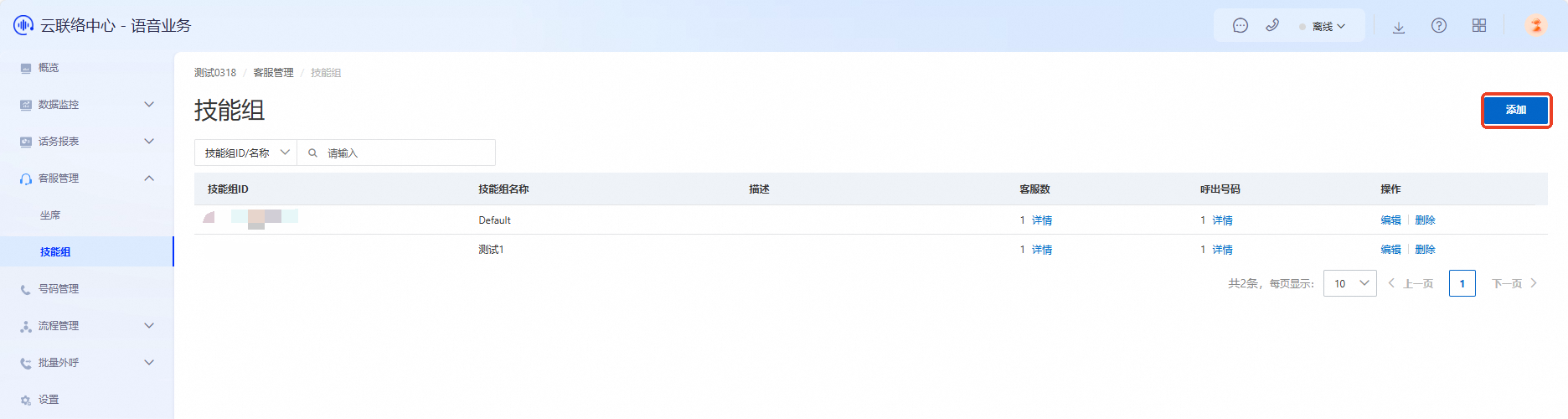
Enter the basic information and click OK to create the skill group.

Skill Group ID: A string between 4 and 64 characters long. It must start with a letter and can contain letters, digits, and underscores. The maximum length is 64 characters.
Name: Required. A string between 1 and 64 characters long.
Description: Add descriptive information based on the skill group’s capabilities.
Edit Agents in a Skill Group
Click Details in the Agents column for a specific skill group to open the Edit Agents page.
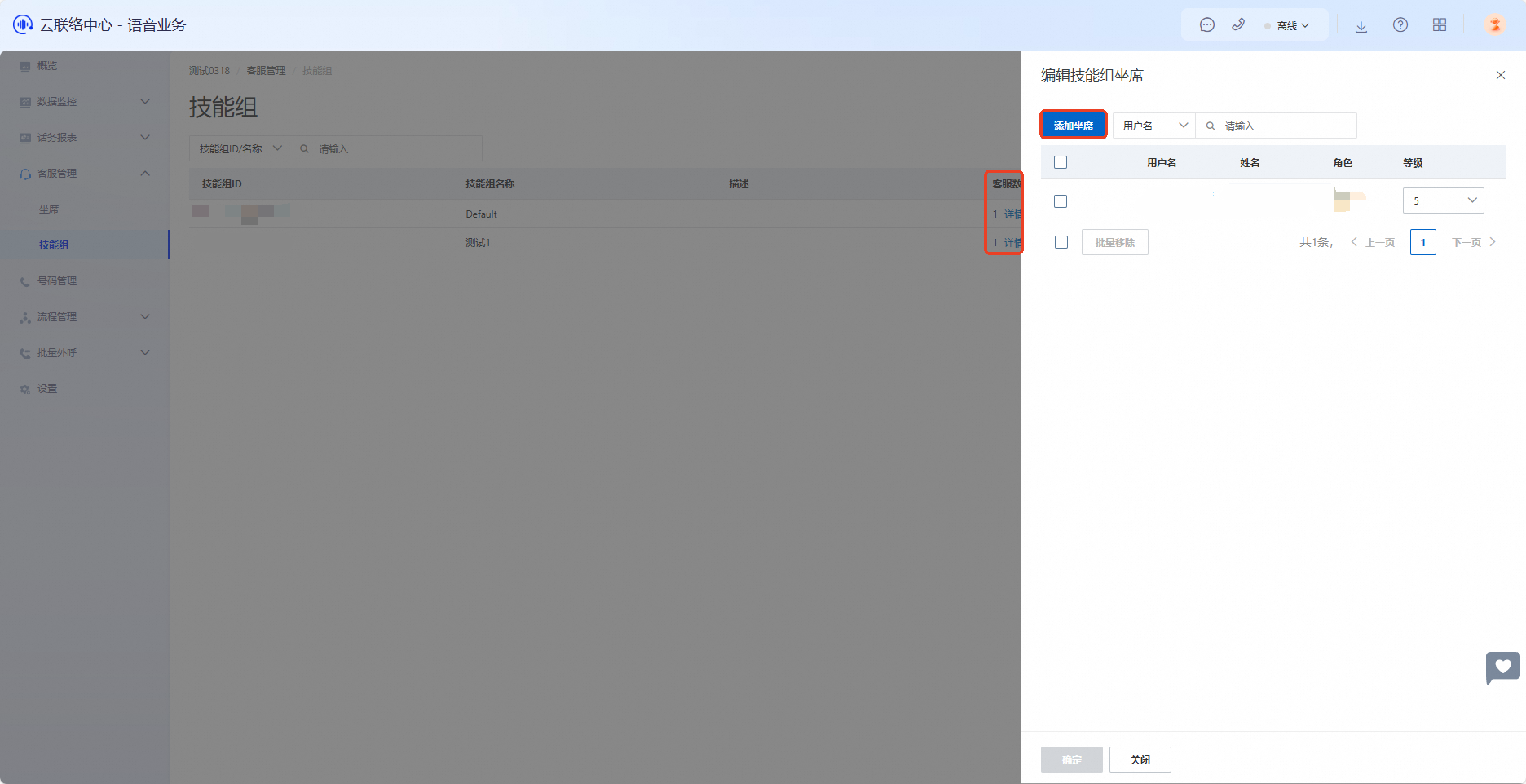
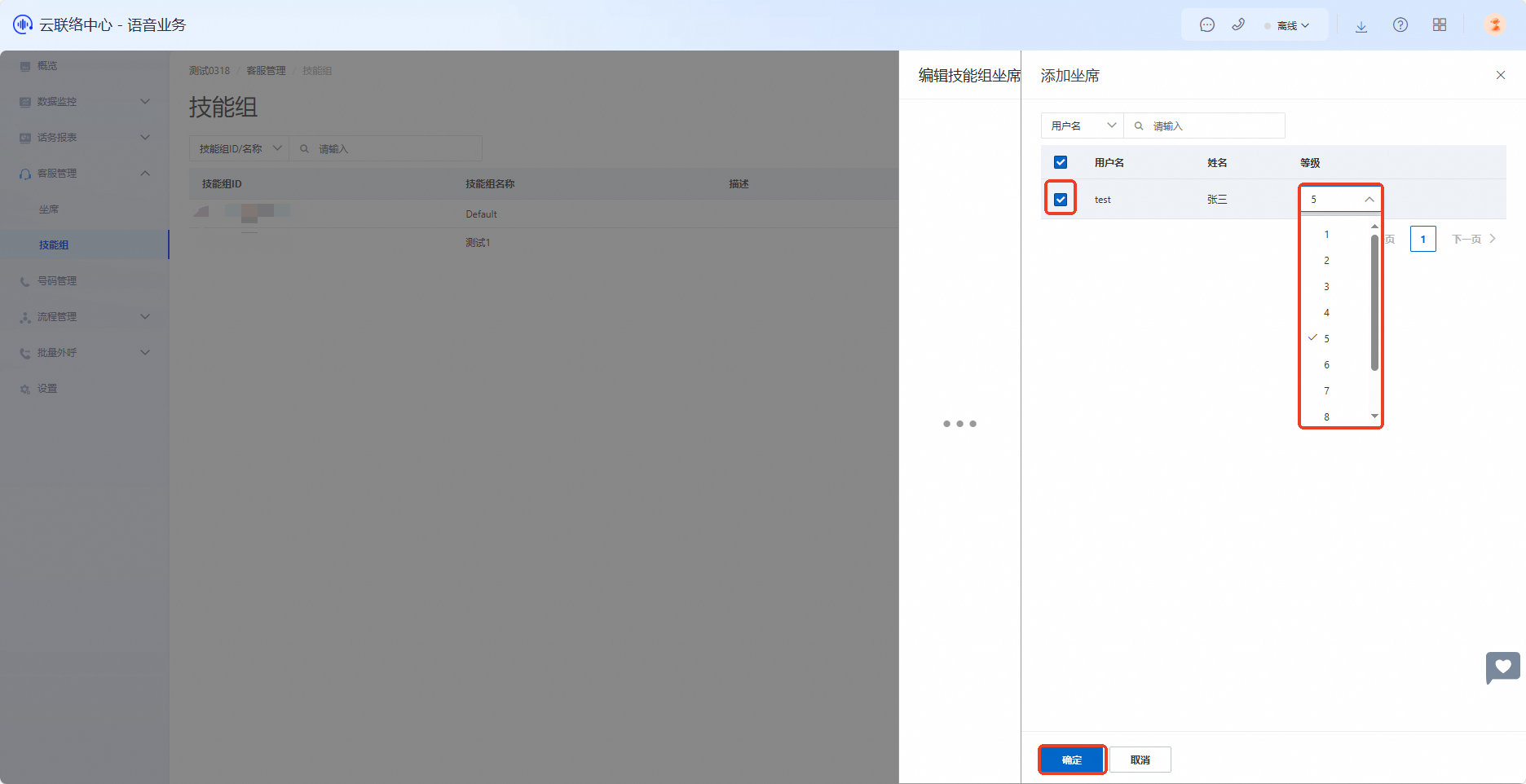
Click Add Agent to manage the number of agents and their skill levels. Click OK to save your configuration.

Level: The agent’s skill level in this group: 1 is highest, 10 is lowest. This works with the transfer strategy in the human agent transfer module of your IVR flow.
Add Agent: Add agents to this skill group. Click Add Agent to view all agents not currently in the group. Select the agents you need, set their levels, and add them to the group.
Edit Skill Group Numbers
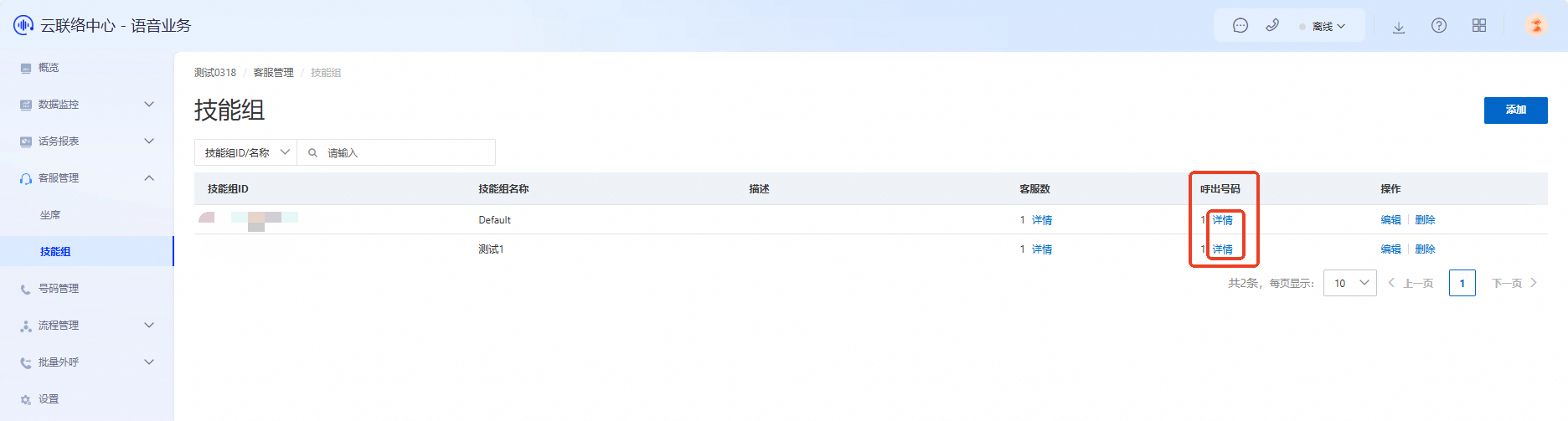
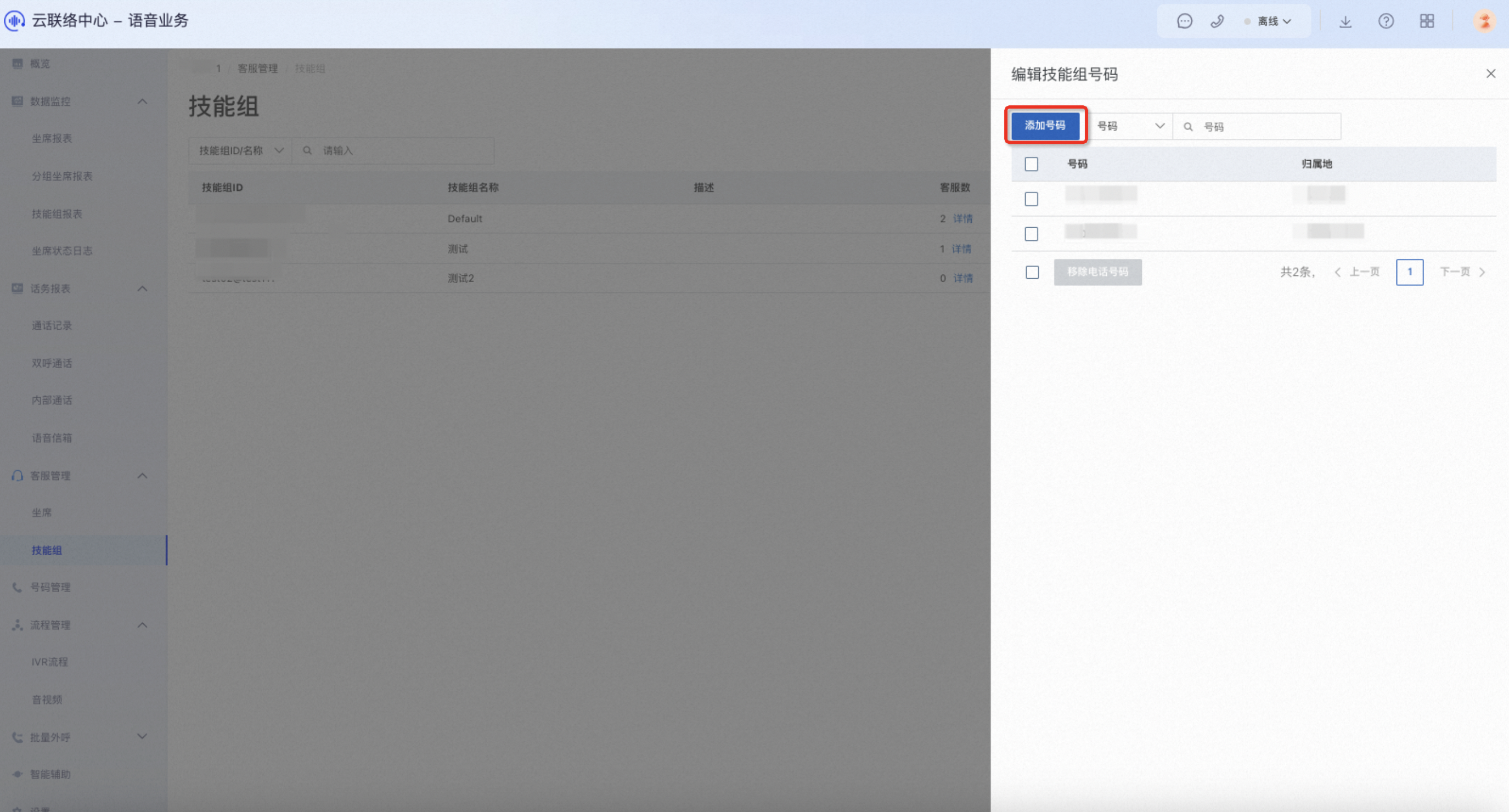
Click Details in the Outbound Number column for a specific skill group to open the Edit Skill Group Numbers page.
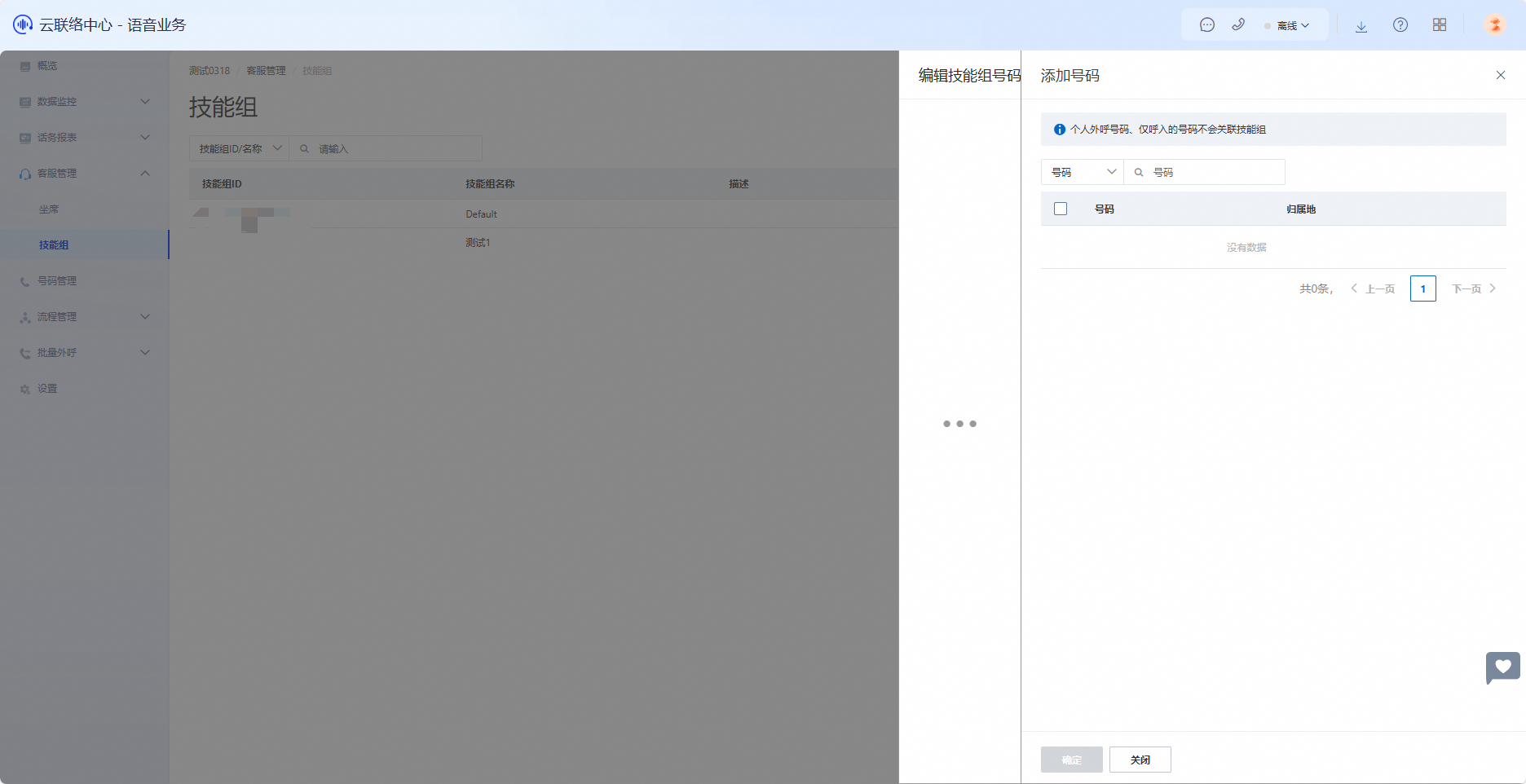
Click Add Number to manage numbers for the skill group.
Edit a Skill Group
Click Edit in the Actions column for a specific skill group to open the Edit Skill Group page.
On the Edit Skill Group page, update the skill group’s Name and Description. Click OK to save your changes.


Delete a Skill Group
On the Skill Groups list page, find the skill group you want to delete. Click Delete in its Actions column. In the dialog box that appears, click Confirm to delete the skill group.

If the skill group you delete is attached to an IVR flow, customer calls transferred to this group from the IVR will go unanswered.