This topic describes how to configure conversation capabilities for digital employees.
Function Overview
A conversation capabilities collection is a group that organizes and manages multiple conversation capabilities within a workspace. It can include several conversation capabilities, each with distinct functions and features designed to address specific user needs or scenarios.
Access Path
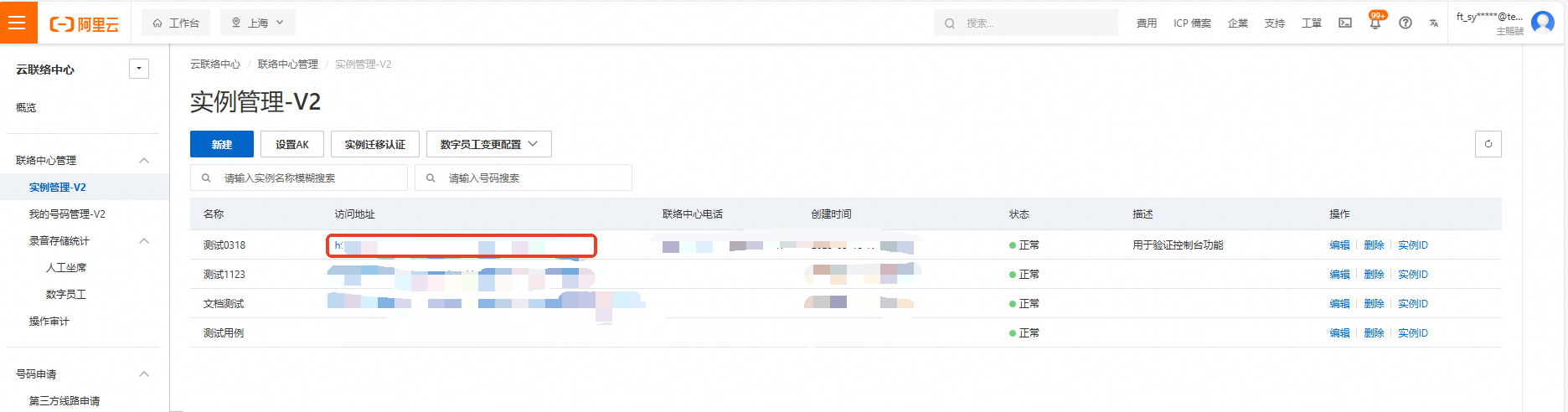
Log on to the Cloud Contact Center console. In the left navigation pane, choose Instance Management - V2, then click the endpoint of a specific instance to open its console.
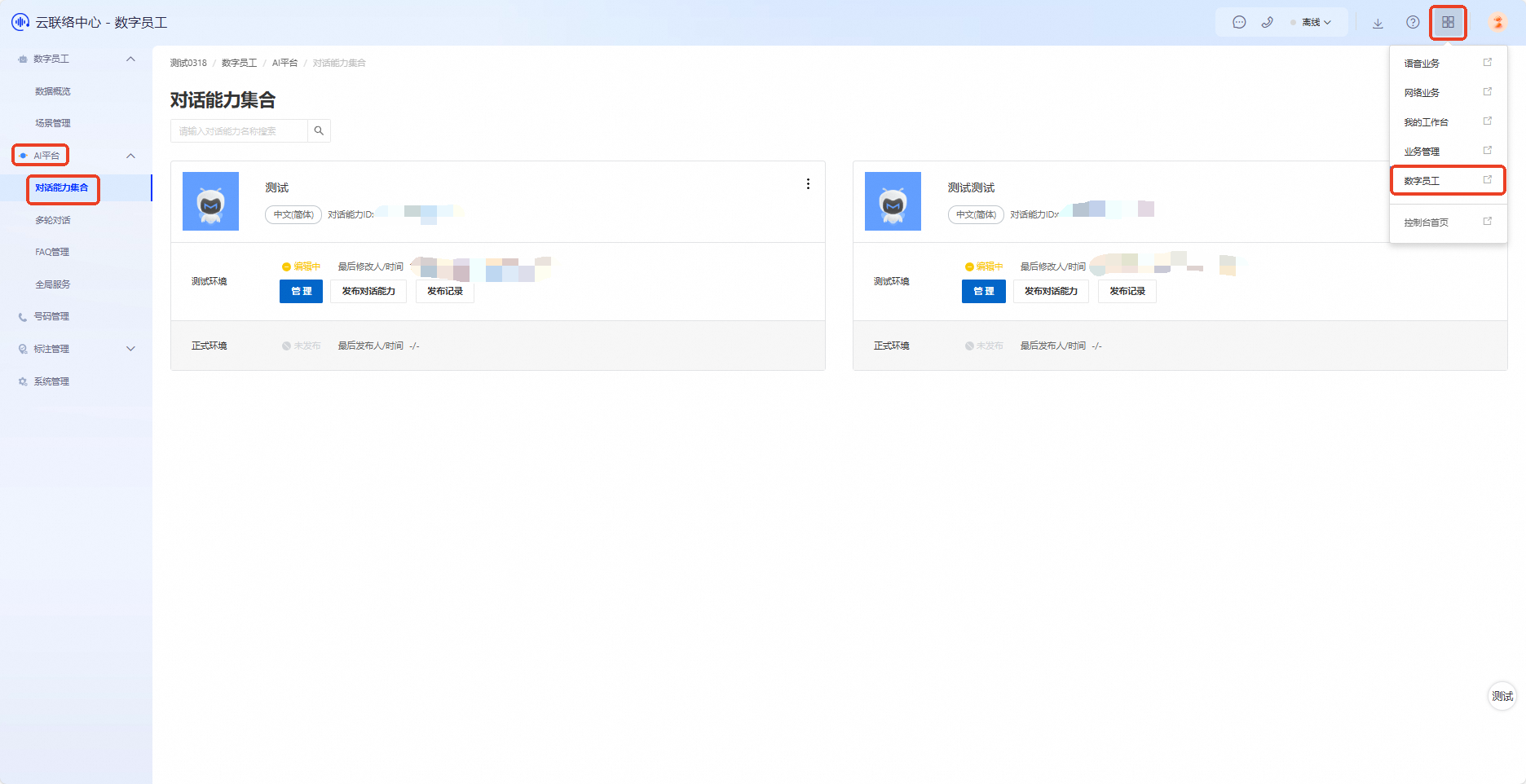
Click the menu button in the upper-right corner of the page and select Digital Employee to enter the Digital Employee business console. In the left navigation pane, choose AI Platform > Conversation Capabilities Collection.
Create a Conversation Capability
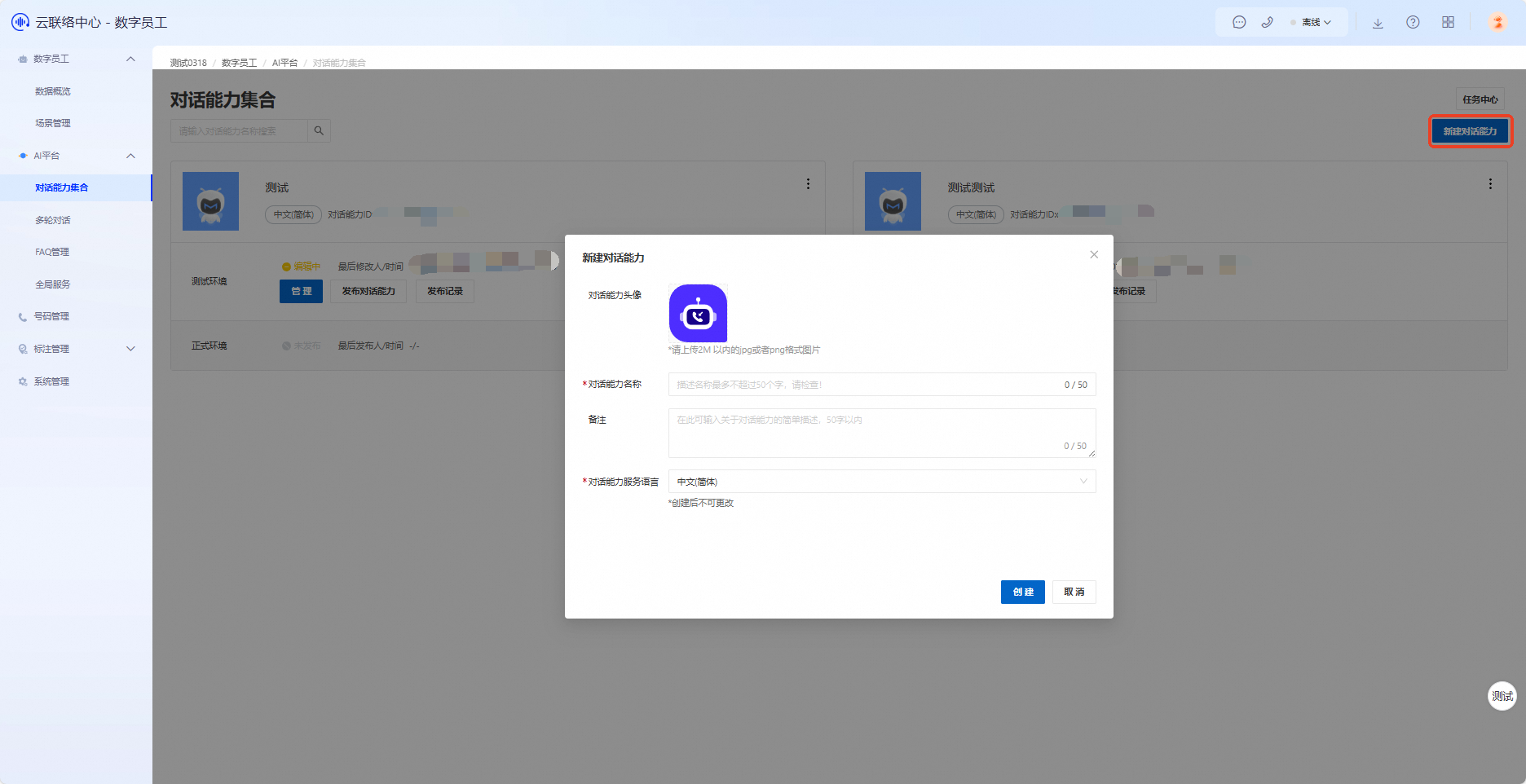
Click Create Conversation Capability and fill in the basic information as needed.
Publish a Conversation Capability
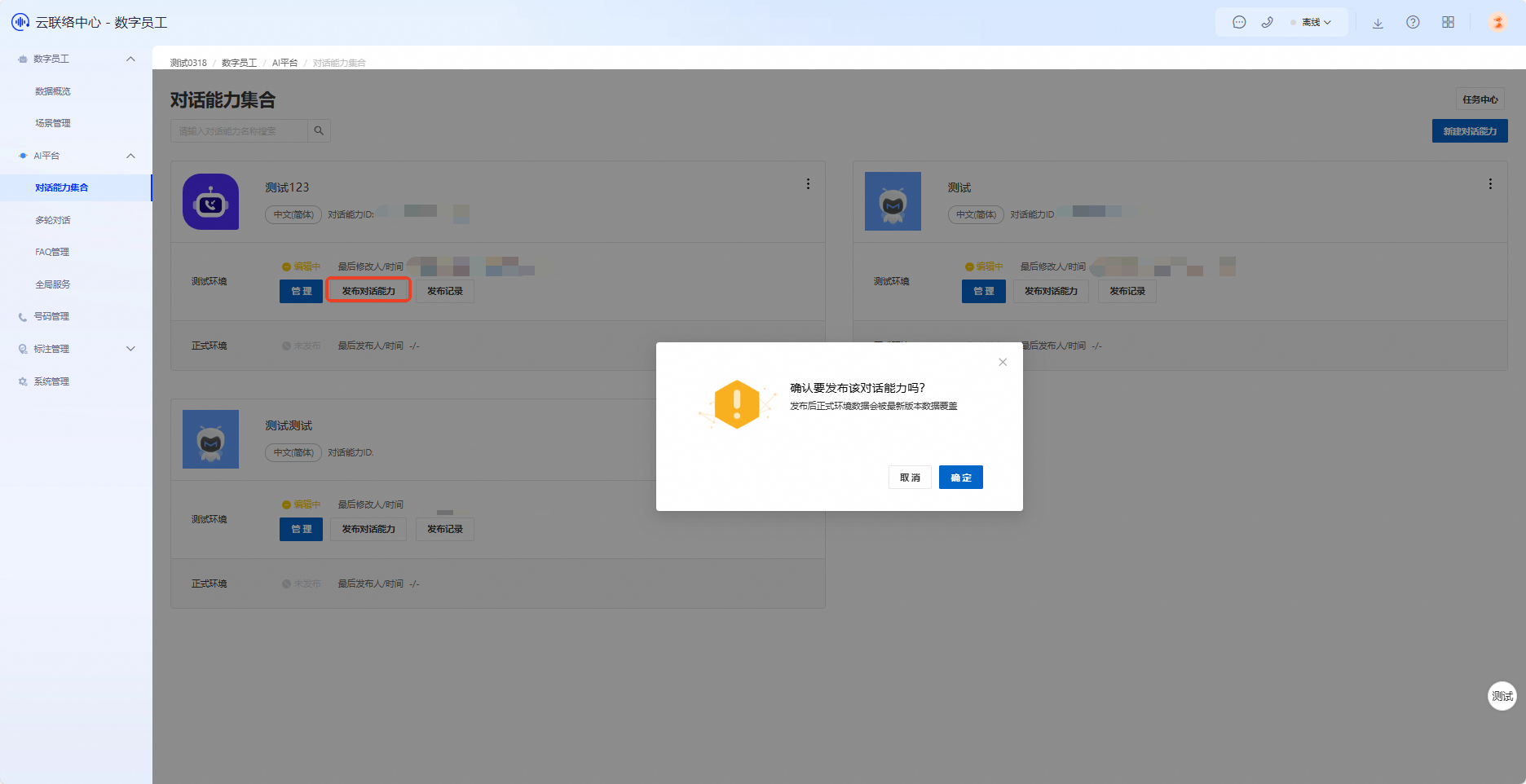
After creating a conversation capability, click Publish Conversation Capability to activate it in the production environment.
Manage Conversation Capabilities
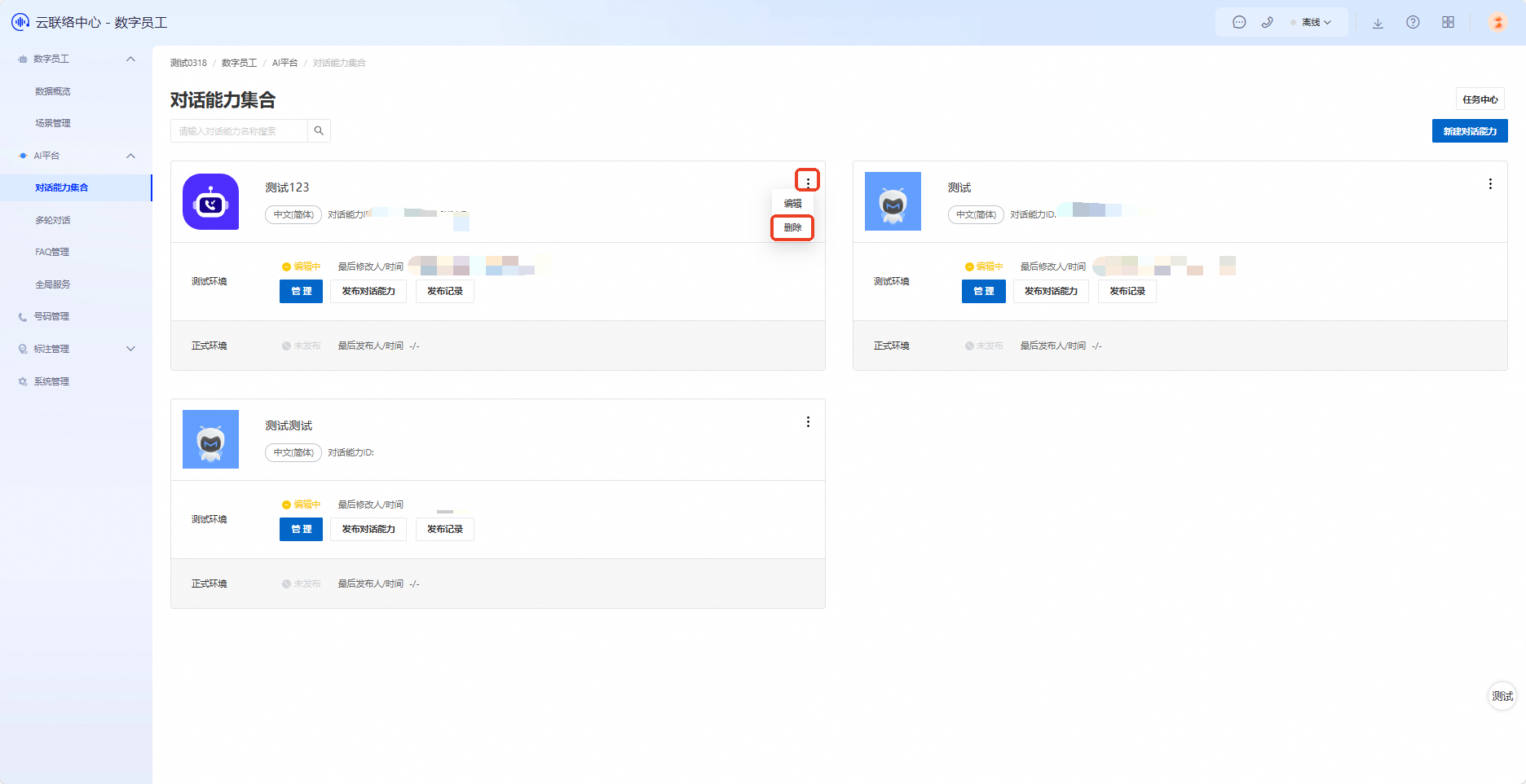
After creating a conversation capability, you can edit or delete it.
Edit: Click Manage to go to the conversation capability product page. There, you can configure handoff-to-agent policies, attach knowledge bases, and manage Q&A strategies. For detailed steps, see Configure a Bot.
Delete: Deleting a conversation capability permanently removes the capability instance and all its configuration data. Deleted data cannot be recovered.
Attach Knowledge
The Attach Knowledge feature lets you assign different knowledge scopes to different conversation capabilities within the same workspace. In a workspace, you can create multiple conversation capabilities but only one knowledge base. Because different conversation capabilities may need to answer questions from different domains, you must bind specific knowledge to each relevant conversation capability.
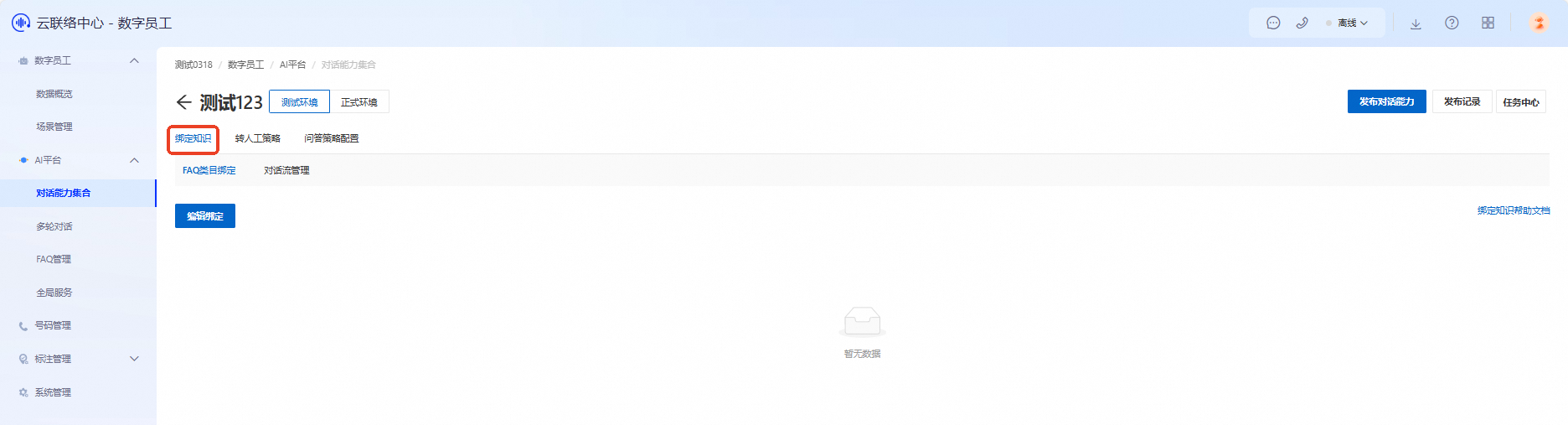
Attaching knowledge includes binding FAQ categories and managing conversation flows.
FAQ category binding: FAQs (Frequently Asked Questions) are a common form of knowledge base. When attaching knowledge, you can bind specific FAQ categories to a conversation capability. Only conversation capabilities with bound FAQ categories will recognize user questions as belonging to those categories and retrieve answers from them. This ensures each conversation capability responds only to questions within its assigned FAQ scope.

Conversation flow management: A conversation flow defines the interaction logic between users and the system during a dialogue. When attaching knowledge, manage conversation flows based on your dialogue requirements. For example, define the question-and-answer sequence for a specific conversation capability, specify how the system handles user queries, and select different responses based on context. Conversation flow management ensures that responses align with the logic and requirements of the attached knowledge.
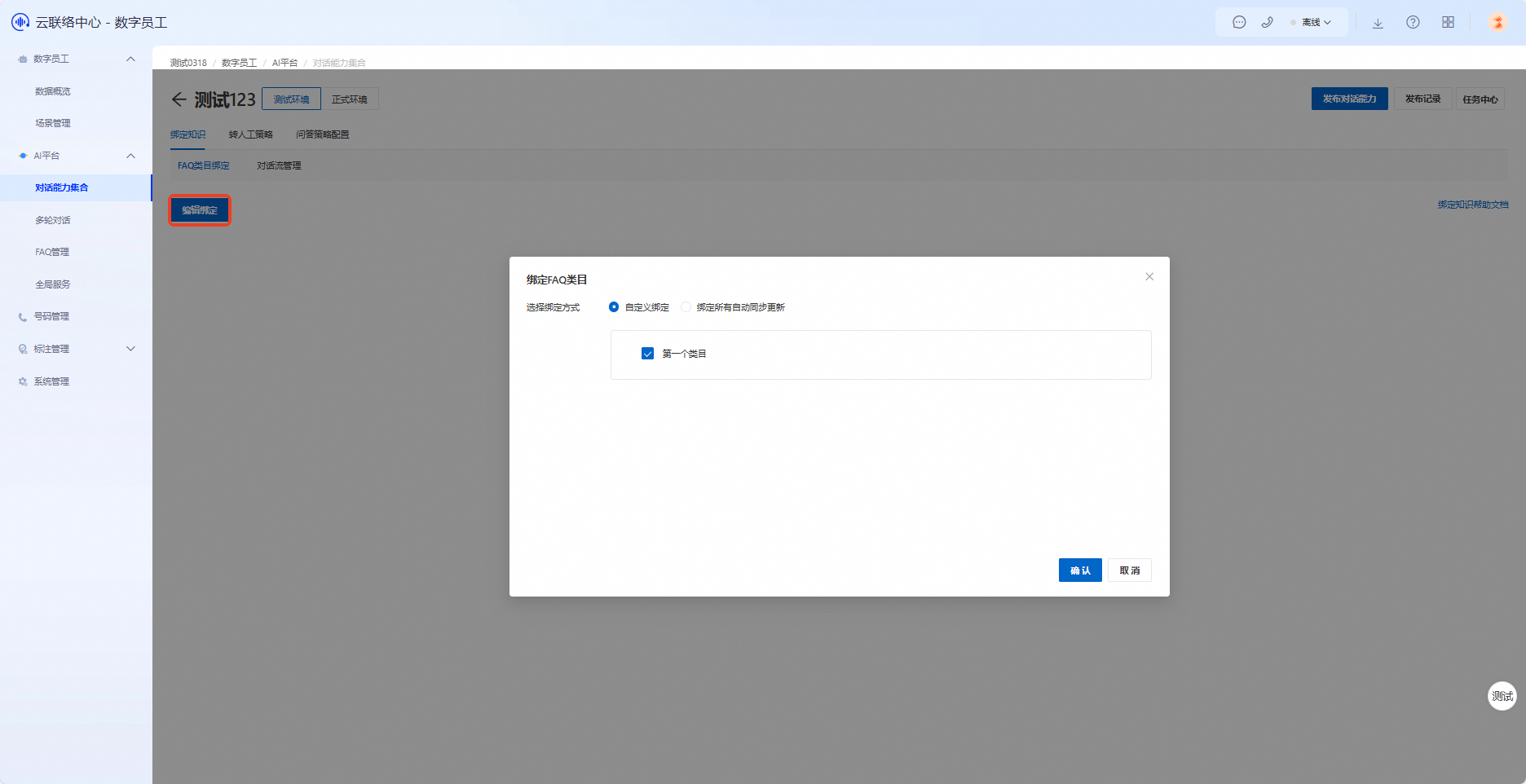
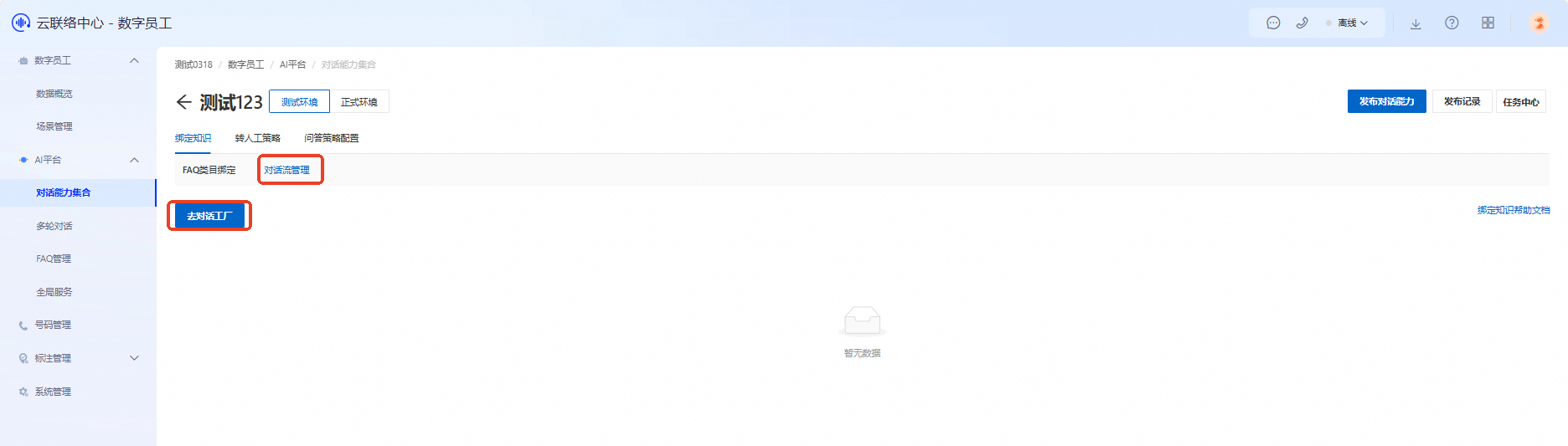
With the Attach Knowledge feature enabled, when a conversation capability serves a user, it only recognizes questions and provides replies within the knowledge scope you assigned. This isolates conversation capabilities from each other and ensures each responds only to its designated question range.
Handoff-to-Agent Policy
The Handoff-to-Agent Settings feature configures conditions under which a conversation capability transfers a user to a human agent.
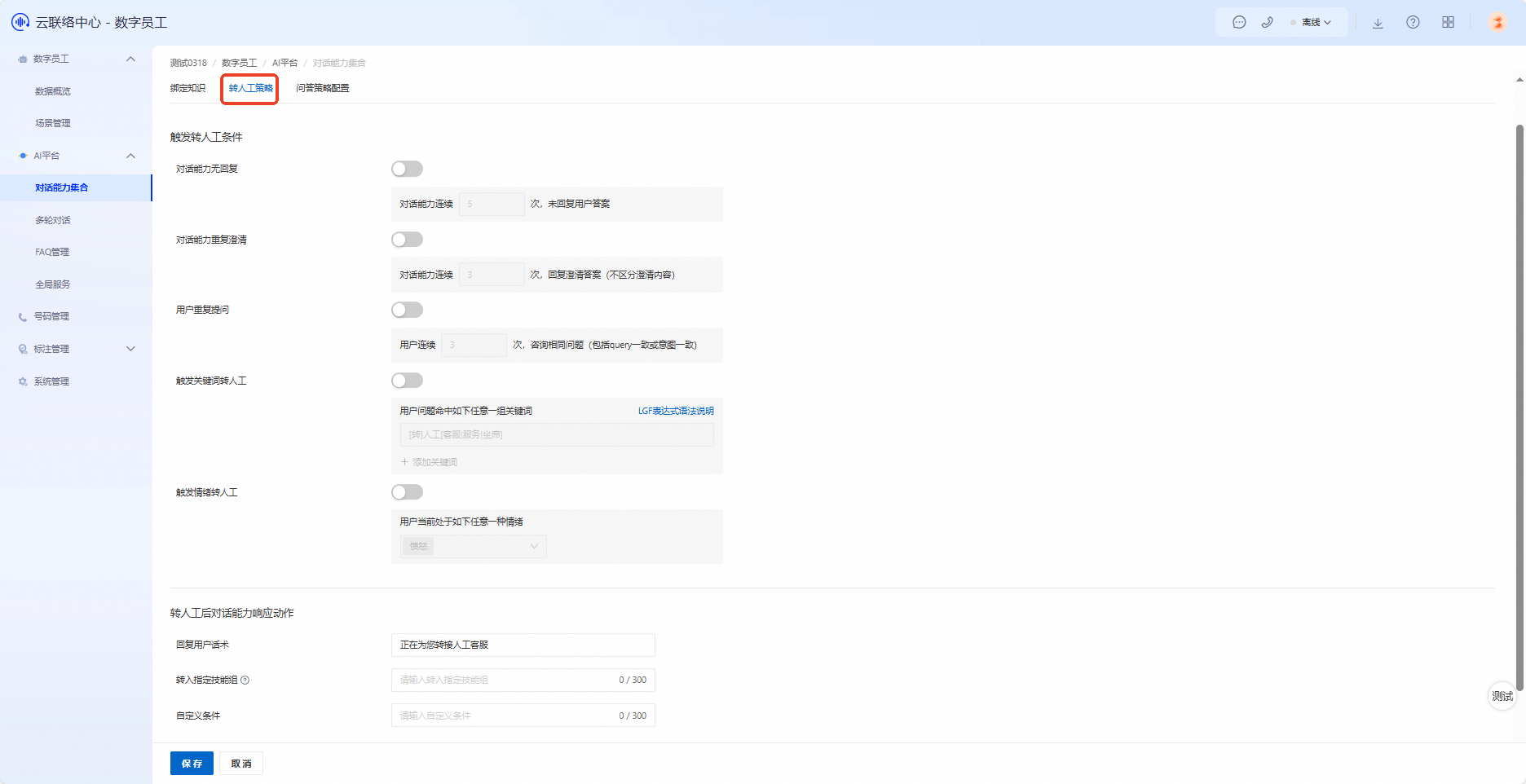
Feature | Description |
Handoff-to-agent trigger conditions | When a user’s query meets any of the following conditions, the system triggers a handoff to an agent. Enable and configure these settings as needed.
|
Actions after handoff to agent |
|
Q&A Strategy Configuration
You can configure Q&A strategies for a conversation capability, including welcome messages, sensitive word responses, default replies, and clarification prompts.
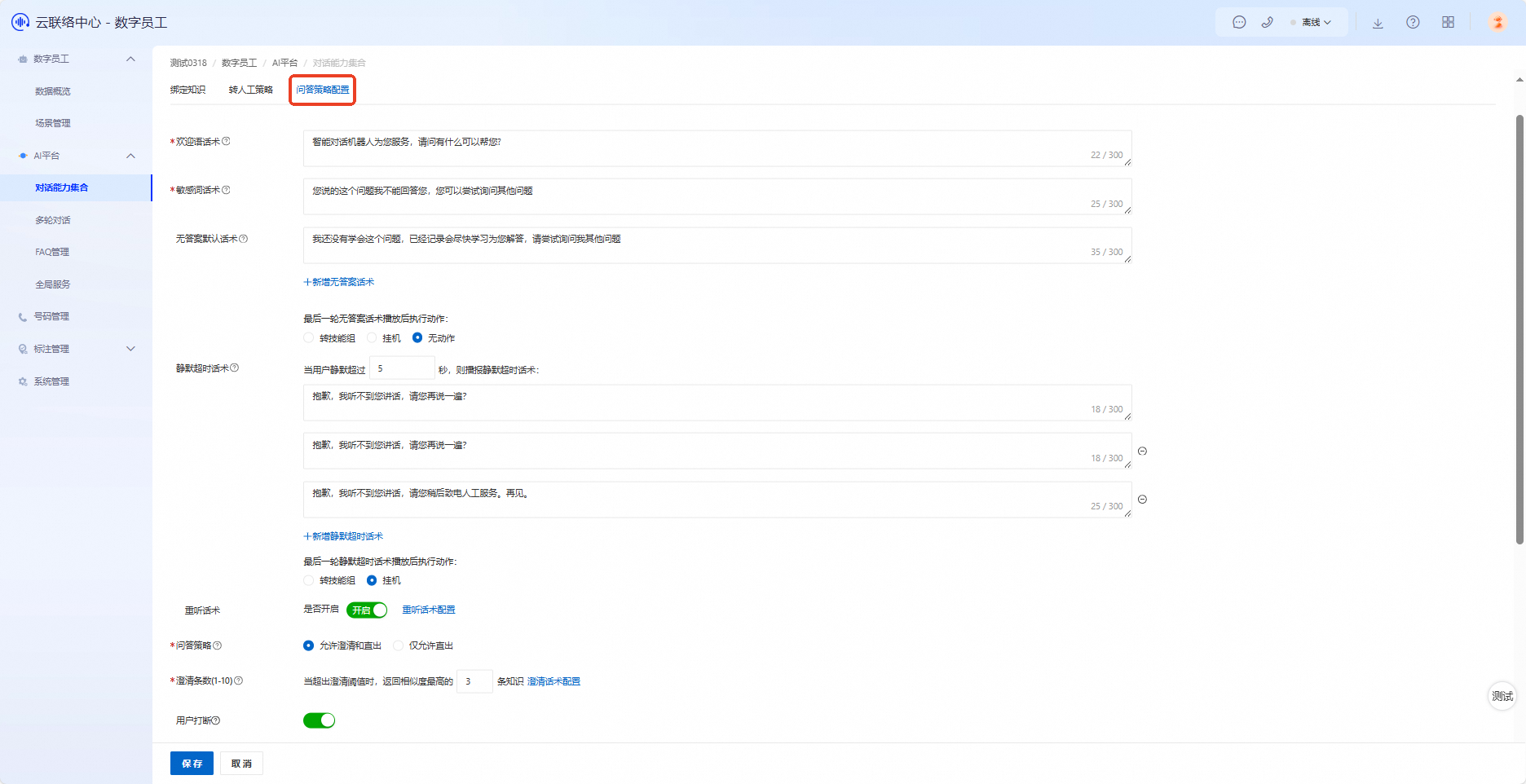
Feature | Description |
Welcome message | The bot sends this message as its first reply when a conversation starts. |
Sensitive word response | The default reply the system sends when a user’s query triggers a configured sensitive word. |
Default no-answer message | The default message the bot sends when it has no answer to a user’s query. |
Silence timeout message | If a user remains silent beyond the configured timeout period without input, the conversation capability automatically sends this default message. If a silence timeout is configured within a multi-turn conversation node, that node-specific message takes precedence. Outbound calling and digital employee action execution require system integration to function. |
Repeat message | A repeat message allows users to request the system to replay a specific instruction or piece of information. This feature ensures users clearly receive navigation information in various environments. |
Clarification count (1–10) | The maximum number of candidate knowledge items the bot can present when prompting for clarification. |
Q&A strategy |
|
Threshold configuration | The bot calculates the relevance between a user’s query and knowledge sources such as FAQs, Dialog Studio content, and chit-chat. Based on the relevance score of the top results, it decides whether to respond directly, ask for clarification, or remain silent.
Note
|