This topic describes the features of the intelligent menu and how to configure them, including real-time speech-to-text transcription, automatic session information generation, auto-ticketing, and intelligent analysis.
Function Introduction
|
Feature |
Description |
Video Effects |
|
Real-time speech-to-text transcription |
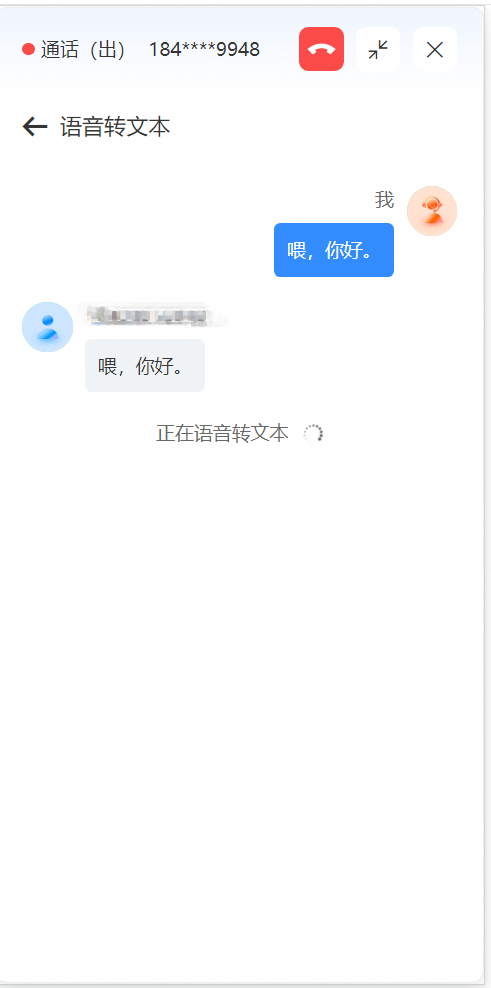
Transcribes agent-customer voice conversations into text in real time during hotline calls. |
|
|
Session information generation |
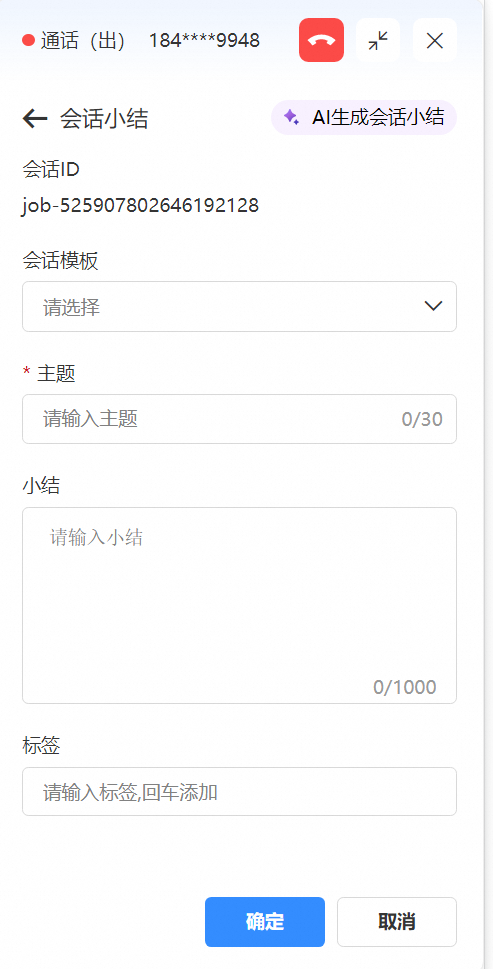
Uses AI to extract key content from conversations and automatically generate summaries. You can use the system default template or a custom template for summaries. |
|
|
Auto form filling |
Uses AI to extract relevant information from conversations and automatically fill out service tickets. You can use a custom ticket template. |
|
|
Hotword analysis |
Uses AI to analyze historical conversation data and identify frequently used terms. |
|
|
Session tag analysis |
Uses AI to extract historical conversation data and apply conversation tags. Supports custom tags such as call reason and business type. |
Pricing Details
|
Feature |
Segmentation |
Unit Price |
Notes |
|
Automatic session information generation |
Generate subject and summary fields |
CNY 0.01 per call |
Enable Intelligent Workbench to access this feature. You are billed per API call. The number of calls depends on your configuration. |
|
Generate tag field |
CNY 0.01 per call |
||
|
Generate custom fields |
CNY 0.01 per call |
||
|
Auto-fill form |
Fill custom ticket templates |
CNY 0.01 per call |
|
|
AI hotword analysis |
Automatically extract and analyze hotwords from calls |
CNY 0.01 × number of calls per request |
|
|
AI tag analysis |
Match and analyze call records using predefined tags |
CNY 0.01 × number of calls per request |
|
|
IVR analysis |
Automatically analyze IVR paths and key information |
Limited-time free |
To use the above features, you must first enable the real-time speech-to-text transcription feature. |
|
Emotion anomaly detection |
Automatically detect customer emotions |
Limited-time free |
|
|
Satisfaction assessment |
Use a Large Language Model (LLM) to assess call satisfaction |
Limited-time free |
|
|
Resolution assessment |
Use an LLM to determine whether the customer’s request was resolved |
Limited-time free |
|
|
Post-call to-do extraction |
Automatically extract post-call actions |
Limited-time free |
Feature Configuration
-
Log on to the Cloud Contact Center console. In the left navigation pane, choose Instance Management - V2 and click the endpoint of a specific instance to enter its console.
-
Click the menu button in the upper-right corner of the page and select Voice Service to open the Voice Service console. In the left navigation pane, select Settings.
-
On the Settings page, select the Intelligent Settings tab.
Real-time speech-to-text transcription
Transcribes spoken words from both customers and agents into text in real time.
-
Enable speech-to-text push.
-
Method 1: If you have configured Message Queue (MQ) push, go to Settings > Event Push and check Real-time Text Stream.
-
Method 2: If you have enabled Smart Conversation Analysis real-time quality inspection, go to Settings > Quality Inspection Push. Edit the real-time quality inspection capability for the required skill group by checking Real-time Quality Inspection under Quality Inspection Push, then click Save.
-
Method 3: In Voice Configuration, enable Enable Speech-to-Text.
Go to this page by selecting Settings in the left navigation pane. Click the Manage button at the bottom to configure speech-to-text for the target skill group.
-
-
After enabling speech-to-text push using any of the above methods, go to the Intelligent Settings menu and turn on Real-time Speech-to-Text Transcription.
Once enabled, during agent calls, the Speech-to-Text section displays real-time transcriptions of agent-customer conversations. On the right, the Session Information panel lets you generate session topics and summaries by clicking AI Generate Session Summary.
Automatic session information generation
Generates a one-click summary based on the transcribed agent-customer conversation.
-
Follow the steps above to enable Real-time Speech-to-Text Transcription.
-
In the Intelligent Settings menu, enable Automatic Session Information Generation. Agents can then generate summaries by clicking AI Generate Session Summary in the workbench.
-
Automatic session information generation supports two trigger modes: Agent-initiated generation and Background auto-generation.
-
Agent-initiated generation: When this mode is selected, agents must click “AI Generate Session Summary” during a live call to generate AI session information.
-
Background auto-generation: When this mode is enabled, the system automatically generates a session summary after the call ends.
-
Auto-fill form
Extracts required information from agent-customer conversation transcripts and populates it into a service ticket.
-
Follow the steps above to enable Real-time Speech-to-Text Transcription.
-
In the Intelligent Settings menu, enable Auto-ticketing. Agents can then generate tickets by clicking AI Generate Ticket in the workbench.
Intelligent analysis
Analyzes customer emotions and satisfaction, assesses issue resolution status, and extracts post-call actions from agent-customer conversation transcripts.
-
Refer to the three methods under Real-time Speech-to-Text Transcription > Enable Speech-to-Text Push to enable the Speech-to-Text feature.
-
After configuration, enable Intelligent Analysis during calls. View analysis results after each call, or go to Voice Service > Call Reports > Call Records, select a call, and view intelligent analysis results on the call details page. At the top of the Speech-to-Text section, a Smart IVR Analysis Successful card displays customer intent analysis (for example, detecting that a customer tried multiple times to check order status before requesting agent assistance) and extracted key information. The Intelligent Analysis section automatically shows the following results: Emotion Anomaly Detection (such as negative), Customer Satisfaction Detection (such as dissatisfied), Resolution Assessment (such as resolved), and Post-call Actions (such as return package). On the left side of the page, the call flow (IVR entry, queue entry, agent assignment, etc.) is displayed. The center shows the full conversation transcript, and the right shows call details (caller ID, callee ID, call type, hang-up reason, hang-up party, call time, etc.).
Intelligent analysis dimensions
-
IVR analysis: Automatically analyzes the user’s IVR path and key information before the agent answers.
-
Emotion anomaly detection: Automatically identifies abnormal emotions during customer interactions and applies labels.
-
Customer satisfaction detection: Automatically assesses satisfaction based on the entire conversation.
-
Resolution assessment: Uses an LLM to analyze the conversation and determine whether the customer’s request was fully addressed.
-
Post-call actions: Automatically extracts post-call tasks and generates a to-do list.
Customer Integration Settings
Default Softphone Panel Integration
-
Enable the required features in the Cloud Contact Center console as described above.
-
Refer to the Frontend SDK Integration Guide (3.x) to upgrade your frontend SDK to version 3.x and enable the following settings (enabled by default).
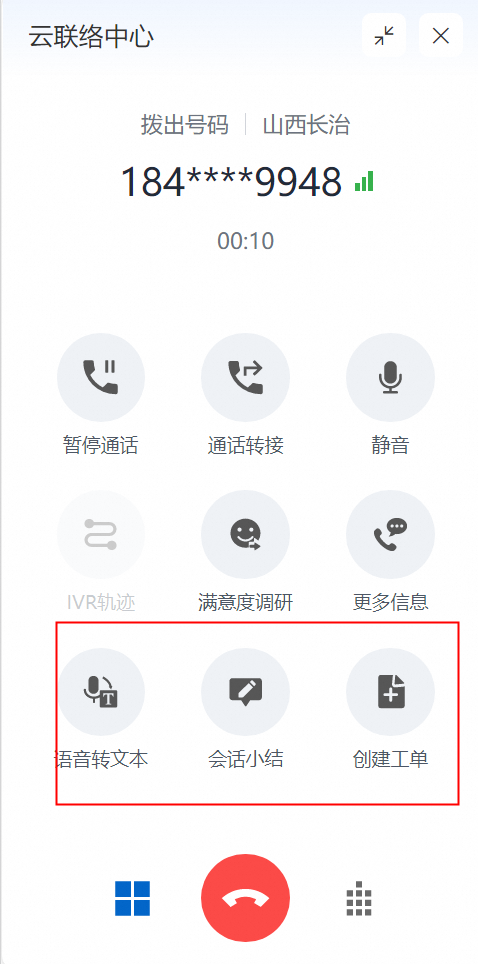
UI-specific configuration parameters include the following: showFlashSmsConfig (flash SMS configuration), allowStartConference (start conference), allowMonitoring (monitoring), allowCallOutbound (outbound calling), allowViewRecord (view recordings), allowViewMyWork (view my work), reducePanel (minimize panel), closeable (closable), showSpeechToText (real-time speech-to-text), allowCreateTicket (create ticket), allowCreateSessionSummary (create session summary), and aiAssistantConfig (AI assistant configuration, object type, default value: {summary:true,ticket:true}). All parameters except aiAssistantConfig are Boolean and default to true. Note: showSpeechToText and aiAssistantConfig only take effect if you also enable the corresponding features in Cloud Contact Center > Voice Service > Settings > Intelligent Settings.
-
The integration appears as follows:
Custom UI Integration
-
Enable the required features in the Cloud Contact Center console as described above.
-
Call the API: Analyze Conversation Content.