IVR function management
This topic describes how to configure and integrate functions in Cloud Contact Center.
Function overview
IVR function management lets you add functions you created in Function Compute to your Cloud Contact Center instance. You can then call these functions from IVR flow modules. Within these functions, you can access your own systems to enable integration between IVR and third-party systems. This supports features such as order lookup, password reset, and identity verification.
Feature Operations
Add a function in the Function Compute console
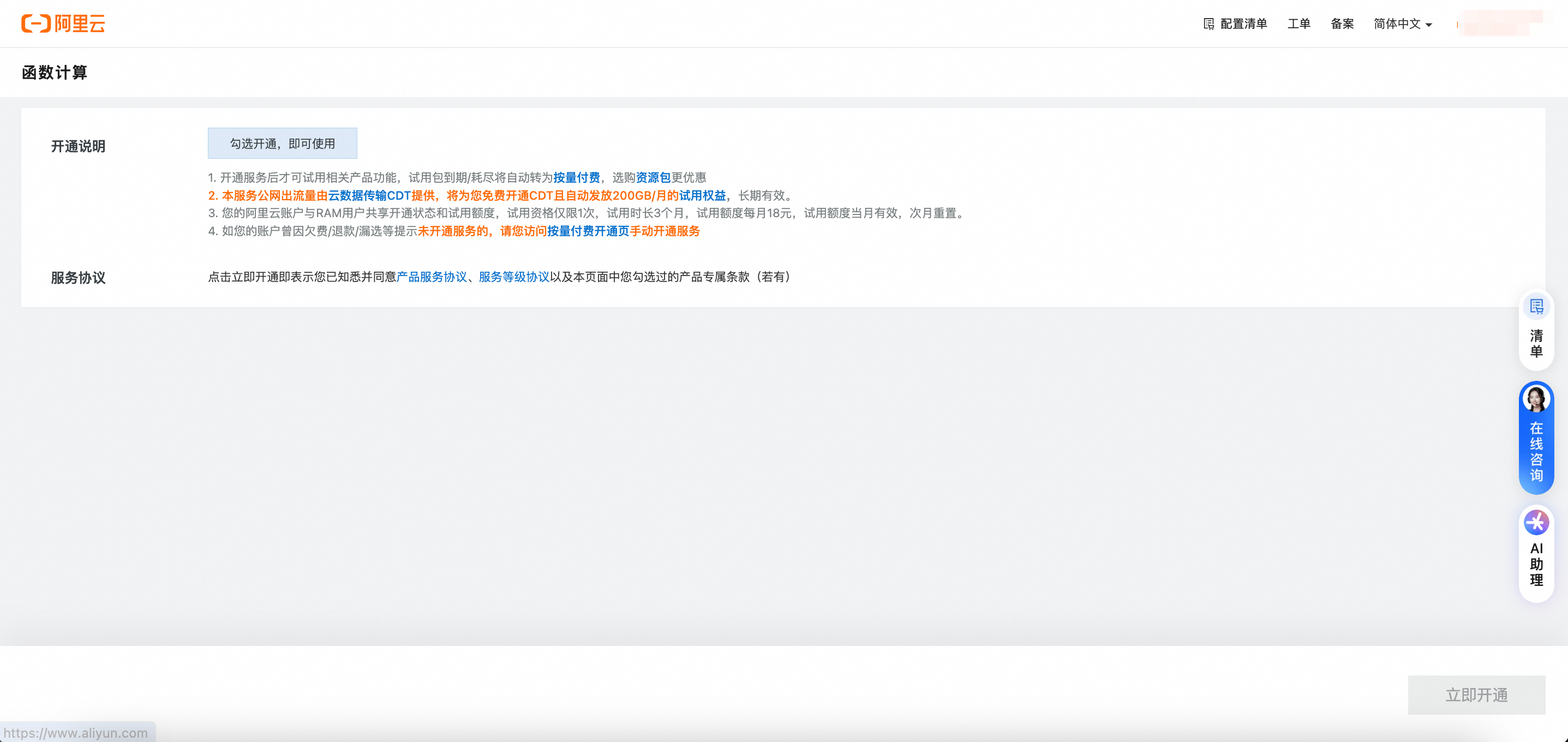
Log on to the Function Compute console using your Alibaba Cloud account. On your first visit, you will be prompted to activate Function Compute. Click Activate Now. For billing details, see Function Compute pricing.
 Note
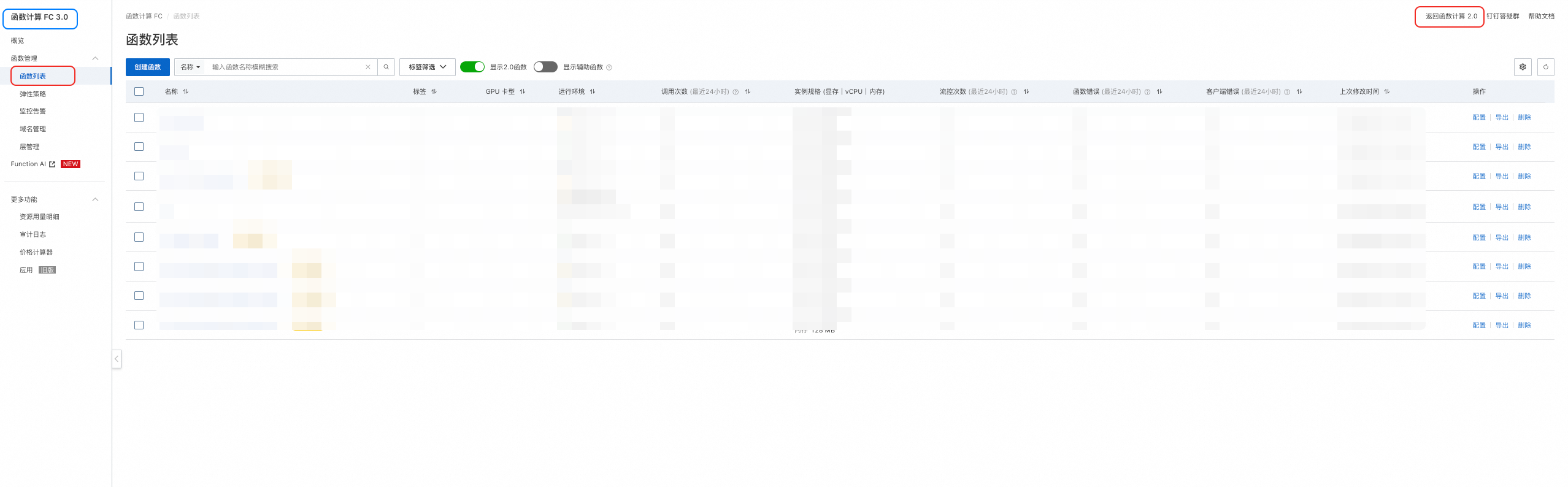
NoteIVR function management currently supports only Function Compute FC 2.0. If you enter the Function Compute console and see FC 3.0, click Switch to Function Compute 2.0 in the upper-right corner of the function list page.
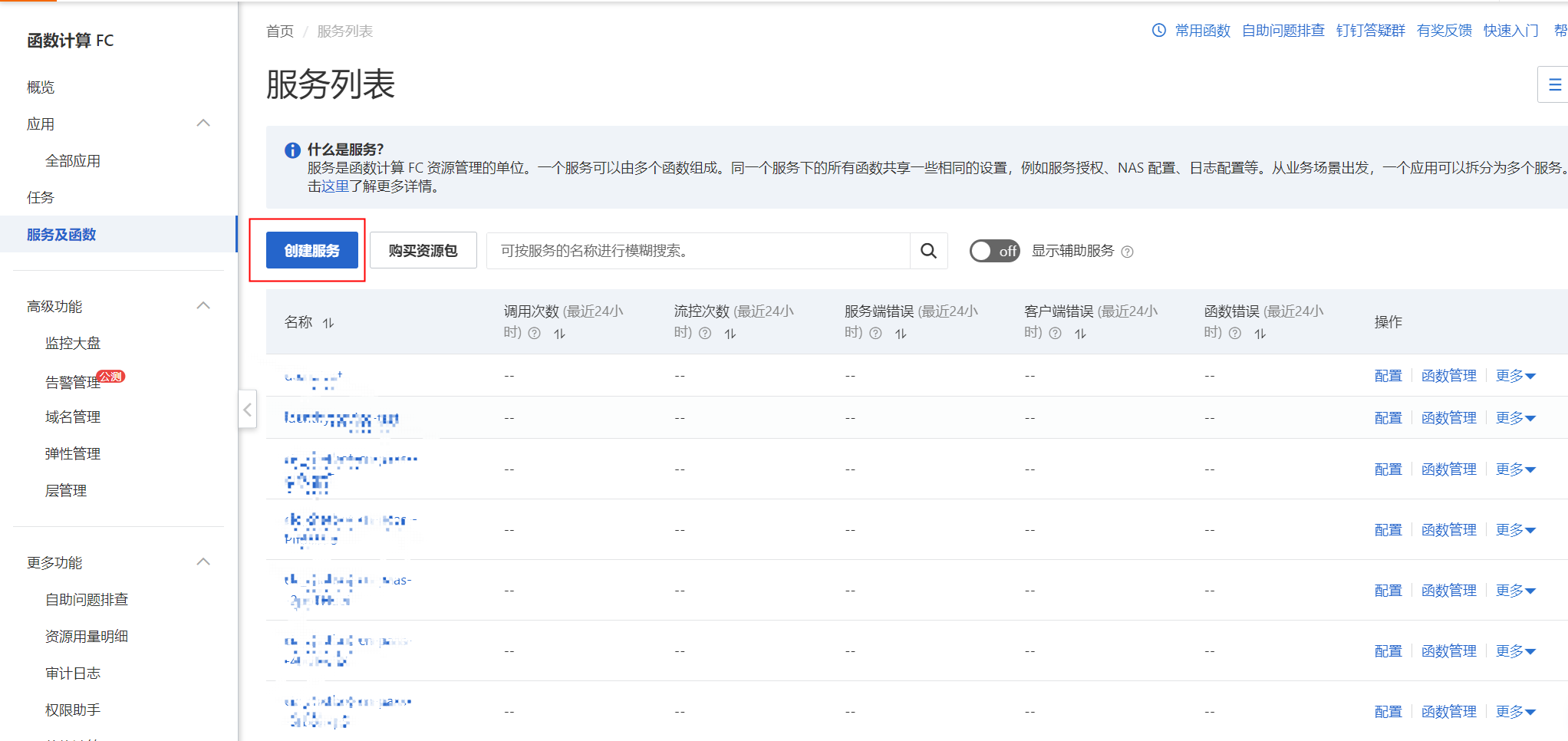
In the navigation pane on the left of the Function Compute console, select Services & Functions to go to the services list. Click Create Service. For details, see Create a function using the console.
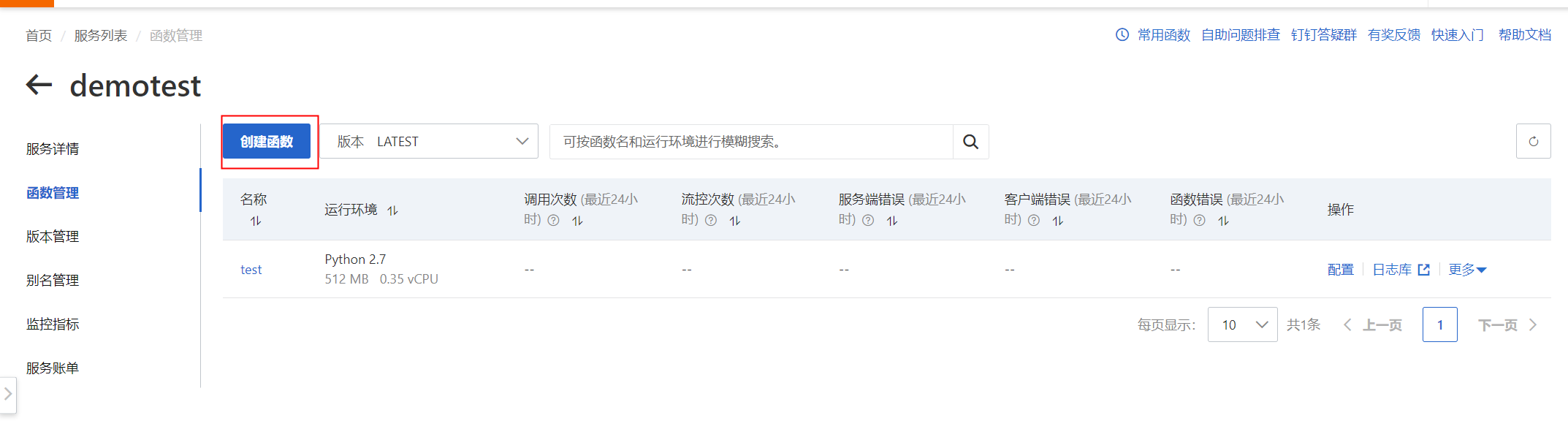
After creating the service, go into it and click Create Function.
NoteThe function request processing type must be Event Processing.
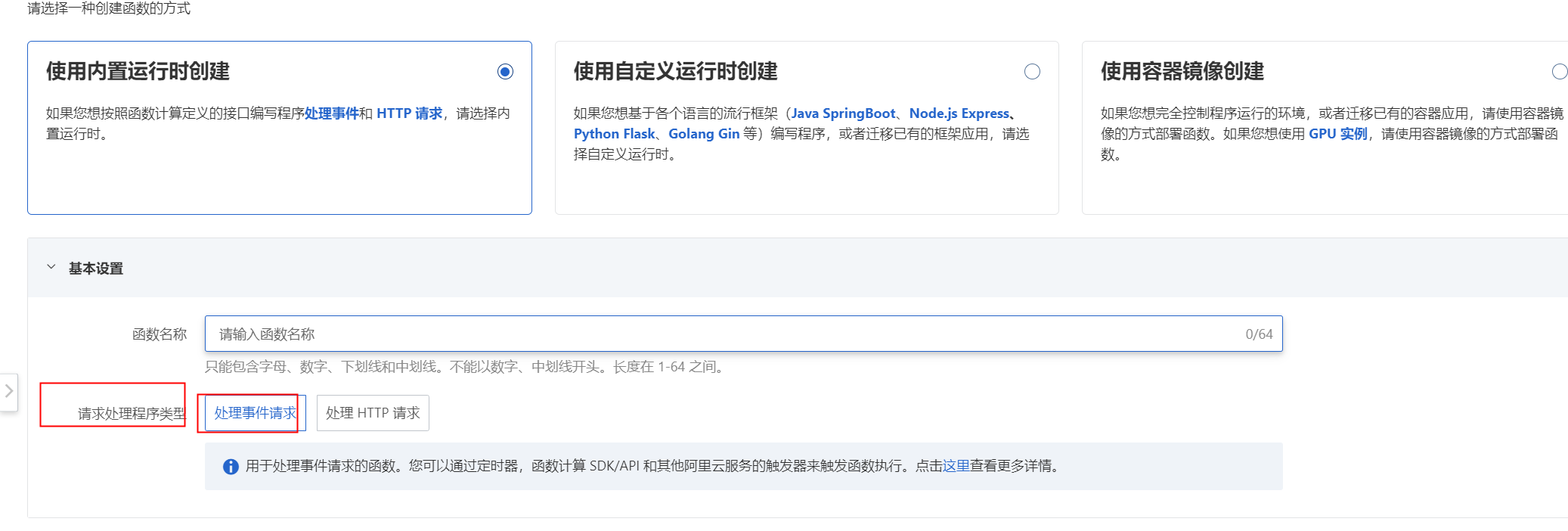
Fallback function configuration
If your inbound call scenario demands higher reliability, configure a fallback function. Functions typically have Auto Scaling enabled. To reduce risk, increase the minimum number of instances so that sufficient resources are available when traffic spikes.
A fallback function means deploying identical function code in both Shanghai and Hangzhou regions. During invocation, traffic is distributed between the two regions based on configured weights. Alibaba’s Sentinel middleware handles this process. Sentinel monitors call quality and triggers circuit breaking if repeated failures or exceptions occur in one region. All traffic then automatically shifts to the other region. For details on how this works, see Sentinel.
Add a Function Compute function to Cloud Contact Center
Go to the voice service Settings menu and select the IVR Integration Functions tab.

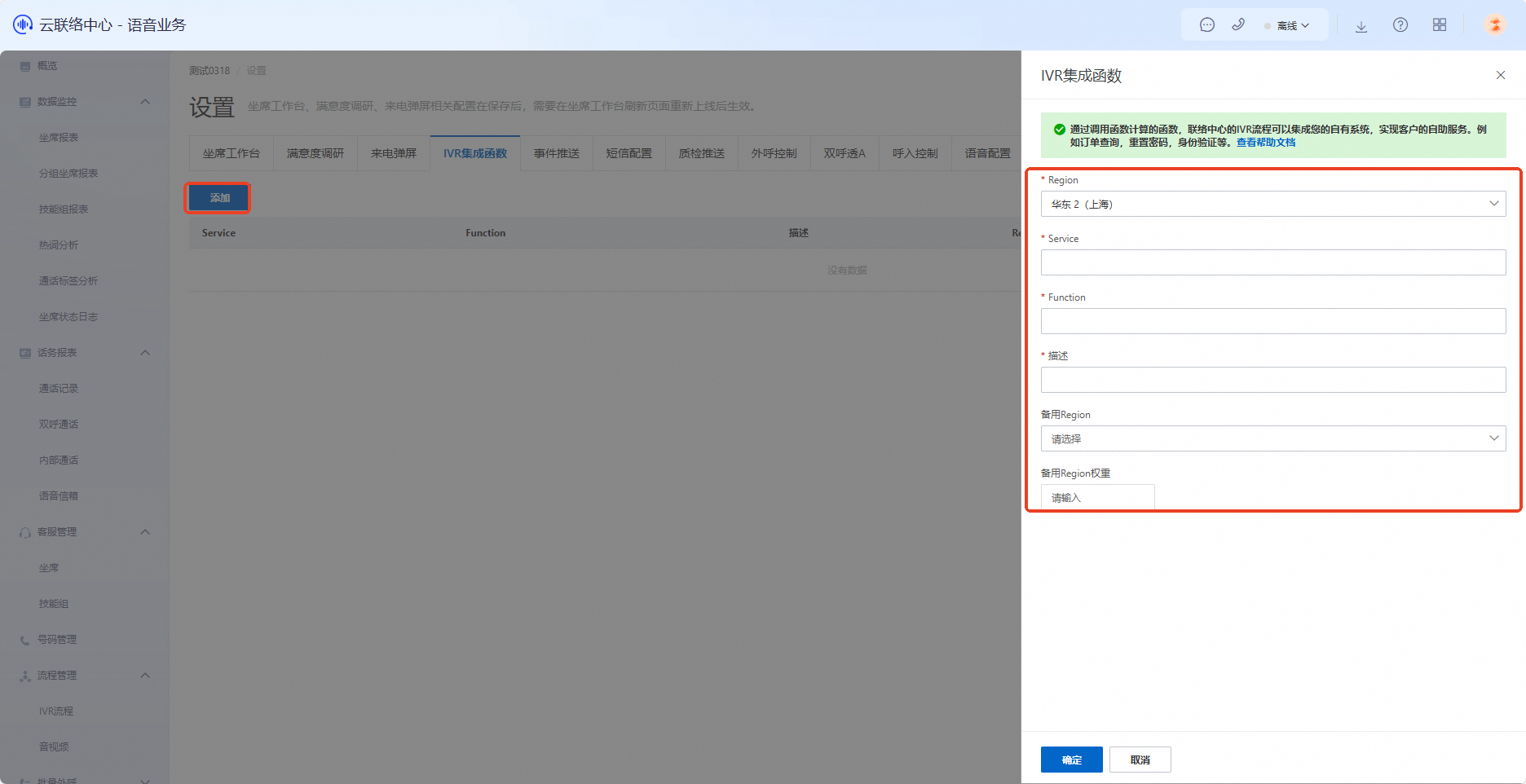
In the function list, click Add. In the dialog box, enter the function information—for example, the function you added in step 1—and click OK to save.
Region: The region you selected when creating the function.
Service: The service name of the created service.
Function: The function name of the created function.
Description: A brief description of the function. Any text is acceptable.
Fallback Region: Select a fallback region for the function.
Fallback Region Weight: Set the weight percentage for the fallback region. The value must be between 0 and 1.
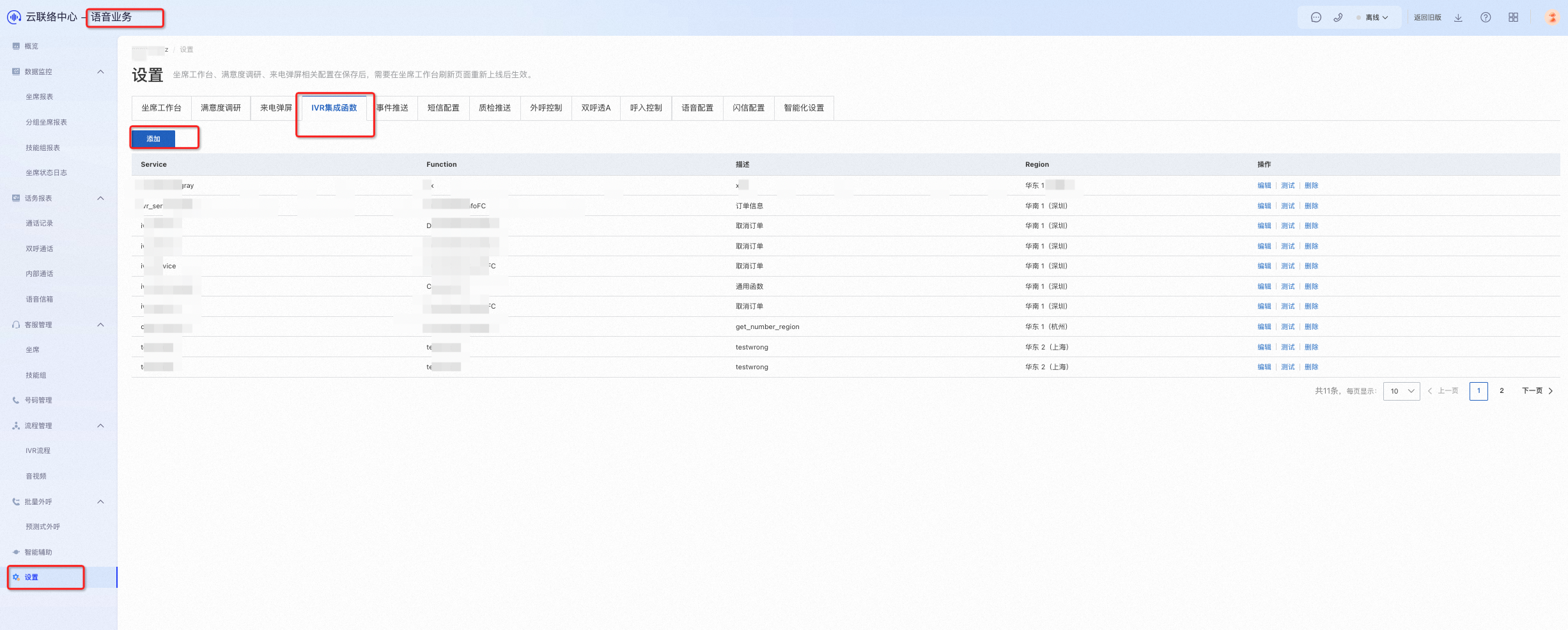
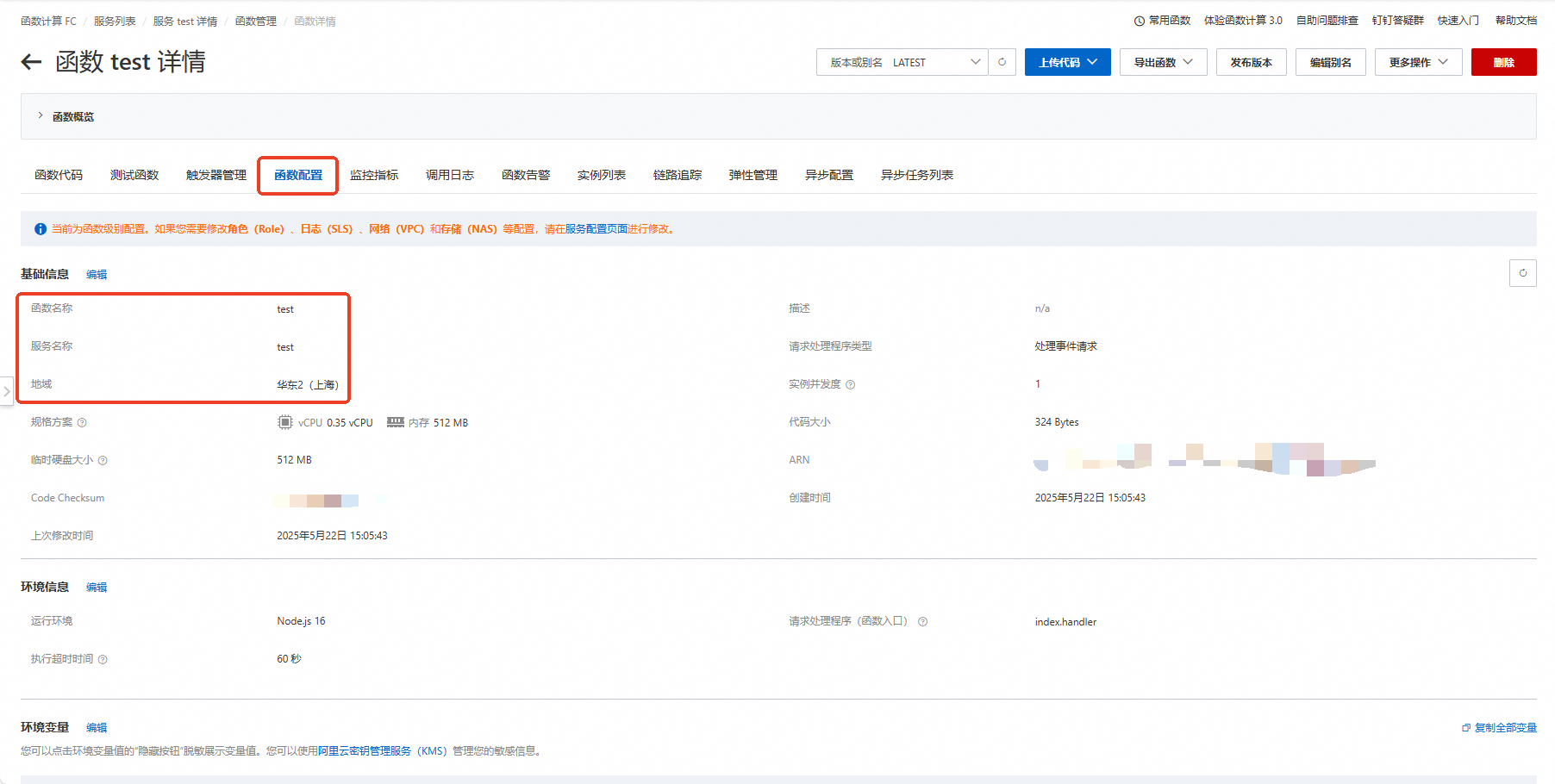
To find the function name, service name, and region, go to the function’s product page in the Function Compute console and click the Configuration tab.
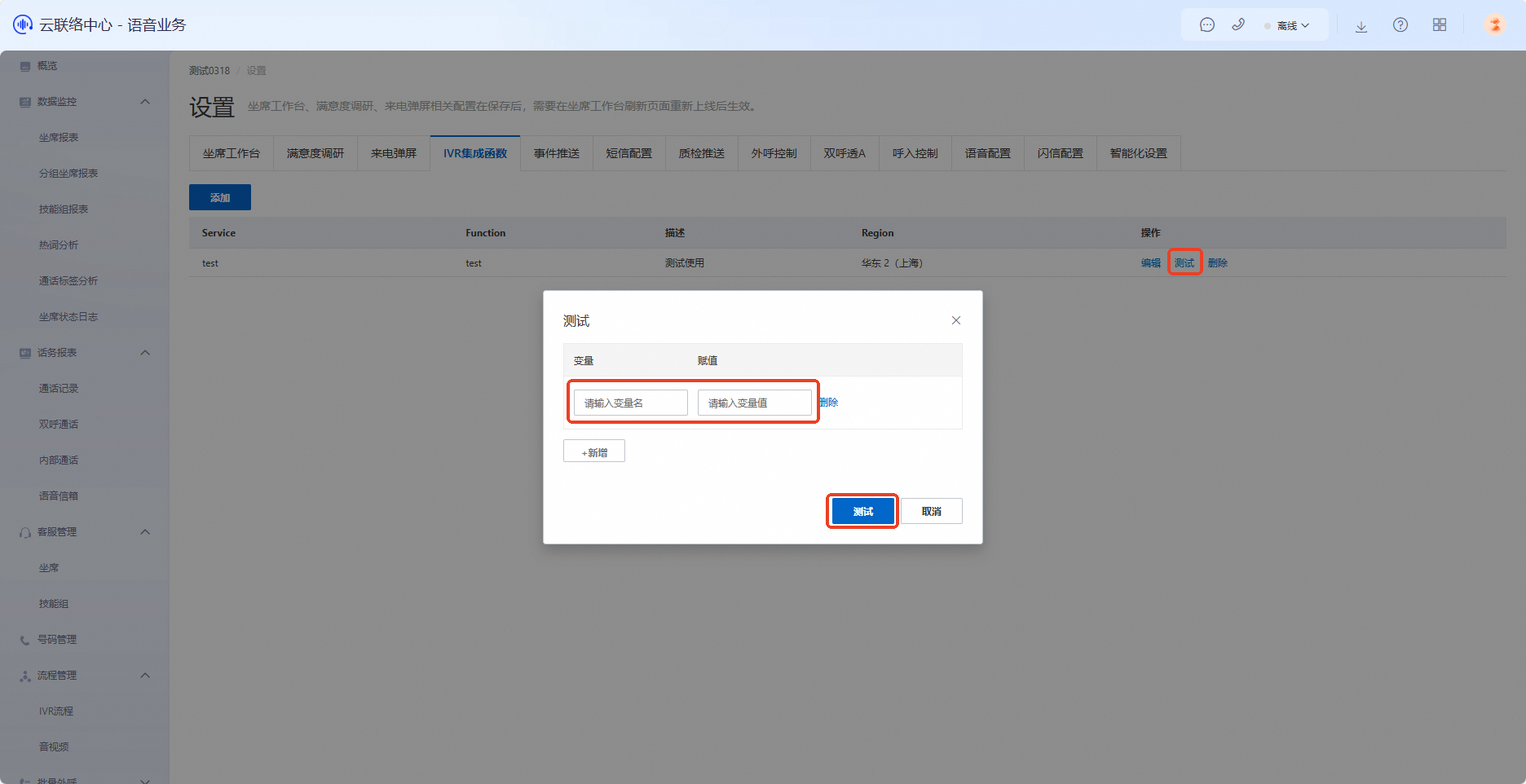
After adding a function, use the Test feature to verify connectivity. Click Test in the Actions column for the function. In the dialog box, enter the required parameter names and values, then click Test to check whether the return value matches expectations.
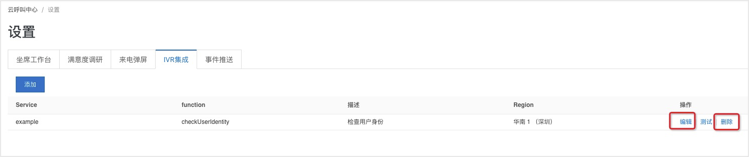
Click Edit/Delete in the Actions column to edit or delete the function.
Edit: Use this if you updated the function details in the Function Compute console. Remember to sync those changes to Cloud Contact Center promptly.
Delete: If you no longer need a function in Function Compute, first update your IVR flow to ensure it does not use the function. Then delete the function in Function Compute, and finally remove its reference from the Cloud Contact Center console.
Important notes
If you change the function name, service, or region in the Function Compute console, update the corresponding settings in the Cloud Contact Center console right away. If the function’s input parameters change, update the parameters in the IVR function module that uses it, publish the IVR flow, and test by making a call. For a complete end-to-end example, see Usage example.