Function overview
To send text messages from Cloud Contact Center, you must add an SMS configuration. This configuration allows Cloud Contact Center to use Short Message Service. Navigate to the Settings > SMS Configuration page. On this page, you can create an SMS configuration, edit an SMS configuration, and send a test text message.
Operations
Create an SMS configuration
Click the New button above the SMS configuration list. You must first go to the Short Message Service console to set up an SMS signature and an SMS template. From the console, you can obtain the required SMS Signature Name and SMS Template CODE.
Add an SMS signature in the Short Message Service console.
For more information, see Introduction to SMS signatures. After the signature is approved, you can obtain the required SMS Signature Name.
Add an SMS template in the Short Message Service console.
For more information, see Introduction to SMS templates.
ImportantThe content of an SMS template for the missed call text message scenario cannot contain variables.
After the template is approved, you can obtain the required SMS Template CODE, as shown in the following figure.
Complete the other fields in the SMS configuration.
Use the SMS Signature Name and SMS Template CODE that you obtained in the previous steps to complete the following fields.
Name: Enter a name for the SMS configuration. This name helps you identify the configuration in an Interactive Voice Response (IVR) flow.
SMS Signature Name: Enter the name of the SMS signature that you obtained in Step 1.
SMS Template CODE: Enter the code of the SMS template that you obtained in Step 2.
SMS Template Content: Enter the content of the SMS template that you created in Step 2.
Scenario: Select the scenario where the SMS configuration will be used: Missed call text message or Send text message in IVR flow. This setting cannot be changed after you submit it.
Missed call text message: If an agent's outbound call is not answered, a text message is sent to the customer as a reminder. Only one SMS configuration can exist for the missed call text message scenario.
Send text message in IVR flow: This scenario sends a text message using the SMS module in an IVR flow.
As shown in the following figure, after you complete the fields, the variables in the SMS template are displayed. Review the variables and click the OK button at the bottom to submit the configuration.
Edit an SMS configuration
Click the Edit button for an SMS configuration. You can edit the configuration in the dialog box that appears.
You can modify all information except for the Scenario. Ensure that the SMS Signature Name, SMS Template CODE, and SMS Template Content are correct. Otherwise, the text message will not be sent.
After you finish editing, test the configuration. For more information, see the following section.
Send a test text message
In the SMS configuration list, click the
Testbutton in the row of the configuration that you want to test.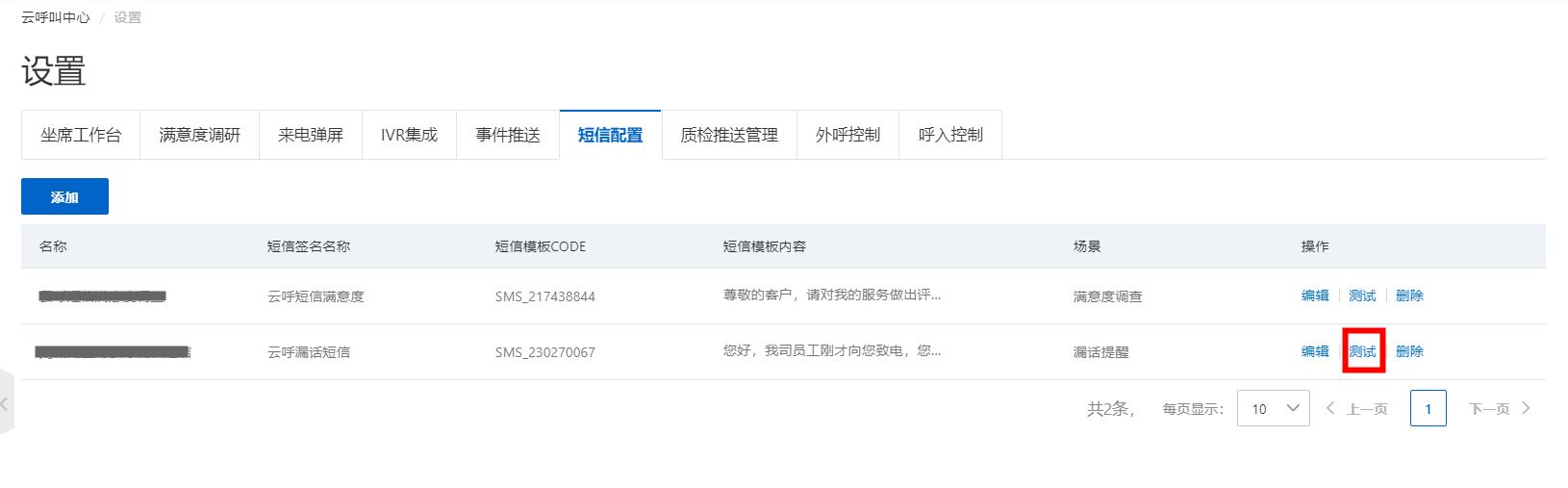
In the dialog box that appears, enter the recipient's mobile phone number. If the SMS template contains variables, enter values for the variables. Then, click Send.
The text message is sent to the mobile phone. In the example message shown in the following figure, the numbers are variables, and "Cloud Contact Center" at the beginning of the message is the SMS signature name.
FAQ
What should I do if Cloud Contact Center reports a successful delivery, but the text message is not received?
Go to the Short Message Service console and check the delivery failure details for the day to determine the specific reason. If the problem persists, submit a ticket to Short Message Service.