This topic describes a self-troubleshooting flow for resolving audio issues—such as not hearing the other person or them not hearing you—while using Cloud Call Center.
How do I troubleshoot audio issues during calls?
First, always use the latest version of Google Chrome to log on to the agent workspace. On your first use, place a test call to your own mobile phone or a friend’s phone to confirm both parties can hear each other clearly.
I use a laptop and a standard single-earphone mobile headset.
This issue is usually caused by selecting the wrong speaker or microphone for the call center. Rarely, it may result from a laptop hardware fault or using a browser other than Google Chrome.
Log on to the call center using Google Chrome, plug in your headset, and click Device detection at the top of the page. On the new page that opens, run the test. Success means you can hear your own voice through the headset.
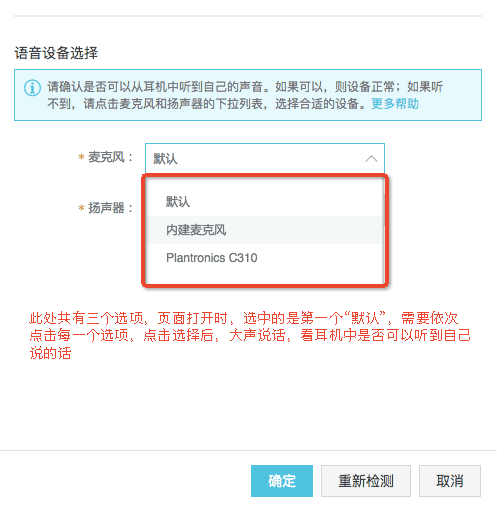
In the microphone drop-down menu, click each option in sequence. After selecting an option, speak loudly and check whether you can hear your own voice through your headphones. If you cannot hear it, continue to click the next option in the microphone drop-down menu and speak loudly again. Repeat this process until you have tried all options.
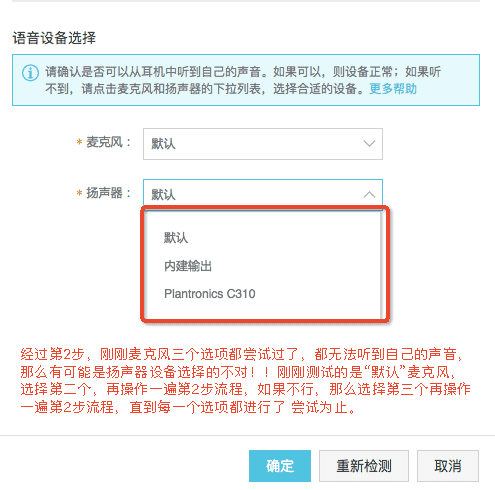
If you still don’t hear your voice, go to the speaker drop-down menu, choose the next option, and repeat step 2. Continue this loop until you’ve tested every option in the speaker menu.
 (If you identify working microphone and speaker settings through these steps, remember to click OK on the device detection page. Calls will then work normally.)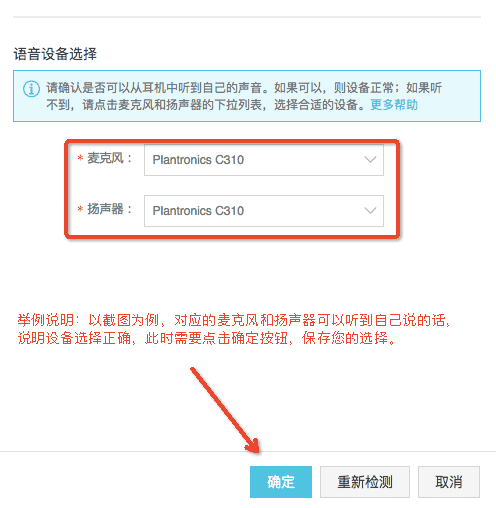
If audio still doesn’t work, try making a voice or video call using another app such as QQ or WeChat to see if communication works there.
You can also use the built-in Voice Recorder app in Windows to record a short audio clip and check whether the exported file contains sound. The Voice Recorder is typically found at: Start > Programs > Accessories > Voice Recorder. On newer Windows versions, search for “Voice Recorder” to locate it.
If you still can’t hear yourself—but steps 4 and 5 work fine—submit a ticket. Our support team will assist you directly.
Finally, we do not recommend using standard mobile headsets for work. For laptops, use a USB headset instead.
2. Other scenarios
For other situations, see Device detection usage guide.
3. Additional notes
If you’re using a laptop with a mobile headset but the call uses your laptop’s built-in microphone instead of the headset’s mic, it will sound like you’re on speakerphone. The other party may hear you faintly or with background noise. This is normal. Speak louder and use a quiet environment for calls.
The call center currently does not support mobile browsers. Use only desktop browsers.
If you’re using a professional headset (not a mobile headset) and occasionally hear static, the issue is likely due to poor signal quality on the caller’s mobile device.