Associated forwarding
After traffic enters a transit router through a network instance connection, the transit router forwards the traffic based on the route table that is associated with the connection.
Limits
Associated forwarding relationships can be created only for route tables of an Enterprise Edition transit router.
A network instance connection can establish an associated forwarding relationship with only one route table of an Enterprise Edition transit router.
If one end of an inter-region connection is a Basic Edition transit router, the inter-region connection cannot establish an associated forwarding relationship with a custom route table of an Enterprise Edition transit router.
How it works
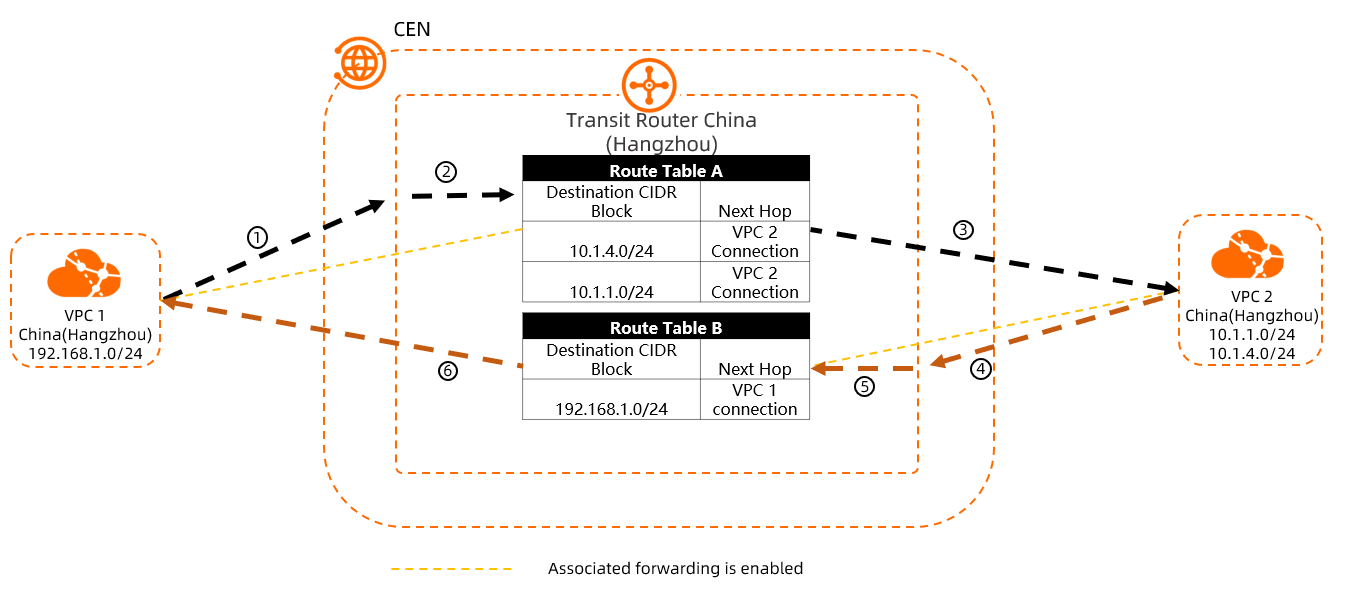
In the preceding figure, a transit router in the China (Hangzhou) region is already connected to VPC1 and VPC2, where:
An associated forwarding relationship is established between the VPC1 connection and Route Table A.
An associated forwarding relationship is established between the VPC2 connection and Route Table B.
When a client in VPC1 wants to access a server in the 10.1.1.0/24 CIDR block in VPC2, the access process is as follows:
| No. | Description |
|---|---|
| ① | A client in VPC1 initiates access to a server in the 10.1.1.0/24 CIDR block in VPC2. |
| ② | An associated forwarding relationship is established between the VPC1 connection and Route Table A. Therefore, after the access request from VPC1 reaches the transit router, the transit router queries Route Table A for the route entry of the 10.1.1.0/24 CIDR block. |
| ③ | The transit router forwards the access request from VPC1 to VPC2. |
| ④ | VPC2 receives the access request and sends a reply packet to VPC1. |
| ⑤ | An associated forwarding relationship is established between the VPC2 connection and Route Table B. Therefore, after the reply packet from VPC2 reaches the transit router, the transit router queries Route Table B for the route entry of the 192.168.1.0/24 CIDR block. |
| ⑥ | The transit router finds the route entry of the 192.168.1.0/24 CIDR block in Route Table B and forwards the reply packet from VPC2 to VPC1. |
Create an association
On the Route Table Association tab of the target transit router route table, click Create Association. In the Add Association dialog box, configure the following parameters, and then click OK.
| Parameter | Description |
|---|---|
| Route Table | The current route table is selected by default. |
| Transit router that the route table belongs to | The current transit router instance is selected by default. |
| Association | Select the network instance connection that you want to associate with this route table. After the association is created, the Enterprise Edition transit router queries this route table to forward traffic from the network instance. |
Delete an association
After a network instance is disassociated from a transit router route table, the network instance can no longer communicate with other network instances through the transit router. Proceed with caution.
If route synchronization is enabled for the network instance, the system automatically withdraws the routes that have already been synchronized to the network instance after the network instance is disassociated from the transit router route table.
On the Route Table Association tab of the target transit router route table, find the target network instance connection, and then click Delete in the Actions column.
In the Delete Route Table Association dialog box, confirm the information, and then click Confirm.
References
AssociateTransitRouterAttachmentWithRouteTable: creates an associated forwarding relationship.
ListTransitRouterRouteTableAssociations: queries the associated forwarding relationships that have been created for a route table of an Enterprise Edition transit router.
DissociateTransitRouterAttachmentFromRouteTable: removes an associated forwarding relationship.