Prefix lists
You can associate the route table of an Enterprise Edition transit router with a VPC prefix list. Once associated, the system automatically adds a route for each CIDR block in the prefix list to the transit router's route table.
Background
After you create a VPC connection, you can manually add route entries to customize how the route table of an Enterprise Edition transit router learns VPC routes. This lets you define custom network connectivity. However, if you have a large number of VPC routes, adding them one by one is tedious and time-consuming. You can associate the route table with a VPC prefix list to add VPC routes in batches, which simplifies your network operations.
To add VPC routes in batches, add the CIDR blocks of a VPC to a prefix list in the VPC console. Then, in the Cloud Enterprise Network (CEN) console, associate that prefix list with the route table of an Enterprise Edition transit router.
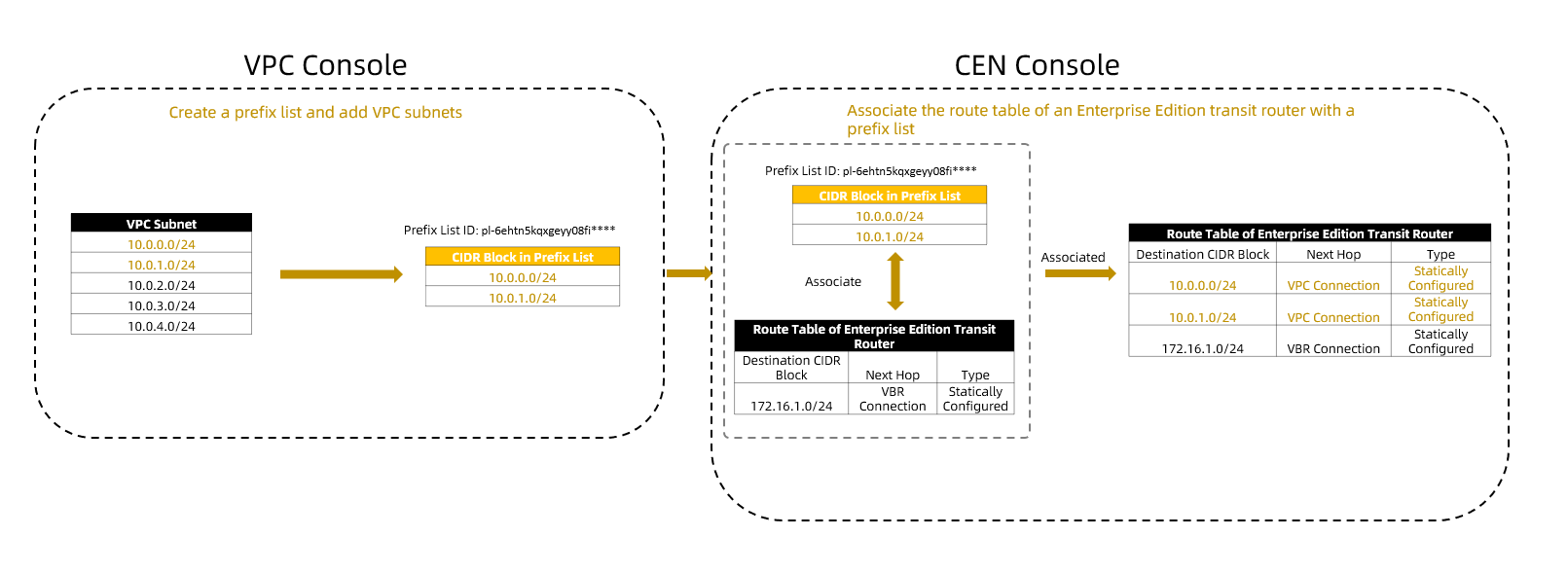
This topic describes how to associate a prefix list with the route table of an Enterprise Edition transit router. To learn how to create a prefix list and add CIDR blocks, see Create and manage a prefix list.
Limitations
You can associate prefix lists only with route tables of Enterprise Edition transit routers.
When you associate a route table of an Enterprise Edition transit router with a prefix list, you can specify the CIDR blocks in the prefix list as blackhole routes, or set the next hop for the CIDR blocks to a VPC connection, a VBR connection, an ECR connection, or an inter-region connection.
When you associate or modify a prefix list, if the number of new route entries exceeds the route table's remaining quota, the association or modification fails.
For example, a route table of an Enterprise Edition transit router can contain a maximum of 2,000 route entries. If the route table already contains 1,960 route entries, the prefix list to be associated or modified can contain a maximum of 40 CIDR blocks. Otherwise, the association fails or the modification will not take effect.
If you modify an associated prefix list and a resulting route entry is incompatible with an existing route in the route table, the new entry is not applied. Until the incompatibility is resolved, any subsequent changes to the prefix list will also not be applied to the route table. The system saves these pending changes and applies them automatically after you resolve the incompatibility.
You can use one of the following methods to resolve the route incompatibility:
In the prefix list, remove the CIDR block that causes the incompatibility.
In the transit router's route table, delete the incompatible route entry.
After you delete the route entry, go to the VPC console. On the Associate tab of the prefix list, click Retry. The system then reapplies the pending CIDR block changes. To find the Associate tab, see View a prefix list.
For more information about route entry compatibility, see Route compatibility rules.
Route compatibility
When you associate a prefix list with a route table of an Enterprise Edition transit router, or modify an associated prefix list, the operation fails if any resulting routes are incompatible with existing route entries. The following sections describe the compatibility requirements.
Static route compatibility
The compatibility requirements for the prefix list vary based on the next hop type of the static route entries. The following table describes the requirements.
Next hop type | Compatibility requirement | Example | Impact |
VPC connection | A CIDR block in the prefix list cannot be identical to the destination CIDR block of an existing route entry in the route table. | If the route table contains a static route with the destination CIDR block 10.10.10.0/24, the prefix list to be associated or modified cannot include the CIDR block 10.10.10.0/24. | The association or modification fails. |
blackhole route | |||
VBR connection | If a CIDR block in the prefix list matches the destination of an existing route, its specified next hop must be a VBR connection, an ECR connection, or an inter-region connection. | If the route table contains a static route with the destination CIDR block 10.10.10.0/24, and the prefix list to be associated or modified includes the CIDR block 10.10.10.0/24, the next hop for the CIDR block in the prefix list must be a VBR connection, an ECR connection, or an inter-region connection. | |
ECR connection | |||
inter-region connection |
Dynamic route compatibility
The compatibility requirements for the prefix list vary based on the original next hop type of the dynamic route entries. The following table describes the requirements.
When you associate a prefix list with a route table or modify an associated prefix list, if the prefix list meets the compatibility requirements, routes from the prefix list have a higher priority than dynamic routes. As a result, the route table of the Enterprise Edition transit router automatically rejects conflicting routes advertised from VBR connections, ECR connections, VPN attachments, or CCN connections.
Source connection type | Compatibility requirement | Example | Impact |
VBR connection | If a CIDR block in the prefix list to be associated or modified is identical to the destination CIDR block of an existing route entry, the next hop for that CIDR block in the prefix list must be a VBR connection, an ECR connection, or an inter-region connection. | If the route table has a dynamic route to the destination CIDR block 10.10.10.0/24, and the prefix list to be associated or modified includes the CIDR block 10.10.10.0/24, the next hop for the CIDR block in the prefix list must be a VBR connection, an ECR connection, or an inter-region connection. | The association or modification fails. |
ECR connection | |||
VPN attachment | |||
CCN connection |
| Assume the route table has a dynamic route to the destination CIDR block 10.10.10.0/24:
| |
Other types | The CIDR blocks in the prefix list to be associated or modified cannot be identical to the destination CIDR block of an existing route entry in the route table. | If the route table has dynamically learned a route with the destination CIDR block 10.10.10.0/24, the prefix list to be associated or modified cannot include 10.10.10.0/24. |
Route advertisement scope
After you associate a prefix list with a route table, the resulting routes are advertised as follows:
If the next hop is an inter-region connection, the resulting routes are advertised only within the current region.
If the next hop is an ECR connection, the resulting routes are advertised only within the current region.
If you specify the CIDR blocks as blackhole routes or specify the next hop as a VPC connection or a VBR connection, the resulting routes are advertised throughout the entire CEN instance.
WarningIf you specify a VBR connection as the next hop, the resulting routes are also advertised to other VBR instances in the same region. This can cause routing loops. Proceed with caution.
Prerequisites
You have created a prefix list in the VPC console. For more information, see Create and manage a prefix list.
To associate the route table with a prefix list that belongs to another account, ensure the prefix list has been shared with the Alibaba Cloud account (main account) that owns the route table. To learn how to share prefix list resources, see What is Resource Sharing.
Associate a prefix list
Log on to the CEN console.
On the CEN Instance page, click the ID of the CEN instance that you want to manage.
Go to the tab and click the ID of the transit router that you want to manage.
On the details page of the transit router, click the Route Table tab.
In the left-side pane, click the ID of the target route table. On the details page of the route table, click the Route Prefix tab, and then click Associate With Route Prefix.
In the Associate With Route Prefix dialog box, set the following parameters and click OK.
Parameter
Description
Route Prefix ID
Select a prefix list.
Blackhole Route
Specify the next hop for the CIDR blocks in the prefix list. Valid values:
Yes: Sets all CIDR blocks in the prefix list as blackhole routes. All traffic destined for these CIDR blocks is dropped.
No: The CIDR blocks in the prefix list are not specified as blackhole routes. You must set a next hop for the CIDR blocks.
All CIDR blocks in a prefix list share the same next hop.
Next Hop
Select a next hop.
After the association, the system automatically adds a route for each CIDR block in the prefix list to the route table. You can view these route entries on the Route Entry tab.
To change the next hop of the CIDR blocks in a prefix list, first disassociate the list from the route table, and then re-associate it with the new next hop.
Disassociate a prefix list
After you disassociate a prefix list, the system automatically withdraws all related route entries from the route table. Before you disassociate a prefix list, migrate any affected workloads to prevent network disruptions.
Log on to the CEN console.
On the CEN Instance page, click the ID of the CEN instance that you want to manage.
Go to the tab and click the ID of the transit router that you want to manage.
On the details page of the transit router, click the Route Table tab.
In the left-side pane, click the ID of the target route table.
On the details page of the route table, click the Route Prefix tab, find the target prefix list, and in its Actions column, click Delete.
In the Delete dialog box, confirm the information about the prefix list, and then click OK.
References
CreateTransitRouterPrefixListAssociation: Associates a route table of an Enterprise Edition transit router with a prefix list.
DeleteTransitRouterPrefixListAssociation: Disassociates a route table of an Enterprise Edition transit router from a prefix list.
ListTransitRouterPrefixListAssociation: Lists the prefix lists that are associated with a route table of an Enterprise Edition transit router.