Best practices for authentication templates
Create and integrate WhatsApp authentication templates that deliver one-time passwords (OTPs) via a copy code button or one-tap autofill button.
Background information
WhatsApp launched authentication templates with OTP buttons on May 1, 2023. Since May 29, 2023, all new authentication templates must include an OTP button, as defined in WhatsApp message templates.
Template composition
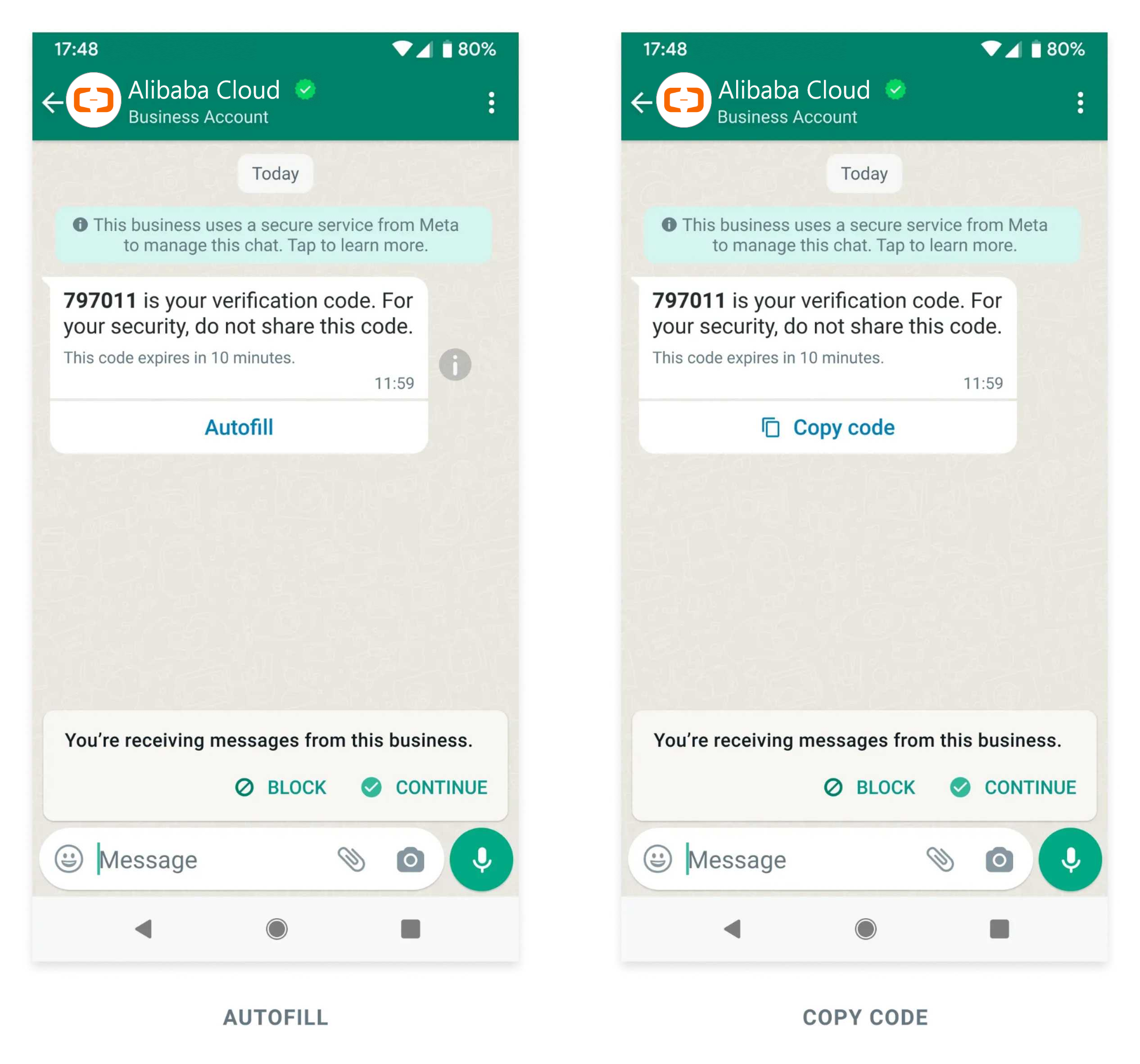
An OTP authentication template consists of these components:
Component | Content | Required |
Preset text |
| Yes |
Security recommendation |
| No |
Expiration warning |
| No |
Button | A copy code button or a one-tap autofill button. | Yes |
Example:
Template limits
Constraint | Detail |
Allowed content | Preset text and a button only |
Prohibited content | URLs, media resources (images, audios, videos, files), and emojis |
OTP maximum length | 15 characters |
Button types
An authentication template must contain one of the following button types:
Copy code button
When a user taps the copy code button, the OTP is copied to the clipboard. The user then switches to your app and pastes the OTP into the app interface.
One-tap autofill button
When a user taps the one-tap autofill button, your app is automatically loaded and the OTP is passed to the app.
The one-tap autofill button provides the best user experience but is Android-only. It requires a Handshake and a configured App signing key hash.
Best practices
Confirm the WhatsApp phone numbers before you send OTPs.
Make it clear to users that OTPs will be delivered to their WhatsApp phone numbers, especially if you provide users with multiple options to receive OTPs.
After your app receives the OTP, whether by user paste or by one-tap autofill, make it clear to users that your app has received the code.
Parameters
Use the following parameters to create an authentication template.
Required parameters
Parameter | Type | Description | Example |
COMPONENTS | Array | Array of objects describing the template components. | - |
LANGUAGE | String | The language code of the template. | en_US |
NAME | String | The template name. Supports only lowercase letters, underscores (_), and digits. Maximum 60 characters. | verification_code |
WHATSAPP_BUSINESS_ACCOUNT_ID | String | The WhatsApp Business Account (WABA) ID to associate with the template. | 106\*\*\*\*\*\*\*\*\*\*\*06 |
OTP_TYPE | Enum | The button type. Set this parameter to | ONE_TAP |
COPY_CODE_BUTTON_TEXT | String | The text of the copy code button. The value can be up to 25 characters in length. | Copy Code |
You must specify the COPY_CODE_BUTTON_TEXT parameter even if the template uses the one-tap autofill button. If the handshake cannot be validated, the authentication template message will fall back to displaying the copy code button with this text.
Optional parameters
Parameter | Type | Description | Example |
ADD_SECURITY_RECOMMENDATION | Boolean | If | true |
CODE_EXPIRATION_MINUTES | Integer | OTP validity period in minutes. Valid values: 1 to 90. If unspecified, no expiration warning is displayed. | 5 |
One-tap autofill parameters
These parameters are required only when OTP_TYPE is ONE_TAP.
Parameter | Type | Description | Example |
ONE_TAP_BUTTON_TEXT | String | The text of the one-tap autofill button. The value can be up to 25 characters in length. | Autofill |
PACKAGE_NAME | String | The package name of the Android app. | com.example.myapplication |
SIGNATURE_HASH | String | Your app signing key hash, as described in App signing key hash. | K8a%2FAINcGX7 |
App signing key hash
To use the one-tap autofill button, include your app signing key hash in the components array.
To calculate your hash, follow the instructions provided by Google in Computing your app's hash string.
If you download your app signing key certificate as instructed by Google, you can use the certificate together with the sms_retriever_hash_v9.sh shell script to calculate the hash.
Handshake
Your app must perform a handshake with WhatsApp before sending an authentication template message with the one-tap autofill button:
A user of your app requests an OTP and chooses to receive it through their WhatsApp phone number.
Your app performs a handshake by sending an intent to the WhatsApp client.
Your app calls the API to send an authentication template message.
The WhatsApp client receives the message and runs eligibility checks.
If the message passes all eligibility checks, the WhatsApp client starts the intent and displays the message to the user.
When the user taps the one-tap autofill button, the WhatsApp client loads your app and passes the OTP to your app.
If you do not perform a handshake before the message is sent, or if the message fails an eligibility check, the delivered message will contain a copy code button instead of a one-tap autofill button.
Eligibility checks
The WhatsApp client runs these checks on each authentication template message. If any check fails, the one-tap autofill button falls back to the copy code button.
# | Check | Detail |
1 | Handshake timing | The handshake is initiated within 10 minutes before the message is sent. |
2 | Package name match | The app package name in the message matches the app package name set on the intent. The app package name in the message is the value of |
3 | Signing key hash match | The app signing key hash in the message (the value of |
4 | Button text presence | The message contains the text of the one-tap autofill button. |
5 | Activity defined | Your app defines an Activity to receive the OTP. |
Android notifications
An Android notification for a WhatsApp authentication template message appears on the user's device only when all of the following conditions are met:
# | Condition |
1 | The user is logged in to the WhatsApp app or the WhatsApp Business app with the phone number or account that receives the message. |
2 | The user is logged in to your app. |
3 | The Android operating system is KitKat (4.4, API 19) or later. |
4 | Show notifications is enabled under Settings > Notifications in the WhatsApp app or WhatsApp Business app. |
5 | Device-level notification is enabled for the WhatsApp app or WhatsApp Business app. |
6 | Previous messages between the user and your enterprise in the WhatsApp app or WhatsApp Business app are not muted. |
Client implementation
Implement the activity, class, and handshake in your Android app as follows.
Activity
Declare an activity and intent filter to receive the OTP. The intent filter must contain the action com.whatsapp.otp.OTP_RETRIEVED.
The WhatsApp client initiates this activity immediately after the message is received and passes all eligibility checks.
Public class
Define the activity public class to accept the OTP passed to your app.
Initiate a handshake
The following Java example initiates a handshake by sending an intent to both the WhatsApp app and the WhatsApp Business app:
public void sendOtpIntentToWhatsApp() {
   // Send OTP_REQUESTED intent to both WA and WA Business App
   sendOtpIntentToWhatsApp("com.whatsapp");
   sendOtpIntentToWhatsApp("com.whatsapp.w4b");
}

private void sendOtpIntentToWhatsApp(String packageName) {

  /**
  * Starting with Build.VERSION_CODES.S, it will be required to explicitly
  * specify the mutability of  PendingIntents on creation with either
  * (@link #FLAG_IMMUTABLE} or FLAG_MUTABLE
  */
  int flags = Build.VERSION.SDK_INT >= Build.VERSION_CODES.S ? FLAG_IMMUTABLE : 0;
  PendingIntent pi = PendingIntent.getActivity(
      getApplicationContext(),
      0,
      new Intent(),
      flags);


  // Send OTP_REQUESTED intent to WhatsApp
  Intent intentToWhatsApp = new Intent();
  intentToWhatsApp.setPackage(packageName);
  intentToWhatsApp.setAction("com.whatsapp.otp.OTP_REQUESTED");
  // WA will use this to verify the identity of the caller app.
  Bundle extras = intentToWhatsApp.getExtras();
  if (extras == null) {
     extras = new Bundle();
  }
  extras.putParcelable("_ci_", pi);
  intentToWhatsApp.putExtras(extras);
  getApplicationContext().sendBroadcast(intentToWhatsApp);
}
Error signals
If a message fails an eligibility check, the one-tap autofill button falls back to the copy code button. Notifications may also be blocked by the device or WhatsApp client. For debugging, the WhatsApp client sends error information through the com.whatsapp.otp.OTP_ERROR intent, returning an error key and message instead of an OTP.
Some error signals appear only in an Android emulator.
Error key | Description | Emulator only |
| The Android version is not compatible. This error occurs when you initiate a handshake by sending the | No |
| The signature hash is incorrect. This error occurs when you initiate a handshake and the WhatsApp client receives an authentication template message with the one-tap autofill button, but the package name in the message does not include the correct signature hash. | Yes |
| The handshake or operation instruction is lacking. This error occurs when the WhatsApp client receives an authentication template message with the one-tap autofill button but no handshake has been initiated. | No |
| The OTP request has expired. This error occurs when you initiate a handshake but the authentication template message is delivered to the user more than 10 minutes later. The one-tap autofill button is replaced with the copy code button. | No |
| Message notifications are disabled in the WhatsApp app or WhatsApp Business app. This error occurs when you initiate a handshake but the user has disabled message notifications in the WhatsApp client. | Yes |
| WhatsApp notifications are disabled on the device. This error occurs when you initiate a handshake but the user has disabled notifications for the WhatsApp app or WhatsApp Business app at the device level. | Yes |
Error signal integration
Error signals are delivered through broadcasted intents. To receive them, implement BroadcastReceiver.
In manifest.xml
<receiver
 android:name=".app.otp.OtpErrorReceiver"
 android:enabled="true"
 android:exported="true" >
   <intent-filter>
       <action android:name="com.whatsapp.otp.OTP_ERROR"/>
   </intent-filter>
</receiver>
In receiver class
public class OtpErrorReceiver extends BroadcastReceiver {
    public static final String OTP_ERROR_KEY = "error";
    public static final String OTP_ERROR_MESSAGE_KEY = "error_message";

    @Override
    public void onReceive(Context context, Intent intent) {
        try {
            PendingIntent pendingIntent = intent.getParcelableExtra("_ci_");
            if (pendingIntent != null) {
                String packageName = pendingIntent.getCreatorPackage();
                if (packageName.equalsIgnoreCase("com.whatsapp")
                        || packageName.equalsIgnoreCase("com.whatsapp.w4b")) {
                    String otpErrorKey = intent.getStringExtra(OTP_ERROR_KEY);
                    String otpErrorMessage = intent.getStringExtra(OTP_ERROR_MESSAGE_KEY);
                    // Handle errors
                }
            }
        } catch (BadParcelableException e) {
            Log.e("OtpErrorReceiver", e.getLocalizedMessage());
        }
    }
}
Sample app
The WhatsApp OTP Sample App on GitHub demonstrates sending and receiving OTPs via API, integrating both button types, creating templates, and starting a sample server.