Overview
The heatmap feature visualizes execution metrics for each component in your message flow, including runs, run percentage, and errors. Use it to identify bottlenecks, optimize flow design, and improve responsiveness.
View heatmap data
-
Log in to the Chat App Message Service console. In the left-side navigation pane, click Chat Flow
-
Select the target flow and click the Flow Name
-
On the flow editing page, click the Heatmap tab.
-
On the heatmap page, select a Time Range. By default, the heatmap shows data for the current day.
-
(Optional) To view data for a different version, click the Historical Versions icon on the left side of the editing canvas and select the version you want to analyze.
Understanding the metrics
If you move or change components within the same flow version, set a precise time range to prevent data discrepancies.
The heatmap displays the following metrics:
-
Runs:
The total number of times a component executed during the selected time range, shown as a green badge.
For example,
1 run (100.00%)means the component ran once. -
Run percentage:
The ratio of component runs to total flow triggers, shown as a green badge.
For example,
1 run (100.00%)means the component ran once, accounting for 100% of total flow triggers.NoteA percentage over 100% means the component ran more times than the flow was triggered, typically because it is part of a loop or is invoked multiple times by another component.
-
Errors:
The number of execution errors during the selected time range, shown as a red badge. Click the badge to view error details.
For example,
2 errorsmeans the component encountered two exceptions or failures. -
Not triggered:
The component did not execute during the selected time range, shown as a gray badge.
Example diagram analysis
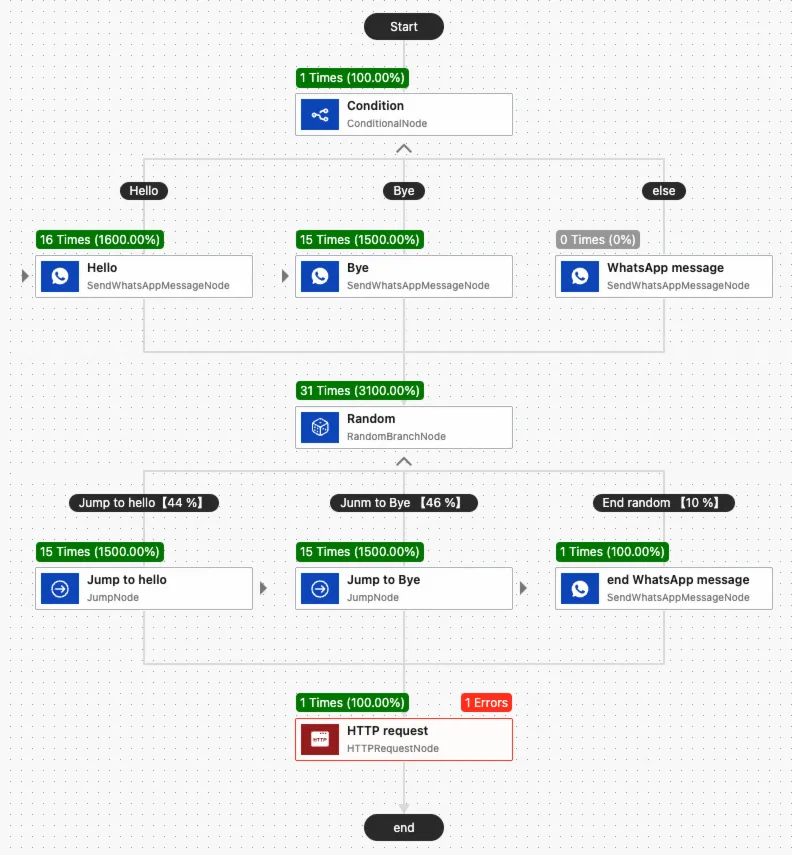
The example diagram shows a flow with the following logic:
-
A mobile originated message from a user triggers the flow. The message first passes through the Branching by Conditions component, which checks if the message content matches the keywords "Hello" or "Bye". If there is no match, the flow takes the
elsebranch. -
Regardless of the branch taken, the flow enters a Random Branch component with three possible outcomes:
-
A 44% chance of jumping to the "Hello" component.
-
A 46% chance of jumping to the "Bye" component.
-
A 10% chance of ending the flow and returning a corresponding message.
-
-
The flow then enters an HTTP Request component and ends.
Example data analysis
In this example, the flow triggered once during the selected time range. The resulting data is as follows:
-
Branching by Conditions: Triggered once, with a run percentage of 100%. As the first component in the flow, its run count equals the total number of flow triggers, establishing the baseline for the run percentages of other components.
-
"Hello" component: Triggered 16 times. This total includes:
-
1 run triggered by an incoming mobile originated message matching the keyword.
-
15 runs triggered by jumps from the Random Branch component.
The total number of runs is 16, for a run percentage of 1600% (16 component runs ÷ 1 flow trigger).
-
-
"Bye" component: Triggered 15 times.
-
The send WhatsApp message component under the else branch: not triggered (0 runs).
Other components follow a similar pattern. The Random Branch component triggered 31 times: 15 runs jumped to the "Hello" component, 15 jumped to the "Bye" component, and one ended the flow.