Create, design, and manage email templates in ChatApp Message Service.
Prerequisites
-
You have activated Direct Mail.
-
You have created an email channel and bound a sender address.
Create a template
On the page, click the Channel ID of the desired email channel.
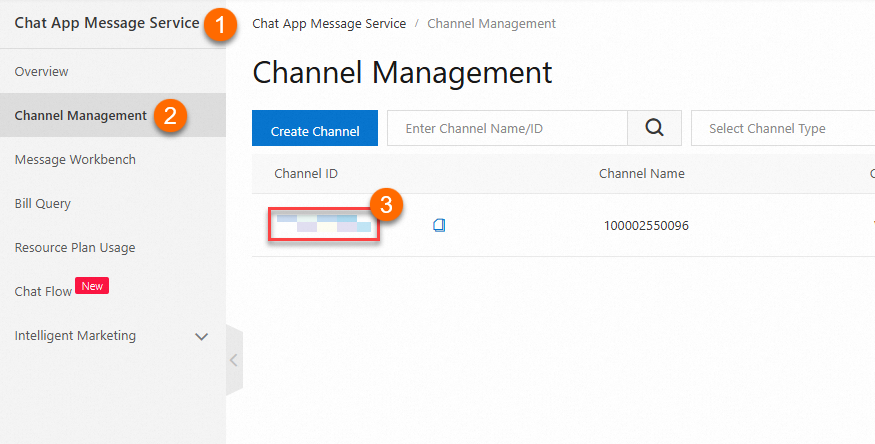
-
Go to the Template Design page and click Add. In the dialog box, configure the settings and click OK.
Note-
Bulk email sender addresses can only create and send marketing templates.
-
Triggered email sender addresses can create and send utility and authentication templates.
Fill in the required fields: Template Name, Category, and Language.
-
After creation, the template edit page opens automatically.
Design template content
-
Configure the template fields based on the type you selected.
Email Subject: Subject line shown to recipients.
Sender Name: Name shown to recipients.
In the Message Body section, use the rich text editor to compose the email.
Note-
To use a variable, click Insert Variable.
-
To add an image, click Add Image and select a URL or the Material Library as the source.
-
-
After you finish, click Save and then Submit.
Delete a template
On the page, click the Channel ID of the desired email channel.
-
Go to the Template Design page, find the template and click Delete.
-
In the dialog box, click OK.