How do I resolve OOM issues on a Cloud Backup client?
If an out-of-memory (OOM) issue occurs on the machine where the Cloud Backup client is installed, the backup job fails. You can resolve OOM issues by increasing CPU and memory resources, splitting the backup directory into multiple directories, setting traffic shaping, or reducing the client's resource consumption. This topic describes how to resolve OOM issues.
Background information
When you use Cloud Backup to back up a large volume of data on a machine with insufficient system resources, the Cloud Backup client may consume excessive resources. This can cause an OOM issue. If an OOM issue occurs, the system stops the backup process, which causes the backup job to fail.
If you encounter an OOM issue, you can increase the memory or CPU capacity of the machine where the Cloud Backup client is installed. You can also try to resolve the issue using the methods described in this topic. For more information about how to handle common backup failures, see How do I handle backup failures?.
Method 1: Split the backup directory
You can split the source path in the backup plan into multiple directories.
In the same backup plan, backup jobs for the split directories run sequentially. Because the data volume in each split directory is smaller than the original large directory, each backup job consumes fewer resources. For example, the source path in your backup plan is as follows:
-/backup
--/path1
--/path2
--/path3
You can modify the backup plan to split the source path into three directories.
After you split the path, the backup plan uses the new directories. Existing backups and restore jobs are not affected.
-/backup/path1
-/backup/path2
-/backup/path3
Method 2: Set traffic shaping for a backup plan
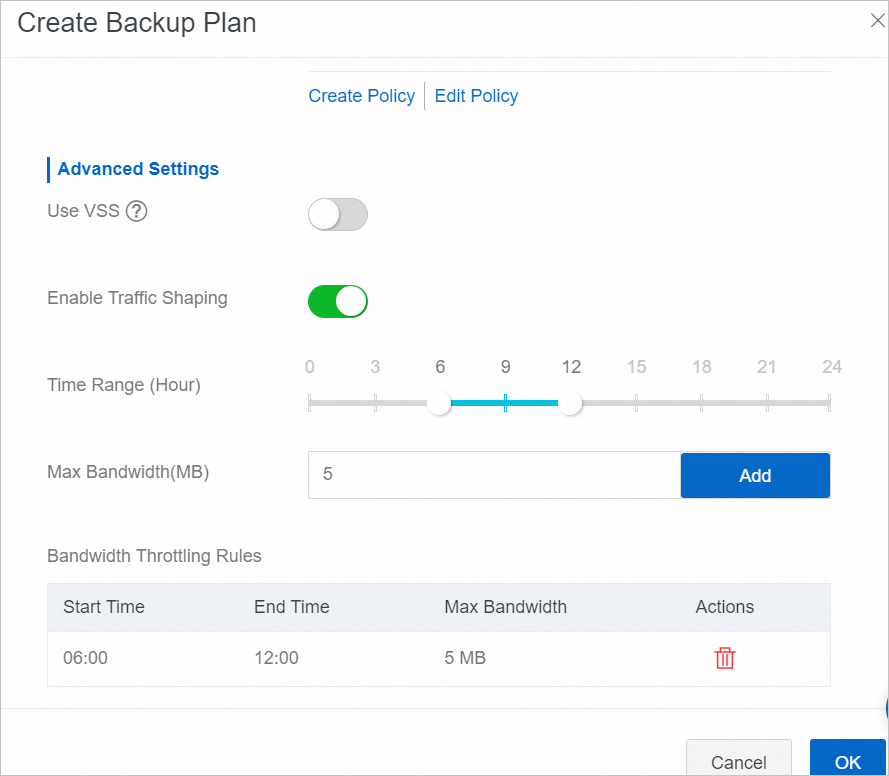
In the Cloud Backup console, find the backup plan for the data source. Edit the backup plan, enable traffic shaping, and then set the traffic shaping parameters.
Method 3: Reduce the resource consumption of the backup client
You can modify the configuration file of the Cloud Backup client to control the number of concurrent files. This limits the memory resources that the Cloud Backup client can use.
This method does not apply to backing up anti-ransomware files on Security Center servers.
Log on to the server that hosts the files to be backed up.
Find and open the installation path of the Cloud Backup client.
Linux
Default installation path of the new Cloud Backup client: /opt/alibabacloud/hbrclient
Default installation path of the old Cloud Backup client: /opt/alibabacloud/hbr/
Windows operating system
Default installation path of the new Cloud Backup client: C:\Program Files\Aliyun Hybrid Backup Service Client
Default installation path of the old Cloud Backup client: C:\Program Files\Aliyun Hybrid Backup Service
If the
hbr.configfile does not exist, create thehbr.configfile in theclientfolder.NoteThe
hbr.configfile must be at the same level as theidsfile.Add the following parameters to the
hbr.configfile.You can modify the Cloud Backup client configuration file to control the number of cache files and concurrent files. This reduces memory usage during a file backup. For more information about the memory requirements for a file backup, see Resource requirements for backup.
The following example shows the configuration in the
hbr.configfile:max_file_workers=5 max_blob_uploader=16You can also download the hbr.config file.
Parameter
Description
max_file_workers
The number of files or directories that can be backed up concurrently. The default value is 10.
max_blob_uploader
The number of file blocks that can be uploaded concurrently. The default value is 32.
References for handling backup faults
If the issue persists, submit a ticket.