Back up ECS files
Back up all directories and files on your Elastic Compute Service (ECS) instances with Cloud Backup to prevent data loss from accidental deletion or server viruses. Cloud Backup supports flexible backup policies and lets you view and restore data at any time.
Prerequisites
Cloud Backup is activated. Activation is free, but using ECS File Backup incurs software usage fees and storage capacity fees.
Notes
-
For optimal backup speed, use a 64-bit dual-core or higher CPU with at least 8 GB of available memory.
-
With 4 GB of available memory, you can back up up to 1 million files totaling 8 TB. For directories with tens of millions of files, use at least 16 GB of available memory.
-
When you first create a backup plan or attach a backup policy, Cloud Backup automatically creates the AliyunServiceRoleForHbrEcsBackup service-linked role to access related resources. Grant permissions when prompted.
-
The ECS backup client requires Cloud Assistant. For ECS instances purchased before December 1, 2017, manually install the Cloud Assistant Agent.
-
Starting from client version 2.31.0, the system automatically excludes specific directories during backup. The default exclusion rules are as follows:
NoteWhen you create a backup plan, you can click the tooltip icon for Exclude System Folders to view the directories that are excluded by default.
The default excluded directories differ for the Basic and Standard editions:
-
Standard Edition
-
Linux file system: By default,
/dev/,/proc/,/sys/,/boot/,/run/,/var/run/,/lost+found/, and the client installation directory are excluded. -
Windows file system: By default,
Users\Administrator\AppData\Local\Microsoft\Windows\UsrClass.dat,Users\Administrator\UsrClass.dat,Users\Administrator\NTUSER.DAT,Users\Administrator\ntuser.dat.LOG*,%SYSTEMDRIVE%\Boot,%SYSTEMDRIVE%\Windows,%VOLUME%\System Volume Information\,%VOLUME%\$Recycle.Bin,%VOLUME%\pagefile.sys,%VOLUME%\hiberfil.sys, and the client installation directory are excluded.
-
-
Basic Edition
-
Linux file system: By default,
/bin/,/usr/bin/,/sbin/,/usr/sbin/,/srv/,/selinux/,/lib/,/lib32/,/lib64/,/boot/,/run/,/dev/,/proc/,/sys/,/lost+found/, and the client installation directory are excluded. -
Windows file system: By default,
Windows\,python27\,Program Files (x86)\,Program Files\,ProgramData\,Boot\,$RECYCLE.BIN\,System Volume Information\,Users\Administrator\NTUSER.DAT,Users\Administrator\ntuser.dat.LOG*,pagefile.sys, and the client installation directory are excluded.
-
-
Video tutorial
Back up ECS files
Create a backup plan
-
At the top of the ECS File Backup page, select the region of the ECS instance to back up, and then click Add ECS File Backup.
NoteIf you are using the Legacy Console (identified by Try New Version in the upper-right corner), go to the ECS Instances tab, find the target instance, and click Back Up in the Actions column.
-
In the Create Backup Plan panel, configure the parameters described in the following table.
Parameter
Description
ECS To Back Up
Select one or more ECS instances to back up. You can create backup plans in batches.
NoteIf you are using the Legacy Console, this parameter is automatically determined by the selected ECS instance and does not need to be configured.
Backup Folder Rule
Specify the directories to back up. Cloud Backup backs up all files and subdirectories in the specified directories.
Select All Folders or Specified Folders.
-
If you select All Folders, select whether to enable Exclude System Folders.
-
If you enable Exclude System Folders, the excluded system directories for Windows and Linux are not included in the backup plan.
You can click the
 icon to the right of Exclude System Folders to obtain the details of the excluded system directories.
 -
If you do not enable Exclude System Folders, all directories are included in the backup plan.
-
-
If you select Specified Folders, you must specify Source Paths. Click Add Folder to specify multiple backup directories.
The backup path rules are as follows:
-
Without a wildcard character (*), you can enter up to eight paths.
-
If you use a wildcard character (*), you can enter only one path. Wildcard characters such as
/*/*are supported. -
Each line must be an absolute path, starting with
/,\\,C:\, orD:\. -
When you use VSS, multiple paths, UNC paths, wildcard characters, and file exclusions are not supported.
-
When you use UNC, VSS, wildcard characters, and file exclusions are not supported. When the backup source contains a UNC path, Windows ACLs are not backed up.
-
Backup File Type
Select All Types or Specified Type.
-
If you select All Types, all file types are backed up, regardless of the file extension.
-
If you select Specified Type, you must specify the file types to back up in the Select File Type box.
Backup Policy
Select a backup policy from the drop-down list.
Cloud Backup backs up data based on the selected policy. A backup policy defines vault encryption, backup interval, retention period, geo-redundancy replication, automatic archiving, and virus scan settings.
If the default policy does not meet your requirements, click Create Backup Policy or Edit Policy to manage policies. Policy Center.
Use VSS
Use Windows Volume Shadow Copy Service (VSS) to accelerate backups. Available only for Windows.
NoteWhen you use VSS, you cannot back up multiple paths or UNC paths, use wildcard characters, or exclude files.
To use VSS, turn on the Use VSS switch.
Enable Bandwidth Throttling
Control backup traffic during peak hours to avoid impacting business operations.
To use traffic shaping, turn on the Enable Bandwidth Throttling switch. Select a Time Range (Hour) as needed, enter the Max Bandwidth (MByte/s) for backups within the time window, and then click Add.
-
-
Click OK to complete the configuration.
Backup running status
|
Backup Running Status |
Description |
|
Preparing |
The backup resource is being prepared (for example, installing the backup client). Backup starts automatically after preparation completes. |
|
Preparation Failed |
Client installation failed. View error details in the console. |
|
Ready |
Client installed, waiting for the first backup to start. |
|
Backing Up |
Backup is normal. Waiting for the next scheduled backup job. |
|
Backing Up (In Progress) |
Backup is normal and a backup job is running. |
|
Paused |
All backup plans for this resource are paused. Enable any backup plan on the backup details page to resume backups. |
|
Stopped |
The backup resource cannot be found (the original resource may have been released). Backup data is automatically deleted after expiration. View expiration times or restore data from the backup history on the backup details page. |
View backup jobs
At the scheduled backup time, Cloud Backup starts the backup job.
The backup progress percentage is a dynamic estimate and is for reference only. The displayed amount of scanned data may be lower than the actual total while the scan is in progress. Only the final status of the backup job confirms its completion.
On the Backup Jobs tab, a Status of Completed indicates that the backup was successful. You can view details for the backup job, such as Total Scanned Data Amount at Source, Completed Backup Data Amount, Data Amount Written to Backup Vault, and Backup Speed. See the tooltips in the Cloud Backup console for descriptions of these metrics.
-
For backup jobs completed on or after June 1, 2025, the Total Scanned Data Amount at Source, Completed Backup Data Amount, and Data Amount Written to Backup Vault display both data volume and file count. For backup jobs completed before this date, only the data volume is displayed.
-
The job list displays only backup job records from the last six months. To access older records, export them using Backup audit reports.
To cancel a one-time backup job that is in progress, click Cancel in the Actions column and confirm the action.
Manage backup content
On the ECS File Backup page, select the region of the target ECS instance and click View Details for that instance to manage its backup content in the Backup History section.
If you are using the Legacy Console, which displays Try New Version in the upper-right corner, go to the Backup Plans tab and click the  icon next to the target instance to perform an operation. The available operations are the same as those shown after you switch the display mode by clicking the
  icon.
icon.
Browse backup files
You can use the Browse feature to view backed-up files. If a backup point has been scanned for viruses, Cloud Backup marks any infected files.
-
In the Backup History section, click Browse in the Actions column for the target backup point.
Alternatively, click the
icon on the right of the backup history to switch the display mode. Then, click the target backup point and select Browse. -
In the Browse panel, you can view the backed-up ECS files.
You cannot download backed-up files directly. Restore them to a specified path first. For example, set Restore Path Type to Specify Path and set Destination Path to /temp/path. Create this path before starting the restore job. After the job completes, files are downloaded to this path.
Extend the retention period of a backup point
Extend the retention period to keep backup data longer.
-
The retention period of a backup point can only be extended, not shortened.
-
The retention period of a backup point that is set to permanent cannot be extended.
-
In Backup History, click the
 icon in the Expires At column for the target backup point.
You can also click the
 icon on the right side of the backup history to switch the display mode. Then, click the target backup point and then the icon to the right of Expires At.
 -
Set a Schedule Time or select Never Expire. Then, click Save.
After the configuration is complete, the new expiration time is displayed in the Expires At column.
Delete backups
Delete backup points created by the backup client.
-
Deleted backup points cannot be recovered. Proceed with caution.
-
If the "Keep at least one backup version" setting is enabled in the backup plan, you cannot delete the latest backup. If you are sure that you want to delete this backup, you must first disable the "Keep at least one backup version" setting in the backup plan.
To delete backup points from the Backup History section in list view, use one of the following methods.
-
To delete a single backup point, find the target backup point, click Delete in the Actions column, and then confirm the deletion.
-
To delete backup points in batches, select the target backup points, click Delete Backup Point below the list, and then confirm the deletion.
Alternatively, click the icon to the right of the backup history to switch the display mode. Then, click the target backup point and select Delete.
Manage backup plans
On the ECS File Backup page, select the region where the target ECS instance is located. Click View Details to the right of the target ECS instance, and then click the Backup Plans tab to manage the backup plans.
If you are using the Legacy Console (indicated by the Try New Version button in the upper-right corner), go to the Backup Plans tab and select the desired action in the Actions column for the target instance.
Run a backup job immediately
In the Actions column of the backup plan, select to start a backup immediately.
Modify a backup plan
-
In the Actions column, click Modify for the backup plan.
-
In the Configure Plan panel, you can modify the basic settings, backup policies, and other configurations as needed.
-
Click OK.
Pause or resume a backup plan
Backup plans are enabled by default. Pause a plan to temporarily stop backups, and resume it when needed.
-
Pause a backup plan: Turn off the switch in the Plan Status column or select in the Actions column. Then, confirm the pause.
After a plan is paused, subsequent jobs will not run. Existing backup points expire based on the retention period. If "Keep at least one backup version" is enabled, the last version is not affected. Billing continues as long as backup points exist.
-
Resume backup plan: You can turn on the switch in the Plan Status column or select in the Actions column.
Delete a backup plan
-
You cannot delete a backup plan if the instance has backups. You must delete the backups first. If you want to stop the backup plan from running before you delete backups, you can pause the plan.
-
Deleted backup plans cannot be recovered. When all backup plans and backup points for an ECS instance are deleted, the instance is removed from the backed-up ECS list.
Select in the Actions column of the backup plan, and confirm the deletion.
Manage the backup client
At the top of the ECS File Backup page, select the region where the target ECS instance is located, click View Details to the right of the target ECS instance, and then manage the backup client in the Client Information area.
If you are using the Legacy Console, which displays Try New Version in the upper-right corner, go to the ECS Instances tab, find the target instance, and select the desired function from the Actions column.
Reinstall the backup client
Before you install the client, you must check the client installation path:
-
If a NAS directory is already mounted to the installation path, you must use the
umountcommand to unmount the NAS directory to avoid accidental deletion of NAS files. -
If other important directories and files exist in the installation path, you must move them to another directory to avoid accidental deletion of important files.
To the right of Client Operation, click . After the reinstallation is complete, the client status changes to Activated.
-
Download the backup client.
-
On the Local File Backup page, on the Local File Data Source tab, click Add Client.
NoteIf you are using the Legacy Console (Try New Version in the upper-right corner), click Add Client on the Clients tab.
-
In the Add Client pane, download the client (Windows or Linux) that matches the operating system of the ECS instance.
-
-
Install the backup client on the ECS instance that you want to back up.
-
Upload the downloaded client to the ECS instance. Upload or download files on the instance details page.
-
The installation method depends on the operating system of the ECS instance.
-
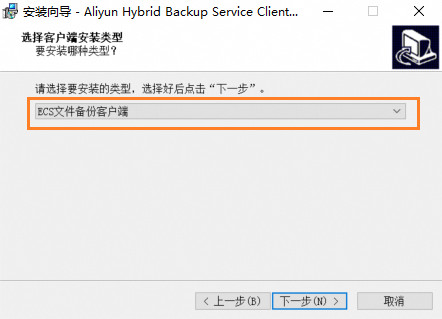
Windows: Decompress the client installation package and double-click the installation program. Follow the on-screen prompts to complete the installation. During installation, select ECS File Backup Client as the installation type.
-
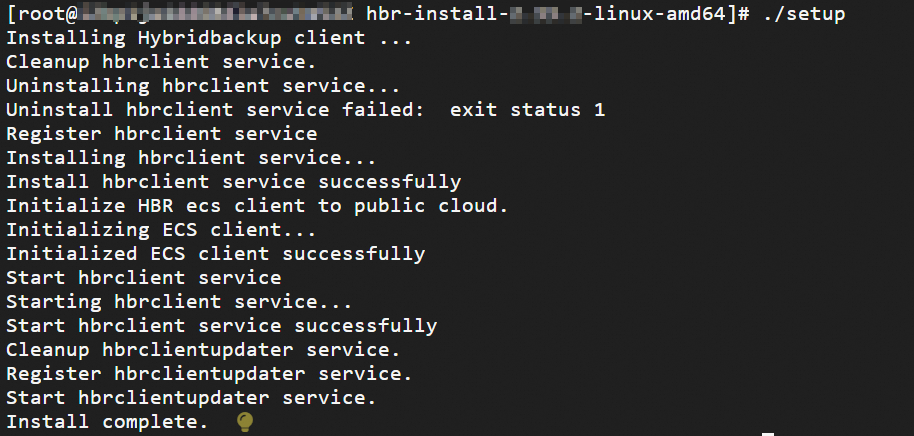
Linux client: Connect to the instance through Workbench, decompress the client installation package, navigate to the directory that contains the client installation file, and then run the
./setupcommand to complete the installation.
-
-
-
Check the status of the backup client on the ECS instance.
On the Backup Details tab for the target ECS instance, verify that the Client Status is Activated.
NoteIf you are using the Legacy Console (with Try New Version in the upper-right corner), check the status on the ECS Instances tab.
If the client status is abnormal, see Troubleshoot and handle abnormal file backup client status, How to check the running status of the Cloud Backup client, and How to view the default installation path and logs of the Cloud Backup client for troubleshooting.
Set client parameters
Next to Client Operation, click Client Settings. Configure the parameters and save. Default configurations are recommended.
|
Client Settings |
Description |
|
Use HTTPS to Transfer Data |
Use HTTPS for data transmission. HTTPS encryption may reduce transfer performance. Changes take effect on the next backup or restore job. Note
This setting only affects data security during transmission. Backup data is always encrypted when stored in the vault, regardless of this setting. |
|
Data Network |
Select VPC or Internet for data transmission. If the client is in an Alibaba Cloud VPC or connected to one through a leased line, select VPC. |
|
Maximum number of worker threads |
Maximum worker threads for the backup client. More threads consume more host resources. Set this value based on evaluation. |
|
Maximum CPU Cores |
Maximum CPU cores for the backup client. More cores consume more host resources. Set this value based on evaluation. |
|
Alarm When Job Partial Completed |
Some system files or files used by other programs may be skipped during backup, resulting in a partially completed job. Enable this to receive alerts for partial completions. To receive alerts for partial completions, turn on the Alarm When Job Partial Completed switch. |
Set retry parameters
If file backup fails due to network instability, configure retry parameters.
-
Log on to the server whose files need to be backed up.
-
Switch to the default installation directory of the Cloud Backup client.
-
In the
clientfolder, create a file namedhbr.config.NoteThe
hbr.configfile is at the same level as thehbrclientandidsexecutables. -
Add the following parameters to the
hbr.configfile.Parameter
Description
retry_times
For client versions 2.16.0 and later, this is the number of retry attempts for data backup. The default is 30.
retry_interval
For client versions 2.16.0 and later, this is the retry interval for data backup. The default is 1000 milliseconds.
skip_error_files
Specifies whether to skip files that fail to back up.
-
false (default): Does not skip files that fail to back up.
-
true: Skips files that fail to back up.
The following code provides a configuration example for the hbr.config file:
retry_times=30 retry_interval=1000 skip_error_files=false -
Uninstall the client
Before you uninstall the client, you must check the client installation path:
-
If a NAS directory is already mounted to the installation path, you must use the
umountcommand to unmount the NAS directory to avoid accidental deletion of NAS files. -
If other important directories and files exist in the installation path, you must move them to another directory to avoid accidental deletion of important files.
To the right of Client Operation, you can select . After the client is uninstalled, its status changes to Unmounted.
Cancel the backup for an ECS instance
-
Canceling the backup deletes all backup data for that instance, causes running backup or restore jobs to fail, stops billing, and removes the instance from the backup list.
-
Before canceling, ensure you no longer need the backup data and no backup or restore jobs are running.
At the top of the ECS File Backup page, select the region of the target ECS instance and click View Details in the Actions column for that instance. On the Backup Details tab, click Stop Backup to the right of Backup Running Status and confirm the cancellation.
If you are using the Legacy Console (Try New Version is displayed in the upper-right corner), on the ECS Instances tab, for the target ECS instance, select in the Actions column and confirm the operation.
Enterprise-grade features
Virus scan
To prevent infected files from being restored to your production environment, Cloud Backup provides the Backup point virus detection feature. This helps you select an uninfected backup point for future restores. On the Backup Details tab, in the Backup History section, find the backup point you want to scan, click ┇ in the Actions column, and then select .
Backup vault replication
To prevent regional disasters or account management risks from affecting business continuity, Cloud Backup supports configuring Cross-region backup or Cross-account backup vault replication for backup vaults where the Storage Vault Type is General Backup. Once configured, data from the source backup vault is automatically synchronized to the destination backup vault, ensuring data consistency between the two locations. You can also perform cross-region data recovery from the destination backup vault as needed.
For general backup vaults storing ECS files, backup vault replication provides cross-region or cross-account disaster recovery.
In addition, ECS File Backup also supports enterprise-grade features such as cross-account backup, automatic archiving, KMS encryption, backup lock, and automatic resource association for backup based on tags.
Troubleshoot backup exceptions
When the Status of a client or backup job is abnormal, refer to the following suggestions.
-
Client Status: Not Installed
-
The backup client is not installed. This ECS instance is not protected by backups. We strongly recommend backing up important data.
-
With ECS File Backup, you do not need to manually install the client. When you create a backup plan, Cloud Assistant installs it automatically. Once installed, the Client Status updates to Activated and displays the version number.
-
-
The backup status is Failed.
-
Follow the on-screen prompts to modify and confirm that the configuration is correct.
-
View the log to locate the specific ErrorCode.
NoteThe default installation paths for the backup client are as follows. Use the actual installation path in your operations.
-
Windows log path: Local Disk (C) > Program Files > Aliyun Hybrid Backup Service Client > logs
-
Linux log path: /opt/alibabacloud/hbrclient/logs
-
-
-
The backup status is Partially Completed.
Download the list of failed files. Check each file and take the suggested action, then rerun the backup job.
NoteIf you used the VSS feature when you backed up files on a Windows ECS instance, the file path in the error message includes shadow_ali_ids, which is the path where VSS snapshot data is located. You can ignore this information. For example, if the error message shows the path
E:\shadow_ali_ids\test, the actual file path isE:\test. -
If you need more assistance, see Online technical support.
References
-
For batch local or geo-redundant ECS backups, or to quickly build and replicate test and development environments, use ECS instance backup.
-
Cloud Backup offers discounted resource plans for various backup scenarios. Resource plan purchase guide.
-
To back up MySQL, Oracle, or SQL Server databases on an ECS instance, see Back up MySQL, Back up Oracle, and Back up SQL Server. Before you back up a database, you need to register the database in the Cloud Backup console.
-
To back up files from a local server to the cloud, see Back up local files.