Restore OSS objects
Restore backed-up OSS objects to the source bucket or a different bucket when files are accidentally deleted or corrupted.
Prerequisites
Before you begin, ensure that you have:
A backup plan for the source OSS bucket with at least one completed backup. For more information, see Back up OSS objects and Back up a large amount of OSS objects using the OSS inventory feature
Billing
Restore operations are free of charge. For more information, see Billing methods and billable items.
Usage notes
Backup and recovery speed values are obtained in a test environment and are for reference only. For more information, see Backup speed and recovery speed.
To restore data to a new OSS bucket, first create a bucket of the Standard storage class in the same region. For more information, see Create buckets.
If you specify a bucket prefix in Restore to Bucket Prefix, create the prefix in the OSS console before creating the restore job.
Procedure
Log on to the Cloud Backup console.
In the navigation pane, choose Backup > OSS Backup.
In the top menu bar, select the region where the OSS bucket resides.
On the Restore Jobs tab, click Create Restore Job.
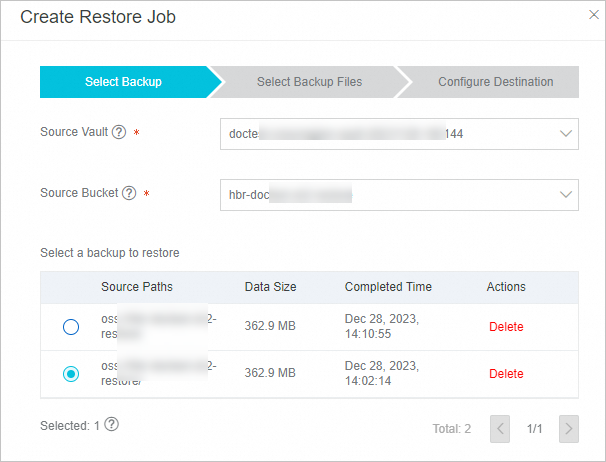
In the Create Restore Job panel, specify the Backup Vault and Backed-up Bucket, select a backup to restore, and then click Next.
NoteEvaluate and select an appropriate historical backup point.
In the Select Backup Files step, configure the Restore Items parameter and click Next.
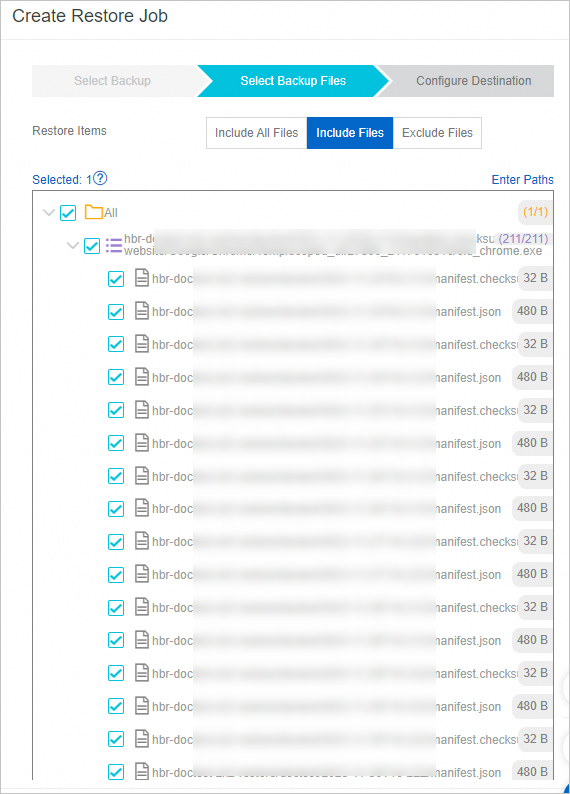
The following options are available for Restore Items:
Option Description Include All Files Restores all objects in the source OSS bucket. Include Files or Exclude Files In the Enter Paths field, specify the objects to include or exclude. Enter one path per line. Each path must start with the source folder. Path format examples:
If the specified OSS prefix is
a/b/and you want to include or exclude thefolderandfile.txtobjects, enter:a/b/folder a/b/file.txtIf no OSS prefix is specified and you want to include or exclude the
folderandfile.txtobjects, enter:folder file.txt
In the Configure Destination step, configure the following parameters and click Create.
Parameter Description Recover to OSS Bucket Select the OSS bucket to restore data to. You can restore to the source OSS bucket or a new bucket, both free of charge. To restore to a new bucket, create a bucket of the Standard storage class in the same region. For more information, see Create buckets. Restore to Bucket Prefix Select a bucket prefix. If left blank, data restores to the root directory of the destination bucket. If you specify a prefix, create the prefix in the OSS console first. Virus Detection During Restoration When enabled, Cloud Backup scans all files for viruses before restoring them. This parameter is available only when virus detection is enabled in the backup policy. For more information, see Backup point virus detection. When Recovery Items Contain Detected Viruses This parameter is available only when Virus Detection During Restoration is enabled. Choose one of the following actions: Do not restore the virus-infected files (You can find secure versions on the Virus Detection tab.) or I am aware of the risks and still want to restore all the selected items.
After the restore job is created, view the progress in the Status column on the Restore Jobs tab.

Troubleshooting
Restore job fails with "The destination path does not exist."
Cause: The bucket prefix specified in Restore to Bucket Prefix during the Configure Destination step does not exist.
Solution: Create the prefix in the OSS console or specify a different prefix, then re-create the restore job.

References
Back up a large amount of OSS objects using the OSS inventory feature - Use the OSS inventory feature to improve backup efficiency and performance for large numbers of objects.
Overview of the data synchronization feature - Synchronize large numbers of OSS objects from a source to a destination.